











장바구니에 상품이 없습니다.

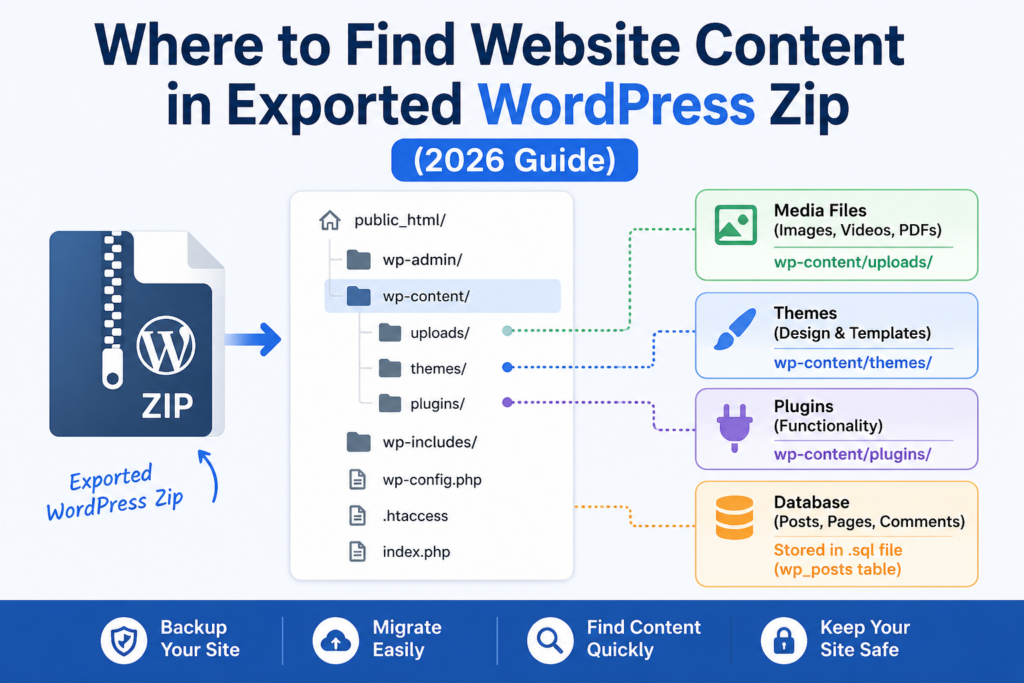
If you’ve ever exported a WordPress site and ended up staring at a ZIP file full of unfamiliar folders and files, you’re not alone. One of the most common questions beginners ask is: where to find website content within exported WordPress zip?
This guide explains exactly what’s inside that export file, where your actual content lives, and how to make sense of everything—even if you’ve never touched WordPress files before. By the end, you’ll clearly understand how WordPress organizes content and how to locate posts, pages, media, and more.
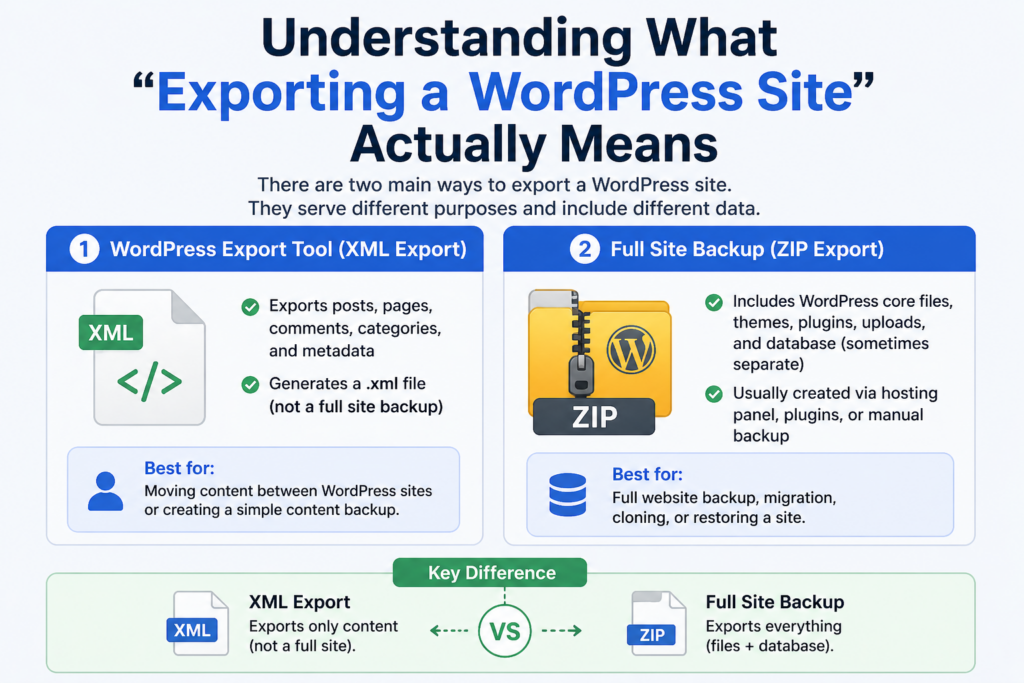
Before diving into the ZIP file itself, it’s important to understand what “exporting” means in WordPress.
There are two main types of exports:
.xml file (not a full site backup)This article focuses on the second type—because that’s where confusion happens when you open a ZIP file and try to locate your content.
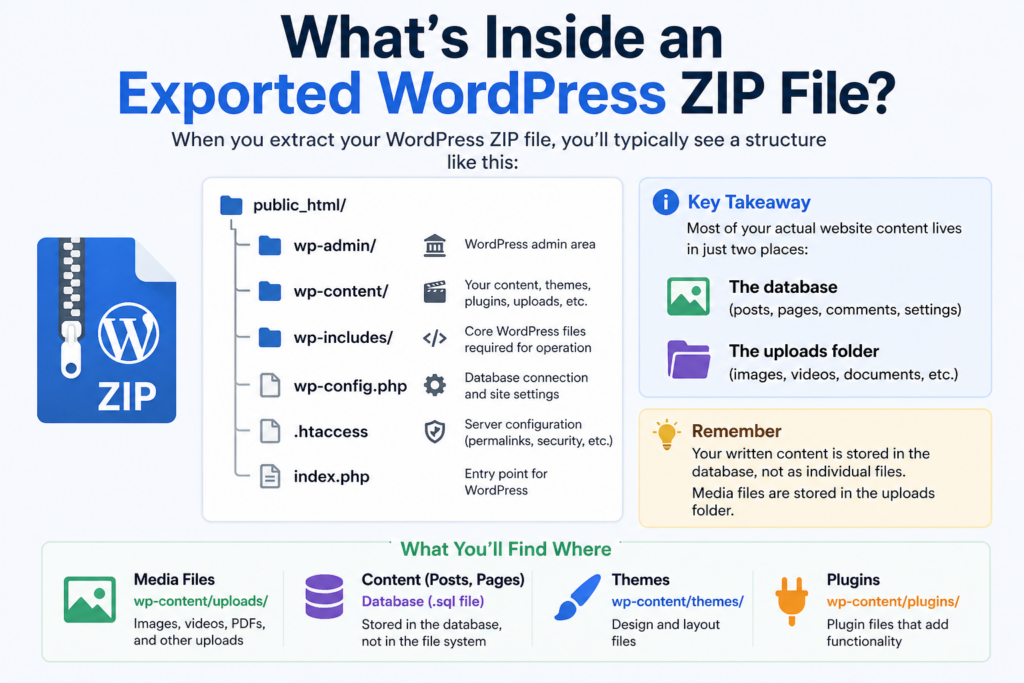
When you extract your WordPress ZIP file, you’ll typically see something like this:
public_html/
│
├── wp-admin/
├── wp-content/
├── wp-includes/
├── wp-config.php
├── .htaccess
At first glance, this structure can feel overwhelming. But here’s the key:
👉 Most of your actual website content lives in just two places:
하나씩 살펴보죠.
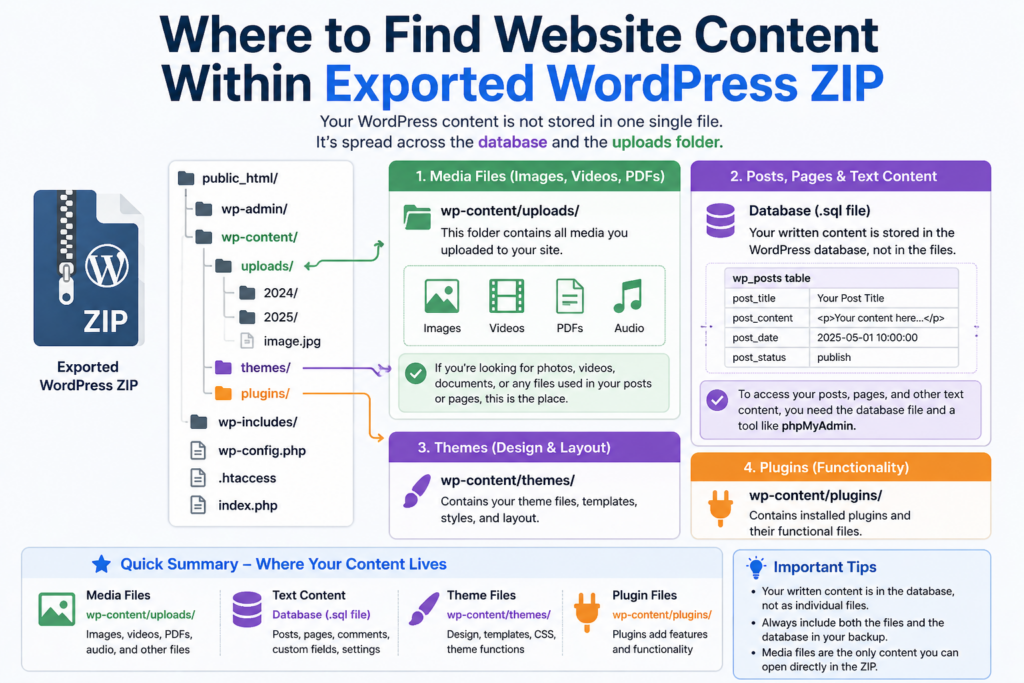
Your media content is the easiest to find.
📁 Location:
wp-content/uploads/
Inside this folder, files are organized by year and month:
uploads/
├── 2025/
│   ├── 01/
│   ├── 02/
├── 2026/
✔ What you’ll find here:
👉 If you’re looking for visual content, this is the exact answer to “where to find website content within exported WordPress zip.”
Here’s where things get confusing for beginners.
❗ Your written content is NOT stored as files inside the ZIP.
Instead, it lives in the database.
Depending on how the export was created, the database might appear as:
.sql file (common in backups)📁 Example:
database.sql
Inside the database, your content is stored in structured tables.
The most important one is:
wp_postsThis table contains:
Each row includes:
👉 This is the true location of your written website content.
If you have a .sql file, you can:
.sql 파일.sql file directlyUnlike static websites, WordPress is a dynamic CMS.
즉, 다음과 같은 의미입니다.
👉 This is why people get confused when searching:
“where to find website content within exported WordPress zip”
The answer is:
/업로드/.sql file)Your website design is stored separately from your content.
📁 Location:
wp-content/themes/
Inside:
themes/
├── your-theme-name/
│   ├── style.css
│   ├── functions.php
✔ Contains:
❗ Important:
This does NOT contain your actual blog content.
📁 Location:
wp-content/plugins/
✔ Contains:
❗ Also NOT your content, but may affect how content is displayed.
If you used the built-in WordPress export tool, you’ll get a .xml file instead of a ZIP.
This file contains:
You can open it in a text editor and see content structured like:
<item>
  <title>Your Post Title</title>
  <content:encoded><![CDATA[Your content here]]></content:encoded>
</item>
👉 In this case, your content is directly readable—no database needed.
Content is NOT stored in themes.
WordPress does not store pages as .html files.
Most content lives in the database—not in folders.
If your goal is to review or reuse content, here’s a simple workflow:
wp-content/uploads/
→ Download all media assets
.sqlwp_postsIf you want to fully restore or clone a site:
.sqlwp-config.phpThen your site will work exactly as before.
Knowing where to find website content within exported WordPress zip is critical for:
It saves hours of confusion and prevents data loss.
| Content Type | Location |
|---|---|
| Images & Media | /wp-content/업로드/ |
| Blog Posts & Pages | Database (wp_posts table) |
| Theme Design | /wp-content/테마/ |
| 플러그인 | /wp-content/plugins/ |
When you export a WordPress site, your content doesn’t sit neatly in one visible file. Instead, it’s split between media folders and a structured database system. Understanding this architecture is the key to navigating any WordPress backup with confidence.
If you remember just one thing, let it be this:
Your images are in the uploads folder, but your actual written content lives inside the database.
Once you grasp that distinction, working with WordPress exports becomes far simpler—and far more powerful.
Most website content is stored in two places: media files are in the /wp-content/업로드/ folder, while posts, pages, and text content are stored in the database (.sql file), not as visible files inside the ZIP.
WordPress stores posts and pages in a database, not as individual files. That’s why you won’t find readable text content in folders unless you open the database file.
You can open the .sql file using tools like phpMyAdmin, LocalWP, or a text editor to search for your content inside tables like wp_posts.
All images and media files are stored in the /wp-content/업로드/ directory, usually organized by year and month.
A full ZIP backup may include files and sometimes the database. However, some exports (like XML exports) only include content data, not themes, plugins, or media files.
An XML export contains only content (posts, pages, comments), while a ZIP backup includes the full website structure, such as themes, plugins, uploads, and possibly the database.


















