












소개
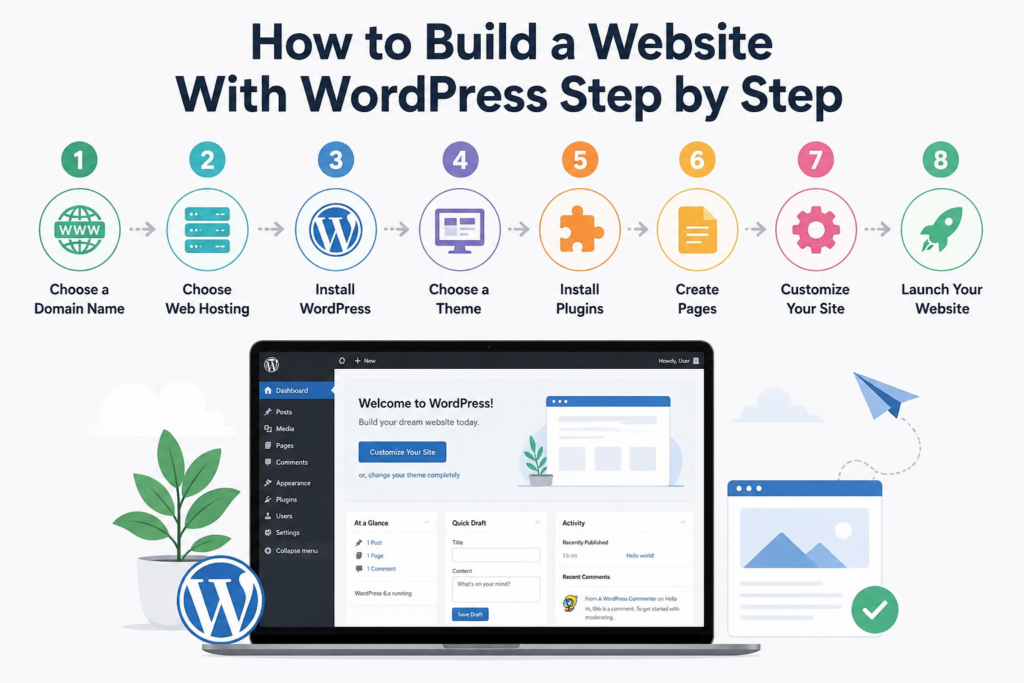
Building a website used to feel complicated and expensive. Years ago, creating a professional site often required coding skills, hiring developers, or spending thousands of dollars on custom work. Today, things are very different. Thanks to 워드프레스, almost anyone can launch a website, online store, portfolio, blog, or business platform without being a technical expert.
That is one of the main reasons WordPress powers such a large portion of the internet today. It is flexible, beginner-friendly, scalable, and supported by a massive global community. Whether you want to create a personal blog, a photography portfolio, a business website, or a full ecommerce store, WordPress gives you the tools to do it.
In this guide, you will learn exactly how to build a website with WordPress from the ground up. We will walk through everything in a beginner-friendly way, including domains, hosting, themes, plugins, website structure, SEO basics, performance optimization, and security essentials.
If you have been searching for a practical explanation of “how to build a website with WordPress,” this article will help you understand the full process from start to finish.
Why WordPress Is So Popular
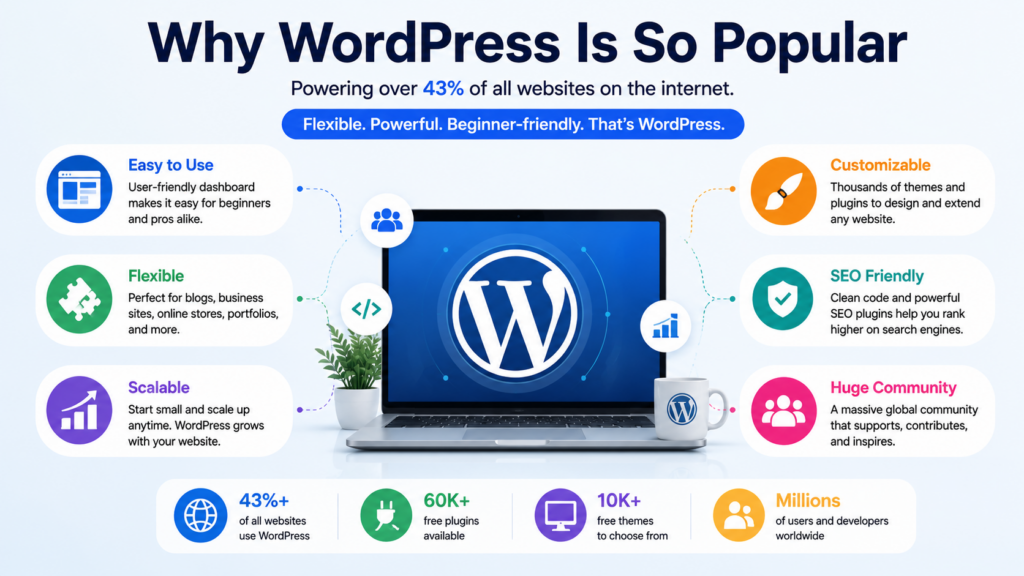
Before building a website, it helps to understand why millions of people choose WordPress instead of other platforms.
WordPress is an open-source content management system, often called a CMS. That means it allows users to create and manage website content through a visual dashboard instead of writing code manually.
One of WordPress’s biggest strengths is flexibility. It works for:
- Small business websites
- 블로그
- Online stores
- Restaurant websites
- Portfolios
- Membership sites
- Educational platforms
- News websites
- Booking systems
- Creative agency websites
Unlike many closed website builders, WordPress gives users more ownership and customization freedom. You can change your design, expand functionality, optimize SEO, and scale your site as your business grows.
Another reason WordPress remains popular is its huge ecosystem. Thousands of themes and plugins make it possible to customize nearly every aspect of a website without advanced programming knowledge.
1단계: 도메인 이름 선택
Your domain name is your website’s online address. It is what people type into their browser to visit your site.
예시로는 다음과 같은 것들이 있습니다.
- mybrand.com
- example.net
- yourstore.org
A good domain name should be:
- Easy to remember
- Short and simple
- Relevant to your brand or topic
- Easy to spell
- Free from unnecessary symbols or numbers
For most websites, a .com domain remains the best option because it is widely recognized and trusted.
When choosing a domain, try to think long-term. A strong domain name can help with branding, marketing, and credibility.
Step 2: Choose Web Hosting
After selecting a domain name, the next step is web hosting.
Web hosting is the service that stores your website files and makes your website accessible online. Every website needs hosting.
Many hosting companies today offer beginner-friendly WordPress hosting with features like:
- One-click WordPress installation
- Free SSL certificates
- Automatic backups
- Security tools
- 성능 최적화
- Email hosting
- Website management dashboards
Managed WordPress hosting has become especially popular because it simplifies the technical side of running a website. Instead of manually configuring servers, users can focus more on content and design.
When choosing hosting, important factors include:
- Speed
- Reliability
- 고객 지원
- 보안
- 확장성
- 사용 편의성
Fast hosting is especially important because website speed affects both user experience and search engine rankings.
3단계: 워드프레스 설치
Once your hosting account is active, installing WordPress is usually very simple.
Most hosting providers now include one-click WordPress installation tools. Instead of manually uploading files and configuring databases, users can install WordPress through a setup wizard in just a few minutes.
The setup process typically asks for:
- Website name
- Admin username
- Password
- 이메일 주소
- Preferred language
After installation, you can access your WordPress dashboard by visiting:
yourdomain.com/wp-admin
This dashboard becomes the control center for your entire website.
From there, you can:
- Create pages
- Write blog posts
- Upload images
- Change design settings
- Install plugins
- Manage users
- Customize menus
- Improve SEO
For beginners, the WordPress dashboard may feel overwhelming at first, but the interface becomes much easier after a little practice.
Step 4: Understand the Difference Between Themes and Plugins
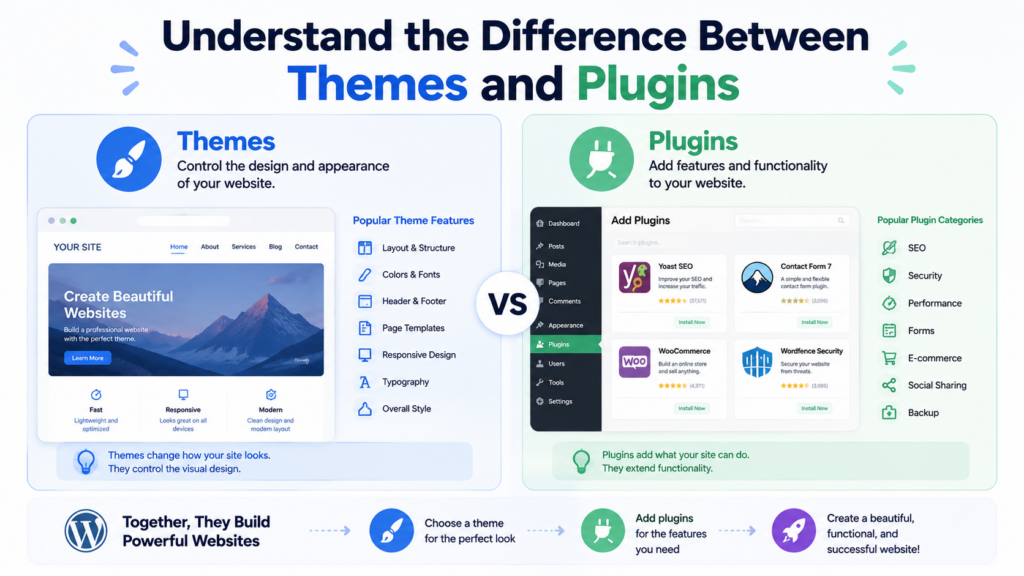
Two of the most important parts of WordPress are themes and plugins.
What Is a WordPress Theme?
A theme controls the visual appearance of your website.
It determines things like:
- Layout
- 글꼴
- 그림 물감
- Navigation
- Header style
- 모바일 반응형 디자인
- Blog structure
- Product page appearance
Thousands of free and premium themes are available for different industries and design styles.
Some themes focus on:
- Minimal design
- Ecommerce
- 사진
- 비즈니스 웹사이트
- 블로그 운영
- Creative portfolios
When choosing a theme, prioritize:
- 모바일 반응형 디자인
- Fast loading speed
- 깔끔한 디자인
- Regular updates
- Good reviews
- Easy customization
A well-designed theme creates a better user experience and helps visitors trust your website.
What Is a WordPress Plugin?
Plugins add extra functionality to your site.
Think of plugins like apps for your website.
Popular plugin categories include:
- SEO 도구
- 보안
- 문의 양식
- Ecommerce
- 캐싱
- 이미지 최적화
- Social sharing
- Booking systems
- 이메일 마케팅
One of the biggest advantages of WordPress is that plugins allow users to expand website functionality without coding.
However, installing too many plugins can slow down a website, so it is important to use only the tools you truly need.
Step 5: Create Important Website Pages
Every professional website should include several core pages.
홈페이지
The homepage is often the first thing visitors see. It should clearly explain:
- 당신은 누구인가요?
- What your website offers
- Why visitors should stay
- How users can navigate the site
A strong homepage combines visuals, structure, and clear messaging.
About Page
An About page builds trust and credibility.
People often want to know:
- Who runs the website
- What the business stands for
- Why the website exists
- What experience or expertise is behind it
Authenticity matters here.
연락처 페이지
A Contact page helps visitors communicate with you.
This page may include:
- 문의 양식
- 이메일 주소
- 전화번호
- Social media links
- Business location
- Operating hours
Easy communication improves trust and user experience.
Blog Page
Blogs help websites grow traffic through search engines.
Publishing helpful content around your niche can improve:
- SEO visibility
- Brand authority
- User engagement
- Organic traffic
WordPress originally started as a blogging platform, which is one reason its blogging system remains so powerful today.
Service or Product Pages
If you run a business or online store, dedicated pages for products or services are essential.
These pages should clearly explain:
- Features
- Benefits
- 가격 책정
- Visual examples
- Customer value
Strong structure and clear calls-to-action help increase conversions.
6단계: 웹사이트 디자인 맞춤 설정
Once the core pages exist, you can begin customizing your website.
Modern WordPress websites often use drag-and-drop editors or block-based editing systems that make design easier for beginners.
Important design elements include:
- Typography
- Color palette
- Spacing
- Layout consistency
- Image quality
- 모바일 반응형 디자인
Good website design is not just about appearance. It also affects usability.
A clean layout helps visitors:
- Find information faster
- Navigate more easily
- Stay longer on the site
- Build trust in the brand
Mobile optimization is especially important because a large percentage of web traffic now comes from smartphones.
A website that looks perfect on desktop but breaks on mobile can lose visitors quickly.
Step 7: Improve Website Speed
Website speed has become one of the most important factors in modern web design.
Slow websites create frustration and increase bounce rates.
Several factors affect WordPress speed:
- 호스팅 품질
- Large images
- Too many plugins
- Poor coding
- Lack of caching
- Heavy scripts
Fortunately, there are many ways to improve performance.
Compress Images
Large image files slow down websites significantly.
Optimized images improve loading speed while maintaining visual quality.
Use Caching
Caching stores temporary versions of website pages to reduce server load and speed up delivery.
Many WordPress caching plugins help automate this process.
Use a CDN
A Content Delivery Network distributes website files across global servers so visitors can load content from locations closer to them.
This helps improve speed worldwide.
Keep Plugins Updated
Outdated plugins may slow websites down or create compatibility issues.
Regular maintenance is important for performance and security.
Step 8: Learn Basic WordPress SEO
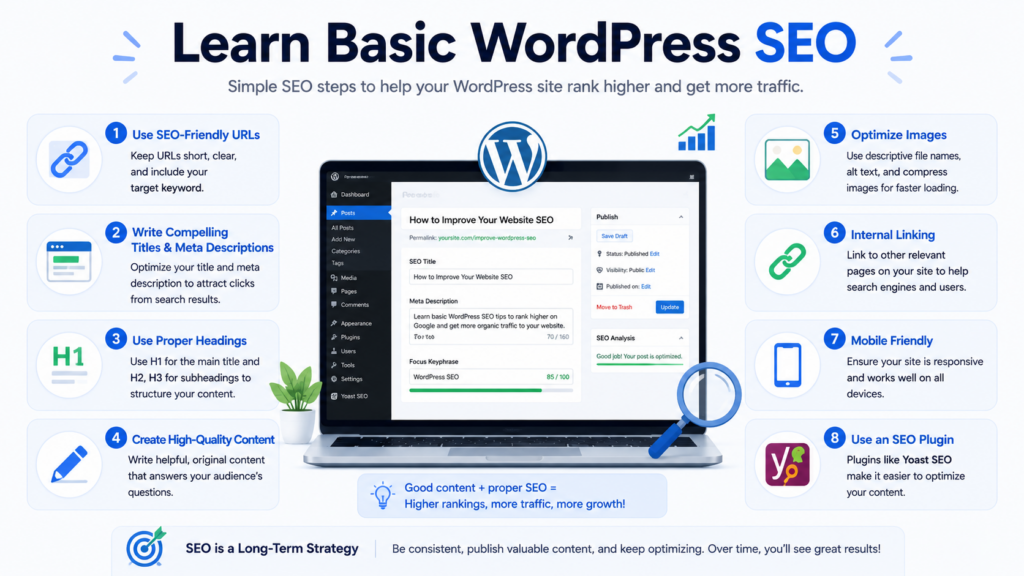
Search engine optimization helps websites appear in Google search results.
Without SEO, even a beautiful website may struggle to attract visitors.
WordPress is considered SEO-friendly because it offers strong optimization flexibility.
Use SEO-Friendly URLs
Clean URLs are easier for users and search engines to understand.
예:
- Good: yoursite.com/wordpress-guide
- Bad: yoursite.com/page?id=123
Write Helpful Content
Google prioritizes useful content that answers user questions clearly.
High-quality articles improve search visibility over time.
Optimize Page Titles and Meta Descriptions
Titles and meta descriptions help search engines understand page content and influence click-through rates.
Use Proper Headings
Clear heading structure improves readability and SEO organization.
Improve Mobile Experience
Search engines prioritize mobile-friendly websites.
Responsive design is no longer optional.
Build Internal Links
Internal links help users navigate your website and help search engines understand your site structure.
Step 9: Secure Your WordPress Website
Website security is extremely important.
Because WordPress is widely used, it is also a common target for attacks.
Fortunately, basic security practices greatly reduce risks.
Use Strong Passwords
Weak passwords remain one of the biggest security problems online.
Always use secure login credentials.
Enable SSL
SSL encrypts website data and improves trust.
Modern browsers may mark websites without SSL as “Not Secure.”
Keep Everything Updated
Updates often include security fixes.
여기에는 다음이 포함됩니다.
- WordPress core
- 테마
- 플러그인
Use Security Plugins
Security plugins help protect websites from spam, malware, login attacks, and suspicious activity.
Create Regular Backups
Backups protect your website if something goes wrong.
Many hosting providers now include automatic backups as part of their services.
Step 10: Launch and Grow Your Website
After building your website, the next step is growth.
A website is not a one-time project. It evolves over time.
Successful websites continue improving through:
- New content
- Better SEO
- Faster performance
- Updated design
- Improved user experience
- Marketing strategies
Consistency matters more than perfection.
Many beginners delay launching because they want everything to be flawless. In reality, most websites improve gradually after going live.
Publishing helpful content regularly and listening to user behavior often leads to long-term growth.
Common Mistakes Beginners Make
When learning how to build a website with WordPress, beginners often make similar mistakes.
Choosing Too Many Plugins
Installing excessive plugins can hurt speed and stability.
Keep your website lightweight.
Ignoring Mobile Design
Always test your website on phones and tablets.
Using Poor Quality Images
Blurry or inconsistent visuals reduce professionalism.
Forgetting SEO
SEO should be considered from the beginning, not added later.
Neglecting Security
Basic security habits help prevent major problems.
Overcomplicating Design
Simple, clean layouts usually perform better than cluttered designs.
마지막으로
Learning how to build a website with 워드프레스 may seem intimidating at first, but the process has become much more beginner-friendly over the years. With the right hosting, a strong theme, useful plugins, and clear website structure, almost anyone can create a professional online presence without advanced technical knowledge.
WordPress continues to dominate the web because it combines flexibility, scalability, customization, and ease of use. Whether you are starting a blog, building a business website, or launching an online store, WordPress provides the tools needed to grow and adapt over time.
The key is to start simple, focus on user experience, maintain your website properly, and continue improving your content and design as your goals evolve.
자주 묻는 질문
1. Is WordPress free to use?
Yes, WordPress itself is free and open-source. However, you still need to pay for web hosting, a domain name, and optional premium themes or plugins.
2. Do I need coding skills to build a WordPress website?
No. Most modern WordPress websites can be built using drag-and-drop builders, themes, and plugins without coding knowledge.
3. How long does it take to build a WordPress website?
A simple website can be launched in a few hours, while a larger business or ecommerce website may take several days or weeks depending on the design and content.
4. What is the difference between WordPress themes and plugins?
Themes control the design and appearance of your website, while plugins add extra features and functionality like SEO tools, contact forms, or ecommerce systems.
5. Is WordPress good for SEO?
Yes. WordPress is considered very SEO-friendly because it supports clean URLs, fast-loading themes, SEO plugins, and optimized content structures.
6. Can WordPress be used for online stores?
Absolutely. With plugins like WooCommerce, WordPress can power full ecommerce websites with products, payments, shipping, and inventory management.


완전한 전자상거래 시스템을 갖춘 워드프레스 웹사이트 또는 기업 사이트를 디자인하고 구축하세요.
가격 범위: $200.00~$2,500.00custom-requirements-or-special-quotations
원래 가격: $2.00.$1.00현재 가격: $1.00. 워드프레스 전자상거래 쇼핑몰에 플러그인 50개는 너무 많은 걸까요?
실제 성능에 미치는 영향 이해하기 워드프레스 전자상거래 사이트에 50개의 플러그인이 있다고 해서 자동으로 문제가 되는 것은 아닙니다. 사실 그 숫자만으로 성능이 결정되는 경우는 거의 없습니다....

아마존 가정용 물리치료 기기 메인 이미지 디자인 설명
소개 소개: 아마존에서 홈 테라피 기기의 신뢰할 수 있는 이미지 구축 아마존에서 홈 테라피 기기의 기본 이미지를 디자인할 때 기본 ...

아마존 립스틱 전환을 위한 메인 이미지 디자인
소개: 소개: 아마존에서 판매되는 립스틱 메인 이미지 디자인하기 아마존 립스틱의 메인 이미지를 디자인할 때 우리의 책임은 그 이상입니다.

해커들이 워드프레스 관리자 이메일을 훔치는 방법(그리고 이를 막는 방법)
불편한 진실부터 말씀드리자면, 워드프레스 관리자 이메일은 생각보다 훨씬 더 많이 공개되어 있습니다. 그들은 그것을 좋아합니다. 해커에게 여러분의...

아마존 리퀴드 파운데이션 메인 이미지 변환의 특징은 무엇일까요?
서론 아마존 리퀴드 파운데이션의 메인 이미지 디자인은 단순히 제품을 아름답게 보이게 하는 것만이 아닙니다. 아마존에서 메인 이미지와...

필터 카트리지 제품을 위한 효과적인 아마존 메인 이미지 디자인하기
서론 아마존 메인 이미지 디자인은 단순히 제품을 매력적으로 보이게 하는 것만이 아닙니다. 명확성, 신뢰, 그리고 즉각적인 이해를 제공하는 것이 중요합니다. 특히...

워드프레스에 대한 리플레이 공격: 실제 위협인가, 과장된 신화인가?
먼저 한 가지를 분명히 해두죠. 리플레이 공격은 겉보기에 무섭지 않습니다. 비밀번호를 날려버리지도 않고, 초록색 해커 텍스트가 사방에 흩날리는 악성 코드를 주입하지도 않습니다. 그저 교묘하게 이루어질 뿐입니다.

WordPress 페이지를 손상 없이 복제하는 방법
솔직히 말해봅시다. 때로는 새 페이지를 만들고 싶지 않을 때가 있죠. 그냥 기존 페이지를 약간만 다르게 하고 싶을 때가 있어요. 레이아웃도, 블록도, 설정도 그대로요. 왜냐하면...

반려동물 관련 워드프레스 테마 5가지 비교
서론 반려동물 관련 워드프레스 테마를 선택하는 것은 단순한 디자인 결정 이상의 의미를 지닙니다. 사용성, 확장성, 그리고 장기적인 비즈니스 성장에 직접적인 영향을 미치기 때문입니다. 반려동물 관리 및 관련...

수영복 온라인 쇼핑몰 테마 5가지 비교
서론 수영복이나 란제리 독립 매장에 적합한 테마를 선택하는 것은 단순히 시각적인 결정에 그치는 것이 아니라, 전환율, 확장성, 그리고 장기적인 성공에 직접적인 영향을 미칩니다.

워드프레스에서 댓글 기능을 끄는 방법 (정신줄 놓지 않고)
워드프레스 댓글에 대해 이야기해 봅시다. 이론적으로 댓글은 훌륭합니다. 토론을 장려하고, 커뮤니티를 형성하며, 웹사이트에 생동감을 불어넣습니다. 하지만 현실은 어떨까요? 댓글은 종종 문제를 야기하기도 합니다...

워드프레스 500 오류: 웹사이트가 갑자기 오류를 일으킬 때
방금 전까지만 해도 워드프레스 사이트는 아무 문제 없었는데, 페이지를 새로고침하자마자 갑자기 💥 500 내부 서버 오류가 발생했습니다. 아무런 설명도, 사과도 없이 그저 차갑고 혼란스러운 메시지만 남았습니다.

과학 중심 브랜드를 위한 확장 가능한 워드프레스 웹사이트 구축: 아미노USA 프로젝트
서론 오늘날의 디지털 환경에서 웹사이트는 단순히 제품을 나열하는 공간 이상의 의미를 지닙니다. 규제 산업이나 연구 중심 산업에서 활동하는 과학 기반 브랜드에게 웹사이트는 더욱 중요한 역할을 합니다.

글로벌 블레이드 브랜드를 위한 확장 가능한 쇼피파이 스토어 구축: 쿨카타나 프로젝트
서론: 국경을 넘나드는 전자상거래에서 Shopify 웹사이트는 단순한 매장 이상의 의미를 지닙니다. 특정 문화권에서 사업을 운영하는 브랜드의 경우, 웹사이트는 단순한 판매 공간을 넘어 훨씬 더 많은 기능을 수행해야 합니다.

포켓몬 카드 판매를 위한 높은 전환율을 자랑하는 쇼피파이 스토어 디자인하기
서론 수집품 전자상거래, 특히 포켓몬 트레이딩 카드 게임(TCG) 시장에서 웹사이트는 단순히 제품 목록을 나열하는 것 이상의 역할을 해야 합니다.

맞춤형 오프라인 브랜드에 최적화된 전환율 높은 쇼피파이 디자인
서론 오늘날 경쟁이 치열한 전자상거래 환경, 특히 맞춤형 선물 및 수집품 분야에서 Shopify 웹사이트는 단순히 제품을 전시하는 것 이상의 역할을 해야 합니다. ...

Shopify 고객 지원팀에 문의하는 방법: 간단하고 스트레스 없는 가이드
쇼피파이 스토어 운영은 흥미진진해야지 혼란스러워서는 안 됩니다. 궁금한 점이 생기거나 문제가 발생하여 진행이 늦어질 때, 쇼피파이는 상황에 따라 다양한 지원 경로를 제공합니다.

쇼피파이 스토어 비활성화 방법: 명확하고 실용적인 가이드
쇼피파이 스토어를 비활성화하는 것은 복잡하지 않지만, 많은 판매자가 간과하는 몇 가지 결과가 따릅니다. 이 가이드에서는 비활성화 과정을 간단하고 유익하게 설명합니다.