











장바구니에 상품이 없습니다.

Backing up a 워드프레스 website isn’t just a technical task—it’s a critical safety net for your entire online business. Whether you’re running an eCommerce store, a service-based website, or a content platform, data loss can happen at any time due to server issues, hacking, plugin conflicts, or human error.
If you’re hosting your website on 이오노스, understanding how to properly back up your WordPress site becomes even more important—especially if you’re planning a migration, redesign, or performance upgrade.
In this guide, we’ll break down everything you need to know about how to backup WordPress site IONOS, using simple, practical explanations. Whether you’re a beginner or managing multiple sites, this article will give you a clear, structured approach to protect your data and ensure a smooth workflow.
Before diving into the “how,” let’s first understand the “why.”
A WordPress website is made up of two core components:
If either of these gets corrupted or lost, your site can break entirely.
Here are the most common scenarios where backups save you:
Without a backup, recovery can be time-consuming—or impossible.
IONOS provides hosting infrastructure with built-in tools, but not all plans include automatic WordPress backups. That’s why you often need to create manual backups or use additional tools.
There are generally three ways to back up a WordPress site on IONOS:
Let’s break each method down.
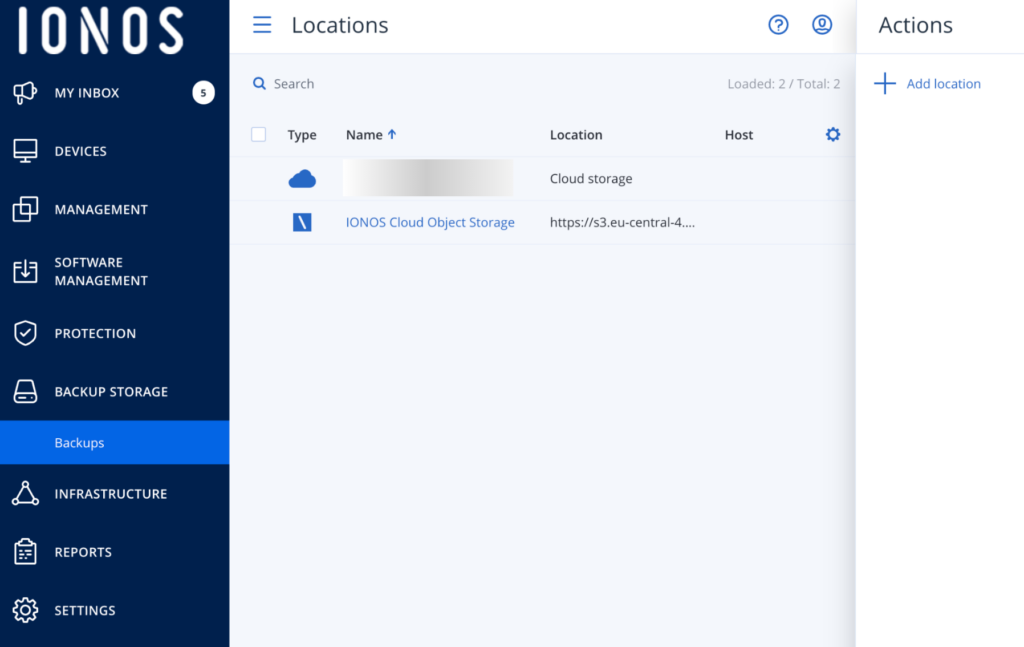
This is the most complete and reliable method, especially for migration or full-site recovery.
Your WordPress files are stored on your server. To download them:
/htdocs 또는 /public_html)These files include:
👉 Tip: Always ensure the download is complete and not interrupted.
Your database stores all dynamic content.
To export it:
This file contains:
Manual backups are best when:
If you prefer automation, plugins are the easiest solution.
Popular backup plugins include:
Once installed:
Some IONOS hosting plans include automatic backups.
These backups:
However, there are limitations:
👉 Recommendation: Never rely on a single backup source. Always keep at least one external backup.
To ensure your backups are reliable, follow these best practices:
Combine:
This creates redundancy.
Never store backups only on your server.
사용:
This protects your data from server failure.
Recommended frequency:
A backup is useless if it doesn’t work.
Don’t overwrite old backups.
Maintain:
Backing up is only half the process—you also need to know how to restore.
Most plugins offer:
This is the easiest method for beginners.
If you’re planning to move your site (e.g., to improve speed or scalability), backups are essential.
Migration involves:
Without a proper backup:
A complete backup ensures:
Even experienced users make these mistakes:
These can fail or be incomplete.
Plugin or theme updates can break your site.
Files alone are not enough.
Unverified backups may not restore correctly.
To manually back up your WordPress site on IONOS, download all website files via FTP or File Manager and export your database using phpMyAdmin. This ensures you have a complete copy of both files and content.
The easiest way is by using a backup plugin like UpdraftPlus or All-in-One WP Migration. These tools automate the process and allow you to store backups in cloud services like Google Drive.
Some IONOS hosting plans include automatic backups, but they may have limitations such as short retention periods. It’s recommended to use additional backup methods for full security.
For active websites, especially eCommerce stores, daily backups are recommended. For smaller or less frequently updated sites, weekly backups may be sufficient.
If you’re running a Shopify-like WordPress setup (WooCommerce), backups are even more critical.
Why?
Recommended setup:
Understanding how to backup WordPress site IONOS is not just a technical skill—it’s a fundamental part of running a secure and scalable online business.
From manual backups to plugin automation and hosting-level solutions, each method plays a role in protecting your data. The key is to build a reliable system that combines multiple approaches, stores backups safely, and ensures you can restore your site anytime.
If you’re planning to:
This is exactly what we specialize in.
에서 AIRSANG, we focus on cross-border eCommerce website design and high-conversion page structures. From visual design to user journey optimization, we help brands build websites that not only look premium—but also perform.
If you need help with 워드프레스 backups, migration, or full-site redesign, feel free to reach out.


















