









カートに商品がありません。.


 Japanese
ワードプレス is one of the most popular website platforms in the world, which is exactly why security should never be treated as an afterthought. A WordPress site can run a business website, blog, portfolio, online store, booking platform, or membership community. But because WordPress is widely used, attackers often scan WordPress websites automatically, looking for familiar weak points such as outdated plugins, weak passwords, exposed login pages, poor permissions, and unsecured forms. Network Solutions also points out that WordPress sites are common targets because of their popularity and because many attacks are automated rather than personal.
The good news is that learning how to secure a WordPress site does not require you to become a cybersecurity expert. Most website owners can prevent common risks by following a clear set of habits: use stronger login protection, update your software, limit unnecessary access, protect files, monitor activity, and back up your data. WordPress security works best when you think of it as layers. No single setting can protect everything, but many small protections together can make your website much harder to attack.
A website is more than a collection of pages. It may contain customer messages, product information, admin accounts, payment-related settings, contact forms, email integrations, SEO rankings, and brand credibility. If a WordPress site is compromised, the damage can go beyond temporary downtime. Attackers may inject spam links, redirect visitors, steal form data, send unwanted emails, damage search visibility, or lock the owner out of the dashboard.
Many website owners only think about security after something goes wrong. That is a risky approach. Recovering a hacked website can be stressful, expensive, and time-consuming. It may also affect customer trust. A visitor who sees browser warnings, strange pop-ups, spam pages, or broken checkout pages may leave immediately and never return.
Security is not only about blocking hackers. It is also about keeping the website stable, protecting the user experience, and making sure business operations continue without interruption.
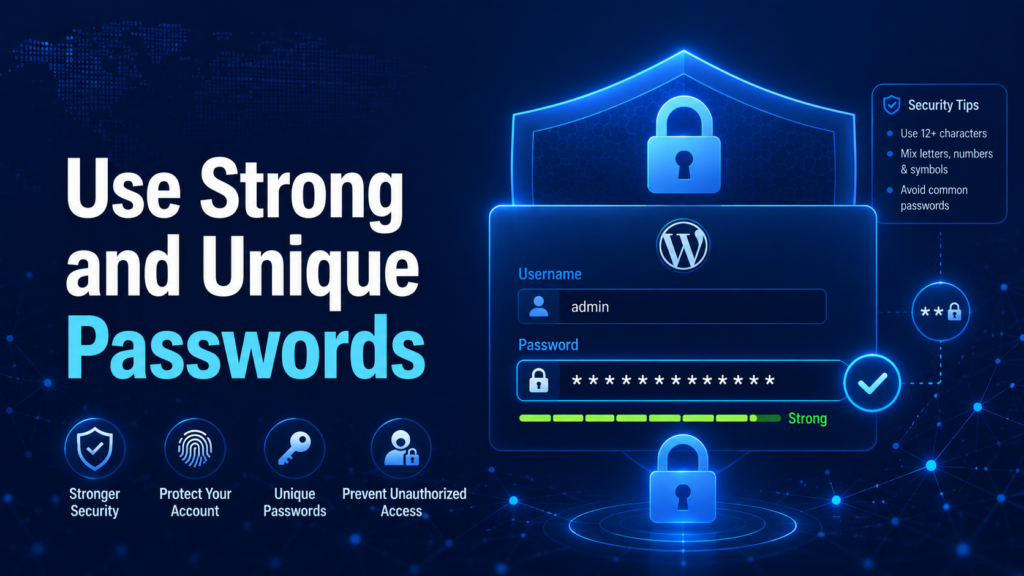
The first step in learning how to secure a WordPress site is improving passwords. A weak password is one of the easiest ways for attackers to access a website. Simple passwords, reused passwords, personal names, birthdays, and predictable combinations are risky because automated tools can test many guesses quickly.
A secure WordPress password should be long, unique, and difficult to guess. It should include a mix of letters, numbers, and special characters. More importantly, it should not be reused across your hosting account, WordPress dashboard, email account, database access, FTP/SFTP account, or domain registrar.
Many website owners make the mistake of protecting the WordPress login while using a weak password for hosting. That still creates danger because hosting access can allow someone to edit files directly, restore old versions, create new users, or change server settings. Treat every account connected to the website as important.
A password manager can help you create and store strong passwords safely. This is usually better than writing passwords in notes, spreadsheets, or chat messages.
Two-factor authentication, often called 2FA, adds another layer to the login process. Instead of relying only on a password, 2FA asks for a second verification step, such as a code from an authenticator app or a security key.
This is useful because passwords can be stolen, guessed, reused, or leaked from another service. With 2FA enabled, a stolen password alone is usually not enough to access the WordPress dashboard. Network Solutions recommends enabling 2FA especially for admins, editors, and shop managers because these users often have access to sensitive areas of the site.
For business websites, 2FA should not be optional for administrator accounts. Anyone who can install plugins, edit themes, manage orders, change users, or adjust site settings should use it. This simple step can prevent many login-based attacks.
By default, some login pages may allow repeated password attempts. That gives bots an opportunity to keep trying different username and password combinations. This type of attack is commonly known as brute-force login guessing.
Limiting login attempts helps stop this behavior. After a certain number of failed attempts, the system can temporarily block that IP address or user. This does not make the site impossible to attack, but it reduces automated guessing and makes the login page harder to abuse.
You can add this protection with a reliable security plugin, a login protection plugin, or hosting-level security tools. For a normal business website, a practical setup might block users after several failed attempts and notify the site owner when repeated failures occur.
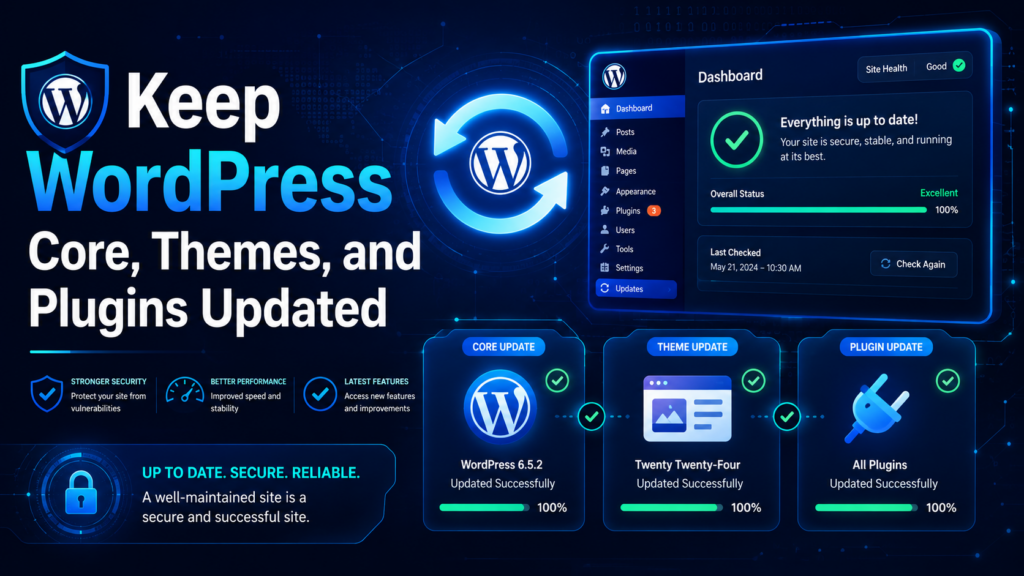
Updates are one of the most important WordPress security habits. WordPress websites usually include several moving parts: the WordPress core system, a theme, multiple plugins, and sometimes custom code. Each part can receive updates for bug fixes, compatibility, performance, and security patches.
Outdated plugins and themes are a common source of WordPress vulnerabilities. Network Solutions highlights regular updates as a core security practice because many issues come from third-party software.
Before major updates, create a full backup. This gives you a safe recovery point if something breaks. For smaller plugin updates, auto-updates may be useful, especially for trusted plugins that are actively maintained. However, for complex ecommerce or membership sites, it is better to test important updates carefully.
You should also delete plugins and themes you no longer use. Deactivating a plugin is not always enough. If the files remain on the server and become outdated, they may still create risk. A clean WordPress installation is easier to protect than a site filled with unused tools.
Security does not only happen inside WordPress. Your hosting environment plays a major role. A good WordPress host should provide server-level protection, malware scanning, SSL support, backups, firewall options, stable PHP versions, and clear recovery tools.
Cheap or poorly maintained hosting can create problems even if your WordPress settings are strong. If the server is outdated, overloaded, or poorly configured, your website may become more vulnerable. A reliable host helps protect the foundation of your site.
Managed WordPress hosting can be especially useful for business owners who do not want to handle every technical detail themselves. These services often include automatic updates, backup systems, malware monitoring, and support teams familiar with WordPress.
An SSL certificate allows your website to use HTTPS instead of HTTP. This helps encrypt data transferred between the visitor and the website. HTTPS is especially important for login pages, contact forms, checkout pages, account pages, and any page where users submit information.
Modern visitors also expect to see HTTPS. If a browser marks your site as “Not Secure,” it can reduce trust immediately. For ecommerce sites, SSL is not optional. Customers need to feel safe before entering personal or payment-related information.
Most hosting providers now offer free or paid SSL certificates. After enabling SSL, make sure your site redirects all HTTP pages to HTTPS and that internal links, images, scripts, and styles load securely.
A web application firewall, or WAF, helps filter suspicious traffic before it harms your website. It can block common attacks, malicious requests, bad bots, brute-force attempts, and known exploit patterns.
There are different types of firewalls. A DNS-level firewall filters traffic before it reaches your server. This can reduce server load and stop large waves of bad traffic early. An application-level firewall works closer to WordPress and can inspect requests aimed at WordPress-specific weaknesses.
For many website owners, using both hosting-level security and a WordPress security plugin gives stronger layered protection. A firewall is especially valuable for ecommerce stores, high-traffic blogs, lead generation websites, and any site that depends on search traffic or paid ads.
WordPress can allow administrators to edit theme and plugin files from inside the dashboard. While this may seem convenient, it can become dangerous if an admin account is compromised. An attacker could use the built-in file editor to add malicious code quickly.
A safer approach is to disable dashboard file editing. This forces file changes to happen through more controlled access methods, such as SFTP or a hosting file manager. Network Solutions recommends restricting file editing from the dashboard to remove a high-risk shortcut.
This is especially important for websites with multiple admin users. The fewer places where code can be edited, the better.
File permissions control who can read, write, or execute files on your server. If permissions are too open, unauthorized users or compromised accounts may be able to change important files. If permissions are too strict, WordPress updates or uploads may stop working.
A common WordPress setup uses 644 for files and 755 for folders, though hosting environments can vary. These permissions usually allow WordPress to function while reducing unnecessary write access.
You should review permissions after migrations, developer work, server changes, or major plugin installations. Poor permissions can cause security issues, broken layouts, failed updates, or accidental changes.
Not everyone needs administrator access. WordPress includes different user roles, such as Administrator, Editor, Author, Contributor, and Subscriber. Each role has different permissions.
A common mistake is giving administrator access to writers, designers, assistants, marketers, or temporary contractors. This creates unnecessary risk. If someone only needs to write blog posts, they do not need the ability to install plugins or change security settings.
Use the lowest role that allows the person to do their job. Keep administrator access limited to trusted site owners or technical managers. Remove users who no longer work on the website. For temporary access, create a separate account and delete it when the work is complete.
Security also depends on visibility. If you do not know what is happening on your website, you may miss early warning signs. Activity logs can show login attempts, plugin changes, theme edits, new users, content updates, failed logins, and role changes.
Monitoring helps you answer important questions. Who logged in? What changed? When was a plugin installed? Did someone create a new admin account? Did a user try to access the dashboard from an unusual location?
An activity log is useful for teams, ecommerce stores, membership websites, and any site with multiple users. It can also help you investigate problems faster after a suspicious event.
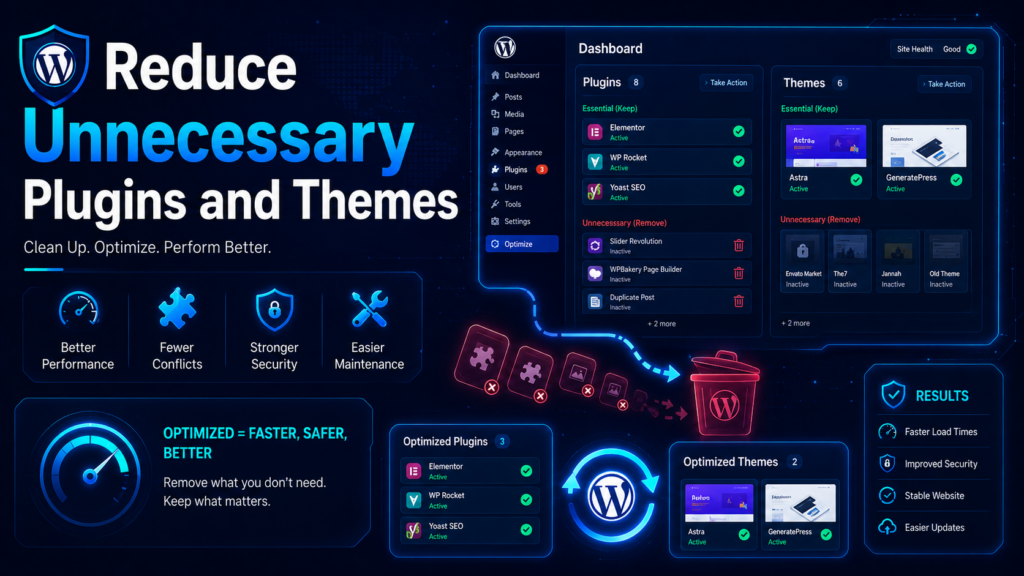
Plugins make WordPress powerful, but too many plugins can increase risk. Every plugin adds code to your website. If that plugin is poorly built, abandoned, or rarely updated, it may become a weak point.
Before installing a plugin, ask whether you truly need it. Check whether it is actively maintained, has good reviews, works with your WordPress version, and comes from a trustworthy developer. Avoid downloading plugins or themes from unknown sources, especially free versions of paid products from unofficial websites.
You should also review your plugin list regularly. Delete tools that are inactive, outdated, duplicated, or no longer needed. A smaller plugin stack usually means fewer conflicts, better performance, and stronger security.
Many WordPress websites use the default login paths, such as /wp-ログイン.php または /wp-admin. Bots know these paths and often scan them automatically. Changing the login URL can reduce automated login attempts.
However, this should be treated as a helpful extra layer, not a complete security solution. A hidden login URL does not replace strong passwords, 2FA, firewall protection, updates, or user role management.
If you change the login URL, save the new address securely and make sure trusted team members know where to log in. Test it carefully to avoid locking yourself out.
Idle sessions can create risk, especially on shared computers, office devices, public networks, or team environments. If someone logs into WordPress and leaves the dashboard open, another person may be able to access the site without needing a password.
Automatic logout helps reduce that risk. After a period of inactivity, the user must log in again. This is especially useful for websites with admins, editors, support staff, or store managers who access the dashboard throughout the day.
For sensitive websites, shorter session times are safer. For simple blogs, a moderate timeout may be enough. The goal is to balance security with convenience.
Forms are common targets for spam bots. Contact forms, registration forms, comment forms, checkout forms, and login pages can all attract automated abuse. CAPTCHA helps confirm that a real person is using the form.
Adding CAPTCHA can reduce spam submissions, fake registrations, bot comments, and repeated login attempts. This is especially useful for websites that receive many unwanted form messages or suspicious account signups.
Make sure the CAPTCHA solution does not make the user experience too difficult. Security should protect the site without frustrating real visitors.
XML-RPC is a WordPress feature that allows remote communication with the website. Some apps and services may use it, but many modern websites do not need it. When left open unnecessarily, it can be abused for brute-force attacks or other unwanted requests.
Before disabling XML-RPC, check whether your site depends on it. Some mobile apps, integrations, or older services may use it. If you do not need it, disabling or restricting XML-RPC can reduce another possible attack surface.
Backups are one of the most important parts of website security. Even with strong protection, problems can still happen. A plugin update may break the layout. A user may delete content by mistake. A malware infection may damage files. A server issue may cause data loss.
A good backup system lets you recover quickly. Your backup should include both website files and the database. Files contain themes, plugins, images, and uploads. The database contains posts, pages, users, settings, product data, orders, and many other important details.
Store backups in a separate location, not only on the same server. Test the restore process occasionally. A backup is only useful if it can actually be restored.
Malware scanning helps detect suspicious files, injected scripts, hidden admin users, spam pages, and changed WordPress core files. Some hosting providers include malware scanning, and many WordPress security plugins offer scanning features.
Scanning does not replace prevention, but it helps you find problems earlier. If your site suddenly slows down, redirects visitors, shows strange pages, sends spam emails, or receives search engine warnings, scan it immediately.
For business websites, regular malware scans should be part of normal maintenance.
The easiest way to secure a WordPress site is to turn security into a routine. You do not need to check every setting every day, but you should have a consistent schedule.
Every week, review available updates, check backups, monitor suspicious login attempts, and scan for malware if your tools support it. Every month, review user accounts, remove unused plugins, confirm SSL is working, and check whether your forms are receiving spam. Every few months, audit passwords, permissions, hosting settings, and plugin quality.
Security becomes much easier when it is handled before an emergency.
Learning how to secure a ワードプレス site starts with understanding that security is not one single tool or one quick setting. It is a layered process. Strong passwords, two-factor authentication, limited login attempts, regular updates, reliable hosting, SSL, firewall protection, correct permissions, careful user roles, activity monitoring, fewer plugins, CAPTCHA, XML-RPC control, backups, and malware scans all work together.
A secure WordPress site protects your data, your visitors, your search rankings, and your brand reputation. The best approach is to prevent common problems before they happen, keep your website clean and updated, and create a simple maintenance routine that supports long-term stability.
The best way to secure a WordPress site is to use several layers of protection. Start with strong passwords, two-factor authentication, regular updates, SSL, reliable hosting, security plugins, malware scanning, and automatic backups. No single tool can protect everything, so a layered approach works best.
WordPress is widely used, so attackers often build automated tools to scan WordPress websites for common weaknesses. These may include outdated plugins, weak passwords, exposed login pages, insecure themes, or poor hosting settings. Many attacks are not personal; they are automated scans looking for easy targets.
You should check for WordPress core, plugin, and theme updates at least once a week. Security updates should be applied as soon as possible. Before major updates, create a full backup so you can restore the site if anything breaks.
A security plugin is not the only protection you need, but it can make security easier to manage. A good plugin can help with login protection, firewall rules, malware scanning, activity logs, and suspicious traffic detection. For most business websites, using a trusted security plugin is a smart choice.
Yes. Every plugin adds extra code to your website. If a plugin is outdated, poorly maintained, or no longer needed, it can create security and performance risks. It is better to keep only essential plugins and remove anything inactive, duplicated, or unnecessary.
First, take the site offline or restrict access if needed. Then restore a clean backup, scan for malware, change all passwords, remove unknown users, update WordPress core, themes, and plugins, and review your hosting account. After cleanup, add stronger login protection, backups, and monitoring to reduce the chance of another attack.


















