











 Japanese
導入
初めての方は ワードプレス, one of the first things you need to learn is how to login to WordPress site correctly. Logging in sounds simple, but many beginners get confused because there are different types of WordPress websites, different login methods, and different dashboard views. Some users manage a WordPress.com website. Others use a self-hosted WordPress.org website through a hosting company. Some people log in with a password, while others use Google, Apple, GitHub, two-step authentication, or a security key.
This guide explains the process in a clear and beginner-friendly way. You will learn where to log in, what information you need, how to use extra security options, what to do if you forget your password, and how to find your dashboard after signing in. By the end, you should understand not only the steps, but also the reason behind each step.
What WordPress Login Means
Before learning how to login to WordPress site, it helps to understand what you are trying to access. A WordPress login gives you entry to the admin area of your website. This is where you create posts, edit pages, upload images, change your site design, install tools, manage users, and adjust settings.
For a WordPress.com website, you usually log in through WordPress.com. After signing in, you can choose the site you want to manage from your account. For a self-hosted WordPress site, the login page is often connected directly to your domain, such as yourdomain.com/wp-admin.
This difference matters. If you try to log in to the wrong place, your correct email and password may not work. Many login problems happen simply because the user is using the wrong login page.
Start With the Correct Login Page
The easiest way to log in to a WordPress.com account is to visit WordPress.com and click the login option. From there, enter your email address or username, continue to the next step, and then enter your password.
If your site is hosted on WordPress.com, this method usually takes you to your account area, where you can select the website you want to manage. If your site is not hosted on WordPress.com, you may need to log in through your hosting provider or by visiting your own site’s admin address.
A common self-hosted WordPress login format is:
yourdomain.com/wp-adminor:
yourdomain.com/wp-login.phpIf one does not work, try the other. If your hosting company uses a custom dashboard or security plugin, the login address may be different. In that case, check your hosting account or ask your website developer.
Login With Email or Username
The standard way to access your WordPress account is by using your email address or username. After you enter it, WordPress asks for your password. This two-step login flow helps confirm that the account exists before requesting the password.
If you manage multiple WordPress accounts, make sure you are using the right email address. Many business owners have one email for billing, another for website management, and another for personal use. If you enter the wrong email, you may think the password is broken when the real issue is account mismatch.
If you use a password manager, check whether it saved more than one WordPress login. The saved account may belong to a different website or an older account.
Login Without a Password
Some WordPress.com users can request a login link by email. This is useful when you do not remember your password or when you want a temporary access method. Instead of typing a password, you request a link, open your email, and click the link to access your account.
This option is helpful, but it depends on your ability to receive emails from WordPress.com. If the message does not arrive, check your spam, junk, promotions, and updates folders. Also confirm that the email address you entered is the same one connected to your WordPress account.
For security, login links usually expire. If your link does not work, request a new one instead of reusing an old email.
Login With Two-Step Authentication
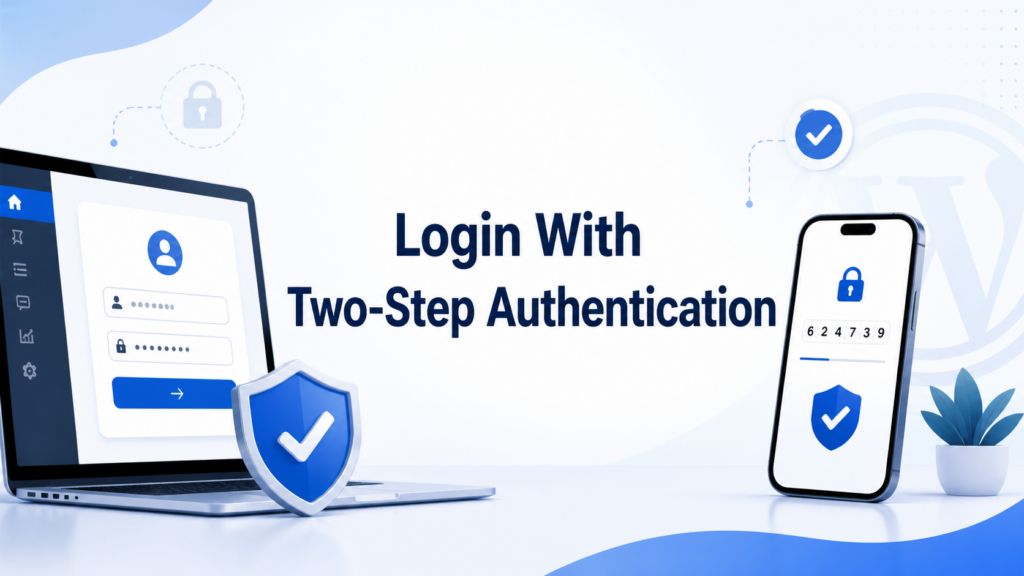
Two-step authentication adds another layer of protection to your WordPress account. With this setup, your password alone is not enough. After entering your password, you must also provide a verification code.
This code may come from an authenticator app or SMS message, depending on how you set up your account. The goal is simple: even if someone gets your password, they still cannot log in without the second verification method.
When using two-step authentication, follow this general process:
- Go to the WordPress login page.
- Enter your email address or username.
- Enter your password.
- Enter the verification code from your app or text message.
- Continue into your account.
If you lose access to your phone or authentication app, use a backup code if you saved one. Backup codes are important because they give you another way to prove account ownership when your normal verification method is unavailable.
Login With a Security Key or Passkey
Some WordPress users protect their account with a security key or passkey. This may be a physical key, such as a USB security device, or a passkey stored in a browser, password manager, or device system.
After entering your password, WordPress asks you to verify with the key. If you use a physical security key, you may need to insert it into your computer and touch the key to approve the login. If you use a device-based passkey, your browser or operating system may ask for fingerprint, face recognition, PIN, or another device confirmation.
Security keys are strong because they help prevent many phishing attacks. However, you should keep backup access methods available. If your key is lost, damaged, or unavailable, you may need backup codes or account recovery.
Login With Google, Apple, or GitHub
WordPress.com also supports social login options such as Google, Apple, or GitHub. This means you can connect one of those accounts to WordPress.com and use it to sign in more quickly.
Social login can be convenient, especially if you already use one of these services every day. However, it is important to connect the correct social account. For example, if your business website is tied to one Google account but you accidentally use another, you may not see the site you expect.
If you use social login, protect the connected account carefully. A weak Google, Apple, or GitHub password can create risk for your WordPress access too. Use strong passwords and enable security settings on those accounts.
What to Do If You Forgot Your Password
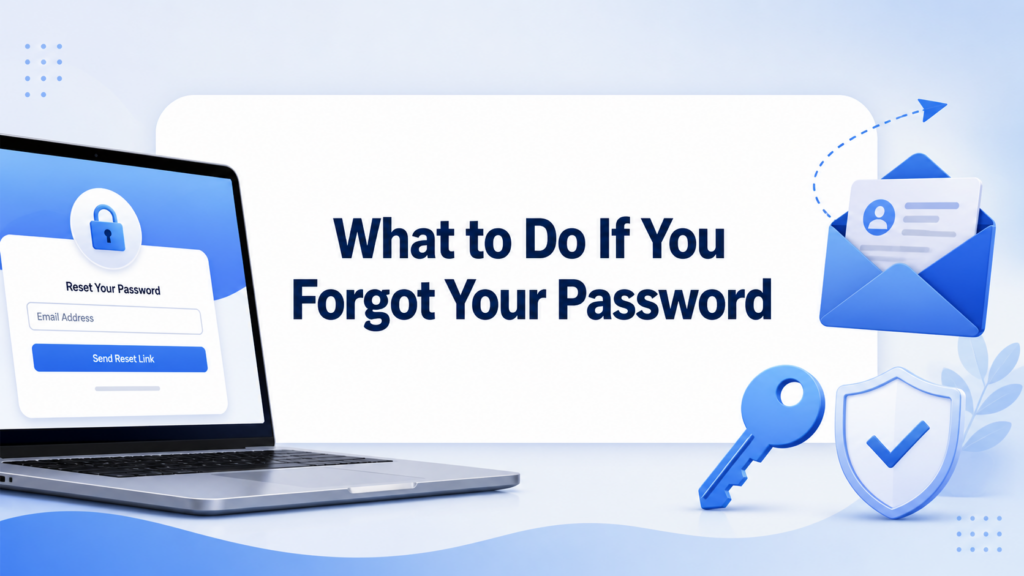
If you cannot remember your password, use the password reset option on the login page. WordPress will send instructions to the email address connected to your account.
After receiving the reset email, follow the link and create a new password. Choose a password that is unique, long, and difficult to guess. Do not reuse the same password from your email, hosting account, or other websites.
If the reset email does not arrive, wait a few minutes. Then check spam and other filtered inbox areas. If you still cannot find it, confirm that you entered the correct email address. If you no longer have access to that email account, you may need to use account recovery instead.
Why Login Emails May Not Arrive
Missing login emails are common, and they do not always mean something is wrong with WordPress. Email providers sometimes delay automated messages or move them to spam folders.
If you are waiting for a login link, reset email, or verification message, check these areas first:
- Spam or junk folder.
- Promotions or updates folder.
- Email filters or rules.
- Blocked sender list.
- The email address you typed on the login page.
It can also help to add WordPress.com’s sending address to your safe sender list, then request the email again. If you use a work email, your company’s email system may block automated messages. In that case, ask your administrator to check the filter.
What If Your Account Is Locked
If you enter the wrong password too many times, WordPress may temporarily block login attempts. This is a security measure designed to prevent repeated guessing.
If this happens, wait a few minutes before trying again. Do not keep entering random passwords. Instead, use the password reset option or check your saved password manager entry.
If your site or account is suspended, the issue may not be a normal login problem. Suspensions can happen for policy, billing, security, or account-related reasons. In that case, follow the recovery or support instructions shown by WordPress or your hosting provider.
How to Find the Right Website After Login
After you successfully log in, you may see an account area with one or more websites. If you manage only one site, the choice is simple. If you manage several websites, select the correct site name from your sites list.
Once you open the site, you can access the dashboard. This is where you manage content, design, settings, users, comments, and other website features.
If you do not see the website you expected, you may be logged into the wrong WordPress account. Try checking which email address is currently signed in. You can also log out and sign in again with a different email.
WordPress Dashboard vs WP Admin
WordPress.com may show a modern dashboard view, while many longtime WordPress users prefer the classic WP Admin view. Both can help you manage your site, but the layout feels different.
The modern dashboard is designed to be cleaner and easier for general website management. WP Admin is the classic WordPress backend that many developers, designers, and experienced users know well.
If you are following an online tutorial, pay attention to which dashboard style the tutorial uses. A button or setting may exist in both views, but it might appear in a different location.
For many users, WP Admin can be opened by adding /wp-admin after the site address. For WordPress.com users, you can also access it from the site list or dashboard options.
How to Log Out Safely
After finishing your work, log out of WordPress, especially if you are using a shared computer, office device, or public network. Logging out helps prevent other people from opening your dashboard without permission.
If you are working from your personal computer, staying logged in may be convenient. Still, you should protect your device with a password or biometric lock. Your WordPress login is only one part of account security. Your computer, browser, email, and password manager also matter.
Best Practices for WordPress Login Security
Knowing how to login to WordPress site is only the first step. You should also make your login process safer.
Use a strong password that you do not use anywhere else. Enable two-step authentication if available. Keep backup codes in a secure place. Make sure your email account is protected because password resets usually depend on email access.
Avoid logging in through links from suspicious emails. Instead, type the login address directly into your browser or use a trusted bookmark. Phishing pages can look similar to real login pages, so always check the domain before entering your password.
If you manage a business website, give each team member their own account. Do not share one admin login with everyone. Individual accounts are easier to manage, safer to remove, and better for tracking changes.
Common Beginner Mistakes
Many beginners make the same login mistakes. The first is mixing up WordPress.com and WordPress.org. The second is using the wrong email address. The third is expecting every WordPress dashboard to look the same.
Another common mistake is forgetting that a website can have multiple users. You may not be the site owner, even if you can edit content. If you cannot access billing, domains, plugins, or advanced settings, your user role may not have permission.
Some users also panic when the dashboard looks different after login. This may happen because the site uses a different admin view, a new theme, updated plugins, or a custom hosting dashboard. In most cases, the site is still there; you just need to find the correct admin area.
結論
Learning how to login to ワードプレス site is essential for managing your website with confidence. Start by using the correct login page, then enter the right email address or username and password. If your account uses extra protection, complete the two-step authentication, security key, or social login process. When login emails do not arrive, check your inbox filters and confirm you are using the correct account. After signing in, choose the right site, open the dashboard or WP Admin, and log out when you are finished. A secure and organized login process makes WordPress easier to manage and helps protect your website over time.
よくある質問
1. How do I login to my WordPress site?
Go to your WordPress login page, enter your email address or username, then enter your password. For WordPress.com sites, you can log in through WordPress.com. For self-hosted sites, try adding /wp-admin after your domain.
2. What is the WordPress admin login URL?
The common WordPress admin login URL is yourdomain.com/wp-admin. You can also try yourdomain.com/wp-login.php if the first one does not work.
3. What should I do if I forgot my WordPress password?
Click the “Lost your password?” or password reset link on the login page. WordPress will send a reset email to the address connected to your account.
4. Why can’t I access I access my WordPress dashboard?
You may be using the wrong login page, wrong email address, incorrect password, or a different WordPress account. If your site is self-hosted, you may need to log in through your hosting provider.
5. Can I login to WordPress without a password?
Some WordPress.com users can request a one-time login link by email. If available, choose the option to email yourself a login link and follow the instructions in your inbox.
6. How do I make my WordPress login more secure?
Use a strong password, enable two-step authentication, save backup codes, protect your email account, and avoid logging in through suspicious links.


WordPressのウェブサイトや、完全なeコマースシステムを備えたコーポレートサイトをデザイン・構築します。.
価格帯$200.00~$2,500.00custom-requirements-or-special-quotations
元価格は$2.00。.$1.00現在の価格は$1.00。. WordPress の電子商取引ストアに 50 個のプラグインは多すぎますか?
WordPressのeコマースサイトに50個のプラグインがあるからといって、それが自動的に問題になるわけではありません。実際、数だけでパフォーマンスが決まることはほとんどありません。.

Amazonホーム理学療法機器のメイン画像デザイン解説
はじめにAmazonで家庭用治療器の信頼できるイメージを構築する Amazonで家庭用治療器のメインイメージをデザインする際、私たちが最も重視するのは...

Amazon リップスティックコンバージョンのメイン画像デザイン
はじめにアマゾンで売れる口紅のメイン画像をデザインする アマゾンの口紅のメイン画像をデザインするとき、私たちの責任は...

ハッカーがWordPress管理者のメールアドレスを盗む方法(そしてそれを阻止する方法)
WordPressの管理者メールアドレスは、あなたが思っている以上に公開されているのです。ハッカーはそれが大好きです。彼らにとって、あなたの...

Amazonのリキッドファンデーションのメイン画像がコンバージョンにつながる理由
はじめに Amazonリキッドファンデーションのメイン画像デザインは、単に商品を美しく見せるだけではありません。Amazonでは、メイン画像と….

フィルターカートリッジの効果的なAmazonメインイメージのデザイン
はじめに Amazonのメイン画像をデザインする上で、商品を魅力的に見せることは決して重要ではありません。明確さ、信頼性、そして瞬時に理解できることが何よりも重要です。特に….

WordPress へのリプレイ攻撃: 本当の脅威か、それとも誇張された神話か?
まず最初に明確にしておきましょう。リプレイ攻撃は見た目には怖くありません。パスワードを破壊したり、緑色のハッカーテキストが飛び交うような悪質なコードを挿入したりもしません。彼らは狡猾なのです…。.

WordPressページを何も壊さずに複製する方法
正直に言って、新しいページを作りたくない時もあるでしょう。同じページを少しだけ変えたいだけなのに。レイアウトもブロックも設定も全部同じ。なぜなら….

ペット向けWordPressテーマ5選を比較
はじめに ペット関連のWordPressテーマを適切に選ぶことは、単なるデザイン上の決定ではありません。使いやすさ、拡張性、そして長期的なビジネスの成長に直接影響します。ペットケアとペット...

5つの水着eコマーステーマを比較
はじめに 水着やランジェリーの独立ストアに適切なテーマを選択することは、見た目だけの問題ではなく、コンバージョン率、拡張性、長期的な効果に直接影響します...

WordPressでコメント機能をオフにする方法(気が狂わずに)
WordPressのコメントについてお話しましょう。理論上は、コメントは素晴らしいものです。議論を促し、コミュニティを築き、ウェブサイトに「活気」を与えてくれます。しかし実際にはどうでしょうか?コメントはしばしば人を惹きつけ….

WordPress 500エラー:ウェブサイトがパニックに陥ったとき
WordPressサイトはほんの少し前までは問題ありませんでした。ページを更新した途端、突然…ドカーン💥…500 内部サーバーエラーが発生してしまいました。説明も謝罪もありませんでした。ただ冷たく、混乱を招くメッセージが表示され、その内容は….

科学主導のブランドのためのスケーラブルなWordPressウェブサイトの構築:AminoUSAプロジェクト
はじめに 今日のデジタル環境において、ウェブサイトは単なる製品リストを掲載する場所ではありません。規制の厳しい業界や研究重視の業界で事業を展開する科学主導のブランドにとって、ウェブサイトは….

グローバルブレードブランドのためのスケーラブルなShopifyストアの構築:CoolKatanaプロジェクト
はじめに 越境電子商取引において、Shopify の Web サイトは単なる店舗ではありません。ニッチで文化主導のカテゴリーで活動するブランドにとって、Web サイトは単なる店舗以上のものを実現する必要があります...

ポケモンカード向け高コンバージョンShopifyストアの設計
はじめに 収集可能な電子商取引の世界、特にポケモン トレーディング カード ゲーム (TCG) 市場では、Web サイトは単に製品をリストするだけでは不十分です。...

カスタムレンガブランドのための高コンバージョンShopifyデザイン
はじめに 今日の競争の激しいeコマース市場、特にパーソナライズされたギフトやコレクターズアイテムの分野では、Shopifyのウェブサイトは商品を展示する以上の機能を提供する必要があります。それは….

Shopifyサポートへの問い合わせ方法:シンプルでストレスフリーなガイド
Shopifyストアの運営は、混乱するのではなく、ワクワクするものであるべきです。疑問が生じたり、問題が発生して作業が滞ったりした場合でも、Shopifyは状況に応じて複数のサポートパスをご用意しています。.

Shopifyストアを非アクティブ化する方法:分かりやすく実践的なガイド
Shopifyストアの無効化はそれほど複雑ではありませんが、多くのマーチャントが見落としている影響があります。このガイドでは、そのプロセスを分かりやすく解説します。.