











 Japanese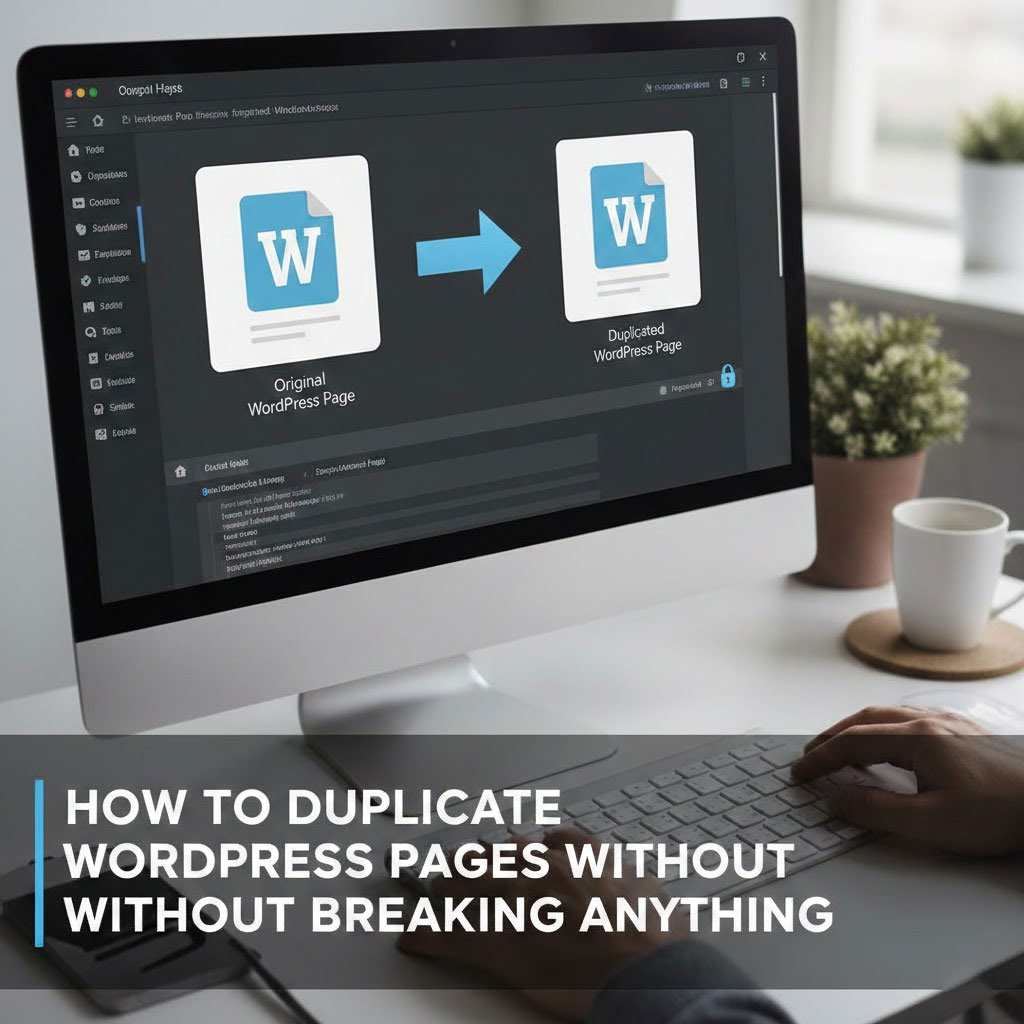
Let’s face it.
Sometimes you don’t want to create a new page.
You just want the same page… but slightly different.
Same layout.
Same blocks.
Same settings.
Because rebuilding a page from scratch is nobody’s idea of a good time.
Good news: ワードプレス makes copying pages and posts surprisingly easy—once you know where to click.
What You Need Before You Start

Before we duplicate anything, make sure your setup qualifies.
You’ll need one of these:
- A website hosted on WordPress.com, or
- A self-hosted WordPress site with the free Jetpack plugin activated
If that box is checked, you’re good to go.
The Classic Way: Duplicate From the Dashboard
This is the fastest and most popular method.
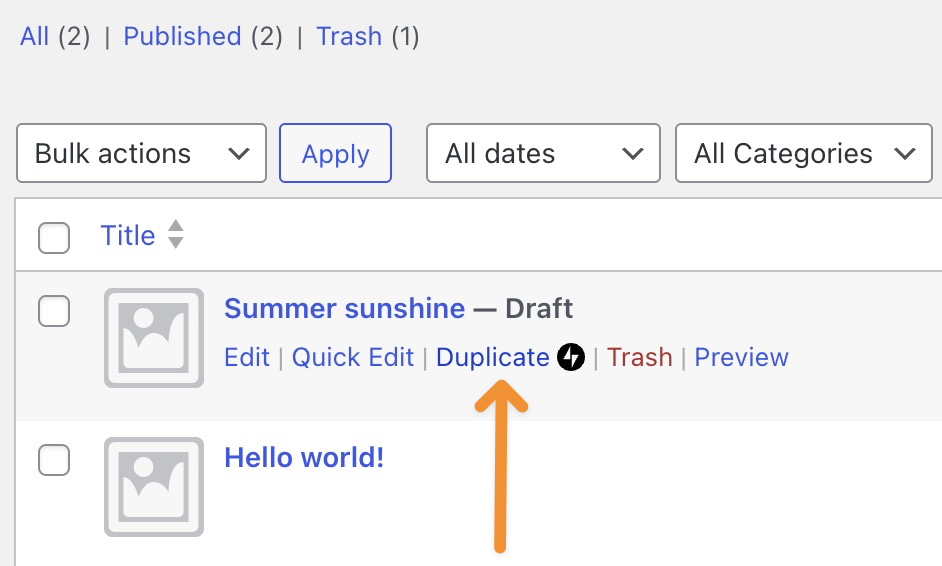
- Go to Posts or Pages in your WordPress dashboard
- Hover your mouse over the page or post you want to clone
- Click Duplicate when it magically appears
That’s it. WordPress opens a new draft that already includes:
- Title
- Content
- Excerpt
- Featured image
- Categories and tags
- Comment and sharing settings
- Custom post type data
Basically, it’s a perfect twin—minus the existential crisis.
Already Editing? Duplicate From Inside the Editor
Mid-edit and suddenly think, “I should make a copy of this”?
WordPress has your back.
- Open the page or post in the editor
- Make sure the Settings sidebar is visible (top-right icon)
- Click the three dots next to the title
- Choose Duplicate
- Give the new page a title and confirm
Boom. Copy created. Productivity preserved.
Don’t See the Duplicate Option? Here’s Why
No duplicate button usually means one of three things:
- Jetpack isn’t active
- The feature isn’t enabled
- Your page builder is doing its own thing
If you’re using Jetpack:
- Go to Jetpack → Settings → Writing
- Enable “Copy entire posts and pages, including tags and settings”
Once enabled, the duplicate option will appear like it was always there.
Backup Plan: Copy All Blocks (The Old-School Way)
If all else fails, there’s always the manual-but-reliable method.
- Open the page or post
- Click the three dots in the top-right corner
- Select Copy all blocks
- Create a new post or page
- Paste (Ctrl + V or Cmd + V)
Not fancy—but effective.
Final Thoughts
Duplicating pages isn’t cheating.
It’s called working smarter.
Whether you’re creating landing page variations, A/B testing layouts, or building multilingual versions, page duplication saves time and sanity.
で エアサン, this is exactly how we build and scale cross-border ワードプレス and Shopify websites—efficiently, cleanly, and without unnecessary repetition. Website design isn’t just about visuals; it’s about structure, workflow, and long-term growth.
If you’re planning to redesign your site, expand internationally, or want a WordPress setup that actually works with you, follow AIRSANG.
We don’t just design pages—we design systems that scale.


WordPressのウェブサイトや、完全なeコマースシステムを備えたコーポレートサイトをデザイン・構築します。.
価格帯$200.00~$2,500.00カスタム要件または特別見積もり
元価格は$2.00。.$1.00現在の価格は$1.00。. Are 50 Plugins Too Many for a WordPress eCommerce Store?
WordPressのeコマースサイトに50個のプラグインがあるからといって、それが自動的に問題になるわけではありません。実際、数だけでパフォーマンスが決まることはほとんどありません。.

Amazon リップスティックコンバージョンのメイン画像デザイン
はじめにアマゾンで売れる口紅のメイン画像をデザインする アマゾンの口紅のメイン画像をデザインするとき、私たちの責任は...

How Hackers Steal WordPress Admin Emails (And How to Stop Them)
WordPressの管理者メールアドレスは、あなたが思っている以上に公開されているのです。ハッカーはそれが大好きです。彼らにとって、あなたの...

Amazonのリキッドファンデーションのメイン画像がコンバージョンにつながる理由
はじめに Amazonリキッドファンデーションのメイン画像デザインは、単に商品を美しく見せるだけではありません。Amazonでは、メイン画像と….
フィルターカートリッジの効果的なAmazonメインイメージのデザイン
はじめに Amazonのメイン画像をデザインする上で、商品を魅力的に見せることは決して重要ではありません。明確さ、信頼性、そして瞬時に理解できることが何よりも重要です。特に….
WordPress へのリプレイ攻撃: 本当の脅威か、それとも誇張された神話か?
まず最初に明確にしておきましょう。リプレイ攻撃は見た目には怖くありません。パスワードを破壊したり、緑色のハッカーテキストが飛び交うような悪質なコードを挿入したりもしません。彼らは狡猾なのです…。.

ペット向けWordPressテーマ5選を比較
はじめに ペット関連のWordPressテーマを適切に選ぶことは、単なるデザイン上の決定ではありません。使いやすさ、拡張性、そして長期的なビジネスの成長に直接影響します。ペットケアとペット...

5つの水着eコマーステーマを比較
はじめに 水着やランジェリーの独立ストアに適切なテーマを選択することは、見た目だけの問題ではなく、コンバージョン率、拡張性、長期的な効果に直接影響します...

WordPressでコメント機能をオフにする方法(気が狂わずに)
WordPressのコメントについてお話しましょう。理論上は、コメントは素晴らしいものです。議論を促し、コミュニティを築き、ウェブサイトに「活気」を与えてくれます。しかし実際にはどうでしょうか?コメントはしばしば人を惹きつけ….
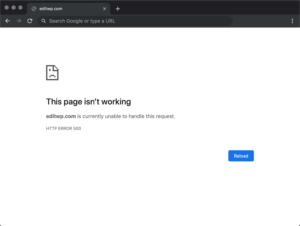
WordPress 500エラー:ウェブサイトがパニックに陥ったとき
WordPressサイトはほんの少し前までは問題ありませんでした。ページを更新した途端、突然…ドカーン💥…500 内部サーバーエラーが発生してしまいました。説明も謝罪もありませんでした。ただ冷たく、混乱を招くメッセージが表示され、その内容は….