How to Make Cool CSS Animations in WordPress

Introduction

If you want your website to feel modern, interactive, and visually engaging, adding animations is one of the most effective strategies. Subtle motion can guide users’ attention, highlight important content, and make your site feel more dynamic—without overwhelming visitors.

In this guide, we’ll walk through how to make cool CSS animations to WordPress, using beginner-friendly methods. Whether you’re running a blog, an eCommerce store, or a business site, you’ll learn how to add animations without needing deep coding knowledge.
What Are CSS Animations and Why They Matter

How to Make Cool CSS Animations in WordPress-What Are CSS Animations and Why They Matter

CSS animations are visual effects created using Cascading Style Sheets (CSS). They allow elements on your website—like text, images, or buttons—to move, fade, scale, or change styles over time.

Why use animations in WordPress?

  • Improve user experience: Smooth transitions make navigation feel natural
  • Increase engagement: Motion naturally draws attention
  • Highlight key elements: Call-to-action buttons or promotions stand out
  • Enhance brand perception: A polished interface builds trust

However, balance is key. Overusing animations can slow down your site or distract users. The goal is to enhance—not overwhelm.
Methods to Add CSS Animations in WordPress

How to Make Cool CSS Animations in WordPress-Methods to Add CSS Animations in WordPress

There are three main ways to add animations:

  1. Using plugins (easiest and most popular)
  2. Using page builders (visual control)
  3. Writing custom CSS (advanced control)

Let’s explore each method in detail.

Method 1: Add CSS Animations Using a Plugin

How to Make Cool CSS Animations in WordPress-Add CSS Animations Using a Plugin

For most users, plugins are the easiest way to add animations without coding.

Step 1: Install an Animation Plugin

Search for animation plugins in your WordPress dashboard. Popular options typically include features like:

  • Pre-built animation effects (fade, slide, bounce, zoom)
  • Scroll-triggered animations
  • Delay and duration controls

Install and activate your chosen plugin.

Step 2: Apply Animations to Elements

After activation, you’ll usually see new settings in:

  • Post editor
  • Page editor
  • Block editor sidebar

Select an element (text, image, button), then:

  • Choose animation type (e.g., fade-in, slide-up)
  • Set animation speed
  • Add delay (optional)

Step 3: Preview and Adjust

Always preview your page before publishing. Check:

  • Does the animation feel smooth?
  • Is it too fast or too slow?
  • Does it match your site’s style?

Small tweaks can make a big difference.
Method 2: Use a Page Builder for Visual Animations

How to Make Cool CSS Animations in WordPress-Use a Page Builder for Visual Animations

If you’re using a page builder like Elementor or similar tools, animation becomes even easier.

Key Features of Page Builder Animations

  • Drag-and-drop interface
  • Built-in motion effects
  • Aucun codage requis
  • Real-time preview

How to Add Animations with a Page Builder

  1. Open your page in the builder
  2. Click on any element (image, heading, section)
  3. Go to the “Advanced” or “Motion Effects” panel
  4. Choose an animation style

Common animation types include:

  • Fade In
  • Slide In (left/right/up/down)
  • Zoom In
  • Bounce

You can also control:

  • Duration
  • Delay
  • Trigger (on scroll, on hover, etc.)

When to Use Page Builders

  • You want full visual control
  • You design landing pages or product pages
  • You prefer real-time editing

Method 3: Add Custom CSS Animations (Advanced)

How to Make Cool CSS Animations in WordPress-Add Custom CSS Animations

If you want complete control, you can create your own animations using CSS.

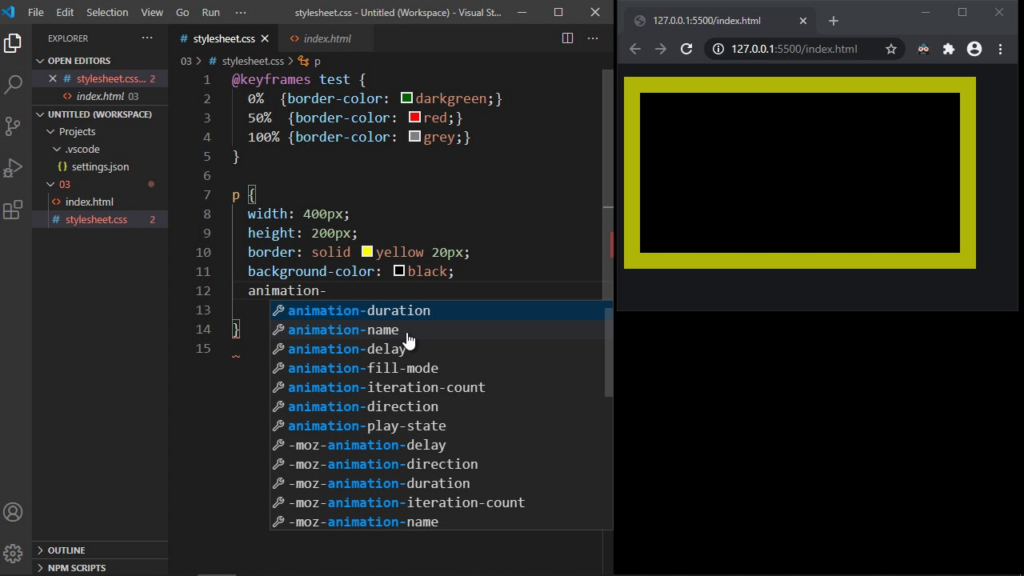
Basic CSS Animation Structure

A simple animation includes:

  • @keyframes (defines the animation steps)
  • animation property (applies the animation to elements)

Example concept:

@keyframes fadeIn {
from { opacity: 0; }
to { opacity: 1; }
}.element {
animation: fadeIn 2s ease-in-out;
}

How to Add Custom CSS in WordPress

You can add CSS in:

  • Customizer → Additional CSS
  • Theme stylesheet
  • Custom CSS plugin

Applying Animation to Elements

To animate a specific element:

  1. Assign a class in HTML or block editor
  2. Apply your CSS animation to that class

Benefits of Custom CSS

  • Full creative freedom
  • Unique animations
  • No plugin dependency

Drawbacks

  • Requires coding knowledge
  • Harder to maintain
  • Can break layout if not done properly

Best Practices for CSS Animations

To create effective animations, follow these principles:

1. Keep It Subtle

Avoid excessive movement. Smooth, minimal animations feel more professional.

2. Focus on Purpose

Posez-vous la question :

  • Does this animation guide the user?
  • Does it highlight something important?

If not, it may not be necessary.

3. Optimize Performance

Heavy animations can slow down your site.

Tips:

  • Avoid too many animations on one page
  • Use lightweight CSS instead of JavaScript when possible
  • Test page speed after adding animations

4. Make It Mobile-Friendly

Animations should work smoothly on mobile devices.

Vérifier:

  • Load speed
  • Responsiveness
  • Touch interaction

5. Use Consistent Style

Stick to a unified animation style across your site:

  • Same speed
  • Same motion direction
  • Same timing

This improves visual consistency.

Popular Types of CSS Animations

Here are commonly used animation styles:

Fade Animations

  • Fade In
  • Fade Out

Best for: content appearance, sections

Slide Animations

  • Slide from left/right/top/bottom

Best for: menus, banners, transitions

Zoom Animations

  • Zoom In
  • Zoom Out

Best for: product highlights

Bounce Animations

  • Slight bouncing effect

Best for: call-to-action buttons

Hover Animations

  • Triggered when user hovers

Best for: buttons, cards, images

When Should You Use Animations?

Animations are most effective in these areas:

  • Homepage hero section
  • Product highlights
  • Call-to-action buttons
  • Testimonials
  • Feature sections

Avoid overusing animations in:

  • Long text blocks
  • Navigation menus (unless subtle)
  • Critical content areas

Erreurs courantes à éviter

Overloading the Page

Too many animations can:

  • Slow down your site
  • Distract users
  • Reduce conversions

Using Inconsistent Effects

Mixing too many animation styles creates confusion.

Ignoring Accessibility

Some users prefer reduced motion. Consider:

  • Keeping animations optional
  • Avoiding flashing or rapid movement

Not Testing on Devices

Always test animations on:

  • Desktop
  • Tablet
  • Mobile

Tools That Help with CSS Animations

You can also use external tools to generate animations:

  • Animation libraries (pre-built effects)
  • CSS generators
  • UI animation frameworks

These tools help you create animations faster without coding from scratch.

Réflexions finales

Learning how to make cool CSS animations to WordPress doesn’t require advanced technical skills. Whether you use plugins, page builders, or custom CSS, you can easily enhance your website’s visual appeal and user experience.

The key is to use animations strategically—focusing on clarity, performance, and consistency. When done right, animations can transform a static website into an engaging and memorable experience.

Conclusion

CSS animations are a powerful way to bring life to your WordPress website. By choosing the right method—plugin, builder, or custom code—you can create smooth, modern effects that improve user interaction and highlight important content.

Keep your animations simple, purposeful, and optimized. With the right balance, your site will not only look better but also perform better.

FAQ

You can add CSS animations in WordPress without coding by using animation plugins or page builders. These tools provide ready-made effects that can be applied with just a few clicks.

The easiest way is to use a plugin or a visual page builder. They allow you to add animations like fade, slide, and zoom without writing any CSS code.

Yes, too many animations or poorly optimized effects can impact performance. It’s best to use lightweight animations and avoid overloading your pages.

You can use various animations such as fade-in, slide-in, zoom, bounce, and hover effects. These help improve visual appeal and user engagement.

Basic CSS knowledge is helpful if you want to create custom animations. However, most users can achieve great results using plugins or builders.

Yes, CSS animations can work well on mobile devices if optimized properly. Always test animations on different screen sizes to ensure smooth performance.


Livraison dans le monde entier

AIRSANG propose des solutions économiques de conception de sites web, d'identité visuelle de marque et de commerce électronique. De Shopify et WordPress aux images de produits Amazon, Nous aidons les marques internationales à bâtir, à développer et à faire croître leur activité en ligne.

Nous concevons et réalisons pour vous un site web WordPress ou un site d'entreprise avec un système de commerce électronique complet.
Exigences personnalisées ou devis spéciaux

Exigences personnalisées ou devis spéciaux

Prix initial : $2.00.Prix actuel : $1.00.

Prêt à transformer votre entreprise ?

Prenez rendez-vous pour en savoir plus sur la façon dont notre agence de marketing numérique peut faire passer votre entreprise à la vitesse supérieure.