











Aucun produit dans le panier.

Si votre WordPress website is not showing the latest updates, loading old content, or behaving inconsistently, the issue is often related to caching. Learning how to clear cache in WordPress is one of the simplest yet most important maintenance skills for any website owner.
Caching improves speed and performance, but it can also store outdated versions of your pages. In this guide, we’ll break down what cache is, why it matters, and how to clear it using different methods including plugins, browsers, hosting panels, and CDN services.
Cache is a temporary storage system that saves copies of your website’s files so they load faster for visitors. Instead of generating a page from scratch every time someone visits your site, WordPress can serve a pre-built version.
There are several layers of caching:
Each layer improves performance, but each one can also hold outdated content.
Clearing cache ensures your visitors always see the most up-to-date version of your website. Without clearing it, you might experience issues such as:
For website owners, especially those running eCommerce or content-heavy sites, understanding how to clear cache in WordPress ensures smooth updates and better user experience.
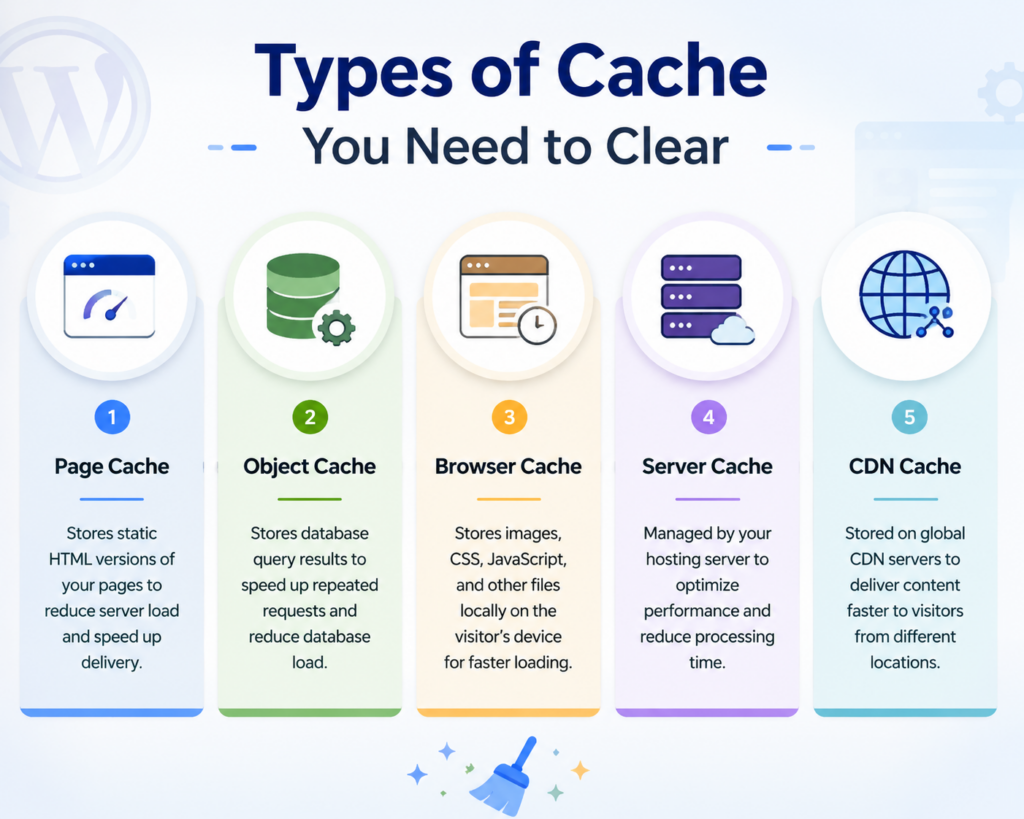
Before clearing cache, it helps to understand where it exists.
Stores static HTML versions of your pages to reduce server load.
Stores database query results to speed up repeated requests.
Stores images, CSS, and JavaScript files locally on the visitor’s device.
Managed at hosting level to optimize performance.
Stored across global servers to deliver content faster worldwide.
Each type may need to be cleared depending on the issue you are facing.
Most WordPress websites use caching plugins. These plugins make it easy to clear cache directly from the dashboard.
WP Rocket is one of the most popular premium caching plugins.
Mesures:
You can also enable automatic cache clearing after updates.
W3 Total Cache is a powerful free plugin with advanced options.
Mesures:
This clears page cache, object cache, and database cache together.
If your hosting uses LiteSpeed servers, this plugin is commonly pre-installed.
Mesures:
You can also clear specific pages or images if needed.
This is another widely used plugin for beginners.
Mesures:
It removes all stored cached pages instantly.
Sometimes the issue is not WordPress but your own browser showing an outdated version of the site.
After clearing browser cache, refresh your site to see changes.
Many hosting providers include built-in caching systems to improve speed. If you are using managed WordPress hosting, this is very common.
Server-level cache is powerful, so clearing it often resolves deep issues quickly.
A CDN like Cloudflare stores copies of your website globally to improve loading speed. Sometimes updates don’t show until you clear CDN cache.
You can also purge individual URLs if only specific pages are outdated.
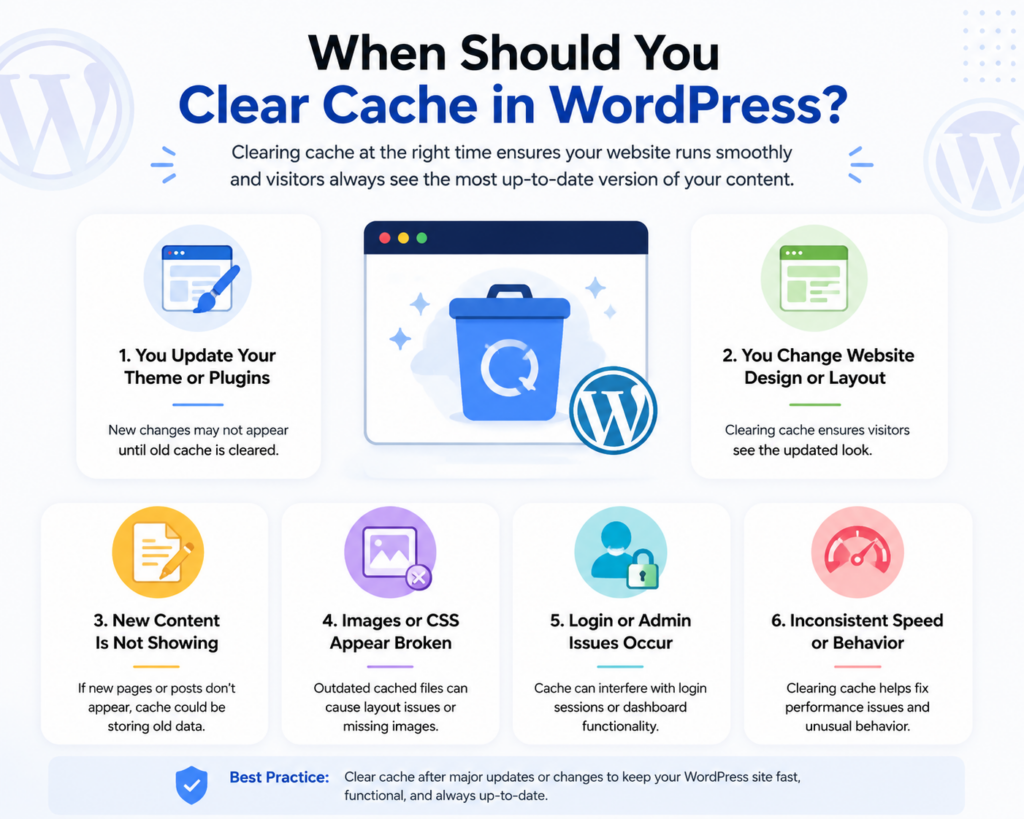
You don’t need to clear cache constantly. Do it when:
In general, clearing cache after major updates ensures everything loads correctly.
Sometimes clearing cache may temporarily cause issues such as:
These are normal and resolve automatically once cache is rebuilt.
To avoid problems in the future, follow these best practices:
Running multiple caching plugins can cause conflicts.
Most plugins allow automatic cache purge after updates.
CDN + caching improves global performance significantly.
This helps you see the real updated version of your site.
Clear cache periodically if your site updates frequently.
If clearing cache doesn’t fix the issue:
In many cases, issues come from multiple caching layers stacking together.
Understanding how to clear cache in WordPress is essential for keeping your website running smoothly and ensuring visitors always see the latest version of your content. Whether you’re using caching plugins, CDN services, or hosting-level optimization, each layer plays an important role in performance.
By regularly managing and clearing cache when necessary, you can prevent display errors, improve user experience, and maintain a fast, reliable WordPress website.
Clearing cache removes stored temporary files so your website can load the most updated version of pages, images, and scripts.
You should clear cache whenever you make major updates, such as changing themes, plugins, or website content.
This usually happens because cached files are still being displayed. Clearing cache forces the site to load the latest version.
Yes, sometimes your browser stores old versions of your site. Clearing browser cache ensures you see the latest updates.
The easiest method is using a caching plugin like WP Rocket, LiteSpeed Cache, or W3 Total Cache and clicking “Clear Cache” or “Purge All.”
No, it will not delete your content. It only removes temporary files and may slightly slow the first load as cache rebuilds.


















