Aucun produit dans le panier.

If you own a WordPress website, publishing pages and blog posts is only the first step. You also need to help Google discover, understand, and index your site. That is where Google Search Console comes in. Many beginners think Google will automatically find every new website right away, but that is not always how search works. Google can discover websites on its own, but submitting your site properly gives it a clearer path to your content.
This guide explains how to submit site to google with wordpress in a simple, beginner-friendly way. You do not need to be a developer, and you do not need advanced SEO knowledge. You only need a WordPress website, a Google account, access to your domain or website settings, and a basic understanding of how your site is managed.
Submitting a WordPress site to Google is not the same as paying for rankings. It does not guarantee that your pages will appear on page one overnight. Instead, it gives Google important information about your website, confirms that you own the site, and allows you to monitor how Google views your content. Once everything is connected, you can check indexing status, submit your sitemap, find search problems, and improve your website over time.
Submitting your website to Google means adding it to Google Search Console and providing Google with a sitemap. Search Console is a free tool from Google that helps website owners understand how their site performs in Google Search.
When you connect your WordPress site to Search Console, you are creating what Google calls a “property.” A property is simply the website or domain you want to manage. After you add the property, Google asks you to verify ownership. This step proves that you have permission to access search data for that website.
Once Google verifies your site, you can submit your XML sitemap. A sitemap is a file that lists the important URLs on your website. It helps Google discover your homepage, blog posts, product pages, category pages, and other key content more efficiently.
In simple terms, submitting your site gives Google a map and proves that you are the owner of the map.
WordPress makes it easy to build and publish a website, but publishing alone does not tell you how your website appears in search results. Google Search Console gives you a clearer view of what happens after your content goes live.
With Search Console, you can see which pages are indexed, which search queries bring visitors to your site, and whether Google finds technical problems. You can also check if certain pages are blocked, missing from search, or affected by mobile usability issues.
For beginners, the biggest benefit is visibility. Instead of guessing whether Google knows about your site, you can check directly. If you publish a new blog post, update a service page, or create a new product category, Search Console helps you understand whether Google can find and process that content.
For SEO, this is important because search visibility depends on more than writing good content. Google also needs to crawl your website, understand your structure, and index your pages correctly.
Before you submit your WordPress site to Google, make sure your website is ready to be indexed.
First, check that your website is live and accessible. If your site is still in maintenance mode, protected by a password, or blocked from search engines, Google may not be able to crawl it.
Next, log in to your WordPress dashboard and go to the reading settings. Make sure the option that discourages search engines from indexing the site is not enabled. This setting is useful during development, but it should be turned off once the website is ready for public visitors.
You should also have access to one of the following: your domain DNS settings, your WordPress admin area, your hosting account, or your website files. Google offers several verification methods, and having access to these areas makes the process easier.
Finally, prepare a Google account. You will use this account to access Google Search Console.
To begin, go to Google Search Console and sign in with your Google account. If this is your first time using the tool, Google may show you a welcome screen asking you to add your first property.
A property is the website you want to submit. Search Console usually gives you two main options: Domain and URL Prefix.
The Domain option covers the entire domain, including all versions of the site. For example, it can include HTTP, HTTPS, www, non-www, and subdomains. This is often the most complete option, but it usually requires DNS verification.
The URL Prefix option covers only the exact version of the website you enter. For example, if you submit https://example.com, it only tracks that specific version. This option can be easier for beginners because it supports more verification methods.
For most WordPress users, either option can work. If you are comfortable editing DNS records, the Domain option is strong and complete. If you prefer a simpler setup through WordPress or an SEO plugin, URL Prefix may feel easier.
After choosing your property type, enter your website address carefully.
If you choose the Domain option, enter only the domain name, such as exemple.com. Do not include https:// or a trailing slash.
If you choose URL Prefix, enter the full website URL, such as https://example.com/. Make sure it matches the version your visitors actually use. If your website redirects from http à https, use the HTTPS version. If your site uses www, include it. If it does not use www, leave it out.
This step matters because Google treats different versions of a website as separate addresses. A small difference in the URL can affect what data you see later.
Once you enter the site address, continue to the verification step.
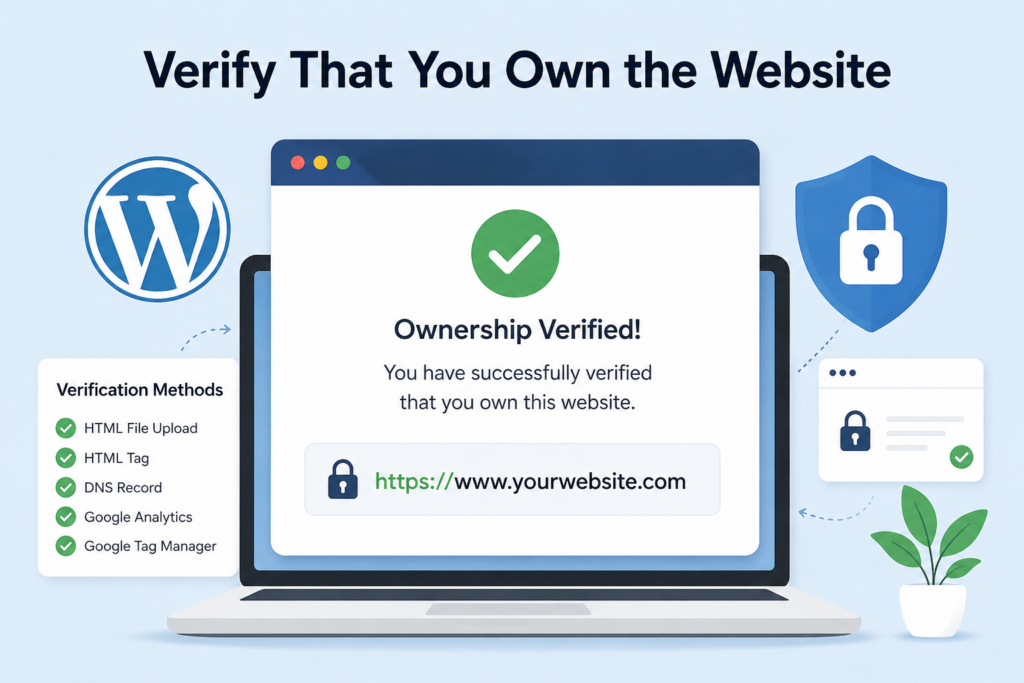
Google needs to confirm that you own or manage the website before showing search data. This protects site owners and prevents random users from accessing private performance information.
There are several common ways to verify a WordPress website.
DNS verification is often used with the Domain property option. Google gives you a TXT record, and you add that record to your domain’s DNS settings.
Your DNS settings are usually managed through your domain registrar, hosting provider, or DNS service. After adding the TXT record, you return to Search Console and click the verification button. Sometimes verification works quickly. Other times, DNS changes may take longer to update.
This method is powerful because it verifies the entire domain, not just one URL version.
With URL Prefix, Google may give you an HTML meta tag. You can place this tag in the header area of your WordPress site.
Many SEO plugins make this easier. Instead of editing theme files, you can paste the verification code into a plugin setting. This is usually safer for beginners because editing theme files directly can cause mistakes.
After saving the tag, go back to Search Console and verify the property.
Google may also offer an HTML file that you can upload to your website. This method requires access to your hosting file manager or FTP. You download the file from Google, upload it to the root folder of your website, and then confirm verification.
This method works well if you are comfortable with website files, but many WordPress beginners prefer plugin-based verification.
If your website already uses Google Analytics or Google Tag Manager, Search Console may allow verification through one of those tools. This can be convenient, but it depends on whether the tracking code is installed correctly and whether your Google account has the right permissions.
After verification, the next important step is submitting your sitemap.
A sitemap is like a directory of your website’s important pages. It helps Google understand your site structure and find content faster. WordPress has built-in sitemap functionality, and many SEO plugins also create enhanced sitemaps.
If you use an SEO plugin such as Yoast SEO, Rank Math, or All in One SEO, your sitemap is usually generated automatically. The sitemap URL often looks like one of these:
https://example.com/sitemap.xml
ou
https://example.com/sitemap_index.xml
The exact sitemap address depends on your WordPress setup and SEO plugin.
To find your sitemap, check your SEO plugin settings. Most plugins have a section for sitemap settings where you can enable or view the sitemap. You can also type common sitemap URLs into your browser to see whether a sitemap loads.
A good sitemap should include your important public content, such as pages, posts, categories, and other indexable content types. It should not include private pages, admin pages, checkout pages, duplicate content, or low-value URLs.
Once you have your sitemap URL, return to Google Search Console.
In the left-side menu, look for the “Sitemaps” section. Open it and enter the sitemap path. You usually do not need to paste the entire domain again if Search Console already shows your site URL. For example, you may only need to enter:
sitemap.xml
ou
sitemap_index.xml
Then click submit.
Google will process the sitemap and show a status. If everything works, you should see a success message. If there is an error, Google may show a warning or explain that the sitemap could not be fetched.
Do not panic if the sitemap does not update instantly. Google may need time to crawl it. The important thing is to make sure the sitemap URL is correct and accessible.
Submitting a sitemap does not mean every page will appear in Google immediately. It simply gives Google a clearer list of pages to review.
To check a specific page, use the URL Inspection tool inside Search Console. Paste the full URL of a page or post, and Google will tell you whether the page is indexed, whether it can be crawled, and whether there are any obvious issues.
If the page is not indexed, you may see an option to request indexing. This tells Google that you would like the page reviewed. It does not guarantee instant indexing, but it can help Google discover new or updated content faster.
This tool is especially useful after publishing new blog posts, editing important pages, fixing SEO issues, or launching a new website.
After your WordPress site is connected and your sitemap is submitted, Search Console becomes a long-term SEO tool.
The Performance report shows search queries, clicks, impressions, average position, and click-through rate. These numbers help you understand how people find your site in Google Search.
For example, impressions show how often your pages appear in search results. Clicks show how often people visit your site from those results. The average position gives you a general idea of where your pages rank for different searches.
This information can help you improve titles, update content, target better keywords, and find pages with growth potential.
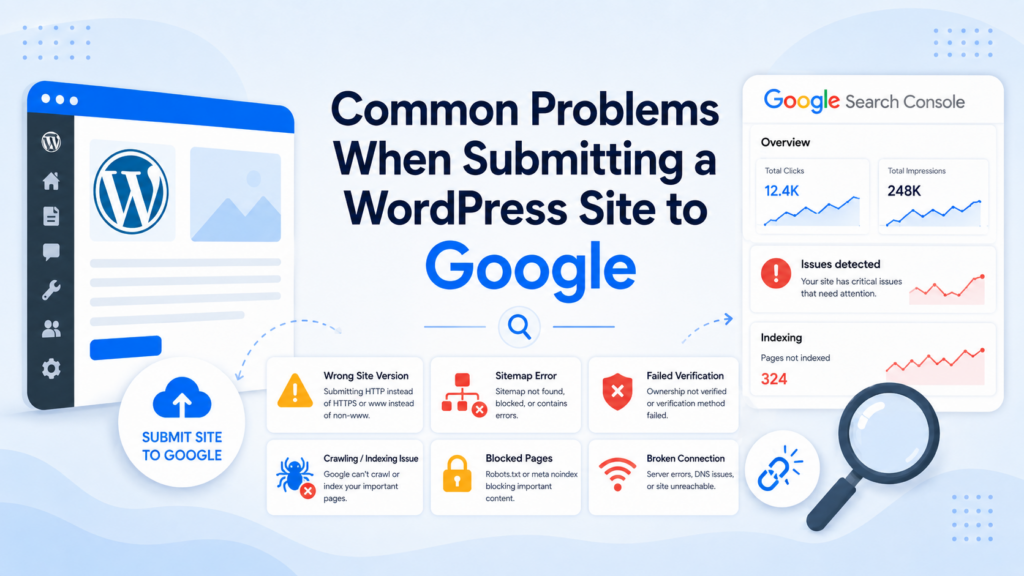
One common issue is entering the wrong website version. If your site uses HTTPS but you submit the HTTP version, your data may look incomplete. Always submit the version your visitors actually use.
Another problem is failed verification. This usually happens when the DNS record, HTML tag, or uploaded file is missing, placed incorrectly, or not updated yet. Review the instructions carefully and give DNS changes time to apply.
A sitemap error can also happen if the sitemap URL is wrong, blocked, or generated by a plugin that is not configured correctly. Open the sitemap URL in your browser first. If you cannot access it, Google probably cannot access it either.
Some WordPress sites also accidentally block search engines. Check your WordPress reading settings and make sure your SEO plugin is not marking important pages as “noindex.”
After learning how to submit site to google with wordpress, continue improving your site so Google has better content to crawl and index.
Publish helpful content that answers real user questions. Use clear page titles, organized headings, and readable paragraphs. Make sure your website loads well on mobile devices because many users search from phones.
Keep your sitemap clean. If you delete pages, change URLs, or reorganize your site, make sure your sitemap updates correctly. Most SEO plugins handle this automatically, but it is still worth checking from time to time.
You should also review Search Console regularly. Look for indexing problems, mobile usability warnings, and pages that get impressions but few clicks. These clues can help you improve both SEO and user experience.
There is no exact timeline. Some pages may be discovered quickly, while others may take longer. Google’s crawling and indexing depend on many factors, including site quality, internal links, technical accessibility, content value, and how often the website updates.
Submitting your sitemap helps, but it does not force Google to index everything immediately. The best approach is to make your site easy to crawl, publish useful content, and keep your structure clean.
Over time, Search Console will give you more data. At first, reports may look empty because Google has not collected enough information yet. As your site receives impressions and clicks, the reports become more useful.
Submitting a WordPress site to Google is an important step for any website owner who wants better search visibility. The process starts with Google Search Console, where you add your website as a property, verify ownership, create or locate your WordPress sitemap, and submit that sitemap to Google.
This setup helps Google discover your content, understand your website structure, and show you valuable search data. It also gives you tools to inspect URLs, monitor indexing, and identify problems that may affect your visibility.
In summary, learning how to submit site to google with wordpress is not complicated. Once you connect your site, verify ownership, and submit your sitemap, you create a stronger foundation for long-term SEO growth.
You can submit your WordPress site to Google by adding it to Google Search Console, verifying website ownership, and submitting your XML sitemap. This helps Google discover your pages and understand your website structure.
Yes. Google Search Console helps you monitor indexing status, search performance, sitemap issues, and technical problems. It gives you useful data about how your WordPress site appears in Google Search.
Most WordPress websites have a sitemap at a URL like yourdomain.com/sitemap.xml ou yourdomain.com/sitemap_index.xml. If you use an SEO plugin such as Yoast SEO, Rank Math, or All in One SEO, you can usually find the sitemap link inside the plugin settings.
There is no fixed timeline. Some pages may be indexed within a few days, while others may take longer. Submitting a sitemap can help Google discover your content faster, but it does not guarantee instant indexing.
Your site may not appear on Google if it is new, not indexed yet, blocked by WordPress settings, missing a sitemap, using a noindex tag, or having crawl errors. You can use the URL Inspection tool in Google Search Console to check specific pages.
Submitting your site does not directly improve rankings. However, it helps Google discover and process your content. Better indexing, clean site structure, useful content, and strong SEO practices can support long-term search visibility.