If you’ve ever edited a WordPress theme and suddenly realized something went wrong, you’re not alone.
A layout breaks. Text disappears. Colors change unexpectedly. And the first question that comes to mind is simple:
Can I undo a theme editor change in WordPress?
The short answer is yes — but the method depends on how and where the change was made.
In this guide, we’ll walk through every practical way to undo theme editor changes in WordPress, from built-in revision tools to backups and recovery strategies. This article is written for beginners, business owners, and anyone managing a WordPress site without wanting to break it.
Our focus keyword throughout this guide is:
how to undo theme editor change wordpress
Understanding the WordPress Theme Editor (Before Undoing Anything)
Before you can undo changes, it helps to understand what the WordPress theme editor actually is.
In WordPress, the “theme editor” can refer to different editing systems, depending on:
Your WordPress version
Your active theme
Whether you’re using block themes, classic themes, or page builders
Common places where theme-related changes happen include:
The Site Editor (Full Site Editing)
The Block Editor (Gutenberg)
The Customizer
The Theme File Editor (PHP/CSS)
Page builders like Elementor or others
Each of these has different undo capabilities.
Method 1: Undo Changes Using WordPress Revisions (Fastest Option)
If you’re editing content or templates using the Block Editor, WordPress automatically saves revisions.
What Are Revisions?
Revisions are snapshots of your content saved over time. They allow you to roll back to an earlier version.
This works for:
Páginas
Publicaciones
Plantillas
Template parts (headers, footers, etc.)
How to Undo Theme Editor Changes with Revisions
Open the page or template you edited
Click “Settings” (top right)
Find Revisions
Browse older versions
Restore the version that worked
This is one of the safest answers to how to undo theme editor change wordpress when you’re working inside Gutenberg.
Importante: Revisions only exist if:
The content was saved
Revisions are not disabled on your site
Method 2: Use Undo & Redo While Editing (Ctrl + Z)
Sometimes the simplest solution works best.
While editing in the WordPress editor:
Undo:Ctrl + Z (Windows) / Cmd + Z (Mac)
Redo:Ctrl + Shift + Z / Cmd + Shift + Z
This only works before you refresh or close the editor.
If you’ve already saved or exited the page, this method will no longer help.
Method 3: Revert Theme Template Changes in the Site Editor
If you’re using a block-based theme, WordPress offers a full Site Editor for:
Headers
Footers
Layout templates
Global styles
Undoing Template Changes
Go to Appearance → Editor
Open Templates or Template Parts
Select the edited template
Click Revisions
Restaurar una versión anterior
This is a key method for undoing global layout mistakes, which are common when learning Full Site Editing.
Method 4: Reset Styles in Global Styles Panel
Many users accidentally break their site by changing fonts, colors, or spacing globally.
How to Undo Global Style Changes
Go to Appearance → Editor
Open Styles
Click the three-dot menu
Choose Reset to defaults
This instantly restores your theme’s original styling.
If your site suddenly looks “off,” this is often the fix.
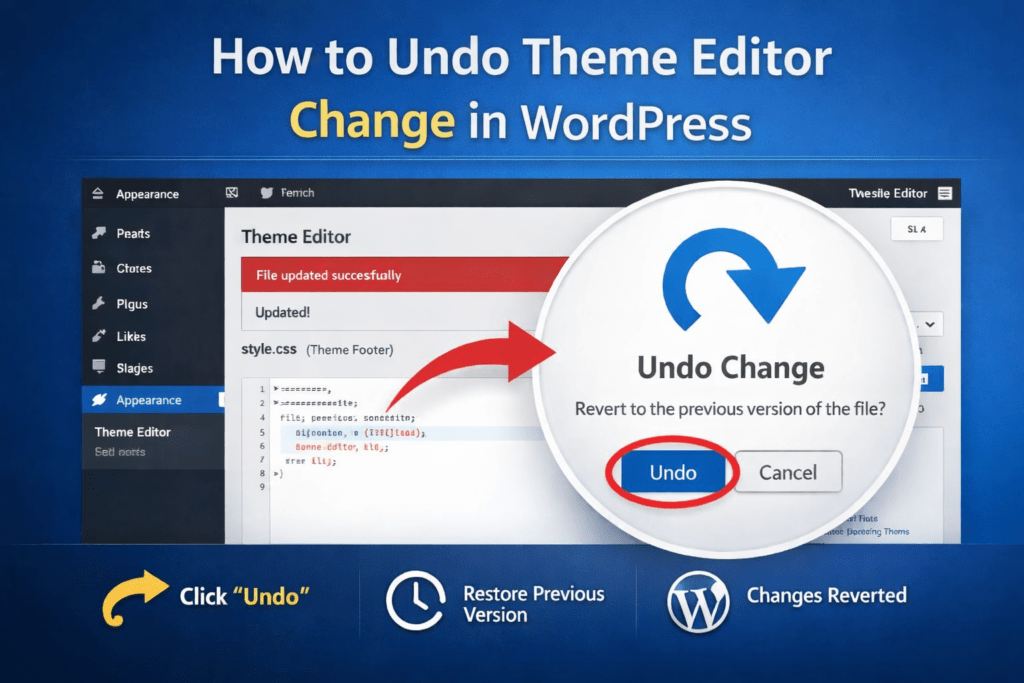
Method 5: Restore Theme Files (Advanced Users)
If you edited theme files directly using:
Appearance → Theme File Editor
Custom CSS
funciones.php
Undoing becomes more technical.
If You Still Have the Original Code
Manually revert the file to its previous version
Save changes carefully
If You Don’t Remember What Changed
This is where many users get stuck.
At this point, the best solution is restoring a backup.
Method 6: Restore a Backup (Safest Universal Solution)
Backups are the ultimate safety net.
If your host or plugin provides backups, you can:
Restore the entire site
Or selectively restore files and database
Common backup sources:
Hosting provider backups
WordPress backup plugins
Server snapshots
If you’re asking “how to undo theme editor change wordpress after everything broke”, backups are often the only reliable answer.
Method 7: Reinstall the Theme (When Files Are Corrupted)
If your theme files are heavily modified:
Download a fresh copy of the theme
Delete the current theme (without deleting content)
Reinstall the theme
Reapply safe customizations
This works best if:
You didn’t heavily customize the theme files
Or customizations were minimal
Why Undoing Theme Changes Often Goes Wrong
Many WordPress issues happen because users:
Edit live sites without staging
Modify theme files directly
Don’t understand global vs page-level changes
Don’t use backups
This is especially common for business websites, cross-border eCommerce sites, and brand sites, where one small layout change can impact conversions.
Best Practices to Avoid Needing to Undo Changes
If you manage a WordPress site regularly, follow these rules:
Use staging environments
Rely on child themes
Avoid editing core theme files
Use revision-friendly editors
Always keep backups
Prevention is easier than recovery.
When You Should Stop Undoing and Ask for Help
If:
The site layout is completely broken
The header/footer disappeared
CSS conflicts appear everywhere
Theme updates overwrite changes
It’s time to stop experimenting and get professional support.
Final Thoughts: Undo Is Easy — Strategy Is Hard
Learning how to undo theme editor change wordpress is essential for anyone running a WordPress site.
But undoing mistakes is only a temporary solution.
Lo que realmente importa es:
A clean theme structure
Scalable design
Safe customization
Diseños centrados en la conversión
Cómo puede ayudar AIRSANG
En AIRSANG, we specialize in cross-border WordPress and eCommerce website design, helping brands build stable, scalable, and conversion-driven websites from the ground up.
Instead of constantly undoing broken edits, we help you:
Design WordPress themes the right way
Customize safely without breaking updates
Optimize layouts for global audiences
Build websites that support long-term growth
If you’re tired of fixing theme editor mistakes and want a site that just works — AIRSANG Está aquí para ayudar.
AIRSANG ofrece soluciones rentables de diseño web, identidad visual de marca y comercio electrónico. Desde Shopify y WordPress hasta imágenes de productos de Amazon, ayudamos a las marcas globales a construir, elevar y hacer crecer su negocio en línea.
Comprender el impacto real en el rendimiento Tener 50 plugins en un sitio de comercio electrónico de WordPress no es automáticamente un problema. De hecho, el número por sí solo rara vez determina el rendimiento....
Introducción: Diseñar una imagen principal de un pintalabios que venda en Amazon Cuando diseñamos una imagen principal para un pintalabios de Amazon, nuestra responsabilidad va mucho más allá de...
Empecemos con una verdad incómoda: su correo electrónico de administrador de WordPress es probablemente mucho más público de lo que cree. Les encanta. Para ellos, tu...
Introducción. Diseñar una imagen principal para la base líquida de Amazon no se trata solo de que un producto luzca atractivo. En Amazon, la imagen principal y...
Introducción: Diseñar una imagen principal para Amazon no se trata solo de hacer que un producto sea atractivo. Se trata de claridad, confianza y comprensión inmediata, especialmente para...
Aclaremos algo primero. Los ataques de repetición no dan miedo. No descifran contraseñas. No inyectan código maligno con texto verde de hacker por todas partes. Son sigilosos...
Seamos sinceros. A veces no quieres crear una página nueva. Solo quieres la misma página... pero ligeramente diferente. El mismo diseño. Los mismos bloques. La misma configuración. Porque...
Introducción Elegir el tema de WordPress adecuado para mascotas es más que una decisión de diseño: afecta directamente la usabilidad, la escalabilidad y el crecimiento del negocio a largo plazo. Cuidado de mascotas y...
Introducción Elegir el tema adecuado para una tienda independiente de trajes de baño o lencería no es solo una decisión visual: afecta directamente las tasas de conversión, la escalabilidad y el futuro a largo plazo.
Hablemos de los comentarios de WordPress. En teoría, son geniales. Fomentan la discusión. Crean comunidad. Hacen que tu sitio web se sienta "vivo". ¿En realidad? Suelen ser un imán...
Tu sitio de WordPress funcionaba bien hace un minuto. Actualizaste la página. Y de repente, ¡bum! 💥: Error interno del servidor 500. Sin explicación. Sin disculpa. Solo un mensaje frío y confuso que básicamente...
Administrar una tienda Shopify debería ser emocionante, no confuso. Cuando surgen preguntas o los problemas te retrasan, Shopify ofrece varias vías de soporte según el caso...
Desactivar una tienda Shopify no es complicado, pero conlleva consecuencias que muchos comerciantes pasan por alto. Esta guía explica el proceso de forma sencilla y educativa.
Introducción Elegir el tema adecuado para una tienda independiente especializada en calzado no es solo una decisión visual: afecta directamente la escalabilidad, las operaciones diarias y el rendimiento de conversión a largo plazo.
Introducción: El equivalente digital de despertarse y encontrar una ventana rota Imagínese despertarse, tomar su café de la mañana, abrir su computadora portátil... y descubrir que su sitio web...
Abrir una tienda Shopify suena glamuroso. Te imaginas tomando un café al mediodía, revisando las notificaciones de ofertas y diciéndoles a tus amigos: "Sí, mi tienda tuvo mucho éxito...".
Si estás investigando plataformas de comercio electrónico, es probable que hayas buscado en Google una pregunta muy específica: ¿es Shopify legítimo? Es una pregunta completamente lógica. Lanzar una...