











No hay productos en el carrito.

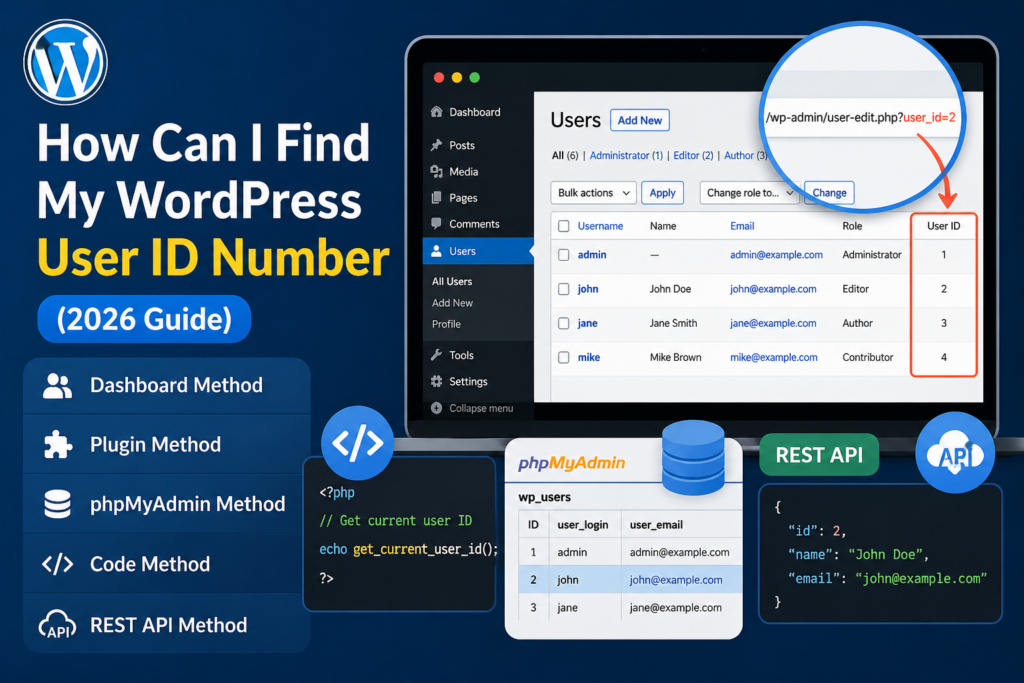
If you’ve ever worked with WordPress beyond basic content editing, you’ve probably run into situations where you need a user ID. Maybe you’re customizing a theme, setting up user-specific conditions, integrating plugins, or troubleshooting permissions. At some point, the question naturally comes up: how can I find my WordPress user ID number?
This guide explains everything you need to know in a clear, beginner-friendly way. We’ll walk through what a WordPress user ID is, why it matters, and multiple simple methods to find it—no coding knowledge required.
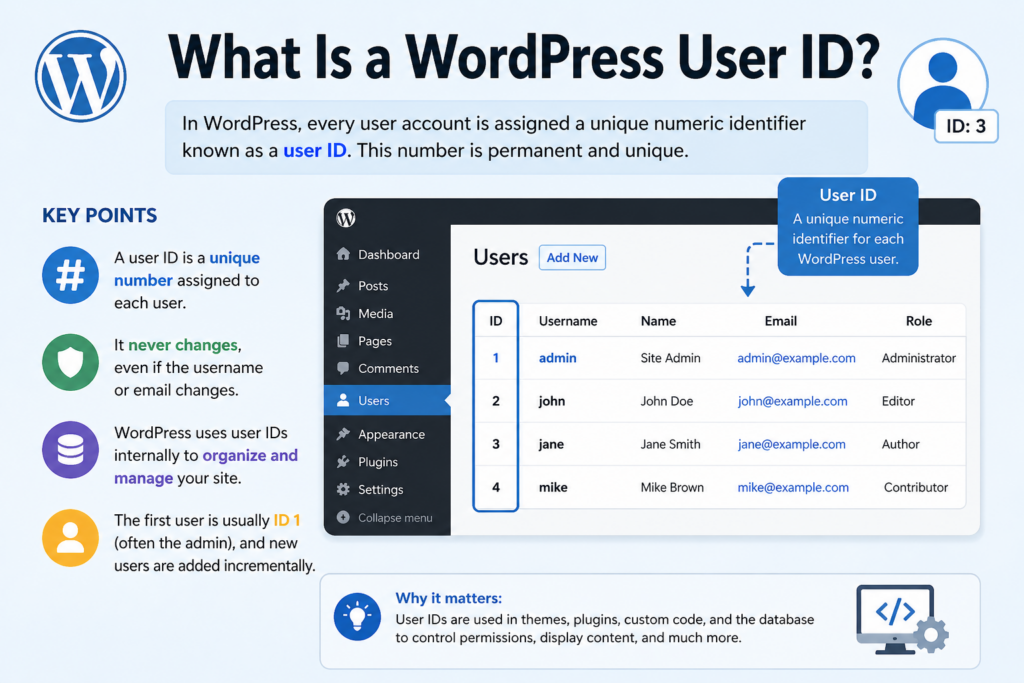
In WordPress, every user account is assigned a unique numeric identifier known as a user ID. This number is created automatically when a new user is registered on your site.
Unlike usernames or display names, which can be changed, the user ID is permanent and unique. WordPress uses this ID internally to:
Por ejemplo:
12, 3, 4, and so onEven if you change a username or email address, the user ID remains the same.
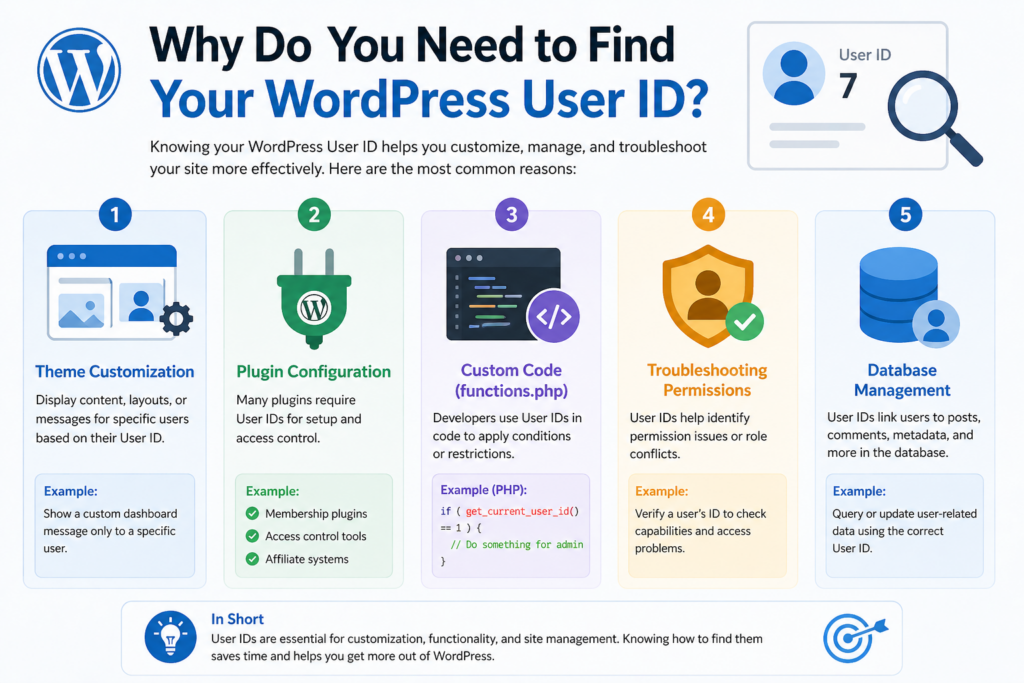
Most beginners don’t need to worry about user IDs right away. However, as your website grows or becomes more customized, knowing your user ID becomes important.
Here are some common scenarios:
Some WordPress themes allow you to display content based on a specific user ID. For example:
Certain plugins require user IDs for setup, such as:
Developers often use user IDs in code snippets like:
if ( get_current_user_id() == 1 ) {
    // Do something for admin
}
If a user cannot access certain areas, checking their user ID can help identify conflicts or misconfigurations.
This is the simplest and most beginner-friendly method.
You’ll see something like:
/wp-admin/user-edit.php?user_id=3&wp_http_referer=...
👉 The number after user_id= is the user ID.
WordPress uses the user ID in the URL when loading the user edit page.
If hovering doesn’t clearly show the link, you can do this:
Ejemplo:
https://yoursite.com/wp-admin/user-edit.php?user_id=5
👉 In this case, the user ID is 5.
If you prefer a cleaner interface, you can install a plugin that displays user IDs directly.
They add an extra column in your dashboard showing:
You’ll now see a User ID column.
If you have access to your hosting panel, you can find user IDs directly in the database.
wp_users
(Note: your prefix may not be “wp_”)
You’ll see:
👉 The ID column is your WordPress user ID.
If you’re comfortable adding small code snippets, this method is useful.
Add this temporarily to your theme:
echo get_current_user_id();
$user = get_user_by('login', 'username');
echo $user->ID;
⚠️ Always remove test code after use.
This method works on many WordPress sites, especially if author archives are enabled.
https://yoursite.com/author/john/
Sometimes you’ll find:
author=3
👉 That number is the user ID.
If your site supports the WordPress REST API, you can retrieve user data programmatically.
https://yoursite.com/wp-json/wp/v2/users
This returns JSON data like:
{
  "id": 3,
  "name": "John Doe"
}
👉 The "id" field is the user ID.
Your username might be:
john_admin
But your user ID is:
3
They are completely different.
While the first user is usually ID 1, this is not guaranteed.
If you use phpMyAdmin, always:
Changing IDs can break relationships between:
| Situation | Best Method |
|---|---|
| Beginner / quick check | Dashboard hover |
| Frequent use | Plugin |
| No admin access | phpMyAdmin |
| Developer work | Code |
| API integration | REST API |
User IDs themselves are not sensitive, but exposing them can sometimes:
To improve security:
Instead of targeting just ID:
if ( current_user_can('administrator') ) {
This is more flexible.
Puede:
Ejemplo:
add_shortcode('my_user_id', function() {
    return get_current_user_id();
});
Then use:
[my_user_id]
Yes. In most cases, they are the same because WordPress uses user IDs to assign authorship.
Not safely. It’s technically possible via database edits, but it can break your site.
The ID is not reused. WordPress keeps incrementing IDs for new users.
Usar:
echo get_current_user_id();
Understanding how to find your WordPress user ID number is a small but essential skill that becomes increasingly valuable as your site grows.
Whether you’re customizing layouts, configuring plugins, or troubleshooting access issues, the user ID acts as a reliable internal identifier that WordPress depends on behind the scenes.
The easiest method is checking the URL in the dashboard, while more advanced users can rely on database access, code snippets, or the REST API. By choosing the right approach for your situation, you can quickly locate any user ID and use it effectively in your workflow.
Once you know where to look, finding a WordPress user ID becomes simple, fast, and incredibly useful.
You can find your WordPress user ID by going to Users → All Users in your dashboard and hovering over a username. The user ID will appear in the URL as user_id=number.
No, your username and user ID are different. The username is customizable, while the user ID is a unique number assigned by WordPress and cannot be changed easily.
Yes, you can find it directly in the dashboard URL, through phpMyAdmin, or by using a simple code snippet like get_current_user_id().
Log in to phpMyAdmin, open your WordPress database, and check the wp_users table. The “ID” column shows each user’s unique user ID.
Plugins often use user IDs to manage permissions, assign roles, track activity, or personalize content for specific users on your site.
Generally, user IDs are not sensitive information. However, exposing them publicly may increase security risks, so it’s best to limit unnecessary exposure.


















