كيفية إيقاف التعليقات في ووردبريس (دون أن تفقد عقلك)

How to Turn Off Comments in WordPress

Let’s talk about WordPress comments.

In theory, comments are great.
They encourage discussion.
They build community.
They make your website feel “alive.”

In reality?

They’re often a magnet for spam bots, SEO scammers, and that one guy who really wants to argue about something completely unrelated.

So if you’ve ever thought:

“I just want comments gone. Quietly. Permanently.”

You’re not alone.

The good news: turning off comments in WordPress is easy—once you know where WordPress hides the switches.

Let’s walk through every sane way to control, disable, or selectively allow comments—without breaking your site or your patience.

First: Do You Even Need Comments?

Before we start flipping switches, let’s be honest.

Not every website benefits from comments.

Comments make sense if:

  • You run a blog with active readers
  • You publish opinion pieces or tutorials
  • You actually reply to comments

Comments often don’t make sense if:

  • You run a business website
  • You sell products or services
  • You already handle communication via forms, email, or chat

For many modern sites, comments add noise—not value.

Turning them off isn’t anti-community.
It’s intentional design.

How WordPress Handles Comments (In Plain English)

How to Turn Off Comments in WordPress-How WordPress Handles Comments

WordPress treats comments in two main ways:

  1. Global settings – affect future posts
  2. Post-level settings – affect individual posts or pages

That’s why people get confused.
They turn comments off globally, but old posts still allow comments.

Let’s fix that properly.

Option 1: Turn Comments On or Off for All Future Posts

This is the master switch.

If you want to stop comments from appearing on anything you publish from now on, do this:

Step-by-step

  1. Go to your WordPress Dashboard
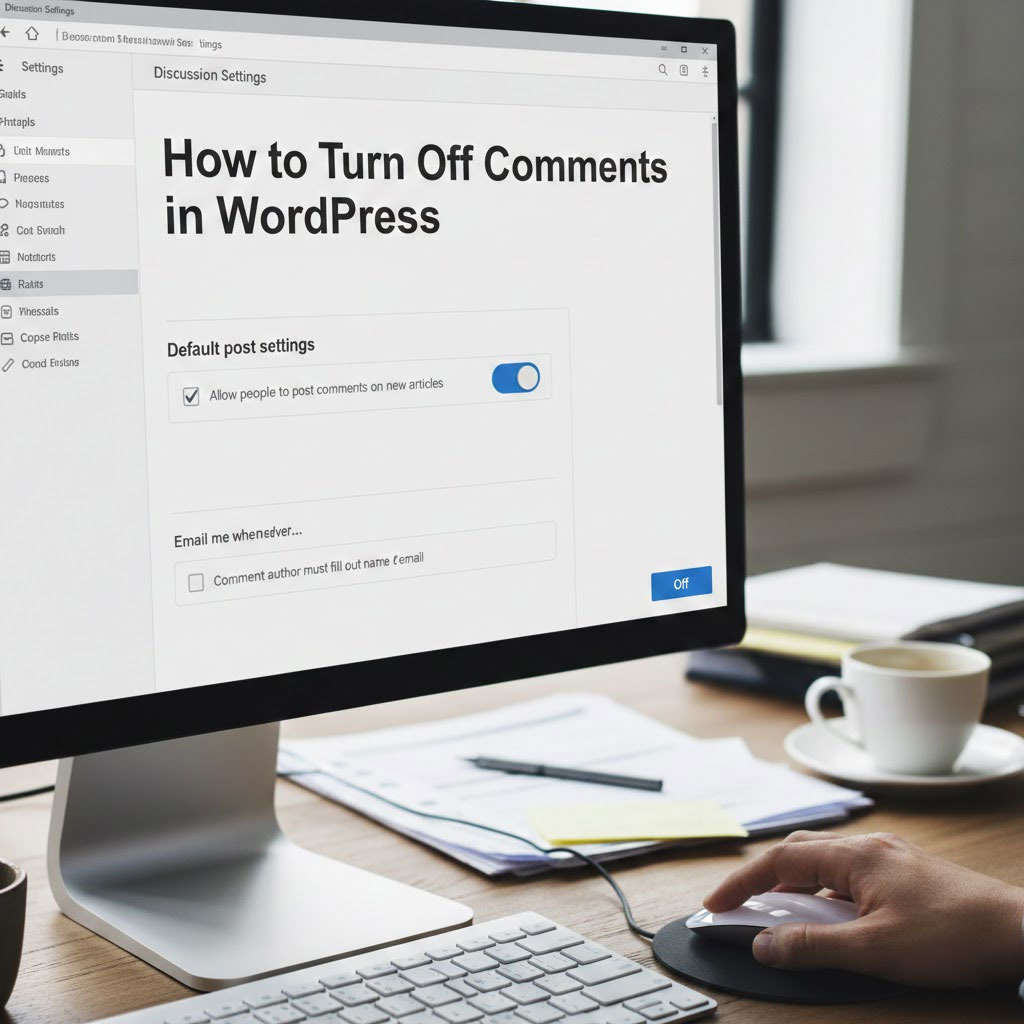
  2. Click Settings → Discussion
  3. Find the section called Default post settings
  4. Look for: “Allow people to submit comments on new posts”
  5. ✅ Checked = comments ON
    ❌ Unchecked = comments OFF
  6. Click Save Changes

That’s it.

From this point forward:

  • New posts won’t have comments (if disabled)
  • Old posts stay exactly as they are

Which brings us to…

“Why Are Comments Still Showing on Old Posts?”

Because WordPress loves consistency—sometimes too much.

Global settings do not retroactively affect existing content.

If you published posts when comments were enabled, they’ll keep comments unless you change them individually (or in bulk).

Let’s handle that.

Option 2: Enable or Disable Comments on a Specific Post or Page

This is perfect when:

  • You want comments on blog posts
  • But NOT on pages like “About,” “Contact,” or “Checkout”

Step-by-step

  1. Go to Posts or Pages
  2. Click the post or page you want to edit
  3. Look at the right-hand settings sidebar
    • If you don’t see it, click the ⚙️ Settings icon (top right)
  4. Scroll to Discussion
  5. Choose:
    • Open → comments enabled
    • Closed → comments disabled
  6. Optionally toggle pingbacks
  7. Click Save

Done.

No plugins. No code. No drama.

“Wait, I Don’t See the Discussion Section”

Classic WordPress moment.

If the Discussion panel is missing:

  • Click the three-dot menu (top right)
  • Select Preferences
  • Enable Discussion under Panels

WordPress hides things for fun. You’re not imagining it.

Option 3: Disable Comments on Multiple Posts at Once (Bulk Edit)

If you have:

  • 50 posts
  • 200 posts
  • Or “I’ve been blogging since 2014” energy

You do not want to click posts one by one.

Bulk edit steps

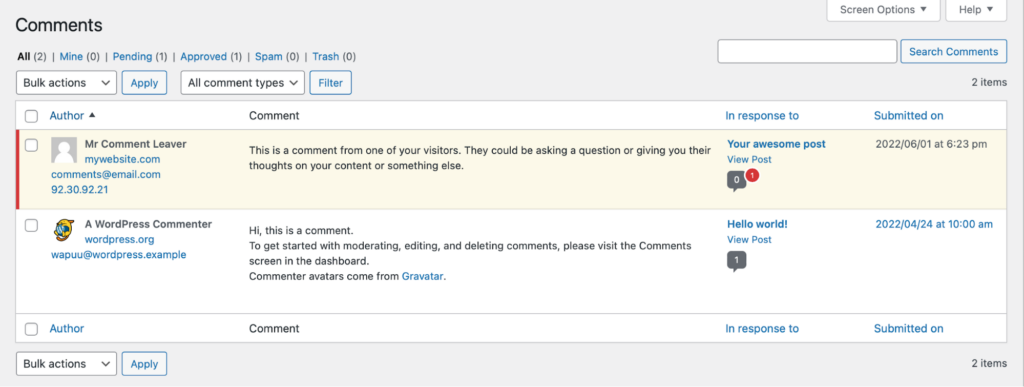
  1. Go to Posts or Pages
  2. Select multiple items using the checkboxes
  3. Click Bulk actions → Edit
  4. Click Apply
  5. Find the Comments dropdown
  6. Choose:
    • Do not allow
  7. Click Update

WordPress will quietly close comments on everything you selected.

Very satisfying.

What About Pingbacks and Trackbacks?

Ah yes—WordPress’s attempt at being social in 2006.

Pingbacks and trackbacks allow other sites to notify yours when they link to you.

In reality?

  • Mostly spam
  • Rarely useful
  • Almost always ignored

You’ll see them in the same Discussion settings.

Recommendation:
👉 Turn them off unless you have a specific reason not to.

Extra Control: Comment Moderation Settings

If you do keep comments enabled, you still have options.

Under Settings → Discussion, you can:

  • Require users to log in to comment
  • Hold comments for moderation
  • Block comments with links
  • Auto-approve trusted commenters

These settings are great for:

  • Reducing spam
  • Preventing link drops
  • Maintaining sanity

Think of it as crowd control, not censorship.

Comments vs. Modern Websites: A Design Reality Check

Here’s the truth many WordPress guides won’t say:

Most modern business websites should not use comments.

Today’s interaction happens through:

  • Contact forms
  • Live chat
  • Email
  • Social media

Comments can:

  • Hurt page performance
  • Increase spam maintenance
  • Add legal/moderation risk

Turning them off is often a strategic choice—not laziness.

Common Mistakes to Avoid

Let’s save you some future frustration.

❌ Turning off comments globally and assuming old posts are covered
❌ Forgetting pages have comments enabled by default
❌ Using plugins when native WordPress settings already do the job
❌ Leaving comments enabled on checkout or product pages

Yes, that happens. More than you think.

Do You Need a Plugin to Disable Comments?

How to Turn Off Comments in WordPress-Do You Need a Plugin to Disable Comments?

Short answer: No.

WordPress already includes everything you need.

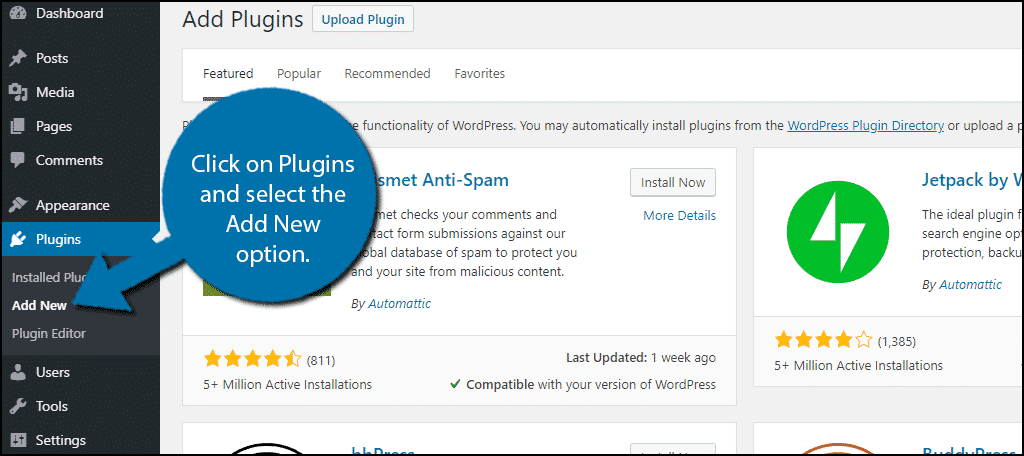
Plugins make sense only if:

  • You want advanced rules
  • You manage massive content libraries
  • You need role-based comment logic

Otherwise, native settings are cleaner and faster.

Final Thoughts: Comments Are a Choice, Not a Requirement

WordPress comments aren’t mandatory.
They’re optional.

You’re not “breaking” your site by disabling them.
You’re shaping how users interact with your brand.

في أيرسانج, this mindset guides how we build websites.
We specialize in cross-border WordPress and Shopify websites, focusing on structure, performance, clarity, and conversion—not just default features.

Whether it’s:

  • Turning off comments
  • Cleaning up bloated layouts
  • Designing scalable global pages

We help brands build websites that actually work.

If you’re planning a redesign, expanding internationally, or want a cleaner, more intentional WordPress setup, follow أيرسانج.
We don’t just design websites—we design systems that grow with your business.

Delivered Worldwide

أيرسانج delivers cost-effective website design, brand visual identity, and e-commerce solutions. From Shopify and WordPress to Amazon product images, we help global brands build, elevate, and grow their online business.

صمم وأنشئ موقعاً إلكترونياً أو موقعاً إلكترونياً للشركة باستخدام نظام تجارة إلكترونية كامل من أجلك.
المتطلبات المخصصة أو عروض الأسعار الخاصة

المتطلبات المخصصة أو عروض الأسعار الخاصة

السعر الأصلي كان: $2.00.السعر الحالي هو: $1.00.
How Hackers Steal WordPress Admin Emails (And How to Stop Them)
دعنا نبدأ بحقيقة غير مريحة: من المحتمل أن يكون البريد الإلكتروني الخاص بمشرف ووردبريس الخاص بك أكثر عمومية مما تعتقد، والمخترقون؟ إنهم يحبون ذلك. بالنسبة لهم، فإن بريدك...

هل أنت مستعد لتحويل عملك التجاري؟

احجز اتصالاً لمعرفة المزيد حول كيف يمكن لوكالتنا للتسويق الرقمي أن ترتقي بأعمالك إلى المستوى التالي.