If you’ve ever worked with WordPress long enough, you’ve probably run into that one annoying situation: your website exists, your server is alive, your files are all in place… but your domain just isn’t cooperating.
Maybe DNS hasn’t propagated yet. Maybe you’re migrating a site. Maybe something broke and your domain is pointing into the void.
So what do you do?
You bypass the domain entirely.
Yes — you can actually open a WordPress site using its IP address instead of the domain name. It’s a handy trick that developers, designers, and anyone working behind the scenes should absolutely know.
Let’s break it down in a simple, slightly entertaining way.
Why Would You Open a WordPress Site by IP?

First, let’s answer the obvious question: why would anyone want to do this?
Here are some common scenarios:
1. DNS Is Taking Forever
You just pointed your domain to a new server. Everything is set up. You’re excited.
But DNS propagation? Not so much.
Instead of waiting hours (or sometimes longer), you can access the site instantly via IP.
2. You’re Migrating a Website
Moving a WordPress site from one host to another?
Before switching the domain, you’ll want to test everything — layout, images, plugins, checkout flow, etc.
Using the IP lets you preview the site safely before going live.
3. Your Domain Is Broken
Sometimes domains just… stop working.
- Expired domain
- Misconfigured DNS
- Nameserver issues
Accessing the site via IP can help you troubleshoot without panic.
4. You’re Debugging or Developing
If you’re building or customizing a WordPress site, you might want to access it directly on the server.
No domain needed. Just the raw connection.
What Does “Open WordPress Site by IP” Actually Mean?
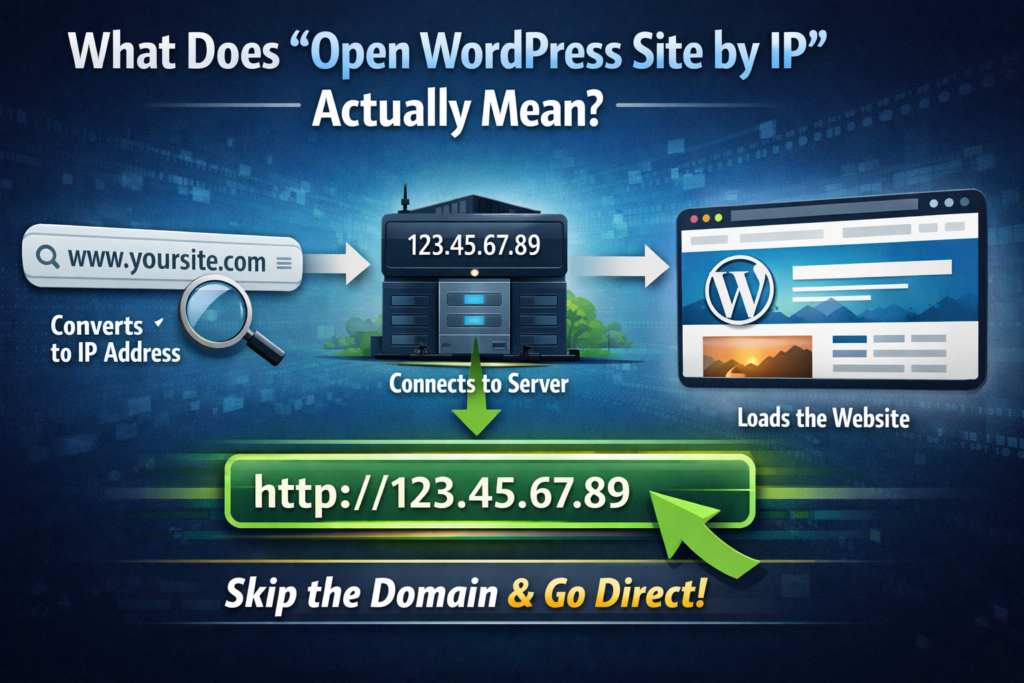
Normally, when you type:
www.yoursite.com
Your browser:
- Converts the domain into an IP address
- Connects to the server
- Loads the site
When you use the IP directly, you skip step 1.
You go straight to:
http://123.45.67.89
Simple, right?
Well… not always.
The Catch (Because There’s Always One)
WordPress is very domain-dependent.
It stores your site URL in its database. That means:
- Internal links
- Images
- Scripts
- Redirects
…are all tied to your domain.
So when you open the site by IP, you might see:
- Broken layouts
- Missing images
- Redirect loops
- Login issues
Don’t worry — this is normal. And fixable.
Method 1: Access WordPress by IP Directly
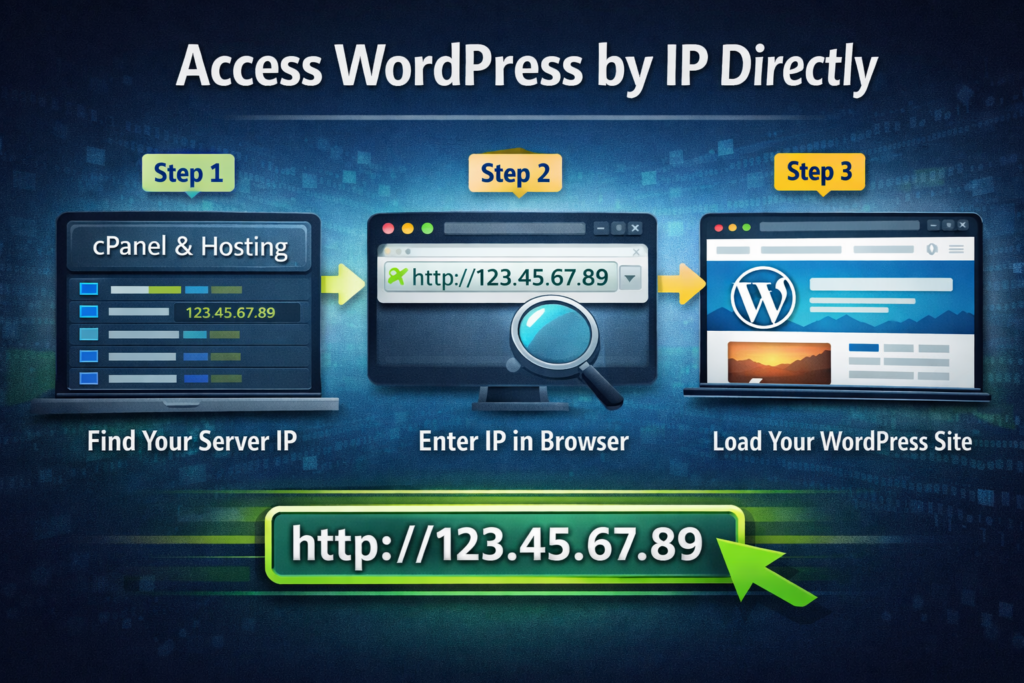
Let’s start with the simplest method.
Step 1: Find Your Server IP
You can get this from:
- Your hosting dashboard
- cPanel / CloudPanel
- Server provider
Example:
123.45.67.89
Step 2: Enter It in Your Browser
Just type:
http://123.45.67.89
If everything is configured properly, your site should load.
Step 3: Add WordPress Path (Optional)
Sometimes you’ll need to go directly to:
http://123.45.67.89/wp-admin
This helps you log into the backend.
When This Works Best
- Fresh installs
- Temporary testing
- Simple setups
Method 2: Use Hosts File (Best Practice)
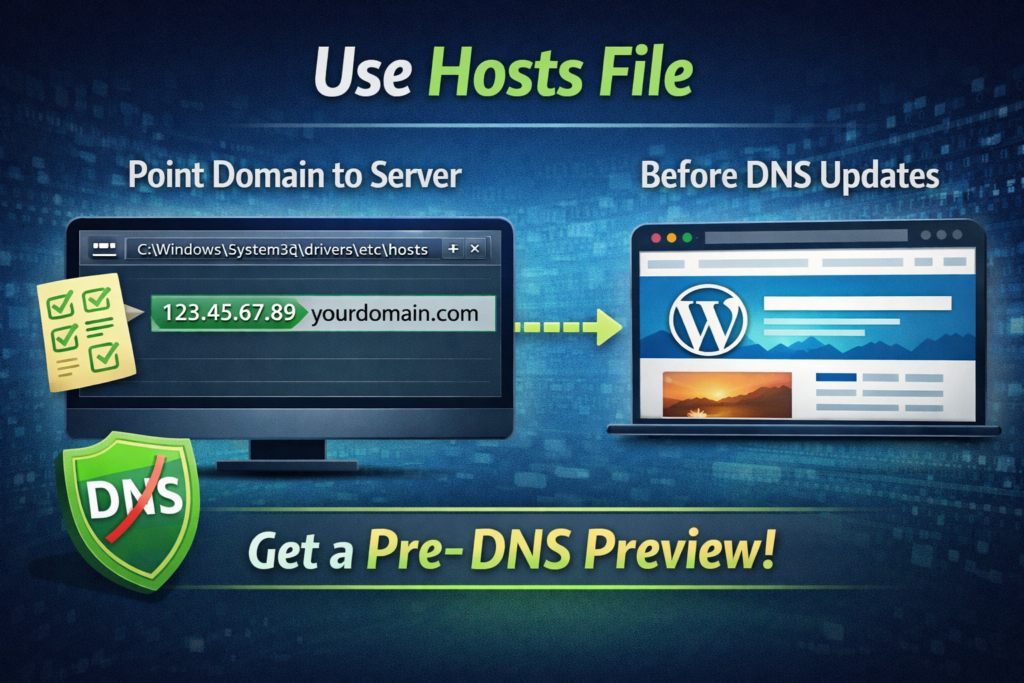
If you want a real preview (and not a broken-looking site), this is the way to go.
Instead of using the IP directly, you trick your computer into thinking the domain already points to your server.
Step 1: Locate Your Hosts File
On Windows:
C:\Windows\System32\drivers\etc\hosts
On macOS:
/etc/hosts
Step 2: Add an Entry
Add this line:
123.45.67.89 yourdomain.com
Step 3: Save and Refresh
Now when you visit:
yourdomain.com
Your computer connects to the new server — even if DNS hasn’t updated globally.
Why This Is Better
- No broken images
- No redirect issues
- Fully functional preview
- Accurate testing
This is what professionals use.
Method 3: Temporary URL from Hosting
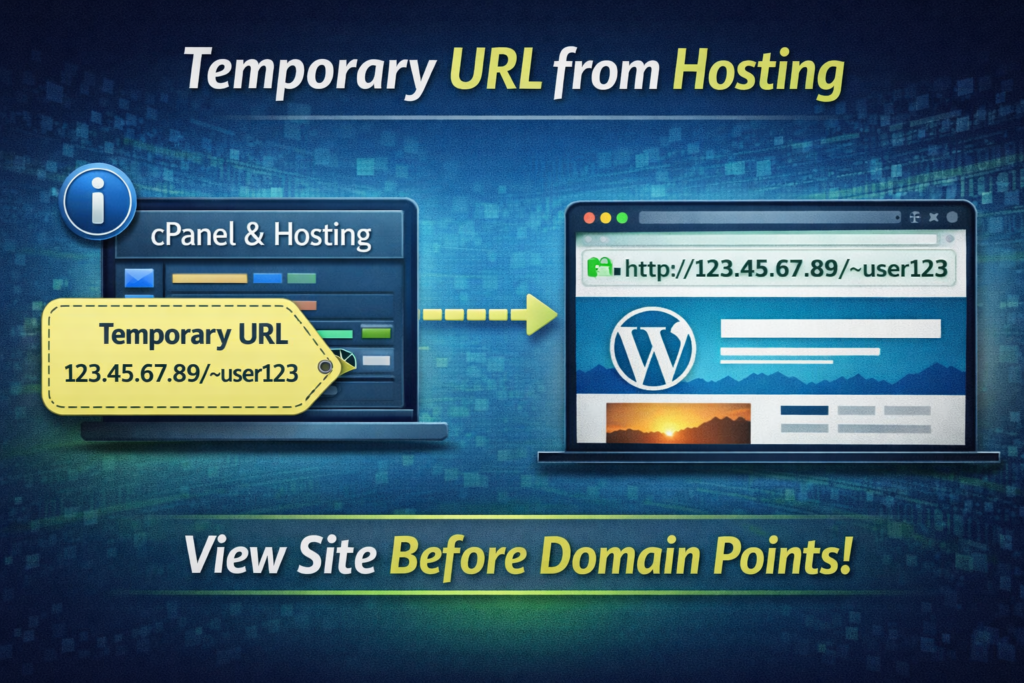
Some hosting providers give you a temporary URL like:
http://server123.hosting.com/~username
This is another way to access your WordPress site before the domain is ready.
Pros
- No configuration needed
- Easy access
Cons
- Not always accurate preview
- Can break layouts
- Some features won’t work
Fixing Common Issues When Using IP
Let’s be honest — opening a WordPress site by IP isn’t always smooth.
Here are the most common problems (and how to fix them).
1. Redirect Loops
WordPress might force redirect to your domain.
Fix:
Update your site URL temporarily in the database:
siteurlhome
Set them to:
http://123.45.67.89
2. Broken Images
Images are usually stored with full domain URLs.
Fix:
- Use a search & replace tool
- Or ignore (for testing purposes)
3. Login Issues
Cookies and sessions rely on domain consistency.
Fix:
Use:
http://IP/wp-login.php
Or switch to hosts file method.
4. SSL Problems
If your site uses HTTPS, accessing via IP may trigger warnings.
Fix:
- Use HTTP instead
- Or ignore SSL temporarily
FAQ: Open WordPress Site by IP Instead of Domain Name
Yes, you can open a WordPress site by IP instead of a domain name by entering the server’s IP address directly into your browser. However, due to WordPress relying heavily on domain-based URLs, some elements like images, styles, or redirects may not function correctly.
When you open a WordPress site by IP instead of a domain name, the site may appear broken because WordPress stores URLs using the domain. This can cause missing images, incorrect links, and layout issues. Using a hosts file is a better way to preview the site properly.
The best method is to use your computer’s hosts file to map the domain to the server IP. This allows you to access the site as if the domain is already pointing to the new server, ensuring a full and accurate preview without broken elements.
Yes, it is generally safe to use an IP address or a temporary URL provided by your hosting service. These methods are commonly used for testing and development. However, they should not be used as a permanent solution for live websites.
When Should You NOT Use IP Access?
While useful, this method isn’t always ideal.
Avoid using IP access when:
- You’re testing final design accuracy
- You need SEO validation
- You’re sharing previews with clients
In those cases, always use the hosts file method instead.
Best Workflow (Recommended)
Here’s how professionals typically handle this:
- Upload WordPress to server
- Access via IP (quick check)
- Use hosts file for full preview
- Test everything
- Update DNS
- Go live
Clean, efficient, and no surprises.
A Quick Reality Check
Opening a WordPress site by IP is not a “daily-use” feature.
It’s more like:
- A troubleshooting shortcut
- A staging tool
- A developer trick
But when you need it, it can save hours — sometimes even days.
Final Thoughts
The ability to open WordPress site by IP instead of domain name is one of those small but powerful techniques that separates beginners from professionals.
It gives you control.
It lets you work faster.
And most importantly, it keeps your workflow moving even when DNS or domains decide to misbehave.
AIRSANG Perspective
At AIRSANG, we deal with scenarios like this all the time — especially in cross-border eCommerce projects where timing, stability, and launch precision matter.
From Shopify builds to WordPress custom sites, we focus on:
- Conversion-driven design
- Stable deployment workflows
- Seamless pre-launch testing
- Clean, high-performance UX
If you’re building or scaling an independent website and want it done right — both visually and technically — this is exactly where we can help.
Because in the end, a great website isn’t just about how it looks.
It’s about how smoothly it works, even behind the scenes.