A Practical Beginner’s Guide to Identifying WordPress Websites
When browsing the internet, you may have noticed that many websites feel surprisingly similar. The layouts, blog structures, admin login URLs, and even certain design patterns repeat across industries. That’s not a coincidence.
A large percentage of modern websites are built on WordPress, the world’s most popular content management system. According to industry statistics, WordPress powers over 40% of all websites globally.
So the question becomes:
How do you check if a website is a WordPress website?
Whether you’re a business owner researching competitors, a marketer planning SEO strategy, a designer evaluating site flexibility, or simply curious, knowing how to check if WordPress website technology is used can give you valuable insight.
This article breaks down everything you need to know—clearly, practically, and without technical jargon.
Why You Might Want to Check If a Website Uses WordPress
Before diving into methods, it’s important to understand why this matters.
1. Competitive Research
If your competitors’ websites run on WordPress, it tells you:
- They rely on a flexible CMS
- They can scale content easily
- Their SEO structure may follow common WordPress patterns
This information helps you benchmark your own site strategy.
2. Website Redesign or Migration Planning
If you plan to redesign a site or move it to another platform, knowing whether it’s built on WordPress helps determine:
- Cost
- Timeline
- Plugin compatibility
- Theme limitations
3. SEO & Content Strategy

WordPress sites often:
- Follow recognizable URL structures
- Use similar metadata patterns
- Rely on common SEO plugins
Identifying WordPress helps SEO professionals predict optimization approaches.
4. Security & Maintenance Awareness
WordPress has its own update cycles, security considerations, and maintenance needs. Knowing the platform helps assess:
- Potential vulnerabilities
- Update responsibility
- Hosting requirements
Method 1: Check the Page Source Code (Beginner-Friendly)
One of the simplest ways to check if WordPress website technology is used is by inspecting the page source.
How to Do It
- Open the website in your browser
- Right-click anywhere on the page
- Select “View Page Source” or “View Source”
- Use
Ctrl + F(orCmd + Fon Mac) - Search for keywords like:
wp-contentwp-includeswordpress
Why This Works
WordPress stores themes, plugins, and media files in standard directories:
/wp-content//wp-includes/
If you see these paths, there’s a very high chance the site runs on WordPress.
Limitations
Some websites hide or rename these paths for security reasons, so the absence of these keywords does not always mean the site is not WordPress.
Method 2: Check the Website’s Login Page
WordPress websites typically use a standard admin login URL.
Common WordPress Login URLs
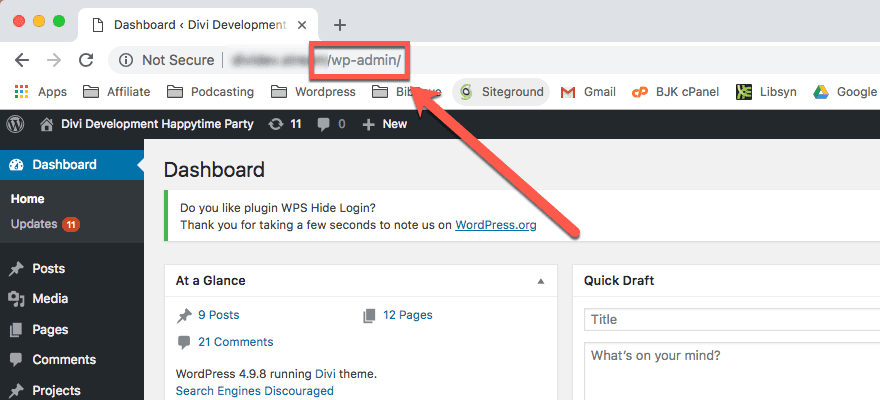
/wp-admin/wp-login.php
How to Use This Method
Add /wp-admin to the website’s domain:
example.com/wp-admin
If you see a WordPress login page, you’ve confirmed it.
Important Note
Some site owners:
- Change login URLs
- Block public access
- Redirect login pages
So this method works best when combined with others.
Method 3: Look at the Website’s HTML Meta Information
WordPress often leaves subtle fingerprints in the site’s <head> section.
What to Look For
In page source, search for:
generatorWordPress- SEO plugin references (Yoast, Rank Math, etc.)
Example:
<meta name="generator" content="WordPress 6.x">
Why This Is Helpful
Many WordPress sites openly declare their CMS unless the site owner manually removes it.
Method 4: Check Image and Asset URLs
Images uploaded through WordPress typically follow a predictable structure.
Common WordPress Image Paths
/wp-content/uploads/2025/01/image.jpg
If you see this pattern repeatedly, it’s a strong indicator.
Method 5: Use Online Website Detection Tools
If you prefer a faster, non-technical approach, online tools can help you check if WordPress website infrastructure is used.
These tools analyze:
- HTML structure
- Server responses
- CMS fingerprints
- Known plugin patterns
They often show:
- CMS type
- Theme name
- Plugin hints
Pros
- Quick
- Beginner-friendly
- No coding required
Cons
- Not always 100% accurate
- Some sites block detection
Method 6: Check the Website’s RSS Feed
WordPress automatically generates RSS feeds.
Try These URLs
/feed/rss/wp-json
If the feed structure matches WordPress defaults, it’s another confirmation signal.
Method 7: Look at Comment Structures
If a site allows comments, inspect how comments are loaded or displayed.
WordPress comments often include:
wp-comments-post.php- WordPress-specific form fields
This method is less common today but still useful for blog-heavy sites.
Common Mistakes When Trying to Check WordPress Websites
Mistake 1: Assuming Design Equals Platform
Many platforms copy WordPress-style layouts. Visual similarity alone is unreliable.
Mistake 2: Relying on One Method Only
A single check can be misleading. Always combine at least two methods.
Mistake 3: Confusing WordPress.com with WordPress.org
- WordPress.com: Hosted, restricted, limited customization
- WordPress.org: Self-hosted, fully customizable, most professional sites
Both use WordPress, but capabilities differ greatly.
Why WordPress Is So Widely Used (Context Matters)
Understanding why so many sites use WordPress helps explain why detecting it is useful.
Key Advantages
- Flexible content management
- Strong SEO foundations
- Massive plugin ecosystem
- Scales from blogs to enterprise sites
- Works well for international and multilingual websites
For cross-border businesses, these advantages are especially important.
Can a WordPress Site Be Completely Hidden?
Yes—but it takes effort.
Advanced developers can:
- Rename folders
- Remove meta tags
- Proxy assets
- Mask CMS fingerprints
However, most business websites don’t go to this extent because:
- It increases maintenance cost
- It complicates updates
- It adds little real-world benefit
That’s why most WordPress sites are still detectable with careful inspection.
Practical Checklist: How to Confirm a WordPress Website
Use this quick checklist:
- ✔ Found
/wp-content/in source code - ✔ Login page responds at
/wp-admin - ✔ Meta generator mentions WordPress
- ✔ Image URLs follow WordPress patterns
- ✔ Online tools confirm WordPress
If you check two or more, it’s almost certainly a WordPress website.
How This Knowledge Helps Cross-Border Businesses
For global brands and exporters, understanding website platforms is not just technical curiosity—it’s strategic.
Knowing that a site is WordPress tells you:
- How easy it is to scale content
- How SEO is structured
- Whether multi-language expansion is feasible
- How fast redesigns can be executed
This is especially relevant for:
- B2B exporters
- DTC brands
- Manufacturers entering overseas markets
Final Thoughts: From Checking Websites to Building Better Ones
Learning how to check if WordPress website technology is used gives you insight—but insight is only valuable when applied correctly.
A well-built WordPress site can:
- Build trust with international audiences
- Support long-term SEO growth
- Adapt to different markets and languages
- Convert traffic into real inquiries or sales
At AIRSANG, we work exactly at this intersection—cross-border business strategy and professional website design. We don’t just identify platforms; we help brands use them properly.
If you’re planning to:
- Build or redesign a WordPress website
- Optimize an existing site for global markets
- Create a scalable, SEO-friendly cross-border website
You’re welcome to reach out.
AIRSANG specializes in turning WordPress into a growth tool—not just a website.