











Giỏ hàng hiện không có sản phẩm nào.

If you’ve ever built or managed a WordPress website, you’ve probably found yourself needing to reuse a page layout. Whether it’s a landing page, product page, or service template, recreating everything from scratch can be time-consuming and inefficient. That’s where understanding how to duplicate a page in WordPress becomes incredibly valuable.
Duplicating a page allows you to replicate layouts, design elements, and content structures instantly, saving time while maintaining consistency across your website. This is especially useful for businesses, bloggers, and e-commerce site owners who frequently create similar pages.
In this guide, you’ll learn everything you need to know about duplicating pages in WordPress—from beginner-friendly plugin methods to more advanced manual techniques. By the end, you’ll have a clear understanding of the most efficient approaches and when to use each one.
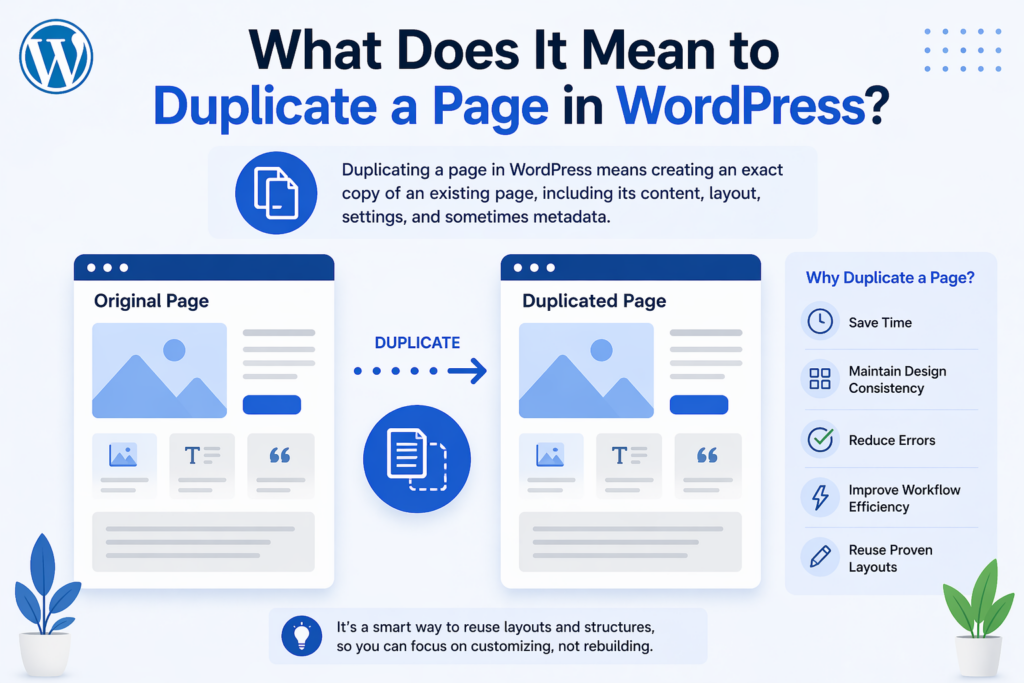
Duplicating a page in WordPress means creating an exact copy of an existing page, including its content, layout, settings, and sometimes metadata. Instead of building a page from scratch, you clone an existing one and modify it as needed.
This process is widely used for:
Understanding how to duplicate a page in WordPress can significantly improve productivity, especially when managing large websites.
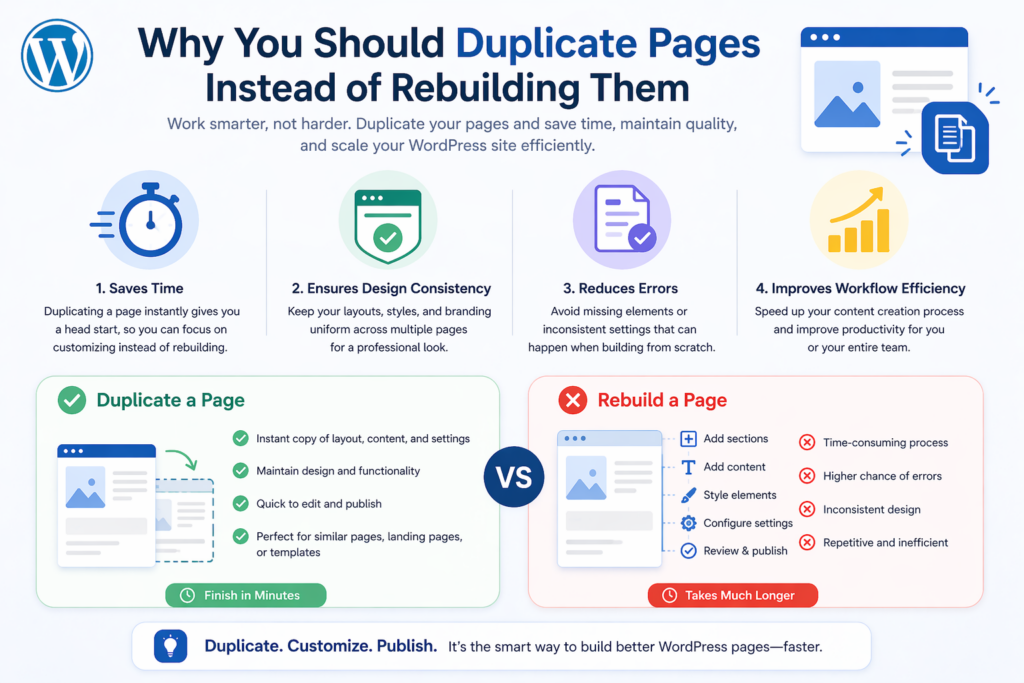
Before diving into the methods, it’s important to understand the advantages of duplicating pages.
Rebuilding a page from scratch requires adding sections, styling elements, and formatting content again. Duplication eliminates this repetitive work.
When you duplicate a page, you maintain consistent layouts, typography, and spacing—critical for brand identity and user experience.
Manually recreating pages increases the risk of inconsistencies or mistakes. Duplicating ensures everything stays aligned with the original design.
For agencies, marketers, or content teams, duplicating pages speeds up production and allows faster iteration.
The easiest and most popular way to duplicate a page in WordPress is by using a plugin. This method requires no coding and works for beginners.
Go to your WordPress dashboard:
After activation:
A copy will instantly appear in your page list.
If you prefer not to install plugins, you can duplicate a page manually. This method works well for users who want more control.
The WordPress Block Editor offers built-in ways to reuse content.
Reusable blocks allow you to save sections and reuse them across pages.
Các bước:
Điều này hữu ích cho:
If you use a page builder like Elementor, WPBakery, or Divi, duplicating pages becomes even easier.
Duplicating a page is only part of the process. To avoid SEO and usability issues, always review the following:
Ensure each page has a unique title and slug to avoid duplicate content issues.
Update SEO titles and descriptions to match the new content.
Check links that may still point to the original page.
Make sure all visuals and text reflect the new purpose of the page.
Duplicated pages may need adjustments for different devices.
Understanding when to duplicate pages helps maximize its benefits.
Create multiple variations for A/B testing.
Reuse layouts for similar products.
Maintain consistent formatting across services.
Standardize blog structures for readability.
To make the most of page duplication, follow these best practices:
Use clear naming conventions to avoid confusion between original and duplicated pages.
Search engines may penalize identical content. Always customize duplicated pages.
Instead of duplicating entire pages repeatedly, consider building reusable templates.
Only install necessary plugins to keep your site fast and secure.
Even though duplicating a page is simple, you may encounter some issues.
If your site uses custom post types (CPT), duplication works similarly but may require plugin support. Some duplication plugins allow copying CPTs along with custom fields.
This is especially useful for:
Learning how to duplicate a page in WordPress is a simple yet powerful skill that can significantly improve your workflow. Whether you use plugins, manual methods, the block editor, or page builders, each approach offers unique advantages depending on your needs.
For beginners, plugins provide the fastest and easiest solution. For advanced users, manual duplication and templates offer greater control and flexibility. Regardless of the method you choose, always ensure that duplicated pages are properly customized to avoid SEO issues and maintain a high-quality user experience.
By mastering page duplication, you can streamline content creation, maintain design consistency, and build websites more efficiently without unnecessary repetition.
You can duplicate a page manually by copying all the content from the original page and pasting it into a new page. However, this method does not copy design settings or metadata, so additional adjustments may be needed.
The easiest way is to use a plugin like “Duplicate Page” or “Yoast Duplicate Post.” These tools allow you to clone a page with one click, including its layout and settings.
Duplicating a page can affect SEO if the content remains identical. To avoid issues, you should update the title, meta description, and content to ensure each page is unique.
Yes, Elementor allows you to duplicate pages by saving them as templates or using the built-in duplicate feature. This keeps your design and layout intact.
Yes, when using plugins or page builders, duplicated pages usually retain the same design, layout, and formatting as the original page.
Duplicating a page saves time, maintains design consistency, reduces errors, and improves workflow efficiency, especially when creating similar pages repeatedly.


















