












การแนะนำ
Learning how to make a call button on วordpress is a simple but valuable way to improve communication between your website and visitors. Many people browse websites on mobile phones, especially when they are looking for a service, store, restaurant, consultant, clinic, local business, or support team. When they see a phone number, they may not want to copy it, open the phone app, paste the number, and then call. A clickable call button removes those extra steps.
A call button lets visitors tap once and start a phone call from their device. On mobile phones, the button usually opens the phone dialer. On some desktops, it may open calling apps such as FaceTime, Skype, or another communication tool, depending on the device settings. This small feature can make your website feel more helpful, more direct, and easier to use.
In this guide, you will learn what a call button is, why it matters, where to place it, and several practical ways to add one to a WordPress website. You can use a plugin, add a manual phone link, place it in a menu, or add it inside a page, post, sidebar, footer, or mobile layout.
What Is a Call Button in WordPress?
A call button in WordPress is a clickable element that allows visitors to contact you by phone. It can appear as a text link, a button, an icon, a floating bar, or a fixed mobile call button. The key part is the phone link format behind it.
Instead of using a normal website link like:
https://example.com
A call button uses a phone link format like:
tel:+15551234567
When a visitor clicks or taps the link, their device understands that the link is connected to a phone number. On a smartphone, the device usually opens the phone app and prepares the call. The visitor may still need to confirm before the call starts, depending on the phone model and browser.
This feature is especially useful for businesses that depend on fast customer contact. For example, service companies, clinics, local stores, repair companies, real estate agents, consultants, restaurants, and emergency support services can all benefit from a visible call button.
Why a Call Button Matters
A WordPress website should not only look good. It should also help visitors take action. A call button supports that goal because it reduces friction.
When someone visits your site, they may already have a question. They may want to ask about pricing, booking, shipping, service areas, product details, consultation times, or urgent support. If calling you feels difficult, they may leave the site and look for another option.
A call button helps in several ways.
First, it saves time. Visitors do not need to copy your number manually. They can tap once and move directly to the call screen.
Second, it improves mobile usability. Since many users browse from phones, a click-to-call button fits naturally into their browsing behavior.
Third, it can increase leads. A visitor who calls you directly is often more serious than someone who only reads a page and leaves.
Fourth, it creates a more personal connection. Some customers prefer talking to a real person instead of waiting for an email reply or filling out a contact form.
Finally, it supports trust. A visible phone number can make your business feel more real and accessible.
Where Should You Place a WordPress Call Button?
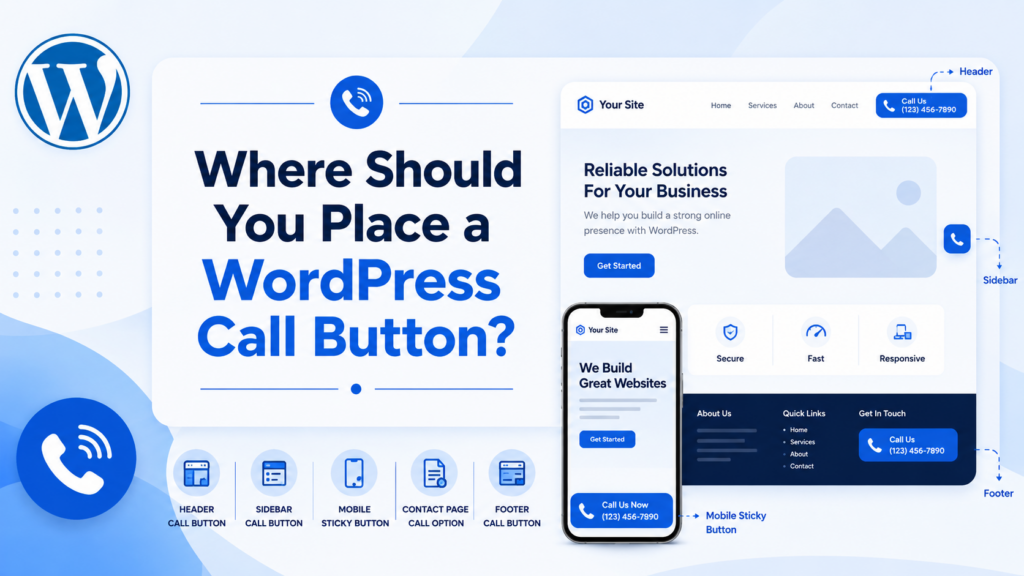
Before adding the button, think about where visitors are most likely to need it. Placement matters because a call button should feel helpful, not annoying.
A common place is the website header. This works well because the header appears at the top of the site and is easy to find.
Another useful place is the mobile sticky area. A fixed call button at the bottom of the screen can be effective for mobile visitors because it stays visible while they scroll.
You can also place a call button on service pages. This is useful when visitors are reading about a specific service and may want to ask questions before buying or booking.
Landing pages are another strong location. If the purpose of the page is to collect leads, a call button can work as a direct call-to-action.
The contact page should also include a clickable phone number. Many visitors expect to find contact options there.
Sidebars and footers can work too, especially for business websites that want contact information available across the whole site.
For best results, avoid placing too many call buttons on one page. A clear button in the right place usually works better than repeating the same action everywhere.
Method 1: Add a Call Button With a WordPress Plugin
The easiest way to make a call button on WordPress is to use a plugin. This method is good for beginners because you do not need to write code manually. A call button plugin usually gives you settings for the phone number, button text, button color, position, visibility, and mobile display.
A plugin is also useful if you want a floating call button that follows users as they scroll. This style is popular on mobile because the button stays easy to access.
To use this method, go to your WordPress dashboard and open the plugin area. Search for a call button plugin, install it, and activate it. After activation, the plugin should create a settings page where you can enter your phone number and customize the button.
When entering your number, use the correct international format. For example, a United States number should usually include +1 before the number. This helps devices understand the phone number correctly.
After adding the number, choose the button text. Simple text usually works best. Examples include:
Call Now
โทรหาเรา
Talk to Us
Book by Phone
Need Help? Call Now
Then choose where the button appears. Many plugins allow a fixed position such as bottom left or bottom right. Some also allow the button to appear only on mobile devices. This is useful because desktop users may not need a large floating phone button.
You can also adjust the button color. Choose a color that stands out from the background but still matches your website design. The button should be noticeable without making the page look messy.
Finally, save the settings and check your website on both desktop and mobile. Test the button to make sure it opens the correct phone number.
Method 2: Create a Manual Click-to-Call Link
You can also create a call button manually by using the tel: link format. This method is simple and does not require a plugin.
The basic format looks like this:
<a href="tel:+15551234567">โทรหาเรา</a>The visible text is “Call Us,” but the link behind it is your phone number.
You can place this inside a WordPress page or post using a Custom HTML block. In the WordPress block editor, open the page where you want to add the call link. Click the plus icon, choose Custom HTML, and paste the code.
Replace the sample number with your actual phone number. Use only the correct country code and number. Avoid spaces or special formatting inside the href value. The visible text can be styled however you want.
ตัวอย่างเช่น:
<a href="tel:+442012345678">Call Our London Office</a>Or:
<a href="tel:+61412345678">Tap to Call</a>This creates a simple phone link. However, it may look like a normal text link unless you style it. If you want it to look like a button, you can add basic CSS.
ตัวอย่างเช่น:
<a class="custom-call-button" href="tel:+15551234567">Call Now</a>Then add CSS:
.custom-call-button {
  display: inline-block;
  padding: 14px 24px;
  border-radius: 6px;
  background: #111111;
  color: #ffffff;
  text-decoration: none;
  font-weight: 600;
}
This turns the phone link into a clear button. You can adjust the color, padding, border radius, and font style to match your website.
Method 3: Add a Call Button to the WordPress Navigation Menu
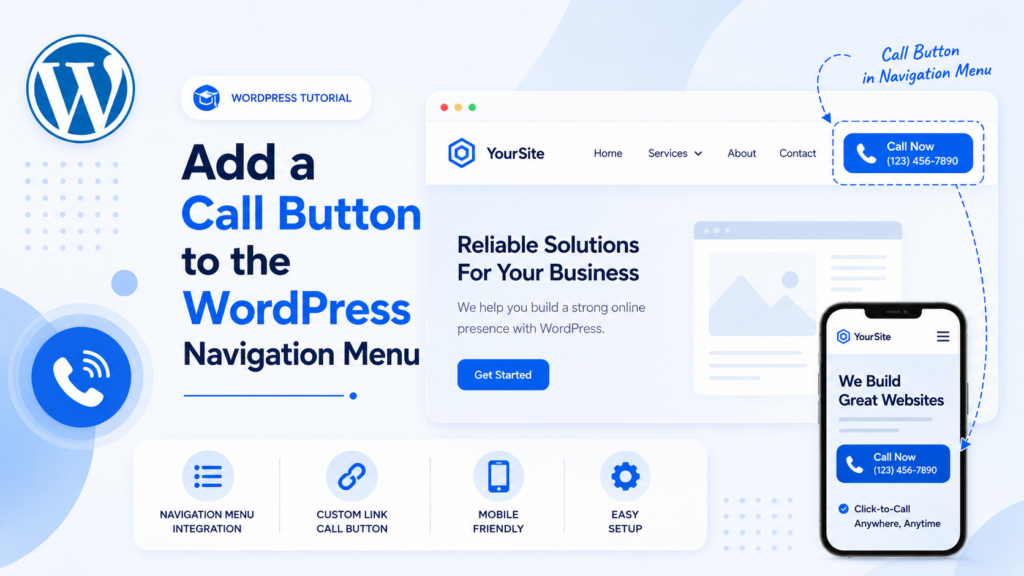
Another practical option is to add your phone link to the website menu. This is useful if you want the call action to appear in the header.
Go to your WordPress dashboard, then open the menu settings. Depending on your theme, this may be under Appearance, Menus, or the Site Editor. Look for the option to add a custom link.
In the URL field, enter your phone link:
tel:+15551234567
In the link text field, enter the label visitors will see, such as:
Call Now
+1 555 123 4567
Speak With Us
Then add the custom link to your menu and save the menu.
After saving, visit your website and check the header. The new menu item should appear with your chosen label. When users click it, the browser should recognize it as a phone link.
This method works well for simple business websites. However, if your menu already has many links, adding a phone number may make it feel crowded. In that case, consider using a button-style header element or placing the call button only on mobile.
Method 4: Add a Call Button in Elementor
If you use Elementor, adding a call button is also easy. You can use a Button widget and set the link to a tel: format.
Open the page with Elementor. Drag a Button widget into the section where you want the call button. Change the button text to something clear, such as:
Call Now
Schedule a Call
Contact Us by Phone
Then go to the link field and enter:
tel:+15551234567
Update the page and test the button on a mobile device.
Elementor also lets you control typography, spacing, colors, border radius, hover effects, and responsive visibility. This is helpful because you may want the call button to look different on desktop and mobile.
For example, on desktop, you may place the button next to a contact form. On mobile, you may make it full width so users can tap it easily.
You can also use Elementor’s responsive controls to show or hide the button on different devices. If your phone button is mainly for mobile visitors, you can hide it on desktop and tablet if needed.
Method 5: Add a Floating Call Button
A floating call button stays visible as visitors scroll. This style is common on mobile websites because it keeps the call action available at all times.
You can create a floating call button with a plugin, or you can use custom CSS if your theme or builder allows it.
A simple floating button concept uses a fixed position:
<a class="floating-call-button" href="tel:+15551234567">Call Now</a>CSS example:
.floating-call-button {
  position: fixed;
  right: 20px;
  bottom: 20px;
  padding: 14px 20px;
  border-radius: 50px;
  background: #111111;
  color: #ffffff;
  text-decoration: none;
  font-weight: 600;
  z-index: 9999;
}
This places the button near the bottom-right corner of the screen.
For mobile-only display, you can add a media query:
@media (min-width: 768px) {
  .floating-call-button {
    display: none;
  }
}
This hides the floating button on larger screens and shows it only on mobile devices.
A floating button can be powerful, but use it carefully. It should not cover important content, checkout buttons, chat widgets, cookie notices, or navigation controls. Always test it on different screen sizes.
Best Practices for WordPress Call Buttons
A call button should be clear, useful, and easy to tap. The design does not need to be complicated.
Use direct wording. “Call Now” is usually better than vague text like “Learn More.” Visitors should instantly understand what happens when they click.
Make the button large enough for mobile users. Small links are hard to tap and can hurt the user experience.
Use good contrast. The button should stand out from the page background.
Place the button near relevant content. If you offer consultations, place the button near the service description or pricing section.
Use the correct phone format. Include the country code when needed.
Test the link on multiple devices. A phone link may behave differently on iPhone, Android, Windows, and Mac.
Do not hide your regular contact options. A call button is useful, but some visitors still prefer email, contact forms, live chat, or social messaging.
Keep the design consistent. The button should match your brand style and not look like a random add-on.
Avoid placing the call button too close to other important buttons. Users should not tap it by accident.
Should You Show the Call Button on Desktop?
This depends on your audience and business type. A call button is most useful on mobile because phones can call directly. However, desktop users can still use phone links if their computer has calling apps configured.
For many websites, the best approach is simple: show the phone number in the desktop header or contact page, then show a stronger call button on mobile.
If your business depends heavily on calls, you can show the button on both desktop and mobile. If your business mainly receives form submissions, you may want to use the call button only as a secondary action.
Tracking Call Button Performance
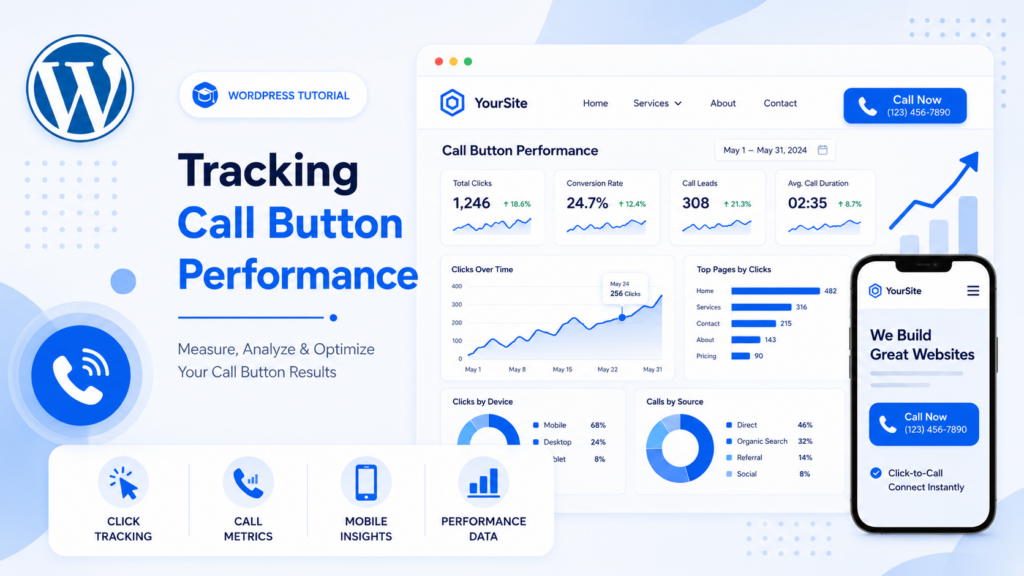
After adding a call button, you may want to know whether people actually use it. Tracking can help you understand which pages generate phone leads.
You can track click events with analytics tools, tag managers, or some WordPress plugins. The goal is to measure how often visitors click the phone link and where those clicks happen.
For example, you may discover that your service page gets more call clicks than your contact page. That information can help you improve page layout, button placement, and call-to-action wording.
If phone calls are important for your business, tracking can also help you compare call leads with form leads.
ข้อผิดพลาดทั่วไปที่ควรหลีกเลี่ยง
One common mistake is using the wrong phone number format. If the number is not formatted correctly, the link may not work as expected.
Another mistake is making the button too small on mobile. A call button should be easy to tap.
Some websites place floating buttons over important content. This can frustrate visitors, especially on small screens.
Another issue is using too many call buttons. Repeating the same button too often can make a page feel aggressive.
Some site owners also forget to test the button after publishing. Always test it on a real mobile device.
Finally, do not rely only on phone calls. A good contact experience usually includes multiple options, such as forms, email, business hours, address information, and social links.
บทสรุป
Knowing how to make a call button on วordpress can help you create a faster and easier contact experience for your visitors. A call button lets mobile users tap once and connect with your business by phone. You can add one with a plugin, create a manual tel: link, place it in the navigation menu, build it with Elementor, or make it float on mobile screens.
The best call button is simple, visible, and placed where users naturally need help. Use clear wording, correct phone formatting, mobile-friendly sizing, and a design that fits your website. After publishing, test the button on different devices and consider tracking call clicks so you can understand how visitors use it.
A small feature like a WordPress call button can make your website more convenient, more action-focused, and more helpful for people who want direct contact.
คำถามที่พบบ่อย
1. What is a call button in WordPress?
A call button is a clickable button or link that lets visitors call your phone number directly from your website. On mobile devices, it usually opens the phone dialer when tapped.
2. How do I make a call button on WordPress?
You can make a call button by using a WordPress plugin, adding a manual tel: phone link, placing it in your navigation menu, or creating a button with Elementor or another page builder.
3. What is the correct format for a WordPress phone link?
The correct format is:
<a href="tel:+15551234567">Call Now</a>Replace the sample number with your real phone number, including the correct country code.
4. Can I add a call button to the WordPress menu?
Yes. You can add a custom menu link using tel:+yourphonenumber as the URL. Then use text like “Call Now” or your phone number as the menu label.
5. Should a WordPress call button appear on mobile only?
In many cases, yes. A call button is most useful on mobile because visitors can tap it and call directly. On desktop, you can still show your phone number in the header, footer, or contact page.
6. Can I track clicks on my WordPress call button?
Yes. You can track call button clicks with analytics tools, tag managers, or WordPress plugins. Tracking helps you see which pages generate the most phone call actions.


ออกแบบและสร้างเว็บไซต์ WordPress หรือเว็บไซต์องค์กรพร้อมระบบอีคอมเมิร์ซครบวงจรสำหรับคุณ.
ช่วงราคา: $200.00 ถึง $2,500.00custom-requirements-or-special-quotations
ราคาเดิมคือ: $2.00.$1.00ราคาปัจจุบันคือ: $1.00. การใช้ปลั๊กอิน 50 ตัวมากเกินไปสำหรับร้านค้าออนไลน์ที่ใช้ WordPress หรือไม่?
การเข้าใจผลกระทบที่แท้จริงต่อประสิทธิภาพ การมีปลั๊กอิน 50 ตัวบนเว็บไซต์อีคอมเมิร์ซ WordPress ไม่ใช่ปัญหาโดยอัตโนมัติ จริงๆ แล้ว จำนวนเพียงอย่างเดียวแทบจะไม่สามารถกำหนดประสิทธิภาพได้....

ภาพหลักสำหรับการออกแบบอุปกรณ์กายภาพบำบัดที่บ้านของ Amazon (อธิบายรายละเอียด)
บทนำ: การสร้างภาพลักษณ์ที่น่าเชื่อถือสำหรับอุปกรณ์บำบัดที่บ้านบน Amazon เมื่อออกแบบภาพหลักสำหรับอุปกรณ์บำบัดที่บ้านบน Amazon สิ่งสำคัญอันดับแรกของเราคือ...

ภาพหลักสำหรับการแปลงลิปสติกเป็นสินค้าสำหรับ Amazon
บทนำ: การออกแบบภาพหลักลิปสติกที่ขายได้บน Amazon เมื่อเราออกแบบภาพหลักสำหรับลิปสติกบน Amazon ความรับผิดชอบของเราไม่ได้จำกัดอยู่แค่...

แฮกเกอร์ขโมยอีเมลผู้ดูแลระบบ WordPress ได้อย่างไร (และวิธีป้องกัน)
มาเริ่มกันด้วยความจริงที่ไม่น่าสบายใจ: อีเมลแอดมิน WordPress ของคุณอาจเปิดเผยต่อสาธารณะมากกว่าที่คุณคิด และแฮกเกอร์? พวกเขาชอบมาก สำหรับพวกเขา...

อะไรทำให้รองพื้นชนิดเหลวของ Amazon (ภาพหลัก) ขายดี?
บทนำ การออกแบบภาพหลักสำหรับรองพื้นชนิดเหลวบน Amazon ไม่ใช่แค่การทำให้ผลิตภัณฑ์ดูสวยงามเท่านั้น บน Amazon ภาพหลักและ...

การออกแบบภาพหลัก Amazon ที่มีประสิทธิภาพสำหรับตลับกรอง
บทนำ การออกแบบภาพหลักสำหรับ Amazon ไม่ใช่แค่การทำให้สินค้าดูน่าดึงดูดเท่านั้น แต่ยังเกี่ยวกับความชัดเจน ความน่าเชื่อถือ และความเข้าใจได้ในทันที โดยเฉพาะอย่างยิ่งสำหรับ...

การโจมตีแบบ Replay Attack บน WordPress: ภัยคุกคามจริงหรือแค่เรื่องที่ถูกพูดเกินจริง?
ก่อนอื่นขอชี้แจงให้ชัดเจนก่อน การโจมตีแบบ Replay Attack นั้นดูไม่น่ากลัว มันไม่ได้ทำลายรหัสผ่าน มันไม่ได้แทรกโค้ดที่เป็นอันตรายพร้อมข้อความแฮ็กเกอร์สีเขียวกระจัดกระจายไปทั่ว มันแนบเนียนกว่า...

วิธีคัดลอกหน้าเว็บ WordPress โดยไม่ทำให้ระบบเสียหาย
ยอมรับกันเถอะ บางครั้งคุณอาจไม่อยากสร้างหน้าเว็บใหม่ คุณแค่อยากได้หน้าเว็บเดิม...แต่แตกต่างไปเล็กน้อย รูปแบบเหมือนเดิม บล็อกเหมือนเดิม การตั้งค่าเหมือนเดิม เพราะ...

เปรียบเทียบธีม WordPress สำหรับสัตว์เลี้ยง 5 แบบ
บทนำ การเลือกธีม WordPress ที่เหมาะสมสำหรับธุรกิจเกี่ยวกับสัตว์เลี้ยงนั้นไม่ใช่แค่เรื่องของการออกแบบเท่านั้น แต่ยังส่งผลโดยตรงต่อการใช้งาน ความสามารถในการขยายขนาด และการเติบโตของธุรกิจในระยะยาว การดูแลสัตว์เลี้ยงและ...

เปรียบเทียบธีมอีคอมเมิร์ซชุดว่ายน้ำ 5 แบบ
บทนำ การเลือกธีมที่เหมาะสมสำหรับร้านค้าอิสระที่จำหน่ายชุดว่ายน้ำหรือชุดชั้นในนั้นไม่ใช่แค่การตัดสินใจด้านภาพลักษณ์เท่านั้น แต่ยังส่งผลโดยตรงต่ออัตราการเปลี่ยนลูกค้าให้เป็นผู้ซื้อ ความสามารถในการขยายธุรกิจ และความยั่งยืนในระยะยาว...

วิธีปิดการแสดงความคิดเห็นใน WordPress (โดยไม่ต้องเสียสติ)
มาพูดถึงระบบแสดงความคิดเห็นของ WordPress กันดีกว่า ในทางทฤษฎีแล้ว ความคิดเห็นนั้นยอดเยี่ยมมาก มันช่วยกระตุ้นการสนทนา สร้างชุมชน และทำให้เว็บไซต์ของคุณดูมีชีวิตชีวา แต่ในความเป็นจริงแล้ว มันมักจะเป็นเหมือนแม่เหล็กดึงดูด...

ข้อผิดพลาด WordPress 500: เมื่อเว็บไซต์ของคุณเกิดอาการผิดปกติ
เว็บไซต์ WordPress ของคุณยังใช้งานได้ปกติดีเมื่อสักครู่ คุณรีเฟรชหน้าเว็บ แล้วจู่ๆ ก็เกิดข้อผิดพลาด 500 Internal Server Error ขึ้นมา ไม่มีคำอธิบาย ไม่มีคำขอโทษ มีเพียงข้อความที่เย็นชาและสับสนซึ่งโดยพื้นฐานแล้ว...

การสร้างเว็บไซต์ WordPress ที่ปรับขนาดได้สำหรับแบรนด์ที่ขับเคลื่อนด้วยวิทยาศาสตร์: โครงการ AminoUSA
บทนำ ในยุคดิจิทัลปัจจุบัน เว็บไซต์เป็นมากกว่าแค่สถานที่สำหรับแสดงรายการสินค้า สำหรับแบรนด์ที่ขับเคลื่อนด้วยวิทยาศาสตร์ซึ่งดำเนินงานในอุตสาหกรรมที่มีการควบคุมหรือเน้นการวิจัย...

สร้างร้านค้า Shopify ที่ปรับขนาดได้สำหรับแบรนด์ใบมีดระดับโลก: โครงการ CoolKatana
บทนำ ในธุรกิจอีคอมเมิร์ซข้ามพรมแดน เว็บไซต์ Shopify เป็นมากกว่าแค่หน้าร้าน สำหรับแบรนด์ที่ดำเนินธุรกิจในกลุ่มเฉพาะหรือกลุ่มที่ขับเคลื่อนด้วยวัฒนธรรม เว็บไซต์ต้องทำมากกว่านั้น...

การออกแบบร้านค้า Shopify ที่มีอัตราการแปลงสูงสำหรับขายการ์ดโปเกมอน
บทนำ ในโลกของอีคอมเมิร์ซสินค้าสะสม โดยเฉพาะอย่างยิ่งในตลาดเกมการ์ดโปเกมอน (TCG) เว็บไซต์จะต้องทำมากกว่าแค่แสดงรายการสินค้า...

ดีไซน์ Shopify ที่เพิ่มยอดขายสำหรับแบรนด์อิฐสั่งทำพิเศษ
บทนำ ในสภาพแวดล้อมการแข่งขันอีคอมเมิร์ซในปัจจุบัน โดยเฉพาะอย่างยิ่งในตลาดของขวัญส่วนบุคคลและของสะสม เว็บไซต์ Shopify ต้องทำมากกว่าแค่แสดงสินค้า...

วิธีติดต่อฝ่ายสนับสนุนของ Shopify: คู่มือที่ง่ายและไม่ยุ่งยาก
การบริหารร้านค้า Shopify ควรเป็นเรื่องที่น่าตื่นเต้น ไม่ใช่เรื่องที่ทำให้สับสน เมื่อมีคำถามหรือปัญหาเกิดขึ้น Shopify มีช่องทางการสนับสนุนหลายช่องทาง ขึ้นอยู่กับสถานการณ์...

วิธีปิดใช้งานร้านค้า Shopify: คู่มือที่ชัดเจนและใช้งานได้จริง
การปิดใช้งานร้านค้า Shopify นั้นไม่ซับซ้อน แต่ก็มีผลกระทบหลายอย่างที่ผู้ขายหลายรายมองข้ามไป คู่มือนี้จะอธิบายขั้นตอนอย่างละเอียดและเข้าใจง่าย...