












Введение
If you’re planning to shut down a website, rebrand your business, or simply start fresh, understanding how to delete a WordPress website properly is extremely important. Many users assume that clicking “delete” inside WordPress is enough—but in reality, a WordPress site can still exist on servers, backups, search engines, and caches long after you think it’s gone.
This guide explains, in a clear and practical way, how to permanently remove a WordPress website from the internet so that it cannot be accessed, indexed, or restored unintentionally.
Understanding What “Deleting a WordPress Website” Really Means
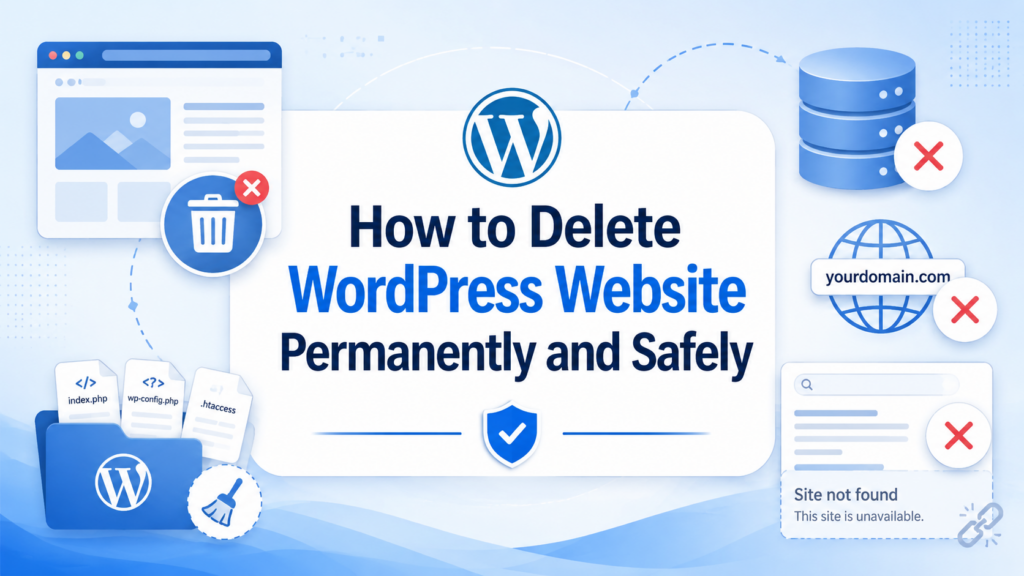
Before taking action, it’s important to understand that a WordPress website is not a single file. It is made up of multiple components:
- Website files (themes, plugins, uploads)
- A database (posts, pages, users, settings)
- A hosting server environment
- Domain name records
- CDN copies (like Cloudflare caches)
- Search engine indexes (Google, Bing, etc.)
- External archives (like Wayback Machine)
So when you want to fully delete a WordPress website, you must remove all of these layers, not just one.
Step 1: Backup Your Website Before Deleting Anything
Even if you are sure you want to remove your site, always create a backup first.
You may need it later for:
- Rebuilding a new website
- Recovering lost content
- Legal or business reference
- Migrating to another platform
You can back up your site using:
- Hosting provider backup tools
- Плагины резервного копирования WordPress
- Manual download via cPanel or FTP
Once deleted, recovery becomes significantly harder or impossible.
Step 2: Decide Your WordPress Type (Important)
There are two types of WordPress setups, and deletion methods differ:
1. Self-Hosted WordPress (WordPress.org)
This is hosted on your own server or hosting provider like Bluehost, SiteGround, etc.
You have full control over deletion.
2. WordPress.com Website
This is hosted on WordPress’s platform.
Deletion requires account-level removal.
Understanding this distinction is critical before proceeding.
Step 3: Delete WordPress Website from Hosting Panel
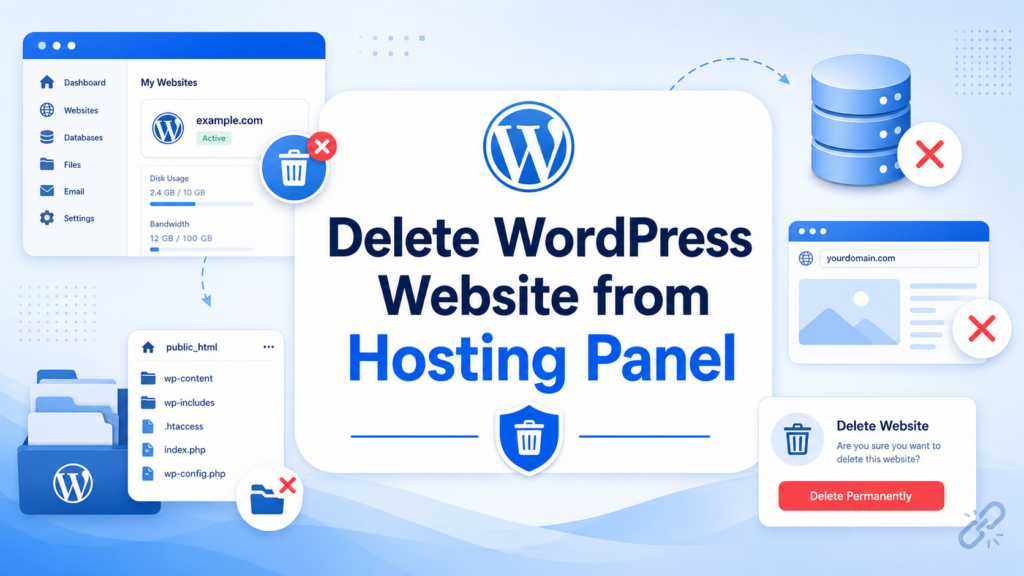
For most self-hosted websites, the cleanest method is through your hosting control panel.
Typical steps include:
- Log into your hosting account
- Open cPanel or hosting dashboard
- Locate File Manager
- Find your WordPress directory (often
public_html) - Delete all WordPress files:
- wp-admin
- wp-content
- wp-includes
- wp-config.php
This removes the core website structure from the server.
However, files alone are not enough—you must also remove the database.
Step 4: Delete the WordPress Database
The database contains all your website content.
To remove it:
- Go to your hosting control panel
- Open MySQL Databases
- Find the database connected to your WordPress site
- Delete the database
- Remove database user permissions
Once this step is completed, your WordPress site becomes non-functional at its core.
Step 5: Remove Domain Connection (DNS Settings)
Even after deleting files and database, your domain may still point somewhere.
To fully disconnect:
- Go to your domain registrar (GoDaddy, Namecheap, etc.)
- Remove or reset DNS records
- Delete A records and CNAME pointing to hosting
- Disable any parked domain settings
If you plan to abandon the domain entirely, you can also let it expire, but immediate removal is safer for full shutdown.
Step 6: Clear CDN and Cache Layers
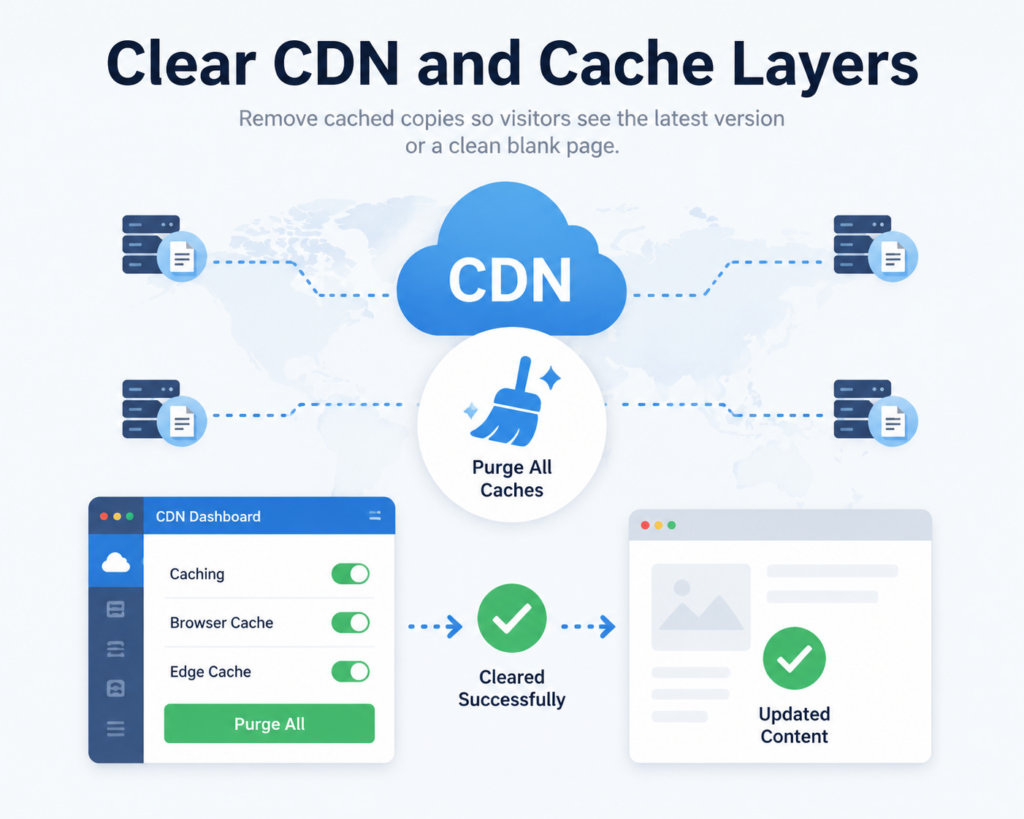
Many websites use CDN services like Cloudflare or hosting-level caching.
These may still display your site even after deletion.
To fix this:
- Purge all CDN cache
- Remove domain from CDN dashboard
- Disable caching rules
- Flush server cache (if available)
Without this step, users might still see a cached version of your site temporarily.
Step 7: Remove Website from Search Engines
Even after your website is deleted, Google may still show cached pages.
To fully remove it:
Option A: Google Search Console
- Verify your domain
- Go to Removals tool
- Request temporary removal of URLs
- Submit “Remove outdated content”
Option B: Let Google naturally deindex it
If your site returns 404 errors long enough, it will eventually disappear—but this can take weeks or months.
For faster results, Search Console is strongly recommended.
Step 8: Block Future Indexing (Optional but Recommended)
To ensure your deleted website is not re-indexed, you can:
- Add a
noindexrule (before deletion if possible) - Block robots via
robots.txt - Remove sitemap submissions
However, this only works if done before full deletion.
Step 9: Delete WordPress.com Site (If Applicable)
If your website is on WordPress.com, the process is slightly different:
- Log into WordPress.com dashboard
- Go to Settings
- Scroll to Delete Site
- Confirm permanent deletion
- Remove domain mapping if connected
WordPress.com may also allow you to “deactivate” or “hide” a site, but full deletion ensures permanent removal.
Step 10: Remove External Backups and Services
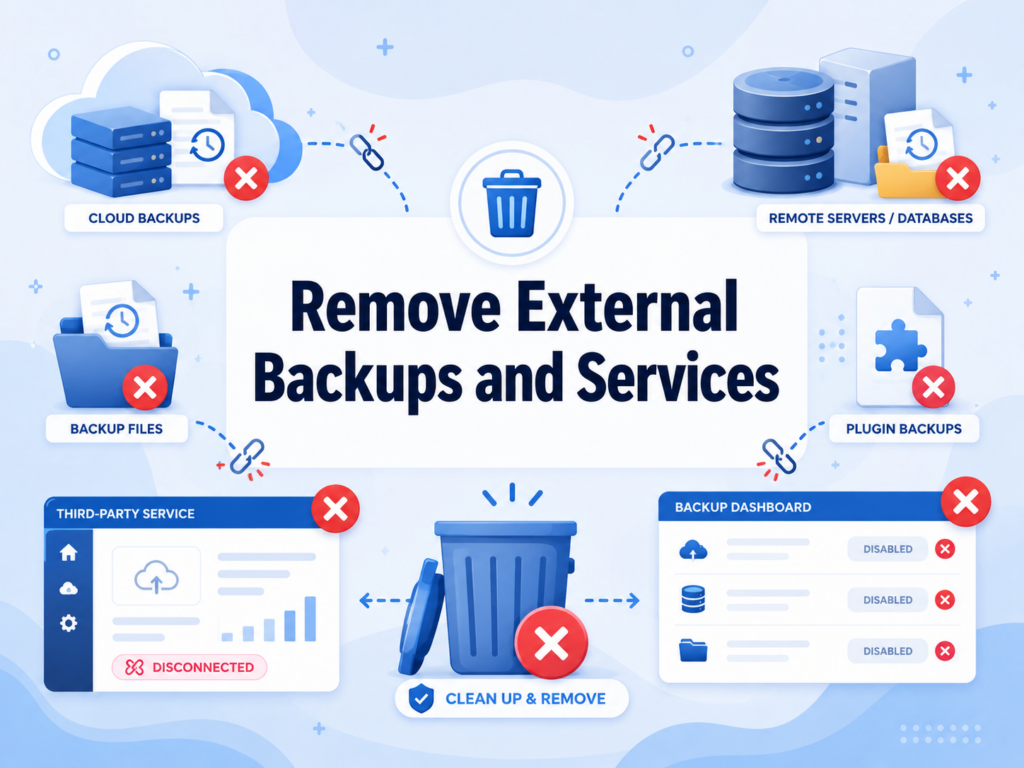
Many users forget this step.
Your website might still exist in:
- Резервное копирование хостинга
- Plugin backups (like UpdraftPlus)
- Email newsletters
- Google Drive or Dropbox backups
- Developer staging environments
Make sure to manually delete these copies if you want complete removal.
Step 11: Check Internet Archives (Optional)
Some pages may still exist in public archives like:
- Wayback Machine (archive.org)
You can request removal, but not all archived content can be instantly deleted.
This step is optional but useful for privacy-sensitive sites.
Step 12: Verify Your Website is Fully Deleted
After completing all steps, verify:
- Domain shows no active site
- Hosting returns error or blank page
- Database no longer exists
- Google search results disappear over time
- CDN shows no cached pages
You can also test using:
- Incognito browser mode
- Mobile network (not cached Wi-Fi)
- Online site checker tools
Common Mistakes When Deleting a WordPress Website
Many users make errors that leave traces of their site online:
1. Deleting files but not database
This leaves backend data stored on the server.
2. Forgetting CDN caches
Visitors still see live versions of the site.
3. Not removing domain DNS
Domain may still resolve to hosting IP.
4. Leaving backups active
Old versions can be restored unintentionally.
5. Ignoring search engine indexing
Pages remain visible in Google for weeks.
Avoiding these mistakes ensures complete removal.
What Happens After You Delete a WordPress Website?
Once properly deleted:
- The website becomes inaccessible
- All content is removed from hosting
- Database is destroyed
- Domain no longer points to content
- Search engines gradually remove results
- Cached versions expire
In most cases, within a few days to a few weeks, the website disappears completely from public access.
Can You Recover a Deleted WordPress Website?
It depends on your actions:
- If backups exist → yes, easily restored
- If hosting retains backups → possible recovery
- If everything is deleted permanently → usually not recoverable
This is why backups are strongly recommended before deletion.
Заключительные мысли
Learning how to delete a WordPress website is not just about removing files—it is about fully clearing every layer that keeps a site alive online. From hosting servers and databases to search engines and cached copies, each part must be properly handled to ensure permanent removal.
When done correctly, your website will no longer be accessible, indexed, or recoverable, giving you a clean slate for future projects or complete digital closure.
Часто задаваемые вопросы
1. Can I permanently delete a WordPress website?
Yes. You can permanently delete it by removing all website files, deleting the database, and disconnecting the domain from your hosting provider.
2. Will deleting WordPress from my hosting panel remove everything?
Not always. While it removes core files, you must also delete the database, backups, CDN cache, and domain DNS settings to fully erase the site.
3. How long does it take for a deleted WordPress site to disappear from Google?
It usually takes a few days to several weeks. You can speed it up by using Google Search Console to request URL removal.
4. Can I recover my WordPress website after deleting it?
Only if you have a backup from your hosting provider, plugin, or manual export. Without backups, recovery is usually not possible.
5. Do I need to delete my domain when removing a WordPress site?
No, but you should remove DNS records pointing to your hosting to ensure the website no longer loads online.
6. What is the most commonly forgotten step when deleting WordPress?
Most users forget to clear CDN caches and external backups, which can keep the website accessible even after deletion.


Спроектируем и создадим для вас WordPress-сайт или корпоративный сайт с полной системой электронной коммерции.
Ценовой диапазон: от $200.00 до $2,500.00custom-requirements-or-special-quotations
Первоначальная цена составляла: $2.00.$1.00Текущая цена: $1.00. Не слишком ли много 50 плагинов для интернет-магазина на WordPress?
Понимание реального влияния на производительность Наличие 50 плагинов на сайте электронной коммерции WordPress не является автоматической проблемой. На самом деле, само по себе их количество редко определяет производительность.....

Дизайн главного изображения для домашнего физиотерапевтического устройства Amazon: пояснения.
Введение: Создание достоверного изображения для домашних терапевтических приборов на Amazon При разработке главного изображения для домашнего терапевтического прибора на Amazon мы в первую очередь...

Дизайн основного изображения для конвертации помады на Amazon.
Введение: Разработка главного образа помады, которая продается на Amazon Когда мы разрабатываем главный образ для помады Amazon, наша ответственность выходит далеко за рамки...

Как хакеры крадут электронные письма администраторов WordPress (и как им это предотвратить)
Начнем с неприятной истины: ваша электронная почта администратора WordPress, вероятно, гораздо более публична, чем вы думаете. А хакеры? Им это нравится. Для них ваш...

Что делает основное изображение жидкой тональной основы Amazon конвертируемым?
Введение. Разработка дизайна основного изображения для жидкой тональной основы на Amazon — это не просто создание красивого внешнего вида продукта. На Amazon основное изображение и...

Разработка эффективного основного изображения Amazon для фильтрующих картриджей
Введение. Разработка основного изображения для Amazon — это не просто создание привлекательного внешнего вида товара. Речь идёт о ясности, доверии и мгновенном понимании, особенно для...

Повторные атаки на WordPress: реальная угроза или преувеличенный миф?
Давайте сначала кое-что проясним. Атаки повторного воспроизведения не выглядят страшно. Они не взламывают пароли. Они не внедряют вредоносный код с зелёным хакерским текстом, разлетающимся повсюду. Они действуют коварно...

Как скопировать страницы WordPress, ничего не сломав
Давайте посмотрим правде в глаза. Иногда вам не хочется создавать новую страницу. Вам нужна та же самая страница… но немного другая. Тот же макет. Те же блоки. Те же настройки. Потому что….

Сравнение пяти тем WordPress для сайтов о домашних животных
Введение. Выбор подходящей темы WordPress для сайтов, посвященных домашним животным, — это не просто решение, связанное с дизайном; оно напрямую влияет на удобство использования, масштабируемость и долгосрочный рост бизнеса. Уход за домашними животными и...

Сравнение пяти тем оформления для интернет-магазинов купальников
Введение. Выбор правильной тематики для независимого магазина купальников или нижнего белья — это не просто визуальное решение, оно напрямую влияет на коэффициент конверсии, масштабируемость и долгосрочную перспективу...

Как отключить комментарии в WordPress (не сойдя с ума)
Давайте поговорим о комментариях в WordPress. В теории комментарии — это здорово. Они стимулируют дискуссии. Они создают сообщество. Они делают ваш сайт “живым”. А на практике? Зачастую они притягивают...

Ошибка WordPress 500: когда ваш сайт начинает паниковать
Ваш сайт WordPress ещё минуту назад работал нормально. Вы обновили страницу. И вдруг — бац 💥 — ошибка 500 Internal Server Error. Никаких объяснений. Никаких извинений. Просто холодное, непонятное сообщение, которое, по сути...

Создание масштабируемого веб-сайта на WordPress для научно-ориентированного бренда: проект AminoUSA
Введение. В современном цифровом пространстве веб-сайт — это больше, чем просто место для размещения информации о товарах. Для научно-ориентированных брендов, работающих в регулируемых или научно-исследовательских отраслях, это….

Создание масштабируемого магазина Shopify для глобального бренда ножей: проект CoolKatana
Введение. В трансграничной электронной коммерции веб-сайт Shopify — это больше, чем просто витрина магазина. Для брендов, работающих в нишевых, ориентированных на культуру категориях, веб-сайт должен делать гораздо больше, чем...

Разработка высокоэффективного магазина Shopify для карточек Pokémon.
Введение. В мире электронной коммерции коллекционных товаров, особенно на рынке коллекционных карточных игр Pokémon, веб-сайт должен делать больше, чем просто перечислять товары...

Высокоэффективный дизайн Shopify для индивидуального бренда стационарной торговой точки.
Введение. В условиях современной конкурентной среды электронной коммерции, особенно в сегменте персонализированных подарков и коллекционных товаров, веб-сайт на платформе Shopify должен делать гораздо больше, чем просто отображать товары. Он...

Как связаться со службой поддержки Shopify: простое и понятное руководство
Управление магазином Shopify должно приносить удовольствие, а не путаницу. Когда возникают вопросы или проблемы замедляют вашу работу, Shopify предлагает несколько вариантов поддержки в зависимости от ситуации...

Как деактивировать магазин Shopify: понятное и практичное руководство
Деактивация магазина Shopify — несложная процедура, но она влечет за собой последствия, которые многие продавцы упускают из виду. В этом руководстве процесс описан простым и понятным языком...