












Let’s face it.
Sometimes you don’t want to create a new page.
You just want the same page… but slightly different.
Same layout.
Same blocks.
Same settings.
Because rebuilding a page from scratch is nobody’s idea of a good time.
Good news: WordPress makes copying pages and posts surprisingly easy—once you know where to click.
What You Need Before You Start

Before we duplicate anything, make sure your setup qualifies.
You’ll need one of these:
- A website hosted on WordPress.com, or
- A self-hosted WordPress site with the free Jetpack plugin activated
If that box is checked, you’re good to go.
The Classic Way: Duplicate From the Dashboard
This is the fastest and most popular method.
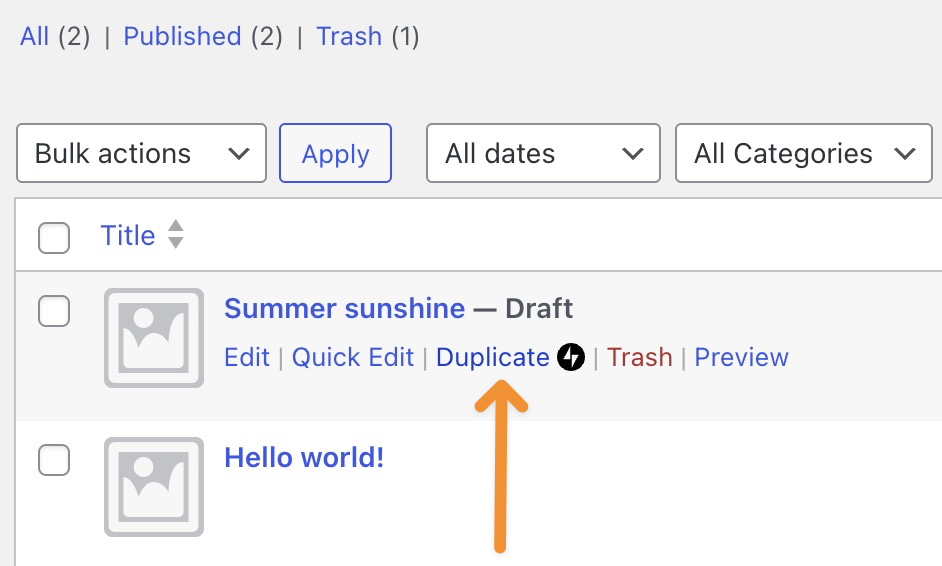
- Go to Posts or Pages in your WordPress dashboard
- Hover your mouse over the page or post you want to clone
- Click Duplicate when it magically appears
That’s it. WordPress opens a new draft that already includes:
- Title
- Content
- Excerpt
- Featured image
- Categories and tags
- Comment and sharing settings
- Custom post type data
Basically, it’s a perfect twin—minus the existential crisis.
Already Editing? Duplicate From Inside the Editor
Mid-edit and suddenly think, “I should make a copy of this”?
WordPress has your back.
- Open the page or post in the editor
- Make sure the Settings sidebar is visible (top-right icon)
- Click the three dots next to the title
- Choose Duplicate
- Give the new page a title and confirm
Boom. Copy created. Productivity preserved.
Don’t See the Duplicate Option? Here’s Why
No duplicate button usually means one of three things:
- Jetpack isn’t active
- The feature isn’t enabled
- Your page builder is doing its own thing
If you’re using Jetpack:
- Go to Jetpack → Settings → Writing
- Enable “Copy entire posts and pages, including tags and settings”
Once enabled, the duplicate option will appear like it was always there.
Backup Plan: Copy All Blocks (The Old-School Way)
If all else fails, there’s always the manual-but-reliable method.
- Open the page or post
- Click the three dots in the top-right corner
- Select Copy all blocks
- Create a new post or page
- Paste (Ctrl + V or Cmd + V)
Not fancy—but effective.
Final Thoughts
Duplicating pages isn’t cheating.
It’s called working smarter.
Whether you’re creating landing page variations, A/B testing layouts, or building multilingual versions, page duplication saves time and sanity.
에서 AIRSANG, this is exactly how we build and scale cross-border WordPress and 쇼피파이 websites—efficiently, cleanly, and without unnecessary repetition. Website design isn’t just about visuals; it’s about structure, workflow, and long-term growth.
If you’re planning to redesign your site, expand internationally, or want a WordPress setup that actually works with you, follow AIRSANG.
We don’t just design pages—we design systems that scale.


완전한 전자상거래 시스템을 갖춘 워드프레스 웹사이트 또는 기업 사이트를 디자인하고 구축하세요.
가격 범위: $200.00~$2,500.00사용자 지정 요구 사항 또는 특별 견적
원래 가격: $2.00.$1.00현재 가격: $1.00. 워드프레스 전자상거래 쇼핑몰에 플러그인 50개는 너무 많은 걸까요?
실제 성능에 미치는 영향 이해하기 워드프레스 전자상거래 사이트에 50개의 플러그인이 있다고 해서 자동으로 문제가 되는 것은 아닙니다. 사실 그 숫자만으로 성능이 결정되는 경우는 거의 없습니다....

아마존 립스틱 전환을 위한 메인 이미지 디자인
소개: 소개: 아마존에서 판매되는 립스틱 메인 이미지 디자인하기 아마존 립스틱의 메인 이미지를 디자인할 때 우리의 책임은 그 이상입니다.

해커들이 워드프레스 관리자 이메일을 훔치는 방법(그리고 이를 막는 방법)
불편한 진실부터 말씀드리자면, 워드프레스 관리자 이메일은 생각보다 훨씬 더 많이 공개되어 있습니다. 그들은 그것을 좋아합니다. 해커에게 여러분의...

아마존 리퀴드 파운데이션 메인 이미지 변환의 특징은 무엇일까요?
서론 아마존 리퀴드 파운데이션의 메인 이미지 디자인은 단순히 제품을 아름답게 보이게 하는 것만이 아닙니다. 아마존에서 메인 이미지와...
필터 카트리지 제품을 위한 효과적인 아마존 메인 이미지 디자인하기
서론 아마존 메인 이미지 디자인은 단순히 제품을 매력적으로 보이게 하는 것만이 아닙니다. 명확성, 신뢰, 그리고 즉각적인 이해를 제공하는 것이 중요합니다. 특히...
워드프레스에 대한 리플레이 공격: 실제 위협인가, 과장된 신화인가?
먼저 한 가지를 분명히 해두죠. 리플레이 공격은 겉보기에 무섭지 않습니다. 비밀번호를 날려버리지도 않고, 초록색 해커 텍스트가 사방에 흩날리는 악성 코드를 주입하지도 않습니다. 그저 교묘하게 이루어질 뿐입니다.

반려동물 관련 워드프레스 테마 5가지 비교
서론 반려동물 관련 워드프레스 테마를 선택하는 것은 단순한 디자인 결정 이상의 의미를 지닙니다. 사용성, 확장성, 그리고 장기적인 비즈니스 성장에 직접적인 영향을 미치기 때문입니다. 반려동물 관리 및 관련...

수영복 온라인 쇼핑몰 테마 5가지 비교
서론 수영복이나 란제리 독립 매장에 적합한 테마를 선택하는 것은 단순히 시각적인 결정에 그치는 것이 아니라, 전환율, 확장성, 그리고 장기적인 성공에 직접적인 영향을 미칩니다.

워드프레스에서 댓글 기능을 끄는 방법 (정신줄 놓지 않고)
워드프레스 댓글에 대해 이야기해 봅시다. 이론적으로 댓글은 훌륭합니다. 토론을 장려하고, 커뮤니티를 형성하며, 웹사이트에 생동감을 불어넣습니다. 하지만 현실은 어떨까요? 댓글은 종종 문제를 야기하기도 합니다...
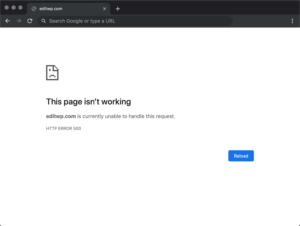
워드프레스 500 오류: 웹사이트가 갑자기 오류를 일으킬 때
방금 전까지만 해도 워드프레스 사이트는 아무 문제 없었는데, 페이지를 새로고침하자마자 갑자기 💥 500 내부 서버 오류가 발생했습니다. 아무런 설명도, 사과도 없이 그저 차갑고 혼란스러운 메시지만 남았습니다.