












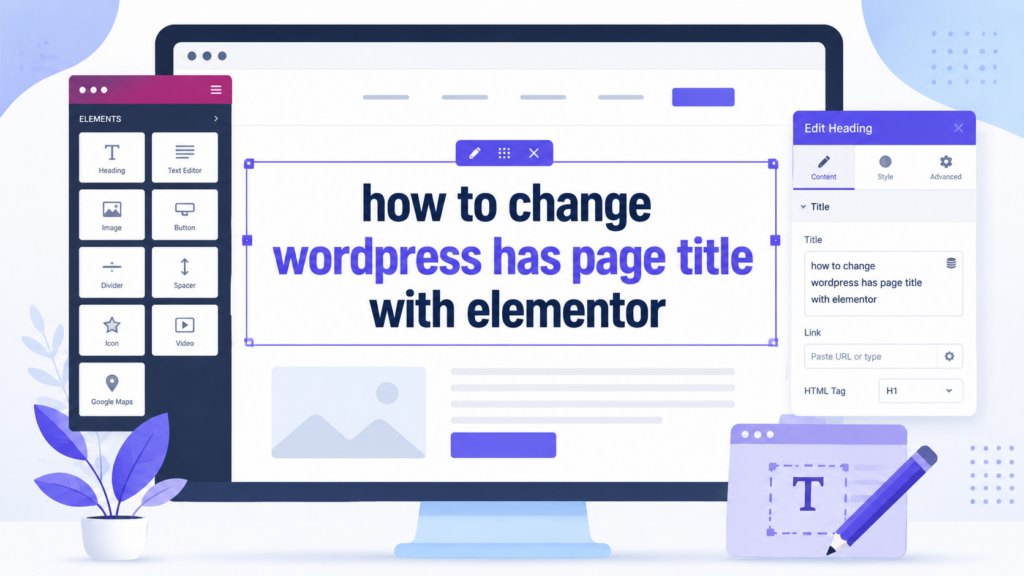
소개
Many 워드프레스 users build pages visually with Elementor because it makes website editing easier, faster, and more flexible. Instead of working only inside the default WordPress editor, you can open a page, adjust its layout, change text, move sections, style buttons, and control the overall look of the page through a drag-and-drop interface.
One small but important task many beginners need to learn is how to change a page title. The page title may look simple, but it affects several parts of your website. It can appear at the top of the page, inside browser tabs, in search results, in menus, and sometimes inside breadcrumb navigation. Because of this, learning how to change wordpress has page title with elementor can help you manage both the visual presentation and the SEO structure of your site.
This guide explains the process in a clear, beginner-friendly way. It also explains the difference between the WordPress page title, the visible heading on the page, and the SEO title used by search engines.
What Is a WordPress Page Title?
A WordPress page title is the name assigned to a specific page in your WordPress dashboard. For example, common page titles include:
홈
About
서비스
Contact
블로그
Shop
자주 묻는 질문
This title helps WordPress identify the page. It also helps you organize your website from the backend. When you go to Pages > All Pages, you see a list of titles. These names make it easier to find and edit the right page.
However, the page title does more than organize your dashboard. Depending on your theme and settings, WordPress may automatically display the title on the front end of the page. That means visitors may see the page title at the top of the page before the rest of the content begins.
Elementor gives you more control over this title because it lets you edit the page visually and adjust the page settings from the Elementor editor.
Why Page Titles Matter
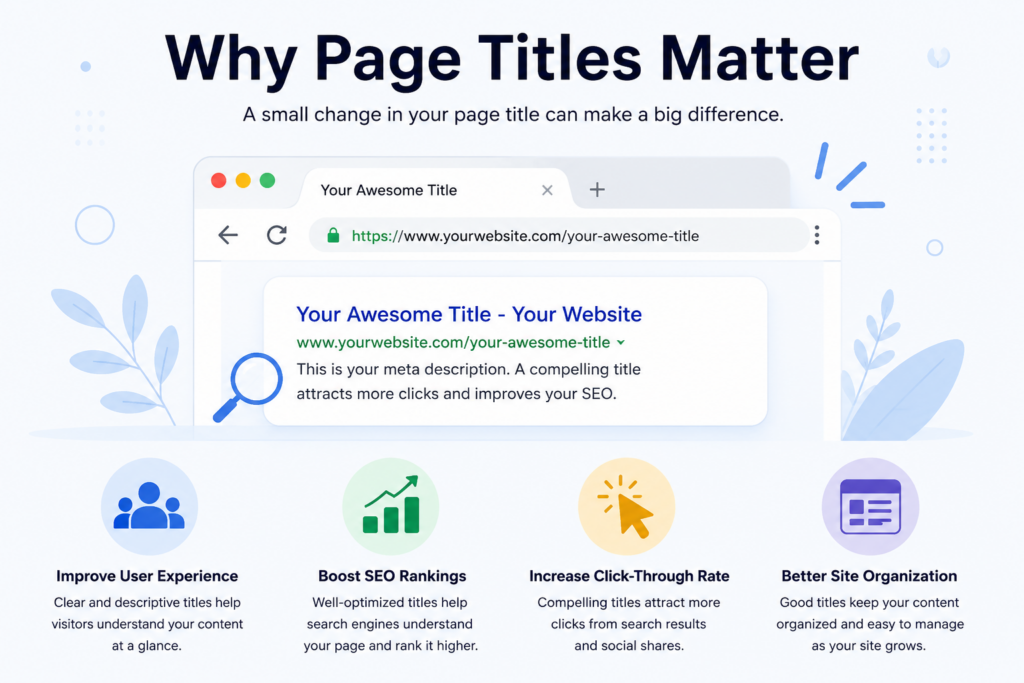
Page titles matter for three main reasons: user experience, website organization, and SEO.
First, page titles help visitors understand where they are. A clear title like “Contact Us” or “Our Services” immediately tells users what to expect. If the title feels confusing, too long, or unrelated to the page content, visitors may lose trust or leave the page.
Second, page titles help website owners manage content. As your site grows, you may have dozens or even hundreds of pages. Clear titles make the backend easier to manage.
Third, page titles can support search engine optimization. Search engines use page information to understand your content. While the visible WordPress page title is not always the same as the SEO title, it still plays a role in creating a clear structure for your website.
WordPress Page Title vs. Elementor Heading
Before changing anything, you should understand one important difference.
The WordPress page title is the title saved in the page settings. You usually see it in the WordPress dashboard and sometimes at the top of the page.
The Elementor heading is a text widget or heading widget placed inside the page layout. You can design it freely, change the font, adjust the size, set colors, and move it anywhere on the page.
For example, your WordPress page title might be “About,” but your Elementor heading might say “Helping Brands Build Better Online Experiences.” These two pieces of text can be different.
This matters because some users think they changed the page title when they only changed a heading widget. Others change the WordPress title but wonder why the large heading on the page did not change. Understanding the difference prevents confusion.
How to Change WordPress Has Page Title With Elementor
The phrase “how to change wordpress has page title with elementor” usually refers to changing the saved page title while editing the page through Elementor. The process is simple once you know where to look.
Step 1: Log In to WordPress
Start by logging in to your WordPress admin dashboard. This is where you manage pages, posts, themes, plugins, and general website settings.
After logging in, look at the left sidebar. Find the Pages menu. Click Pages, then choose All Pages. WordPress will show a list of pages on your website.
Step 2: Choose the Page You Want to Edit
Find the page title you want to change. For example, you may want to rename “Home 2” to “Home,” or change “Service” to “Website Design Services.”
Hover over the page name. You will usually see options such as:
편집하다
Quick Edit
Trash
View
Edit with Elementor
Choose Edit with Elementor if you want to open the page inside Elementor.
Step 3: Open Page Settings in Elementor
Once Elementor loads, look at the left-side Elementor panel. At the bottom of this panel, you should see a gear icon. This icon opens the page settings.
Click the gear icon. Elementor will show the settings for that specific page. This area controls page-level information, not just individual widgets.
Step 4: Change the Page Title
Inside the page settings, look for the title field. This is where you can edit the current WordPress page title.
Click inside the title field and replace the old title with your new one. Keep the title clear, short, and relevant to the page content.
예를 들어:
Change “About Page” to “About Us”
Change “New Services Page” to “Digital Marketing Services”
Change “Landing Page 1” to “Spring Sale Landing Page”
Avoid using vague titles like “Page 1” or “Test Page” on live websites. These titles make your site harder to manage and may look unprofessional if they appear on the front end.
Step 5: Update the Page
After changing the title, click the Update button. This saves the change.
If you leave the page without updating, WordPress may not keep your new title. Always update the page after making changes.
Step 6: Preview the Page
After updating, preview the page on the front end. This helps you confirm whether the title changed in the right place.
Sometimes the title changes in the WordPress dashboard but does not appear visually on the page. This usually happens when the page design uses a custom Elementor heading instead of the default WordPress title.
What If the Page Title Does Not Show?

In some WordPress themes, the page title appears automatically. In others, the theme may hide it. Elementor templates can also replace the default theme title area.
If the page title does not show after you change it, check these areas:
Theme Settings
Some themes include an option to hide or show page titles. You may find this setting under:
Appearance
Customize
Theme Options
Page Settings
Single Page Settings
The exact name depends on your theme.
Elementor Page Layout
Elementor allows different page layouts. Common options include:
기본
Elementor Canvas
Elementor Full Width
If you use Elementor Canvas, the theme header, footer, and default title area may disappear. This layout gives you a blank page for full custom design.
If you use Elementor Full Width, the page may keep the header and footer but allow a full-width content area.
If your title disappears, check the page layout inside Elementor settings.
Custom Elementor Template
If your website uses Elementor Pro Theme Builder, a custom page template may control how titles display. In that case, the title may come from a dynamic title widget or may be hidden completely.
How to Change the Visible Heading in Elementor
Changing the WordPress page title does not always change the large heading visitors see on the page. If you want to change the visible heading, follow these steps:
Open the page with Elementor.
Click the heading text on the page.
Edit the text in the Elementor panel.
Adjust typography, color, spacing, or alignment if needed.
Click Update.
This changes the text visitors see inside the page design.
For many websites, the visible heading matters more than the backend page title because it directly shapes the first impression. However, both should stay consistent.
For example, if your page title is “Website Design Services,” your visible heading could be “Website Design Services for Growing Brands.” This keeps the meaning aligned while making the headline more persuasive.
How to Hide a Page Title in Elementor
Sometimes you may want to hide the default page title because you already designed a custom hero section with a better headline.
To hide a page title, open the page in Elementor and go to page settings. Look for an option called Hide Title. If your theme supports this feature, you can turn it on.
If you do not see this option, your theme may not support Elementor’s title hiding feature. In that case, check your theme settings or use custom page layout options.
Hiding the title does not delete the page title from WordPress. It only removes it from the visible page layout. This means the page can still have a proper backend title while using a custom heading on the front end.
How to Change the SEO Title
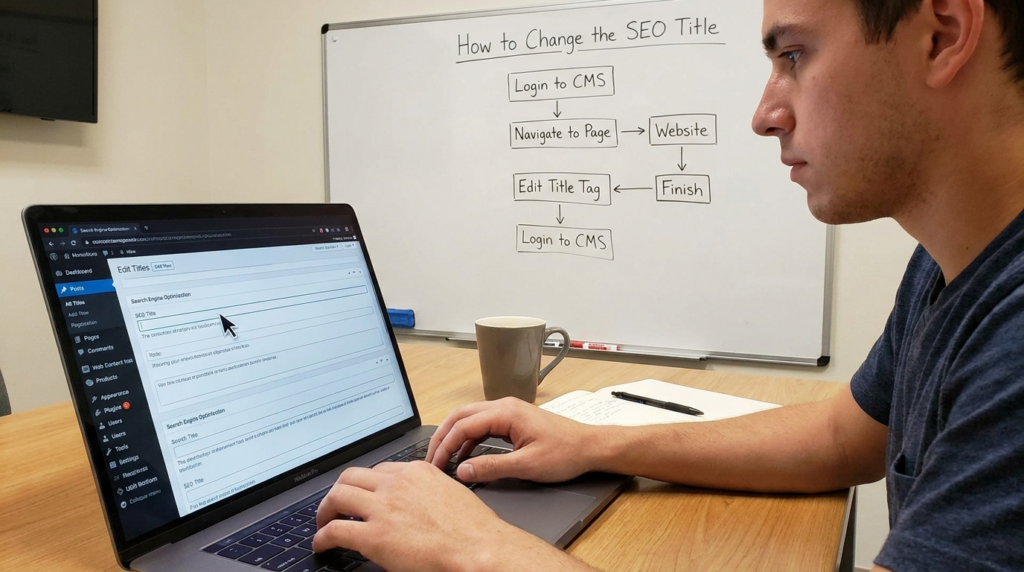
The SEO title is different from the WordPress page title. It is the title search engines may show in search results. You usually manage it through an SEO plugin such as Yoast SEO, Rank Math, All in One SEO, or another SEO tool.
A good SEO title should include the main keyword, describe the page accurately, and encourage clicks.
For example, a WordPress page title might be:
Website Design Services
The SEO title might be:
Website Design Services for Small Business Websites
The visible Elementor heading might be:
Build a Website That Looks Better and Converts Faster
These three titles can work together, but they serve different purposes.
Best Practices for Changing Page Titles
When you change a page title, do not only think about the words. Think about clarity, SEO, structure, and user expectations.
Keep It Clear
A title should tell users what the page is about. Avoid clever titles that sound creative but do not explain the content.
For example, “Our Work” is clearer than “What We Make Happen” for a portfolio page.
Keep It Short
Shorter titles are easier to read in the WordPress dashboard, menus, and breadcrumbs. A title does not need to explain everything. The page content can provide the details.
Use Keywords Naturally
If the page has an SEO purpose, include a relevant keyword naturally. Do not force keywords into every title.
For example, “WordPress Website Design Services” sounds natural. “Best WordPress Website Design Services Cheap Website Design Fast Website” sounds spammy and unprofessional.
Match the Page Content
The title should match what users actually find on the page. If the page title says “Pricing,” users expect pricing information. If the page title says “Contact,” users expect a contact form or contact details.
Avoid Changing Important URLs Without a Plan
Changing a page title does not always change the page URL, but sometimes users also edit the slug. Be careful with URLs. If a page already receives traffic, changing the URL without a redirect can cause broken links or SEO issues.
Common Mistakes Beginners Make
Many beginners run into the same problems when changing WordPress titles with Elementor.
Mistake 1: Editing the Heading Instead of the Page Title
A heading widget changes the visible text on the page, but it does not always change the WordPress page title. Use page settings when you want to change the actual page title.
Mistake 2: Forgetting to Click Update
Elementor does not save changes automatically in the final version of the page. Always click Update after editing.
Mistake 3: Expecting the SEO Title to Change Automatically
Your SEO title may come from an SEO plugin. If you want to change how the page appears in search results, check your SEO plugin settings.
Mistake 4: Hiding the Title Without Adding a Better Heading
If you hide the default page title, add a clear custom heading inside the page. Otherwise, visitors may land on the page without a strong introduction.
Mistake 5: Using Different Titles Everywhere
Your page title, menu label, heading, and SEO title do not need to be identical, but they should feel connected. If each one says something completely different, users may feel confused.
When Should You Change a WordPress Page Title?
You may need to change a page title when:
You redesign your website.
You improve SEO targeting.
You rename a service.
You simplify navigation.
You update a landing page.
You make the page more professional.
You fix an old draft title.
For example, a page originally called “Services” may become “Ecommerce Website Design Services” when the business wants to target a more specific audience.
A title change can make a page feel more polished and easier to understand.
Elementor Makes Title Editing Easier
Elementor makes page title editing easier because you can manage the page visually while also accessing page settings in one place. Instead of switching between multiple screens, you can update the page title, adjust the layout, edit headings, and preview the design from the same editor.
This is especially helpful for beginners who want more control without learning code. It also helps designers and site owners make quick adjustments during a redesign or content update.
However, Elementor does not replace good content structure. You still need to choose titles carefully, organize pages clearly, and make sure each title matches the purpose of the page.
결론
Learning how to change wordpress has page title with elementor is a simple but useful skill for managing a WordPress website. You can open the page with Elementor, access the page settings, edit the title, update the page, and preview the result.
You should also understand the difference between the 워드프레스 page title, the visible Elementor heading, and the SEO title. Each one plays a different role. The WordPress title helps organize the page, the Elementor heading shapes the visual experience, and the SEO title helps search engines and users understand the page in search results.
A strong page title should be clear, relevant, and easy to understand. When you use Elementor correctly, you can manage titles more confidently and keep your website clean, organized, and user-friendly.
자주 묻는 질문
1. How do I change a WordPress page title with Elementor?
Open the page in WordPress, click Edit with Elementor, then click the gear icon at the bottom left of the Elementor panel. In the page settings, edit the page title and click 업데이트 to save the change.
2. Is the WordPress page title the same as an Elementor heading?
No. The WordPress page title is the title saved in the page settings, while an Elementor heading is a visible text element placed inside the page design. You may need to edit both if you want them to match.
3. Why does my page title not appear after changing it?
Your theme, Elementor layout, or page template may be hiding the default page title. Check the page layout, theme settings, or Elementor’s Hide Title option.
4. Can I hide the page title in Elementor?
Yes. Open the page in Elementor, go to Page Settings, and look for the Hide Title option. If your theme supports it, you can turn this option on.
5. Will changing the page title affect SEO?
It can help SEO if the title is clear, relevant, and keyword-friendly. However, the SEO title shown in search results is often controlled by an SEO plugin like Rank Math, Yoast SEO, or All in One SEO.
6. Should my page title and SEO title be the same?
They can be the same, but they do not have to be. Your page title should help organize the website, while your SEO title should be written to attract clicks from search results.


완전한 전자상거래 시스템을 갖춘 워드프레스 웹사이트 또는 기업 사이트를 디자인하고 구축하세요.
가격 범위: $200.00~$2,500.00사용자 지정 요구 사항 또는 특별 견적
원래 가격: $2.00.$1.00현재 가격: $1.00. 워드프레스 전자상거래 쇼핑몰에 플러그인 50개는 너무 많은 걸까요?
실제 성능에 미치는 영향 이해하기 워드프레스 전자상거래 사이트에 50개의 플러그인이 있다고 해서 자동으로 문제가 되는 것은 아닙니다. 사실 그 숫자만으로 성능이 결정되는 경우는 거의 없습니다....

아마존 가정용 물리치료 기기 메인 이미지 디자인 설명
소개 소개: 아마존에서 홈 테라피 기기의 신뢰할 수 있는 이미지 구축 아마존에서 홈 테라피 기기의 기본 이미지를 디자인할 때 기본 ...

아마존 립스틱 전환을 위한 메인 이미지 디자인
소개: 소개: 아마존에서 판매되는 립스틱 메인 이미지 디자인하기 아마존 립스틱의 메인 이미지를 디자인할 때 우리의 책임은 그 이상입니다.

해커들이 워드프레스 관리자 이메일을 훔치는 방법(그리고 이를 막는 방법)
불편한 진실부터 말씀드리자면, 워드프레스 관리자 이메일은 생각보다 훨씬 더 많이 공개되어 있습니다. 그들은 그것을 좋아합니다. 해커에게 여러분의...

아마존 리퀴드 파운데이션 메인 이미지 변환의 특징은 무엇일까요?
서론 아마존 리퀴드 파운데이션의 메인 이미지 디자인은 단순히 제품을 아름답게 보이게 하는 것만이 아닙니다. 아마존에서 메인 이미지와...

필터 카트리지 제품을 위한 효과적인 아마존 메인 이미지 디자인하기
서론 아마존 메인 이미지 디자인은 단순히 제품을 매력적으로 보이게 하는 것만이 아닙니다. 명확성, 신뢰, 그리고 즉각적인 이해를 제공하는 것이 중요합니다. 특히...

워드프레스에 대한 리플레이 공격: 실제 위협인가, 과장된 신화인가?
먼저 한 가지를 분명히 해두죠. 리플레이 공격은 겉보기에 무섭지 않습니다. 비밀번호를 날려버리지도 않고, 초록색 해커 텍스트가 사방에 흩날리는 악성 코드를 주입하지도 않습니다. 그저 교묘하게 이루어질 뿐입니다.

WordPress 페이지를 손상 없이 복제하는 방법
솔직히 말해봅시다. 때로는 새 페이지를 만들고 싶지 않을 때가 있죠. 그냥 기존 페이지를 약간만 다르게 하고 싶을 때가 있어요. 레이아웃도, 블록도, 설정도 그대로요. 왜냐하면...

반려동물 관련 워드프레스 테마 5가지 비교
서론 반려동물 관련 워드프레스 테마를 선택하는 것은 단순한 디자인 결정 이상의 의미를 지닙니다. 사용성, 확장성, 그리고 장기적인 비즈니스 성장에 직접적인 영향을 미치기 때문입니다. 반려동물 관리 및 관련...

수영복 온라인 쇼핑몰 테마 5가지 비교
서론 수영복이나 란제리 독립 매장에 적합한 테마를 선택하는 것은 단순히 시각적인 결정에 그치는 것이 아니라, 전환율, 확장성, 그리고 장기적인 성공에 직접적인 영향을 미칩니다.

워드프레스에서 댓글 기능을 끄는 방법 (정신줄 놓지 않고)
워드프레스 댓글에 대해 이야기해 봅시다. 이론적으로 댓글은 훌륭합니다. 토론을 장려하고, 커뮤니티를 형성하며, 웹사이트에 생동감을 불어넣습니다. 하지만 현실은 어떨까요? 댓글은 종종 문제를 야기하기도 합니다...

워드프레스 500 오류: 웹사이트가 갑자기 오류를 일으킬 때
방금 전까지만 해도 워드프레스 사이트는 아무 문제 없었는데, 페이지를 새로고침하자마자 갑자기 💥 500 내부 서버 오류가 발생했습니다. 아무런 설명도, 사과도 없이 그저 차갑고 혼란스러운 메시지만 남았습니다.

과학 중심 브랜드를 위한 확장 가능한 워드프레스 웹사이트 구축: 아미노USA 프로젝트
서론 오늘날의 디지털 환경에서 웹사이트는 단순히 제품을 나열하는 공간 이상의 의미를 지닙니다. 규제 산업이나 연구 중심 산업에서 활동하는 과학 기반 브랜드에게 웹사이트는 더욱 중요한 역할을 합니다.

글로벌 블레이드 브랜드를 위한 확장 가능한 쇼피파이 스토어 구축: 쿨카타나 프로젝트
서론: 국경을 넘나드는 전자상거래에서 Shopify 웹사이트는 단순한 매장 이상의 의미를 지닙니다. 특정 문화권에서 사업을 운영하는 브랜드의 경우, 웹사이트는 단순한 판매 공간을 넘어 훨씬 더 많은 기능을 수행해야 합니다.

포켓몬 카드 판매를 위한 높은 전환율을 자랑하는 쇼피파이 스토어 디자인하기
서론 수집품 전자상거래, 특히 포켓몬 트레이딩 카드 게임(TCG) 시장에서 웹사이트는 단순히 제품 목록을 나열하는 것 이상의 역할을 해야 합니다.

맞춤형 오프라인 브랜드에 최적화된 전환율 높은 쇼피파이 디자인
서론 오늘날 경쟁이 치열한 전자상거래 환경, 특히 맞춤형 선물 및 수집품 분야에서 Shopify 웹사이트는 단순히 제품을 전시하는 것 이상의 역할을 해야 합니다. ...

Shopify 고객 지원팀에 문의하는 방법: 간단하고 스트레스 없는 가이드
쇼피파이 스토어 운영은 흥미진진해야지 혼란스러워서는 안 됩니다. 궁금한 점이 생기거나 문제가 발생하여 진행이 늦어질 때, 쇼피파이는 상황에 따라 다양한 지원 경로를 제공합니다.

쇼피파이 스토어 비활성화 방법: 명확하고 실용적인 가이드
쇼피파이 스토어를 비활성화하는 것은 복잡하지 않지만, 많은 판매자가 간과하는 몇 가지 결과가 따릅니다. 이 가이드에서는 비활성화 과정을 간단하고 유익하게 설명합니다.