












WordPress powers millions of websites worldwide, making it one of the most popular website platforms on the internet. But popularity also attracts attention from hackers, bots, malware distributors, and automated attacks. Whether you run a business website, blog, online store, or portfolio, protecting your WordPress files is one of the most important parts of keeping your website safe.
Many website owners focus only on design and content while ignoring file security. Unfortunately, vulnerable WordPress files can expose your database, themes, plugins, login information, and even customer data. A single weak file permission or outdated plugin can become an entry point for attackers.
The good news is that WordPress file protection does not always require advanced coding skills. With the right security practices, you can significantly reduce the risk of unauthorized access, malware infections, and file manipulation.
In this guide, you will learn how to protect WordPress files using practical and beginner-friendly methods. From securing wp-config.php to managing file permissions and blocking malicious access, these strategies can help keep your website safer and more stable.
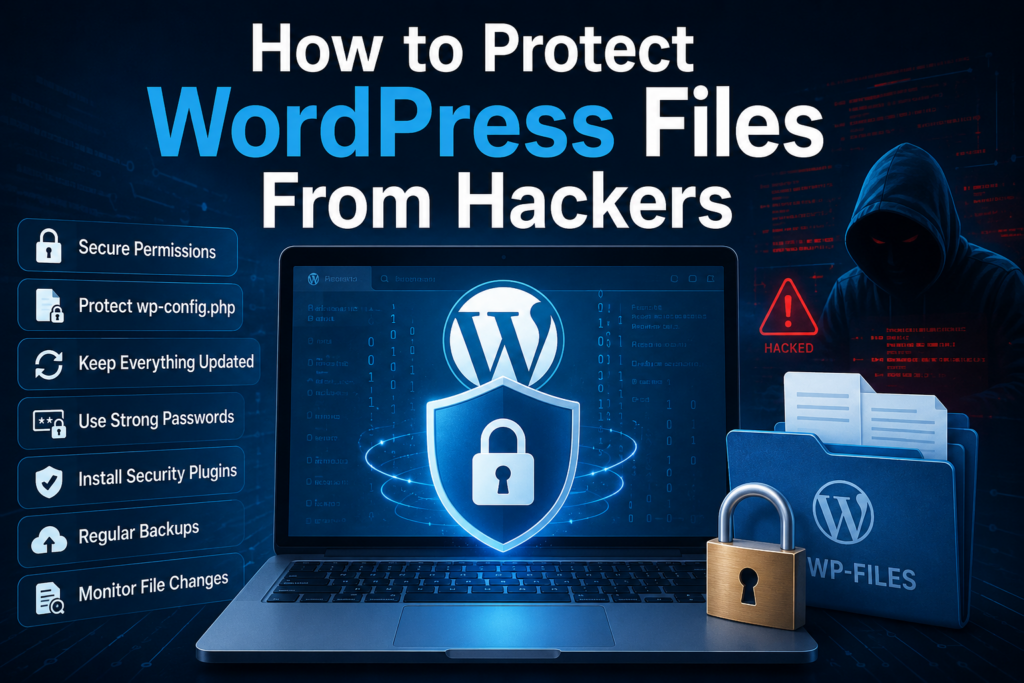
Why WordPress File Protection Matters
Every WordPress website contains critical system files that control how the site operates. Some files handle database connections, while others manage plugins, themes, uploads, and user authentication.
If attackers gain access to these files, they may:
- Inject malware
- Redirect visitors to spam websites
- Steal login credentials
- Delete website content
- Modify plugin or theme files
- Install hidden backdoors
- Access customer information
Many website compromises happen because of simple security mistakes. Weak passwords, outdated plugins, incorrect permissions, and unsecured hosting environments are common causes.
Learning how to protect WordPress files helps reduce these risks and improves overall website stability.
Keep WordPress Updated
One of the simplest ways to protect WordPress files is by keeping everything updated.
여기에는 다음이 포함됩니다.
- WordPress core
- 테마
- 플러그인
- PHP version
Updates often include security patches that fix known vulnerabilities. Hackers actively scan websites running outdated software because those weaknesses are publicly documented.
Why Updates Matter
When developers discover security flaws, they release updates to fix them. If your website stays outdated, attackers may exploit those vulnerabilities before you even notice.
Enable automatic updates whenever possible for:
- Minor WordPress core updates
- Trusted plugins
- Trusted themes
Before major updates, always create a backup to avoid compatibility problems.
Use Strong File Permissions
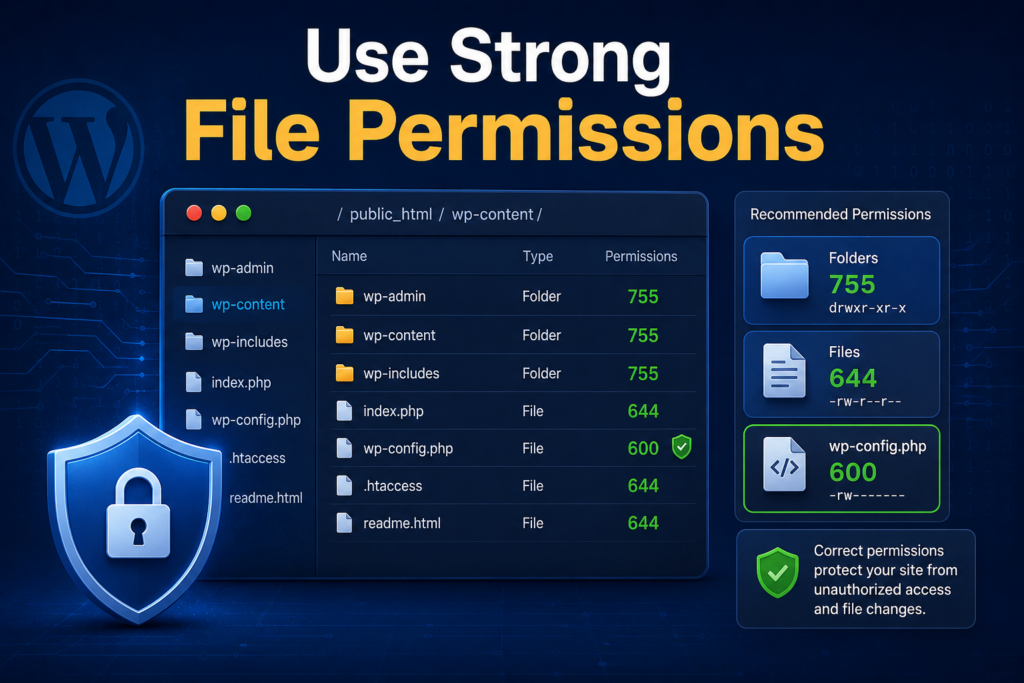
File permissions determine who can read, write, or execute files on your server.
Incorrect permissions are one of the biggest WordPress security mistakes.
Recommended WordPress File Permissions
Typical secure settings include:
| File Type | Recommended Permission |
|---|---|
| Files | 644 |
| Folders | 755 |
| wp-config.php | 600 or 640 |
These settings help prevent unauthorized users from modifying important files.
Why Permissions Matter
If permissions are too open, attackers may upload malicious scripts or modify existing files.
예를 들어:
777permissions are extremely risky- Public write access can expose your entire website
- Shared hosting environments become more vulnerable with weak permissions
Most hosting panels allow permission changes through:
- File Manager
- FTP clients
- SSH access
Always verify permissions after migrations or plugin installations.
Protect the wp-config.php File
그만큼 wp-config.php file is one of the most sensitive files in WordPress.
It contains:
- Database credentials
- Authentication keys
- Security configurations
- Table prefixes
If attackers access this file, they may gain control over your entire website.
How to Secure wp-config.php
Several common protection methods include:
- Restricting file permissions
- Blocking public access
- Moving the file outside the public root directory
- Disabling file viewing through server rules
Many website owners also use server-level configurations to deny external access to this file.
Protecting wp-config.php should always be a top priority when learning how to protect WordPress files.
Disable File Editing in the Dashboard
By default, WordPress allows administrators to edit plugin and theme files directly inside the dashboard.
While convenient, this feature can become dangerous if an attacker gains admin access.
Why Disable File Editing
Hackers often inject malicious code into:
- 테마 파일
- Plugin files
- Header scripts
- Footer scripts
Disabling file editing helps reduce this risk.
Many security-conscious website owners turn this feature off entirely, especially on production websites.
Use Secure Hosting
Your hosting provider plays a major role in website security.
Even if your WordPress settings are perfect, weak hosting infrastructure can still expose your files.
Features of Secure WordPress Hosting
Look for hosting providers that offer:
- Malware scanning
- Firewalls
- Daily backups
- Isolated accounts
- DDoS protection
- Automatic updates
- Web application firewalls
- Server-side caching
- Security monitoring
Cheap hosting plans sometimes sacrifice security for lower costs.
Reliable hosting can significantly improve WordPress file protection.
Install a WordPress Security Plugin
Security plugins can help monitor, scan, and protect your WordPress files.
Popular features often include:
- Malware detection
- Login protection
- File integrity monitoring
- Firewall protection
- Brute-force prevention
- Security alerts
- Bot blocking
What File Monitoring Does
Some plugins compare your current files with original WordPress core files.
If suspicious changes appear, the plugin alerts you immediately.
This helps detect:
- Malware injections
- Unauthorized modifications
- Hidden backdoors
- Corrupted files
File monitoring is especially useful for business websites and online stores.
로그인 시도 횟수 제한
Brute-force attacks are extremely common on WordPress websites.
Attackers use automated bots to repeatedly guess usernames and passwords.
How Login Protection Helps
Limiting login attempts can:
- Block repeated failed logins
- Slow down attack bots
- Reduce server abuse
- Protect admin accounts
Combining login limits with strong passwords and two-factor authentication creates a much safer environment.
2단계 인증을 활성화하세요
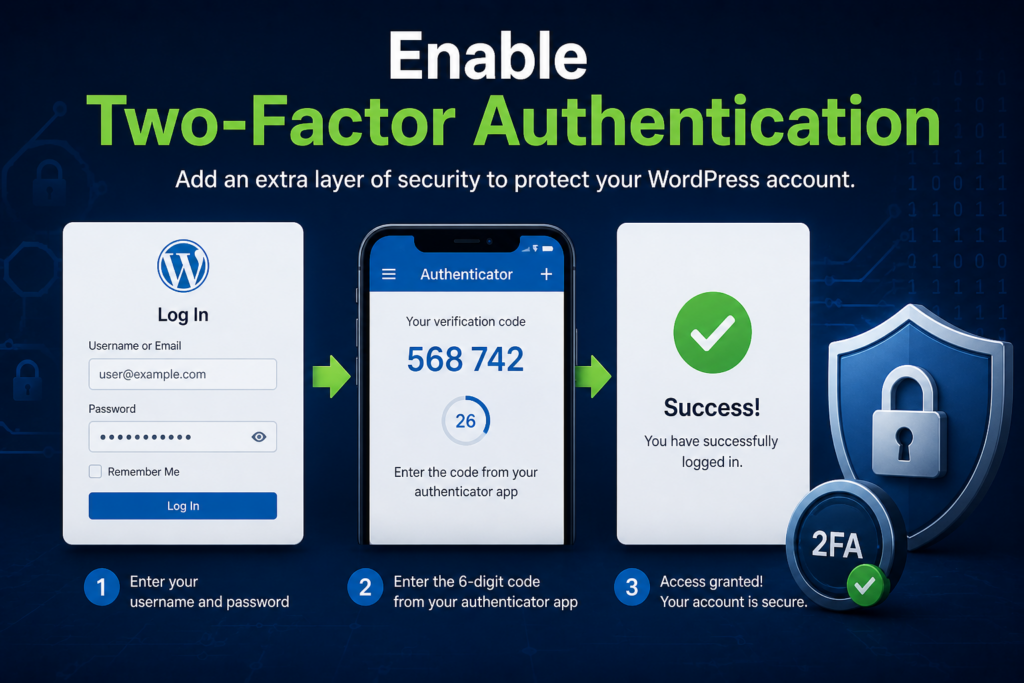
Two-factor authentication adds an extra layer of security.
Instead of relying only on passwords, users must also verify their identity through another method.
예시로는 다음과 같은 것들이 있습니다.
- Authentication apps
- Email codes
- Mobile verification
Even if hackers steal your password, they may still fail to access your dashboard without the second verification step.
This is one of the most effective ways to secure WordPress admin access.
Use Strong Passwords
Weak passwords remain one of the biggest causes of hacked websites.
Avoid passwords like:
- admin123
- password
- qwerty
- 123456
Better Password Practices
Use passwords that contain:
- Uppercase letters
- Lowercase letters
- Numbers
- Special characters
Longer passwords are generally harder to crack.
Password managers can also help generate and store secure credentials safely.
Rename the Default Admin Username
Many automated attacks target the default username:
admin
Changing the administrator username makes brute-force attacks more difficult.
Why This Matters
Hackers already know many websites use predictable usernames.
When the username is hidden or unique, attackers must guess both:
- Username
- Password
This creates an additional security barrier.
Backup Your Website Regularly
Backups are essential for WordPress security.
Even secure websites can still experience:
- 악성코드 감염
- Human mistakes
- Plugin conflicts
- Hosting failures
- Data corruption
What a Good Backup Includes
A complete backup should contain:
- Database files
- 테마
- 플러그인
- Uploads
- WordPress core files
Store backups in multiple locations, such as:
- Cloud storage
- External drives
- Remote servers
Automatic backups provide additional protection against unexpected issues.
Protect the Uploads Folder
The uploads directory stores media files such as:
- Images
- PDFs
- Videos
- Downloads
Attackers sometimes upload malicious scripts disguised as media files.
How to Secure Uploads
Website owners often:
- Restrict executable file types
- Block PHP execution inside uploads
- Scan uploaded files
- Limit upload permissions
This helps prevent attackers from running harmful scripts through the media folder.
Use SSL Certificates
SSL certificates encrypt data between visitors and your website.
Websites using HTTPS are generally safer than those using plain HTTP.
Benefits of SSL
SSL helps protect:
- Login credentials
- Payment information
- 양식 제출
- User sessions
Search engines also prefer secure HTTPS websites.
Most hosting providers now offer free SSL certificates through services like Let’s Encrypt.
Remove Unused Plugins and Themes
Unused plugins and themes still create security risks.
Even inactive software can contain vulnerabilities.
Why Cleanup Matters
Old plugins may:
- Stop receiving updates
- Become incompatible
- Introduce hidden vulnerabilities
Delete anything you no longer use.
Keeping your WordPress installation lean improves both:
- 보안
- 성능
Hide Your WordPress Version
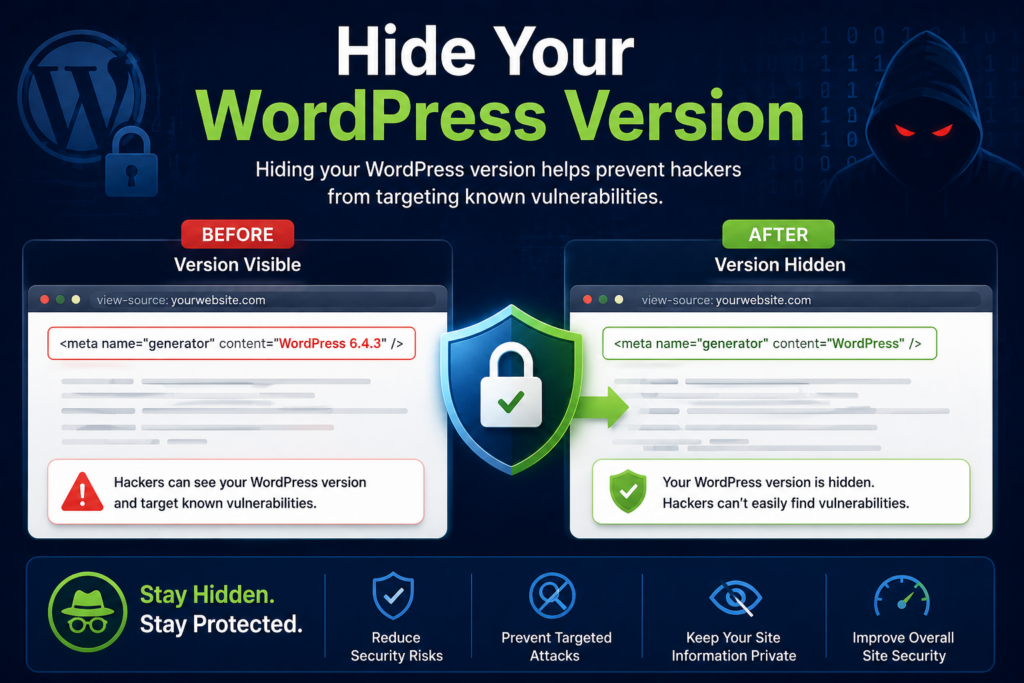
Displaying your WordPress version publicly may help attackers identify vulnerabilities.
Some bots specifically target older WordPress versions.
How Hiding Helps
Concealing version details adds a small but useful layer of security.
While it is not a complete defense, reducing exposed information makes automated targeting harder.
Monitor File Changes
File monitoring tools help detect suspicious activity early.
Unexpected changes may indicate:
- Malware injections
- 무단 접근
- Plugin vulnerabilities
- Server compromise
Common Warning Signs
Watch for:
- Modified core files
- Strange scripts
- New unknown files
- Hidden directories
- Unexpected redirects
Early detection can prevent larger security incidents.
Disable Directory Browsing
If directory browsing is enabled, visitors may view your file structure directly in the browser.
This can expose:
- Plugin folders
- Upload directories
- Sensitive files
- Backup files
Why Directory Browsing Is Dangerous
Attackers can use exposed directories to:
- Identify vulnerable plugins
- Find backup archives
- Discover hidden files
Disabling directory browsing helps reduce unnecessary exposure.
Protect Against Malware
Malware can damage your website reputation and SEO rankings.
Some malware redirects users to spam pages, while others steal sensitive information silently.
Common Malware Sources
Malware often enters through:
- Outdated plugins
- Pirated themes
- Weak passwords
- Insecure hosting
- Vulnerable file permissions
Regular scans and proactive monitoring help reduce these risks.
Avoid Nulled Themes and Plugins
Nulled software refers to pirated premium themes or plugins distributed illegally.
While they may seem free, they often contain:
- Backdoors
- Hidden malware
- Spam injections
- Tracking scripts
Why Nulled Software Is Risky
Many hacked WordPress websites trace back to infected premium downloads from untrusted sources.
Always download themes and plugins from:
- Official marketplaces
- Trusted developers
- Verified vendors
Free pirated software can end up costing far more in security damage.
Secure Your Database
Although database security is separate from file protection, the two are closely connected.
Attackers who access WordPress files may also target the database.
Helpful Database Security Practices
Good practices include:
- Strong database passwords
- Unique table prefixes
- Limited database user permissions
- Regular backups
Database security strengthens your overall WordPress protection strategy.
웹 애플리케이션 방화벽을 사용하세요
A web application firewall filters malicious traffic before it reaches your website.
This helps block:
- Bots
- SQL injections
- Brute-force attacks
- Suspicious requests
Benefits of Firewalls
Firewalls can:
- Reduce server load
- Prevent automated attacks
- Improve website stability
- Block harmful IP addresses
Many security services offer cloud-based firewall protection for WordPress websites.
Regularly Scan Your Website
Routine scans help identify vulnerabilities before attackers exploit them.
Scans can detect:
- 악성 소프트웨어
- Suspicious files
- Vulnerable plugins
- Blacklisting issues
- SEO spam injections
Why Regular Scanning Matters
Some infections remain hidden for weeks or months.
Frequent security checks improve your chances of catching problems early.
Educate Website Users
Security is not only a technical issue.
Anyone with website access should follow good security practices.
Important User Security Habits
Encourage users to:
- Use strong passwords
- Avoid suspicious links
- Update software regularly
- Limit unnecessary admin access
- Enable two-factor authentication
Human mistakes often create security vulnerabilities.
마지막으로
Understanding how to protect WordPress files is essential for maintaining a safe and reliable website. From securing sensitive files and using proper permissions to installing security plugins and monitoring file changes, every security layer helps reduce potential risks.
No single method guarantees complete protection, but combining multiple security practices creates a much stronger defense against hackers, malware, and automated attacks.
WordPress security should never be treated as a one-time task. Regular updates, backups, monitoring, and proactive maintenance all play important roles in keeping your website protected over time.
By following these best practices, website owners can improve stability, reduce vulnerabilities, and build a safer online experience for visitors and customers alike.
자주 묻는 질문
1. Why is protecting WordPress files important?
Protecting WordPress files helps prevent hackers from accessing sensitive website data, injecting malware, stealing customer information, or damaging your website. Strong file security improves overall website stability and reduces vulnerabilities.
2. What are the safest file permissions for WordPress?
Most WordPress websites use:
- 폴더:
755 - 파일:
644 - wp-config.php:
600또는640
These permission settings help limit unauthorized access while allowing WordPress to function properly.
3. How can I protect my wp-config.php file?
You can protect the wp-config.php file by:
- Restricting file permissions
- Blocking public access
- Moving the file outside the public directory
- Using server rules to deny external requests
This file contains important database and security information, so protecting it is critical.
4. Does hiding the WordPress version improve security?
Yes. Hiding your WordPress version makes it harder for attackers to identify known vulnerabilities associated with outdated versions. While it is not a complete security solution, it adds an extra layer of protection.
5. What is two-factor authentication in WordPress?
Two-factor authentication adds a second verification step during login, such as a mobile authentication code. Even if someone steals your password, they cannot access your account without the additional verification method.
6. Can security plugins help protect WordPress files?
Yes. WordPress security plugins can monitor file changes, scan for malware, block suspicious activity, limit login attempts, and strengthen overall website security. They are one of the easiest ways to improve WordPress protection for beginners.


완전한 전자상거래 시스템을 갖춘 워드프레스 웹사이트 또는 기업 사이트를 디자인하고 구축하세요.
가격 범위: $200.00~$2,500.00custom-requirements-or-special-quotations
원래 가격: $2.00.$1.00현재 가격: $1.00. 워드프레스 전자상거래 쇼핑몰에 플러그인 50개는 너무 많은 걸까요?
실제 성능에 미치는 영향 이해하기 워드프레스 전자상거래 사이트에 50개의 플러그인이 있다고 해서 자동으로 문제가 되는 것은 아닙니다. 사실 그 숫자만으로 성능이 결정되는 경우는 거의 없습니다....

아마존 가정용 물리치료 기기 메인 이미지 디자인 설명
소개 소개: 아마존에서 홈 테라피 기기의 신뢰할 수 있는 이미지 구축 아마존에서 홈 테라피 기기의 기본 이미지를 디자인할 때 기본 ...

아마존 립스틱 전환을 위한 메인 이미지 디자인
소개: 소개: 아마존에서 판매되는 립스틱 메인 이미지 디자인하기 아마존 립스틱의 메인 이미지를 디자인할 때 우리의 책임은 그 이상입니다.

해커들이 워드프레스 관리자 이메일을 훔치는 방법(그리고 이를 막는 방법)
불편한 진실부터 말씀드리자면, 워드프레스 관리자 이메일은 생각보다 훨씬 더 많이 공개되어 있습니다. 그들은 그것을 좋아합니다. 해커에게 여러분의...

아마존 리퀴드 파운데이션 메인 이미지 변환의 특징은 무엇일까요?
서론 아마존 리퀴드 파운데이션의 메인 이미지 디자인은 단순히 제품을 아름답게 보이게 하는 것만이 아닙니다. 아마존에서 메인 이미지와...

필터 카트리지 제품을 위한 효과적인 아마존 메인 이미지 디자인하기
서론 아마존 메인 이미지 디자인은 단순히 제품을 매력적으로 보이게 하는 것만이 아닙니다. 명확성, 신뢰, 그리고 즉각적인 이해를 제공하는 것이 중요합니다. 특히...

워드프레스에 대한 리플레이 공격: 실제 위협인가, 과장된 신화인가?
먼저 한 가지를 분명히 해두죠. 리플레이 공격은 겉보기에 무섭지 않습니다. 비밀번호를 날려버리지도 않고, 초록색 해커 텍스트가 사방에 흩날리는 악성 코드를 주입하지도 않습니다. 그저 교묘하게 이루어질 뿐입니다.

WordPress 페이지를 손상 없이 복제하는 방법
솔직히 말해봅시다. 때로는 새 페이지를 만들고 싶지 않을 때가 있죠. 그냥 기존 페이지를 약간만 다르게 하고 싶을 때가 있어요. 레이아웃도, 블록도, 설정도 그대로요. 왜냐하면...

반려동물 관련 워드프레스 테마 5가지 비교
서론 반려동물 관련 워드프레스 테마를 선택하는 것은 단순한 디자인 결정 이상의 의미를 지닙니다. 사용성, 확장성, 그리고 장기적인 비즈니스 성장에 직접적인 영향을 미치기 때문입니다. 반려동물 관리 및 관련...

수영복 온라인 쇼핑몰 테마 5가지 비교
서론 수영복이나 란제리 독립 매장에 적합한 테마를 선택하는 것은 단순히 시각적인 결정에 그치는 것이 아니라, 전환율, 확장성, 그리고 장기적인 성공에 직접적인 영향을 미칩니다.

워드프레스에서 댓글 기능을 끄는 방법 (정신줄 놓지 않고)
워드프레스 댓글에 대해 이야기해 봅시다. 이론적으로 댓글은 훌륭합니다. 토론을 장려하고, 커뮤니티를 형성하며, 웹사이트에 생동감을 불어넣습니다. 하지만 현실은 어떨까요? 댓글은 종종 문제를 야기하기도 합니다...

워드프레스 500 오류: 웹사이트가 갑자기 오류를 일으킬 때
방금 전까지만 해도 워드프레스 사이트는 아무 문제 없었는데, 페이지를 새로고침하자마자 갑자기 💥 500 내부 서버 오류가 발생했습니다. 아무런 설명도, 사과도 없이 그저 차갑고 혼란스러운 메시지만 남았습니다.

과학 중심 브랜드를 위한 확장 가능한 워드프레스 웹사이트 구축: 아미노USA 프로젝트
서론 오늘날의 디지털 환경에서 웹사이트는 단순히 제품을 나열하는 공간 이상의 의미를 지닙니다. 규제 산업이나 연구 중심 산업에서 활동하는 과학 기반 브랜드에게 웹사이트는 더욱 중요한 역할을 합니다.

글로벌 블레이드 브랜드를 위한 확장 가능한 쇼피파이 스토어 구축: 쿨카타나 프로젝트
서론: 국경을 넘나드는 전자상거래에서 Shopify 웹사이트는 단순한 매장 이상의 의미를 지닙니다. 특정 문화권에서 사업을 운영하는 브랜드의 경우, 웹사이트는 단순한 판매 공간을 넘어 훨씬 더 많은 기능을 수행해야 합니다.

포켓몬 카드 판매를 위한 높은 전환율을 자랑하는 쇼피파이 스토어 디자인하기
서론 수집품 전자상거래, 특히 포켓몬 트레이딩 카드 게임(TCG) 시장에서 웹사이트는 단순히 제품 목록을 나열하는 것 이상의 역할을 해야 합니다.

맞춤형 오프라인 브랜드에 최적화된 전환율 높은 쇼피파이 디자인
서론 오늘날 경쟁이 치열한 전자상거래 환경, 특히 맞춤형 선물 및 수집품 분야에서 Shopify 웹사이트는 단순히 제품을 전시하는 것 이상의 역할을 해야 합니다. ...

Shopify 고객 지원팀에 문의하는 방법: 간단하고 스트레스 없는 가이드
쇼피파이 스토어 운영은 흥미진진해야지 혼란스러워서는 안 됩니다. 궁금한 점이 생기거나 문제가 발생하여 진행이 늦어질 때, 쇼피파이는 상황에 따라 다양한 지원 경로를 제공합니다.

쇼피파이 스토어 비활성화 방법: 명확하고 실용적인 가이드
쇼피파이 스토어를 비활성화하는 것은 복잡하지 않지만, 많은 판매자가 간과하는 몇 가지 결과가 따릅니다. 이 가이드에서는 비활성화 과정을 간단하고 유익하게 설명합니다.