












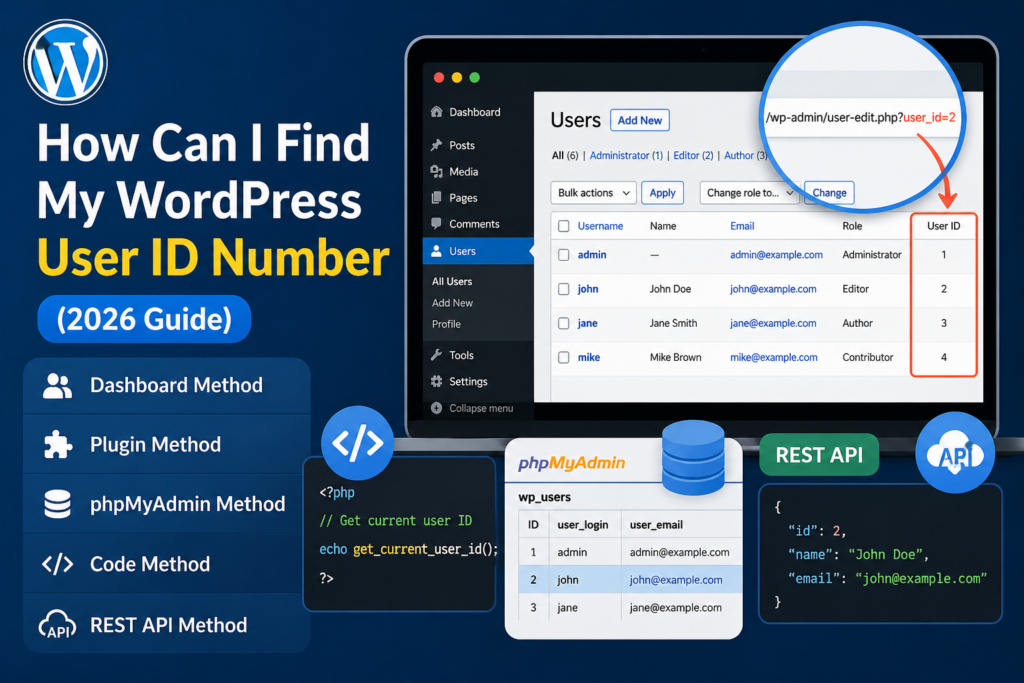
소개
If you’ve ever worked with WordPress beyond basic content editing, you’ve probably run into situations where you need a user ID. Maybe you’re customizing a theme, setting up user-specific conditions, integrating plugins, or troubleshooting permissions. At some point, the question naturally comes up: how can I find my WordPress user ID number?
This guide explains everything you need to know in a clear, beginner-friendly way. We’ll walk through what a WordPress user ID is, why it matters, and multiple simple methods to find it—no coding knowledge required.
What Is a WordPress User ID?
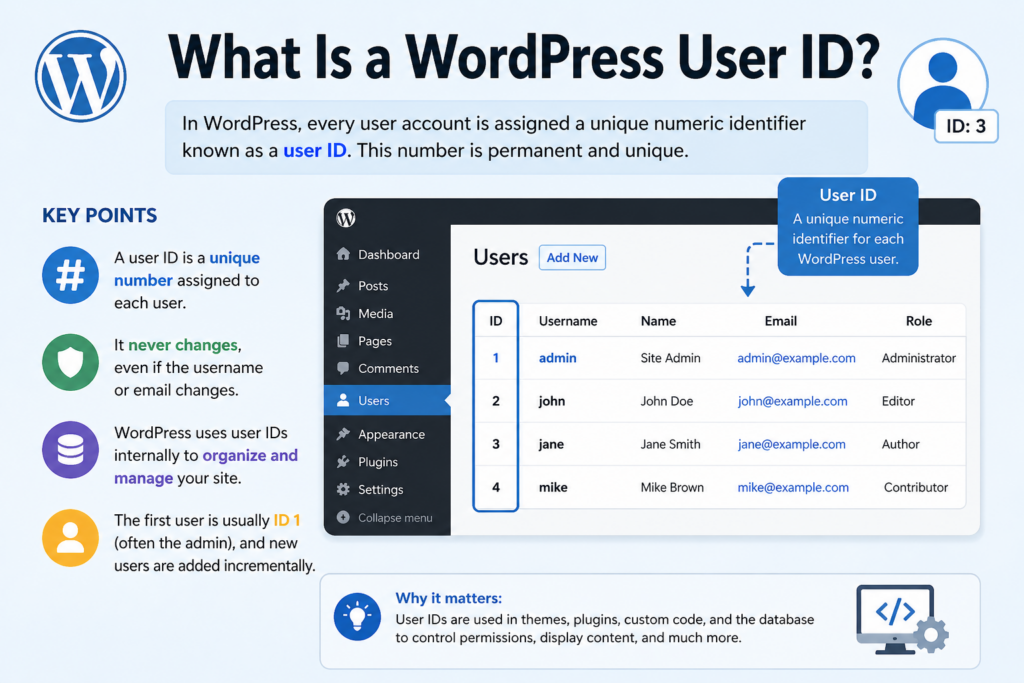
In WordPress, every user account is assigned a unique numeric identifier known as a user ID. This number is created automatically when a new user is registered on your site.
Unlike usernames or display names, which can be changed, the user ID is permanent and unique. WordPress uses this ID internally to:
- Track authorship of posts and pages
- Manage user permissions and roles
- Link users to comments and metadata
- Identify users in the database
예를 들어:
- Admin user might have ID:
1 - Another user might have ID:
2,3,4, and so on
Even if you change a username or email address, the user ID remains the same.
Why Do You Need to Find Your WordPress User ID?
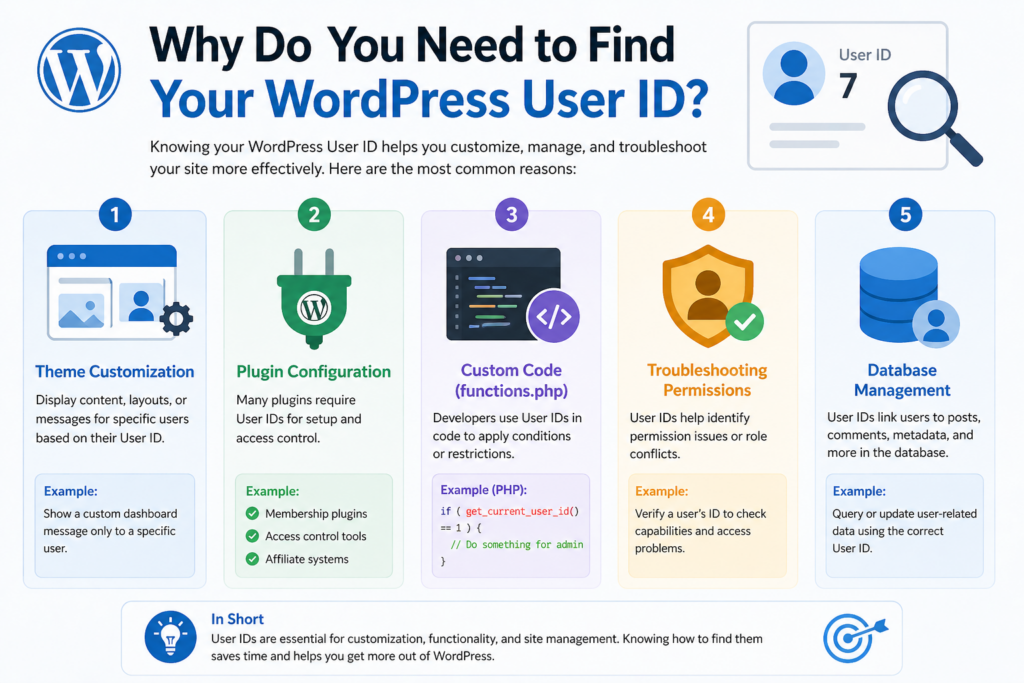
Most beginners don’t need to worry about user IDs right away. However, as your website grows or becomes more customized, knowing your user ID becomes important.
Here are some common scenarios:
1. Theme Customization
Some WordPress themes allow you to display content based on a specific user ID. For example:
- Show a custom dashboard message only to a specific user
- Display author-specific layouts
2. Plugin Configuration
Certain plugins require user IDs for setup, such as:
- Membership plugins
- Access control tools
- Affiliate systems
3. Custom Code (Functions.php)
Developers often use user IDs in code snippets like:
if ( get_current_user_id() == 1 ) {
    // Do something for admin
}
4. Troubleshooting Permissions
If a user cannot access certain areas, checking their user ID can help identify conflicts or misconfigurations.
Method 1: Find User ID from the WordPress Dashboard (Easiest Way)
This is the simplest and most beginner-friendly method.
단계:
- Log in to your WordPress admin panel
- Go to Users → All Users
- Hover over the username you want
- Look at the URL in your browser
You’ll see something like:
/wp-admin/user-edit.php?user_id=3&wp_http_referer=...
👉 The number after user_id= is the user ID.
Why this works:
WordPress uses the user ID in the URL when loading the user edit page.
Method 2: Click Edit and Check the URL
If hovering doesn’t clearly show the link, you can do this:
단계:
- Go to Users → All Users
- Click Edit under a user
- Look at your browser’s address bar
예:
https://yoursite.com/wp-admin/user-edit.php?user_id=5
👉 In this case, the user ID is 5.
Method 3: Use a WordPress Plugin (No Code, More Visibility)
If you prefer a cleaner interface, you can install a plugin that displays user IDs directly.
Popular plugin options:
- “Show IDs”
- “Reveal IDs”
- “WP Admin UI Customize”
What these plugins do:
They add an extra column in your dashboard showing:
- 게시물 ID
- Page IDs
- User IDs
단계:
- Go to Plugins → Add New
- Search for “Show IDs”
- Install and activate
- Go back to Users → All Users
You’ll now see a User ID column.
Method 4: Find User ID Using phpMyAdmin (Advanced)
If you have access to your hosting panel, you can find user IDs directly in the database.
단계:
- Log in to your hosting control panel (cPanel, CloudPanel, etc.)
- Open phpMyAdmin
- Select your WordPress database
- Find the table:
wp_users
(Note: your prefix may not be “wp_”)
- Open the table
You’ll see:
- ID
- user_login
- user_email
👉 The ID column is your WordPress user ID.
When to use this method:
- When dashboard access is broken
- When troubleshooting deeper issues
- When working with migrations
Method 5: Use Code to Display User ID
If you’re comfortable adding small code snippets, this method is useful.
Option A: Show current logged-in user ID
Add this temporarily to your theme:
echo get_current_user_id();
Option B: Show a specific user’s ID
$user = get_user_by('login', 'username');
echo $user->ID;
Where to add this:
- functions.php
- Custom plugin
- Temporary debug page
⚠️ Always remove test code after use.
Method 6: Find User ID from Author Archive URL
This method works on many WordPress sites, especially if author archives are enabled.
단계:
- Visit a user’s author page
예:
https://yoursite.com/author/john/
- View page source or inspect links
Sometimes you’ll find:
author=3
👉 That number is the user ID.
Method 7: Using REST API (Modern Approach)
If your site supports the WordPress REST API, you can retrieve user data programmatically.
예:
https://yoursite.com/wp-json/wp/v2/users
This returns JSON data like:
{
  "id": 3,
  "name": "John Doe"
}
👉 The "id" field is the user ID.
메모:
- Some sites restrict this for security
- May require authentication
흔히 저지르는 실수들을 피하는 방법
1. Confusing Username with User ID
Your username might be:
john_admin
But your user ID is:
3
They are completely different.
2. Assuming Admin Is Always ID 1
While the first user is usually ID 1, this is not guaranteed.
- Sites with deleted users may skip numbers
- Imports or migrations may change IDs
3. Editing the Database Without Backup
If you use phpMyAdmin, always:
- Backup your database
- Avoid editing user IDs manually
Changing IDs can break relationships between:
- 게시물
- 댓글
- Metadata
When Should You Use Each Method?
| Situation | Best Method |
|---|---|
| Beginner / quick check | Dashboard hover |
| Frequent use | Plugin |
| No admin access | phpMyAdmin |
| Developer work | Code |
| API integration | REST API |
Security Considerations
User IDs themselves are not sensitive, but exposing them can sometimes:
- Help attackers guess login patterns
- Reveal user structure
To improve security:
- Disable public user listing if not needed
- Limit REST API exposure
- Use strong passwords and roles
Pro Tips for Working with User IDs
1. Combine with User Roles
Instead of targeting just ID:
if ( current_user_can('administrator') ) {
This is more flexible.
2. Use User ID for Personalization
다음과 같은 일을 할 수 있습니다:
- Show custom greetings
- Display user-specific content
- Build dashboards
3. Use in Shortcodes
예:
add_shortcode('my_user_id', function() {
    return get_current_user_id();
});
Then use:
[my_user_id]
Frequently Asked Questions
Is user ID the same as author ID?
Yes. In most cases, they are the same because WordPress uses user IDs to assign authorship.
Can I change a user ID?
Not safely. It’s technically possible via database edits, but it can break your site.
What happens if I delete a user?
The ID is not reused. WordPress keeps incrementing IDs for new users.
How do I find my own user ID?
사용:
- Dashboard hover method
- 또는:
echo get_current_user_id();
결론
Understanding how to find your WordPress user ID number is a small but essential skill that becomes increasingly valuable as your site grows.
Whether you’re customizing layouts, configuring plugins, or troubleshooting access issues, the user ID acts as a reliable internal identifier that WordPress depends on behind the scenes.
The easiest method is checking the URL in the dashboard, while more advanced users can rely on database access, code snippets, or the REST API. By choosing the right approach for your situation, you can quickly locate any user ID and use it effectively in your workflow.
Once you know where to look, finding a WordPress user ID becomes simple, fast, and incredibly useful.
자주 묻는 질문
1.How can I find my WordPress user ID number quickly?
You can find your WordPress user ID by going to Users → All Users in your dashboard and hovering over a username. The user ID will appear in the URL as user_id=number.
2. Is my WordPress username the same as my user ID?
No, your username and user ID are different. The username is customizable, while the user ID is a unique number assigned by WordPress and cannot be changed easily.
3. Can I find my WordPress user ID without using a plugin?
Yes, you can find it directly in the dashboard URL, through phpMyAdmin, or by using a simple code snippet like get_current_user_id().
4. How do I find a user ID in WordPress using phpMyAdmin?
Log in to phpMyAdmin, open your WordPress database, and check the wp_users table. The “ID” column shows each user’s unique user ID.
5. Why do plugins require a WordPress user ID?
Plugins often use user IDs to manage permissions, assign roles, track activity, or personalize content for specific users on your site.
6. Is it safe to share my WordPress user ID?
Generally, user IDs are not sensitive information. However, exposing them publicly may increase security risks, so it’s best to limit unnecessary exposure.


완전한 전자상거래 시스템을 갖춘 워드프레스 웹사이트 또는 기업 사이트를 디자인하고 구축하세요.
가격 범위: $200.00~$2,500.00custom-requirements-or-special-quotations
원래 가격: $2.00.$1.00현재 가격: $1.00. 워드프레스 전자상거래 쇼핑몰에 플러그인 50개는 너무 많은 걸까요?
실제 성능에 미치는 영향 이해하기 워드프레스 전자상거래 사이트에 50개의 플러그인이 있다고 해서 자동으로 문제가 되는 것은 아닙니다. 사실 그 숫자만으로 성능이 결정되는 경우는 거의 없습니다....

아마존 가정용 물리치료 기기 메인 이미지 디자인 설명
소개 소개: 아마존에서 홈 테라피 기기의 신뢰할 수 있는 이미지 구축 아마존에서 홈 테라피 기기의 기본 이미지를 디자인할 때 기본 ...

아마존 립스틱 전환을 위한 메인 이미지 디자인
소개: 소개: 아마존에서 판매되는 립스틱 메인 이미지 디자인하기 아마존 립스틱의 메인 이미지를 디자인할 때 우리의 책임은 그 이상입니다.

해커들이 워드프레스 관리자 이메일을 훔치는 방법(그리고 이를 막는 방법)
불편한 진실부터 말씀드리자면, 워드프레스 관리자 이메일은 생각보다 훨씬 더 많이 공개되어 있습니다. 그들은 그것을 좋아합니다. 해커에게 여러분의...

아마존 리퀴드 파운데이션 메인 이미지 변환의 특징은 무엇일까요?
서론 아마존 리퀴드 파운데이션의 메인 이미지 디자인은 단순히 제품을 아름답게 보이게 하는 것만이 아닙니다. 아마존에서 메인 이미지와...

필터 카트리지 제품을 위한 효과적인 아마존 메인 이미지 디자인하기
서론 아마존 메인 이미지 디자인은 단순히 제품을 매력적으로 보이게 하는 것만이 아닙니다. 명확성, 신뢰, 그리고 즉각적인 이해를 제공하는 것이 중요합니다. 특히...

워드프레스에 대한 리플레이 공격: 실제 위협인가, 과장된 신화인가?
먼저 한 가지를 분명히 해두죠. 리플레이 공격은 겉보기에 무섭지 않습니다. 비밀번호를 날려버리지도 않고, 초록색 해커 텍스트가 사방에 흩날리는 악성 코드를 주입하지도 않습니다. 그저 교묘하게 이루어질 뿐입니다.

WordPress 페이지를 손상 없이 복제하는 방법
솔직히 말해봅시다. 때로는 새 페이지를 만들고 싶지 않을 때가 있죠. 그냥 기존 페이지를 약간만 다르게 하고 싶을 때가 있어요. 레이아웃도, 블록도, 설정도 그대로요. 왜냐하면...

반려동물 관련 워드프레스 테마 5가지 비교
서론 반려동물 관련 워드프레스 테마를 선택하는 것은 단순한 디자인 결정 이상의 의미를 지닙니다. 사용성, 확장성, 그리고 장기적인 비즈니스 성장에 직접적인 영향을 미치기 때문입니다. 반려동물 관리 및 관련...

수영복 온라인 쇼핑몰 테마 5가지 비교
서론 수영복이나 란제리 독립 매장에 적합한 테마를 선택하는 것은 단순히 시각적인 결정에 그치는 것이 아니라, 전환율, 확장성, 그리고 장기적인 성공에 직접적인 영향을 미칩니다.

워드프레스에서 댓글 기능을 끄는 방법 (정신줄 놓지 않고)
워드프레스 댓글에 대해 이야기해 봅시다. 이론적으로 댓글은 훌륭합니다. 토론을 장려하고, 커뮤니티를 형성하며, 웹사이트에 생동감을 불어넣습니다. 하지만 현실은 어떨까요? 댓글은 종종 문제를 야기하기도 합니다...

워드프레스 500 오류: 웹사이트가 갑자기 오류를 일으킬 때
방금 전까지만 해도 워드프레스 사이트는 아무 문제 없었는데, 페이지를 새로고침하자마자 갑자기 💥 500 내부 서버 오류가 발생했습니다. 아무런 설명도, 사과도 없이 그저 차갑고 혼란스러운 메시지만 남았습니다.

과학 중심 브랜드를 위한 확장 가능한 워드프레스 웹사이트 구축: 아미노USA 프로젝트
서론 오늘날의 디지털 환경에서 웹사이트는 단순히 제품을 나열하는 공간 이상의 의미를 지닙니다. 규제 산업이나 연구 중심 산업에서 활동하는 과학 기반 브랜드에게 웹사이트는 더욱 중요한 역할을 합니다.

글로벌 블레이드 브랜드를 위한 확장 가능한 쇼피파이 스토어 구축: 쿨카타나 프로젝트
서론: 국경을 넘나드는 전자상거래에서 Shopify 웹사이트는 단순한 매장 이상의 의미를 지닙니다. 특정 문화권에서 사업을 운영하는 브랜드의 경우, 웹사이트는 단순한 판매 공간을 넘어 훨씬 더 많은 기능을 수행해야 합니다.

포켓몬 카드 판매를 위한 높은 전환율을 자랑하는 쇼피파이 스토어 디자인하기
서론 수집품 전자상거래, 특히 포켓몬 트레이딩 카드 게임(TCG) 시장에서 웹사이트는 단순히 제품 목록을 나열하는 것 이상의 역할을 해야 합니다.

맞춤형 오프라인 브랜드에 최적화된 전환율 높은 쇼피파이 디자인
서론 오늘날 경쟁이 치열한 전자상거래 환경, 특히 맞춤형 선물 및 수집품 분야에서 Shopify 웹사이트는 단순히 제품을 전시하는 것 이상의 역할을 해야 합니다. ...

Shopify 고객 지원팀에 문의하는 방법: 간단하고 스트레스 없는 가이드
쇼피파이 스토어 운영은 흥미진진해야지 혼란스러워서는 안 됩니다. 궁금한 점이 생기거나 문제가 발생하여 진행이 늦어질 때, 쇼피파이는 상황에 따라 다양한 지원 경로를 제공합니다.

쇼피파이 스토어 비활성화 방법: 명확하고 실용적인 가이드
쇼피파이 스토어를 비활성화하는 것은 복잡하지 않지만, 많은 판매자가 간과하는 몇 가지 결과가 따릅니다. 이 가이드에서는 비활성화 과정을 간단하고 유익하게 설명합니다.