소개
Duplicating a page in 워드프레스 sounds like a simple task, but many beginners are surprised when they cannot find a built-in “duplicate” button inside the WordPress dashboard. WordPress lets you create pages, edit posts, upload images, install themes, manage plugins, and customize almost every part of your website. However, by default, it does not include a one-click feature for cloning an existing page or post.
That does not mean the process is difficult. In fact, learning how to duplicate page WordPress content is one of the easiest ways to speed up your website workflow. Whether you are building a landing page, creating similar service pages, testing different layouts, or reusing a blog format, duplicating a page can save a lot of time.
Instead of starting with a blank screen, you can copy an existing structure and adjust the text, images, buttons, links, and SEO settings. This helps you keep your website layout consistent while reducing repetitive work.
In this guide, we will explain what page duplication means, why website owners use it, when it is helpful, what risks to avoid, and the main ways to duplicate a page in WordPress with or without plugins.
What Does It Mean to Duplicate a WordPress Page?
To duplicate a WordPress page means to create a copy of an existing page on your website. The copied version usually keeps the same layout, text blocks, images, buttons, headings, and sometimes other page settings depending on the method you use.
For example, imagine you already created a service page for “Website Design.” The page has a hero section, service description, feature blocks, testimonials, pricing area, and a contact button. Now you want to create a similar page for “Shopify Design.” Instead of rebuilding the full layout again, you can duplicate the first page and replace the content with new information.
This process is useful because you are not copying the page for users to see the same content twice. You are copying the page as a starting point. After duplication, you should edit the copied version so it becomes a new, unique page.
Why WordPress Users Duplicate Pages
There are many practical reasons to duplicate pages in WordPress. For beginners, the biggest reason is convenience. Once you have built a page that looks good, it makes sense to reuse the structure instead of designing everything again.
It Saves Time
Creating a page from scratch can take a long time. You may need to choose a layout, add sections, set spacing, upload images, style buttons, adjust headings, and check the mobile version.
When you duplicate a page, much of that work is already done. You only need to update the parts that should change.
It Keeps Design Consistent
A professional website should feel consistent from page to page. Service pages, product pages, landing pages, and blog posts often follow a similar visual structure.
Duplicating a page helps keep the same design rhythm across your website. This can make your site easier to browse and more polished.
It Helps with Landing Page Testing
If you run marketing campaigns, you may want to test two versions of the same page. For example, one version may use a blue call-to-action button, while another version uses a black button. One version may have a short headline, while another uses a longer headline.
Duplicating a page gives you a quick way to create a second version for testing. You can make small changes and compare which version performs better.
It Helps You Reuse a Successful Layout
Sometimes a page performs well because the layout is clear, the content is organized, and the call-to-action is easy to find. Instead of guessing again, you can reuse that successful structure for another campaign or service.
The copied page becomes a proven framework that you can customize for a new purpose.
It Supports Template-Based Publishing
Some websites publish content in a repeated format. For example, a blog may use the same structure for product reviews, case studies, tutorials, or weekly updates.
Duplicating a post or page can help writers follow the same format each time. This makes publishing faster and keeps the reader experience consistent.
Important SEO Warning Before You Duplicate Pages
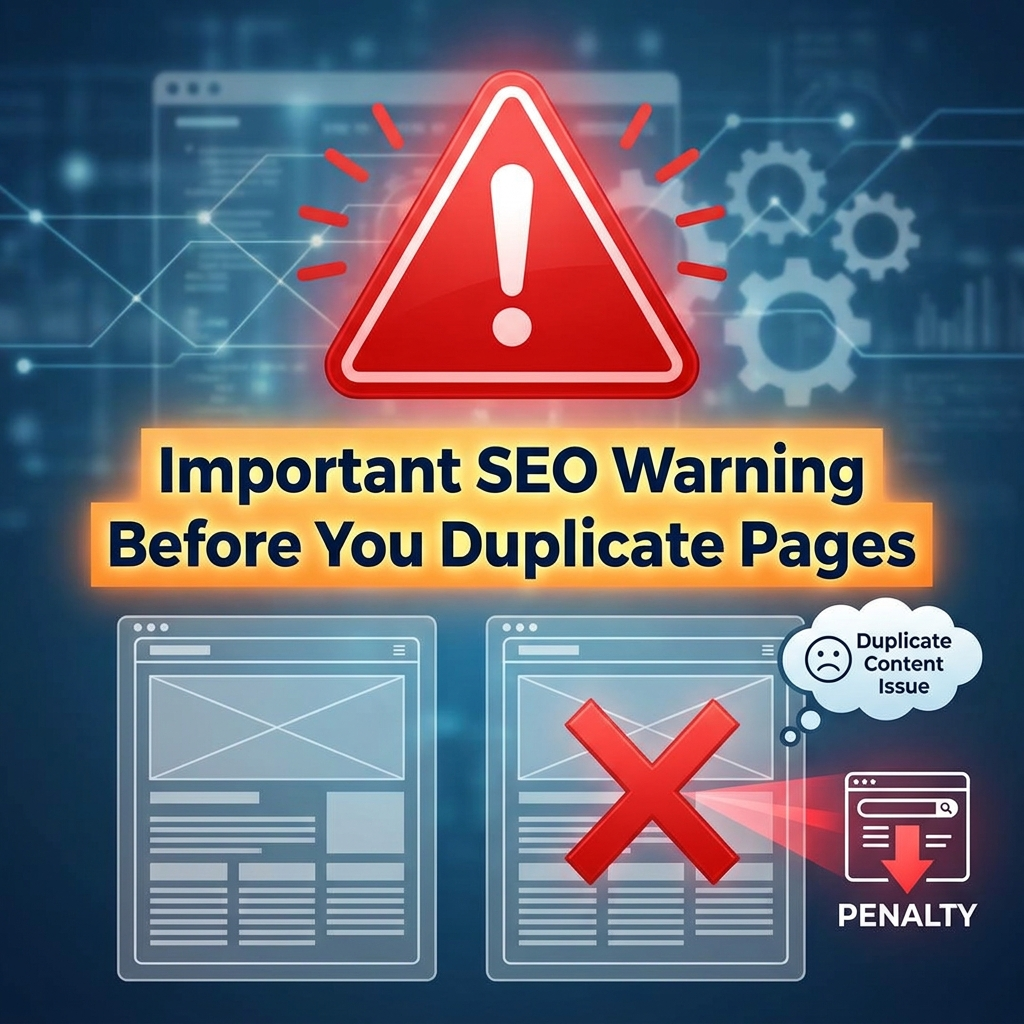
Duplicating a page is helpful, but copying the same content and publishing it without changes can create problems.
Search engines do not like large amounts of identical or highly similar content. If your website has many duplicated pages with the same text, titles, and metadata, it can confuse search engines and weaken your SEO performance.
The safe way to use page duplication is to copy the structure, not the final content.
After duplicating a page, always update:
The page title
The new page should have its own title. Do not keep the same title as the original page.
The URL slug
The URL should match the new page topic. For example, do not leave a copied page with an old URL that no longer fits the content.
The headings
Change the H1, H2, and H3 headings so they describe the new page clearly.
The body content
Rewrite the text so it is original and useful for the new topic.
The images
Replace images when needed, especially if the original images do not match the new page.
The SEO title and meta description
If you use an SEO plugin, update the SEO title, meta description, and focus keyword.
Internal links
Check buttons and text links. Make sure they point to the right pages.
Forms and calls-to-action
If the new page targets a different service, product, or campaign, update the form labels, button text, and contact section.
Duplicating pages should make your workflow faster, but it should not lead to lazy content copying. The goal is to create a new page with a reused layout and unique information.
Two Main Ways to Duplicate a Page in WordPress
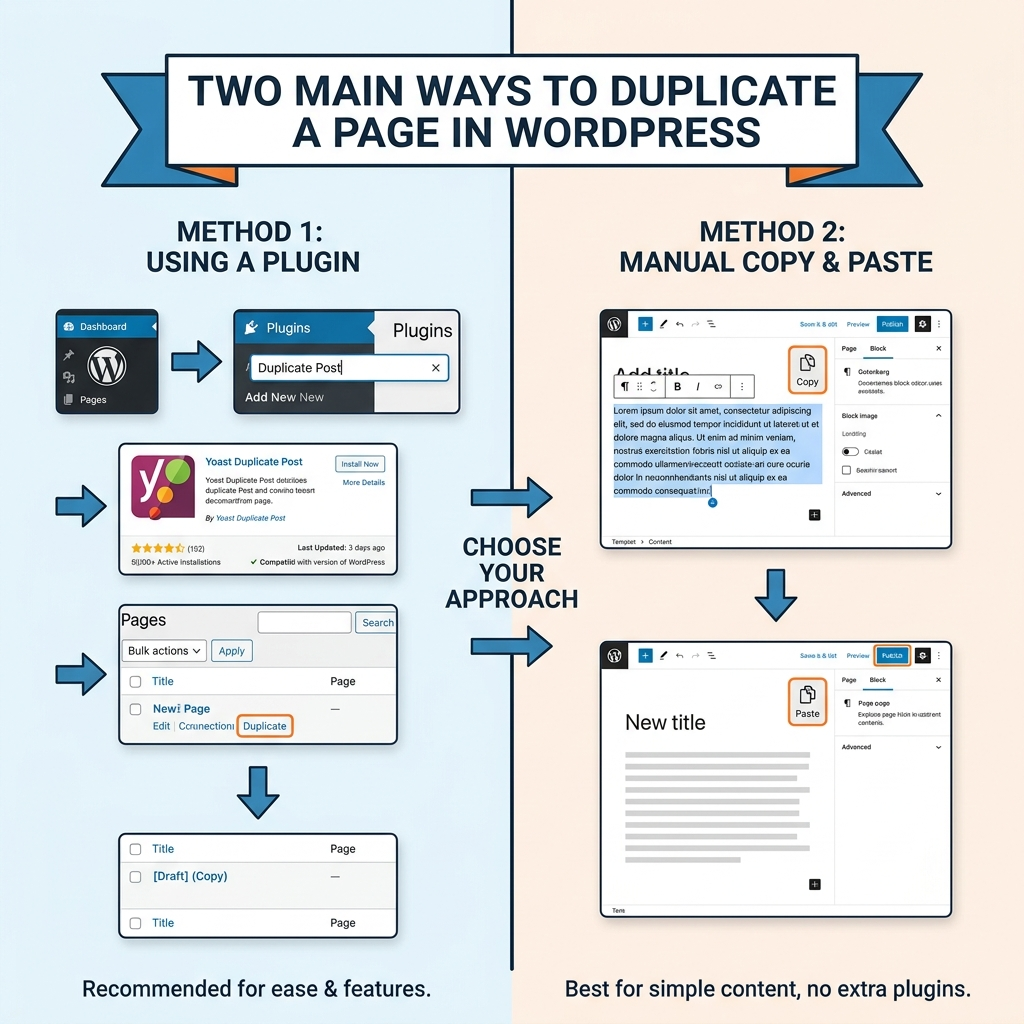
There are two common ways to duplicate a WordPress page:
You can use a plugin, or you can duplicate the page manually.
The best method depends on how often you need to copy pages. If you duplicate pages regularly, a plugin is usually easier. If you only need to copy one page occasionally, the manual method may be enough.
Method 1: Duplicate a Page in WordPress with a Plugin
Using a plugin is the easiest method for most users. A duplication plugin adds a simple clone or copy option to your WordPress dashboard. After installation, you can usually duplicate a page with one click.
This is useful for website owners, bloggers, marketers, and agencies that often create similar pages.
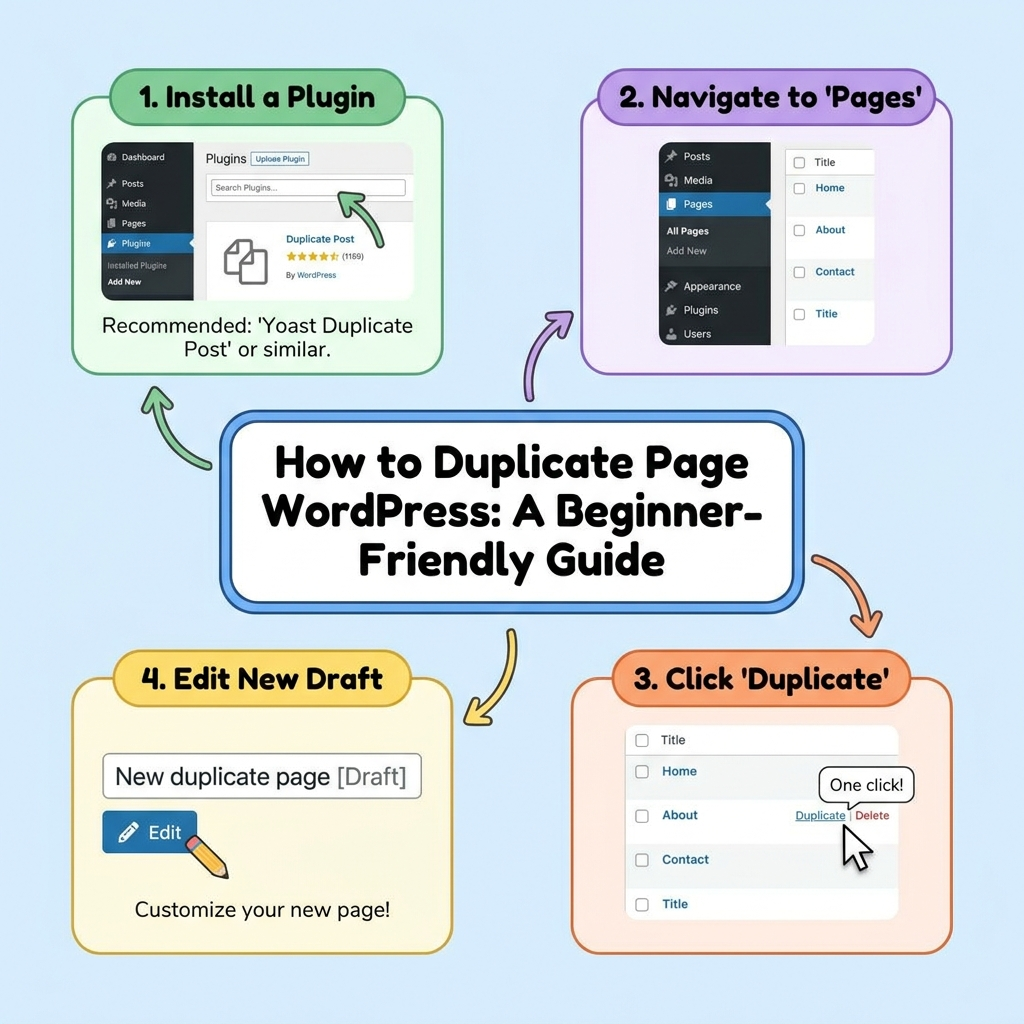
Step 1: Install a Page Duplication Plugin
Log in to your WordPress dashboard. Go to Plugins > Add New Plugin. In the search bar, type a plugin name such as:
Yoast Duplicate Post
Duplicate Page
Duplicate Post
These plugins are commonly used for cloning pages and posts. Choose the plugin that fits your needs, click Install Now, and then click Activate.
Step 2: Go to Your Pages List
After activating the plugin, go to Pages > All Pages. You should now see new options under each page title.
Depending on the plugin, the option may say:
Clone
Duplicate This
Copy
New Draft
Rewrite & Republish
Each plugin uses slightly different wording, but the purpose is similar.
Step 3: Click the Duplicate Option
Find the page you want to copy and click the duplication option. WordPress will create a new version of that page.
In many cases, the copied page will be saved as a draft. This is usually the safest option because you can review and edit it before publishing.
Step 4: Edit the Duplicated Page
Open the duplicated page and update the content. Change the title, text, images, buttons, links, and SEO information.
Do not publish the copied version until it has been fully edited.
Step 5: Preview and Publish
Before publishing, preview the new page on desktop and mobile. Check spacing, headings, images, forms, and links.
When everything looks correct, publish the page.
Popular WordPress Page Duplication Plugins
There are several plugins that can help you duplicate pages and posts. Here are three common options.
Yoast Duplicate Post
Yoast Duplicate Post is one of the most popular choices. It allows you to clone posts, pages, and sometimes other content types depending on your settings.
After activation, you may see options such as Clone, New Draft, and Rewrite & Republish.
Clone usually creates a copied version without opening it immediately.
New Draft creates a copy and opens it as a draft, which is useful when you want to edit right away.
Rewrite & Republish is helpful when you want to update an existing page by creating a temporary copy, editing it, and replacing the original later.
This plugin also includes settings that let you choose what should be copied, which user roles can duplicate content, and where the duplicate links should appear.
Duplicate Page
Duplicate Page is another beginner-friendly option. It is simple and direct. After activation, you can go to Pages > All Pages and click Duplicate This under the page you want to copy.
This plugin often lets you choose the default status of duplicated content, such as draft, published, private, or pending. For most users, saving duplicated pages as drafts is the safest choice.
Some versions also allow you to add a suffix to copied pages, such as “Copy” or “Clone.” This helps you recognize duplicated pages in your dashboard.
Duplicate Post
Duplicate Post plugins are also helpful when you want to clone both pages and blog posts. Some versions allow more control over what gets copied, including titles, content, featured images, custom fields, templates, and post types.
This can be useful for larger websites that need a more controlled content workflow.
Plugin Method: Best Practices
When using a duplication plugin, it is important to check the plugin settings before cloning many pages.
First, make sure copied pages are saved as drafts instead of being published automatically. This prevents unfinished duplicate content from appearing on your live website.
Second, check what elements the plugin copies. Some plugins may copy featured images, custom fields, page templates, authors, excerpts, comments, or metadata.
Third, review user permissions. If multiple people manage your website, you may not want every user role to duplicate and publish pages.
Finally, delete unused duplicated drafts. If you create many test copies and never clean them up, your dashboard can become messy.
Method 2: Duplicate a WordPress Page Without a Plugin
You can also duplicate a page manually. This method is useful if you do not want to install another plugin or if you only need to copy a page once.
Manual duplication does not always copy every setting, but it can work well for simple pages.
Step 1: Open the Page You Want to Copy
Go to Pages > All Pages in your WordPress dashboard. Find the page you want to duplicate and click Edit.
Step 2: Copy the Page Content
If you are using the WordPress block editor, open the page editor and click the three-dot menu in the top-right corner. Then choose Copy all blocks.
This copies the page blocks to your clipboard.
If you are using the classic editor, you can select the content manually and copy it.
Step 3: Create a New Page
Go back to Pages > Add New Page. Add a new page title.
Step 4: Paste the Content
Paste the copied content into the new page editor. If you used Copy all blocks, the block structure should appear in the new page.
Step 5: Update the New Page
Now edit the duplicated content. Change the title, headings, body text, images, buttons, links, URL slug, and SEO settings.
Step 6: Save or Publish
Save the new page as a draft until you are ready to publish it. Preview the page before making it live.
Duplicating Posts Instead of Pages
Duplicating a WordPress post is very similar to duplicating a page. The main difference is where you start.
For pages, go to Pages > All Pages.
For blog posts, go to Posts > All Posts.
If you use a plugin, you will usually see the same clone or duplicate options under each post title. If you copy manually, open the post, copy the content, create a new post, and paste the content into it.
After that, update the title, category, tags, featured image, URL, excerpt, and SEO settings.
Plugin vs Manual Method: Which One Should You Choose?
Both methods can work. The right choice depends on your website workflow.
Choose a plugin if you duplicate pages often, manage many landing pages, run campaigns, work with multiple content formats, or want one-click cloning.
Choose the manual method if you only need to copy one simple page, want to avoid extra plugins, or prefer a basic copy-and-paste process.
For most active WordPress websites, a plugin is more efficient. For small websites with occasional updates, manual duplication may be enough.
흔히 저지르는 실수들을 피하는 방법
Many beginners duplicate a page and publish it too quickly. This can lead to broken links, repeated text, confusing URLs, and weak SEO.
Avoid these common mistakes:
Do not leave the old title on the copied page.
Do not publish duplicate text without rewriting it.
Do not forget to update the URL slug.
Do not keep the same SEO title and meta description.
Do not leave buttons linked to the wrong page.
Do not forget to replace images that no longer match.
Do not duplicate pages directly into published status unless you are sure the content is ready.
A duplicated page should always go through a careful review before it becomes public.
Final Checklist Before Publishing a Duplicated Page
Before you publish a duplicated WordPress page, check the following:
The page title is unique.
The URL slug matches the new topic.
The main heading is updated.
All body content has been rewritten or adjusted.
Images are relevant to the new page.
Buttons link to the correct destination.
Contact forms work properly.
SEO title and meta description are updated.
The page looks good on mobile.
The page is saved as draft until review is complete.
This checklist helps you avoid the most common problems and keeps your website professional.
결론
Learning how to duplicate page 워드프레스 content is a simple but useful skill for website owners, bloggers, marketers, and anyone managing a WordPress site. Since WordPress does not include a default one-click duplication button, you can either use a plugin or copy the page manually.
Plugins are the fastest option for users who duplicate pages often. They can clone pages, posts, templates, and other content types with just a few clicks. Manual copying is a good choice for users who only need to duplicate a simple page occasionally.
The most important rule is to treat the duplicated page as a starting point, not a finished page. Always update the title, URL, text, images, links, and SEO settings before publishing. When used correctly, page duplication can save time, keep your design consistent, and make WordPress content management much easier.
자주 묻는 질문
1. How do I duplicate a page in WordPress?
You can duplicate a page in WordPress by using a page duplication plugin or by manually copying the page content. The plugin method is faster because it adds a clone or duplicate option directly to your WordPress dashboard.
2. Does WordPress have a built-in duplicate page feature?
No. WordPress does not include a default one-click duplicate page feature. To duplicate a page easily, most users install a plugin such as Yoast Duplicate Post or Duplicate Page.
3. Can I duplicate a WordPress page without a plugin?
Yes. Open the page you want to copy, use the block editor’s “Copy all blocks” option, create a new page, and paste the content. Then update the title, URL, images, links, and SEO settings.
4. Will duplicating a page hurt my SEO?
Duplicating a page will not hurt SEO if you edit the copied page properly. You should rewrite the content, change the page title, update the URL slug, and create a new meta description before publishing.
5. What is the best plugin to duplicate a WordPress page?
Yoast Duplicate Post and Duplicate Page are two popular options. Yoast Duplicate Post is useful for cloning pages, posts, and drafts, while Duplicate Page is simple and beginner-friendly.
6. What should I check before publishing a duplicated page?
Before publishing, check the page title, URL slug, headings, body text, images, internal links, buttons, forms, SEO title, and meta description. Also preview the page on desktop and mobile.