











Aucun produit dans le panier.

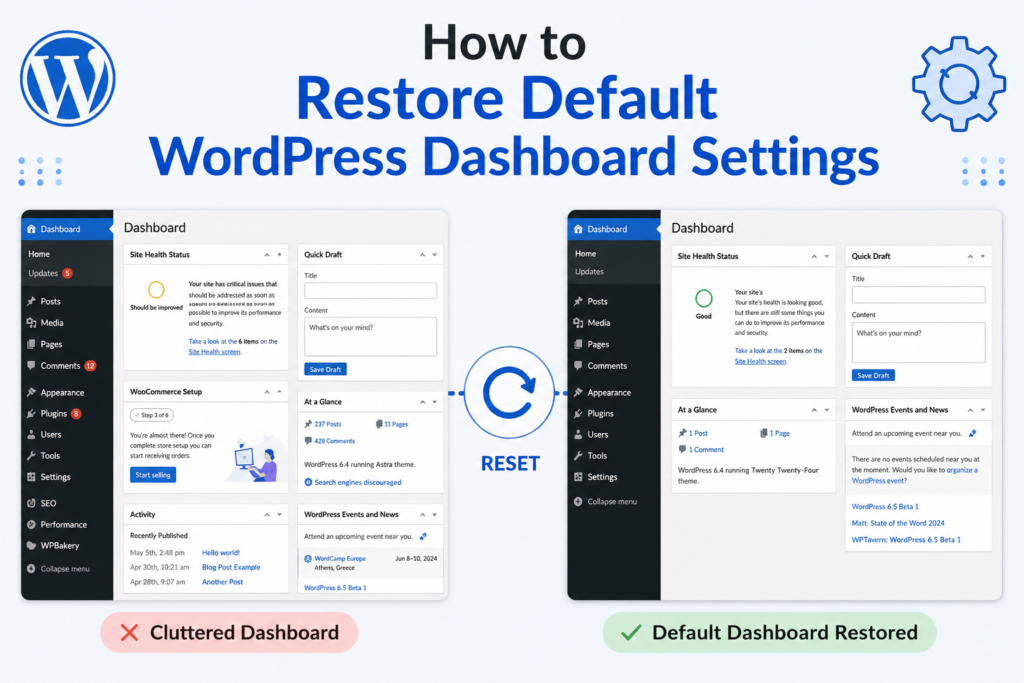
If your WordPress dashboard feels cluttered, broken, confusing, or overloaded with plugins and custom settings, you are not alone. Many website owners eventually reach a point where they want to bring WordPress back to its original state and start fresh.
Whether you are testing themes, learning WordPress, cleaning up an old website, or fixing dashboard issues after installing too many plugins, understanding how to restore default WordPress dashboard settings can save hours of frustration.
The good news is that restoring the default WordPress dashboard is much easier than most people think. You do not always need to reinstall WordPress from scratch, and in many cases, you can clean up the dashboard without losing important website content.
In this guide, you will learn what restoring the default WordPress dashboard actually means, when you should do it, different methods to reset WordPress safely, and how to avoid common mistakes that can permanently erase your site.
When people search for “how to restore default WordPress dashboard,” they usually want one of these things:
Restoring the default dashboard can involve small cleanups or a full website reset depending on your situation.
A complete WordPress reset usually removes:
After the process, WordPress looks similar to a brand-new installation with the default dashboard and default settings.
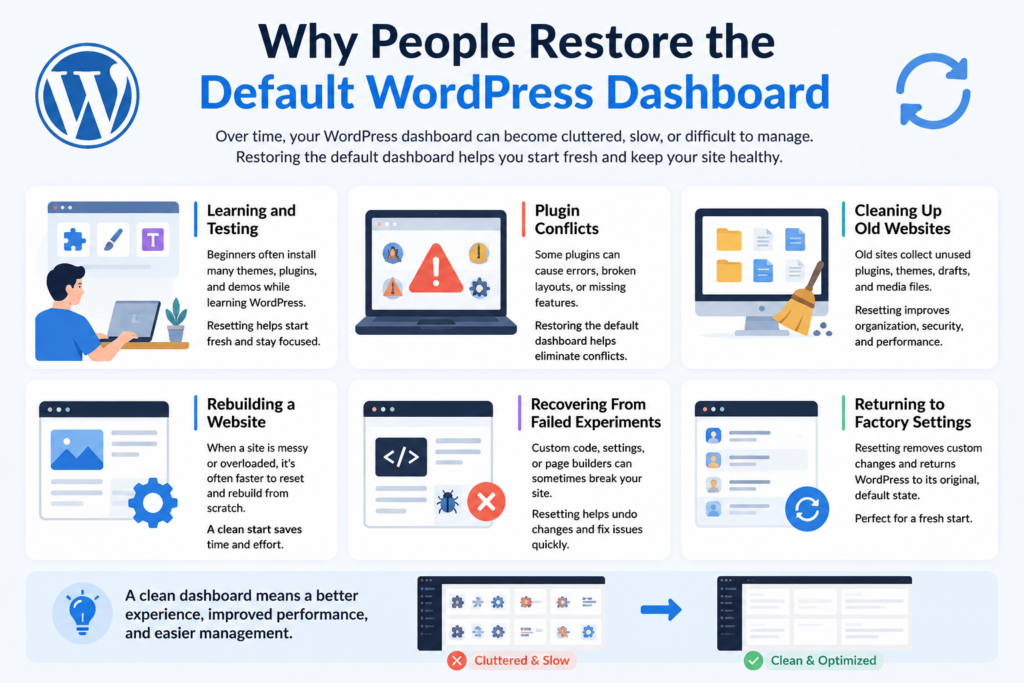
There are many reasons website owners choose to reset or restore WordPress.
Beginners often install multiple themes, plugins, and demo templates while learning WordPress. Over time, the dashboard becomes cluttered and confusing.
Instead of manually removing everything, resetting WordPress allows you to start fresh.
Some plugins can break the WordPress admin area or create strange dashboard behavior.
You may notice:
Restoring the dashboard helps eliminate problematic settings and conflicts.
Older WordPress websites often contain years of unused plugins, drafts, media files, and outdated themes.
Resetting or cleaning the dashboard improves organization and performance.
Sometimes it is faster to reset WordPress and rebuild than to repair a heavily modified site.
This is especially common for developers, designers, and staging environments.
Many people test custom code snippets, page builders, or theme modifications that accidentally damage the backend.
Returning to the default WordPress dashboard helps undo the chaos.
Before making major changes, always prepare properly.
This is the most important step.
A backup protects you if something goes wrong during the reset process.
Your backup should include:
Without a backup, deleted content may be impossible to recover.
If you want to keep posts, pages, or media files, export them first.
Aller à :
Tools → Export
This allows you to save content before resetting WordPress.
Many users forget they added:
Copy important code into a separate document before resetting.
Many hosting providers automatically create backups.
Verify whether your host offers restore points before making changes.
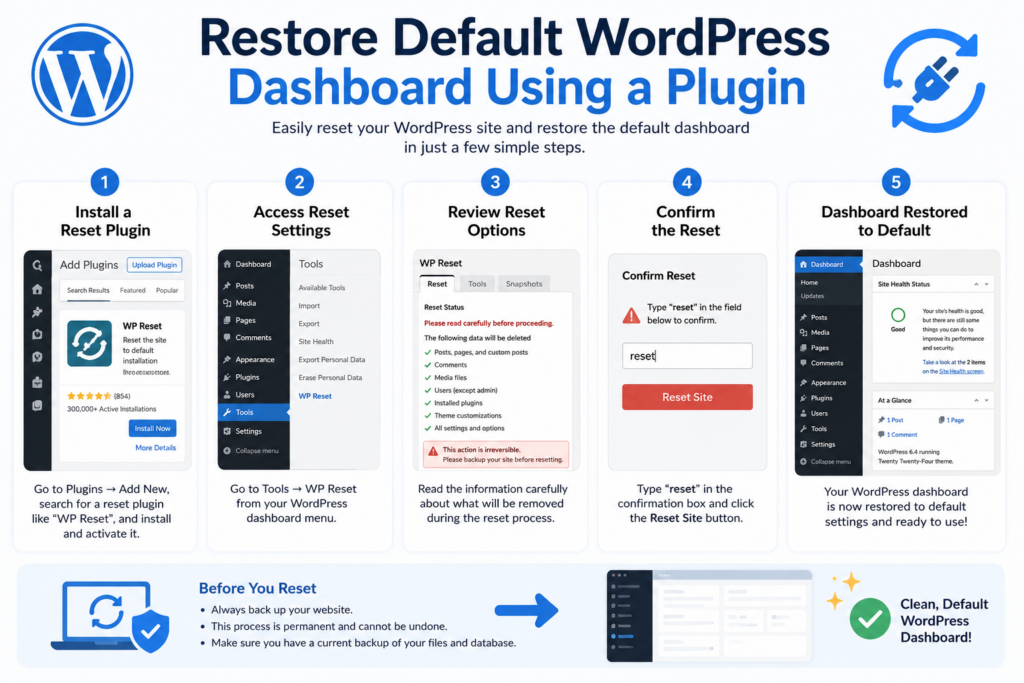
The easiest way to restore WordPress dashboard settings is by using a reset plugin.
This method is beginner-friendly and does not require coding knowledge.
Popular reset plugins include:
Install the plugin from:
Plugins → Add New
Search for a reset plugin and activate it.
Most reset plugins place settings under:
Tools → Reset
Inside the panel, you will usually see warnings explaining what will be deleted.
Read everything carefully before continuing.
Most plugins require you to type a confirmation word such as:
reset
This prevents accidental resets.
Once confirmed, WordPress will:
The process usually takes less than a minute.
After the reset:
Your WordPress backend will look much cleaner and easier to manage.
Some users prefer not to install additional plugins.
You can manually reset WordPress through your hosting control panel.
This method requires more caution.
Log into your hosting account.
Common control panels include:
Find the database management section.
Inside your hosting panel, open:
phpMyAdmin
This tool manages your WordPress database.
Select your WordPress database.
Choose all tables and delete them.
This removes:
Be extremely careful during this step.
Deleting the wrong database can affect other websites.
After deleting the database, visit:
yourdomain.com/wp-admin/install.php
WordPress will begin a fresh installation process.
Once completed, the dashboard returns to default settings.
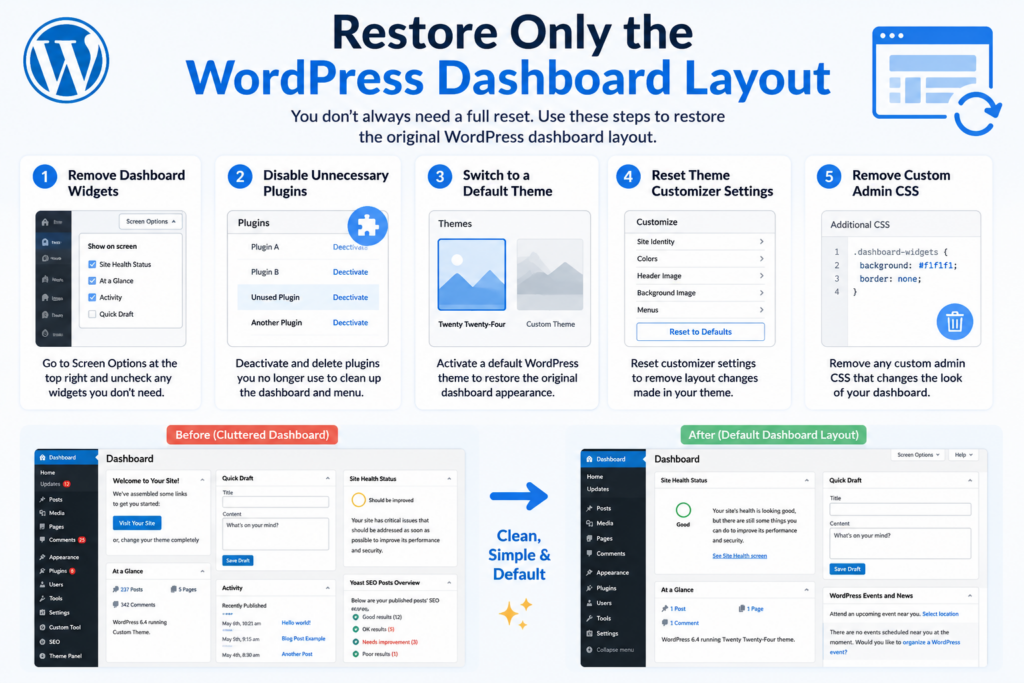
Sometimes you do not need a full reset.
You may only want the original dashboard appearance back.
In this case, you can restore dashboard settings without deleting content.
Many plugins add unnecessary dashboard panels.
To clean them up:
This instantly simplifies the dashboard.
Plugins are one of the biggest causes of dashboard clutter.
Aller à :
Plugins → Installed Plugins
Deactivate plugins you no longer use.
Delete unnecessary ones completely.
Custom themes sometimes modify the backend appearance.
Restore a default WordPress theme such as:
Aller à :
Appearance → Themes
Activate a default theme to restore a cleaner admin experience.
Some themes store large amounts of customization data.
Resetting theme settings can help restore the original layout.
Many themes include built-in reset options.
Others require dedicated reset plugins.
A full reset is not always necessary.
Sometimes a simple cleanup improves WordPress dramatically.
Unused themes occupy storage space and may create security risks.
Keep only:
Delete the rest.
Old plugins slow down WordPress and clutter the dashboard.
Delete plugins you no longer need.
Inactive plugins can still create vulnerabilities.
Over time, websites collect thousands of unused images.
Remove unnecessary files from:
Media → Library
This improves organization and storage usage.
WordPress databases accumulate unnecessary data such as:
Database optimization plugins can safely remove junk files.
Some plugins overload the sidebar menu.
Deleting unused plugins instantly creates a cleaner dashboard experience.
Sometimes users encounter issues after restoring the default dashboard.
Here are the most common ones.
If media uploads were deleted during the reset, images may disappear from posts.
Restore uploads from backup if necessary.
Some resets remove user settings.
If you cannot log in:
After reinstalling plugins, conflicts may reappear.
Install plugins one at a time to identify problematic ones.
This usually happens because of:
Disable plugins manually through FTP if necessary.
Many users wonder whether resetting or reinstalling WordPress is better.
The answer depends on your goal.
A reinstall is more thorough but takes longer.
After restoring the default WordPress dashboard, it is smart to avoid repeating old mistakes.
Too many plugins create clutter and performance issues.
Use only trusted plugins with regular updates.
Toujours mettre à jour :
This improves security and stability.
Instead of experimenting on your live website, use staging environments.
This prevents dashboard problems from affecting visitors.
Keep the backend simple.
Remove:
A clean dashboard is easier to maintain.
Automated backups make restoring WordPress much safer.
If something breaks, you can recover quickly.
Learning how to restore default WordPress dashboard settings is an important skill for any website owner.
Over time, WordPress dashboards can become overloaded with plugins, customizations, widgets, and outdated settings that make the backend difficult to manage. Whether you are troubleshooting problems, rebuilding a website, or simply starting fresh, restoring the default dashboard can dramatically improve organization and performance.
For most users, using a reset plugin is the easiest and safest solution. More advanced users may prefer manual database resets or full reinstallations. In less severe cases, simply cleaning plugins, themes, and dashboard widgets may be enough to restore a clean WordPress experience.
Before making any major changes, always create a full backup and carefully review what will be deleted. A little preparation can prevent permanent data loss and save countless hours of recovery work later.
Restoring the default WordPress dashboard removes unnecessary customizations, resets dashboard widgets and settings, and helps return the admin area to a cleaner, more organized state. Depending on the method used, it may also deactivate plugins and reset themes.
Not always. Some methods only reset the dashboard layout and appearance, while full WordPress reset tools may delete posts, pages, media files, plugins, and database settings. Always create a backup before making changes.
Yes. You can restore the dashboard layout by removing widgets, disabling unnecessary plugins, switching to a default theme, or using a WordPress reset plugin without completely reinstalling WordPress.
The easiest method is using a plugin like WP Reset or Advanced WordPress Reset. These tools simplify the process and allow beginners to restore WordPress settings with only a few clicks.
A cluttered dashboard is usually caused by too many plugins, theme customizations, admin widgets, outdated settings, or plugin conflicts. Over time, these additions can slow down WordPress and make the backend harder to manage.
Yes. Creating a full backup is strongly recommended before resetting or restoring WordPress. A backup allows you to recover your content, media files, themes, and database if something goes wrong during the reset process.


















