How to Build a WordPress Website Step by Step (Beginner Guide)

How to Build a WordPress Website Step by Step

Introducción

Creating a website used to require coding knowledge, expensive developers, and long development cycles. Today, thanks to WordPress, anyone can build a professional, fully functional website without writing a single line of code. Whether you want to launch a business site, portfolio, blog, or eCommerce store, WordPress provides a flexible and scalable solution.

This guide explains how to build a WordPress website in a clear, beginner-friendly way. Instead of focusing on technical complexity, it breaks the process into practical steps so you can understand not just what to do, but why it matters.
What Is WordPress and Why Use It?

How to Build a WordPress Website Step by Step-What Is WordPress and Why Use It?

Before diving into the steps, it’s important to understand what WordPress actually is.

WordPress is a content management system (CMS) that allows users to create, manage, and publish website content through an intuitive interface. It powers over 40% of websites globally, making it the most widely used platform on the internet.

There are two versions:

  • WordPress.com – hosted solution, simpler but limited
  • WordPress.org – self-hosted, fully customizable (recommended)

For building a professional website with full control, WordPress.org is the better choice.
Key Benefits of WordPress

  • No coding required for basic use
  • Thousands of themes and plugins
  • Estructura optimizada para SEO
  • Scalable for any type of website
  • Strong community and support ecosystem

Step 1: Choose a Domain Name

How to Build a WordPress Website Step by Step-Choose a Domain Name

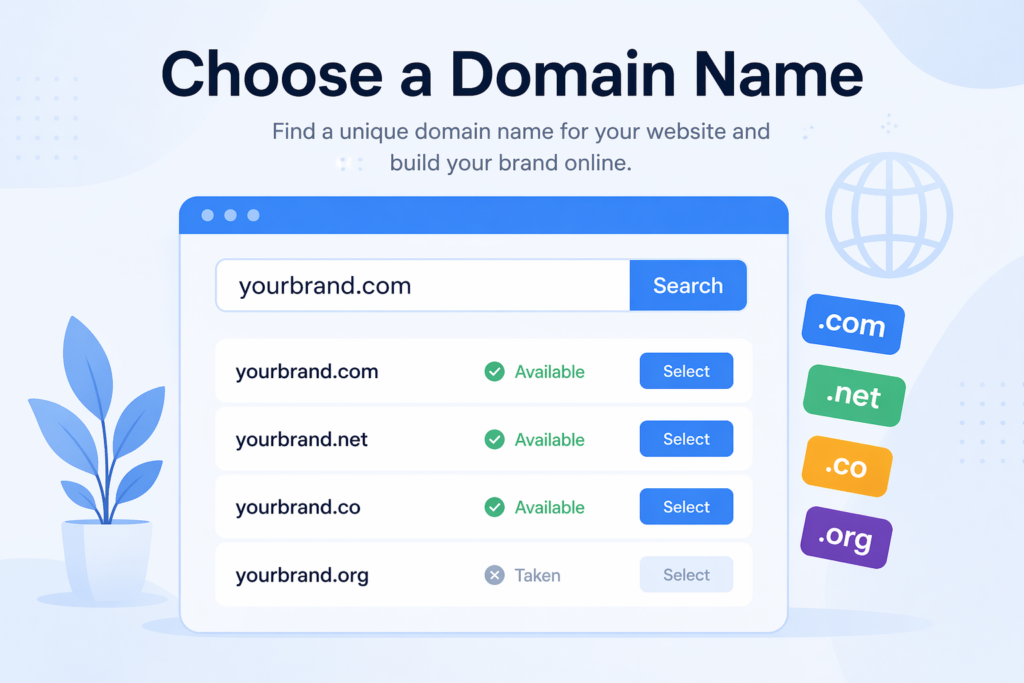
Your domain name is your website’s address on the internet (e.g., yourbrand.com). It plays a major role in branding and user trust.

Tips for Choosing a Domain

  • Keep it short and easy to remember
  • Avoid numbers and hyphens
  • Use keywords if possible
  • Choose a .com extension when available

A strong domain name helps users recognize your brand and improves credibility.
Step 2: Select a Web Hosting Provider

How to Build a WordPress Website Step by Step-Select a Web Hosting Provider

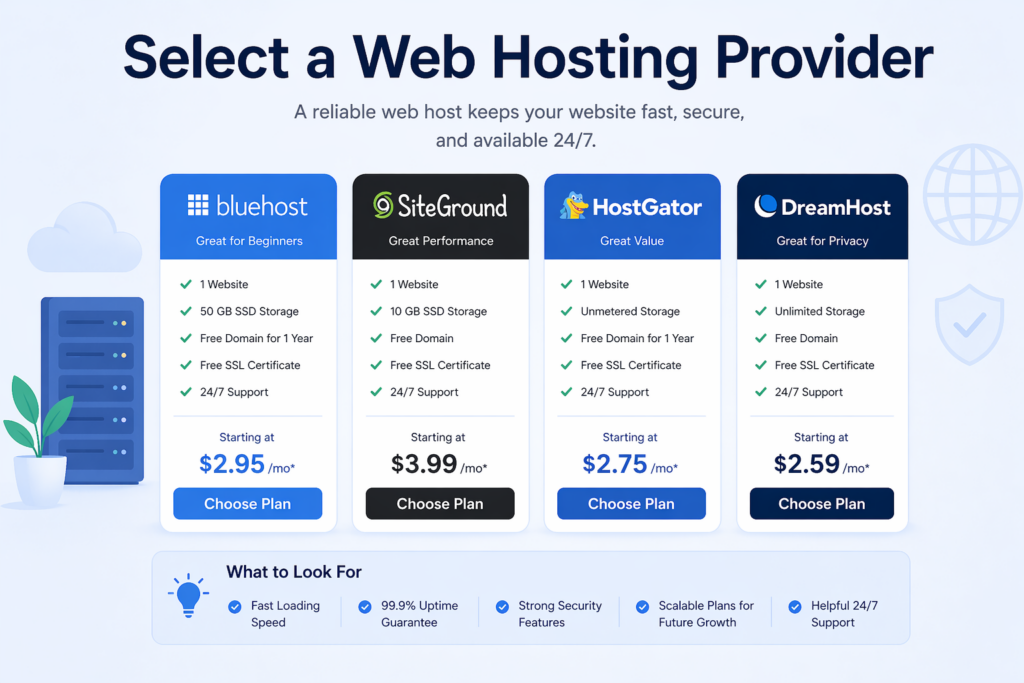
Web hosting is where your website files are stored. Without hosting, your website cannot be accessed online.

What to Look for in Hosting

  • Fast loading speed
  • High uptime (99.9% or higher)
  • One-click WordPress installation
  • Good customer support
  • Scalability for future growth

Shared hosting is suitable for beginners, while VPS or cloud hosting is better for growing websites.

Step 3: Install WordPress

Most hosting providers offer a one-click WordPress installation, making this step very simple.

After installation, you’ll get access to your dashboard:

  • Usually located at: yourdomain.com/wp-admin

This is your control center where you’ll manage everything—design, content, plugins, and settings.

Step 4: Choose and Install a Theme

A theme controls the appearance of your website, including layout, colors, and typography.

Types of Themes

  • Free themes – available in the WordPress repository
  • Premium themes – offer advanced design and features

What Makes a Good Theme?

  • Diseño limpio y moderno
  • Mobile responsive layout
  • Fast loading performance
  • Easy customization options

Choosing the right theme is critical because it directly impacts user experience and conversion rates.

Step 5: Customize Your Website Design

Once your theme is installed, you can begin customizing your website.

Key Design Elements to Adjust

  • Logo and branding
  • Colors and typography
  • Header and navigation
  • Homepage layout
  • Footer structure

Most modern themes work with page builders like Elementor, allowing drag-and-drop editing.

Design Best Practices

  • Keep layouts clean and minimal
  • Use consistent colors and fonts
  • Prioritize readability
  • Focus on user experience

A well-structured design builds trust and helps users navigate your site effortlessly.

Step 6: Create Essential Pages

Every professional website needs a set of core pages.

Must-Have Pages

  • Home – introduction and key highlights
  • About – your story and credibility
  • Services or Products – what you offer
  • Contact – how users can reach you
  • Privacy Policy – legal requirement

Optional Pages

  • Blog
  • FAQ
  • Testimonials
  • Cartera

Each page should have a clear purpose and guide users toward taking action.

Step 7: Install Important Plugins

Plugins extend the functionality of your website.

Essential Plugin Categories

  • SEO – optimize search visibility
  • Seguridad – protect your site from threats
  • Actuación – improve loading speed
  • Backup – prevent data loss
  • Forms – enable user communication

Plugin Best Practices

  • Avoid installing too many plugins
  • Use well-reviewed and updated plugins
  • Remove unused plugins regularly

Plugins are powerful, but overusing them can slow down your site.

Step 8: Optimize for SEO

How to Build a WordPress Website Step by Step-Optimize for SEO

Search engine optimization (SEO) helps your website rank higher in search results.

Configuración SEO básica

  • Use relevant keywords (like “how to build a WordPress website”)
  • Write clear titles and meta descriptions
  • Optimize images with alt text
  • Use clean URL structures
  • Create high-quality content

Content Strategy

  • Focus on user intent
  • Answer real questions
  • Keep content structured with headings

SEO is not a one-time task—it requires continuous improvement.

Step 9: Improve Website Speed

Website speed is crucial for both user experience and search rankings.

Ways to Improve Speed

  • Use optimized images (WebP format)
  • Enable caching
  • Choose a fast hosting provider
  • Minimize plugins
  • Use a CDN (Content Delivery Network)

A faster website leads to better engagement and higher conversion rates.

Step 10: Ensure Mobile Responsiveness

More than half of web traffic comes from mobile devices.

Mobile Optimization Tips

  • Use responsive themes
  • Adjust font sizes for readability
  • Optimize images for smaller screens
  • Simplificar la navegación

Always test your website on multiple devices before launching.

Step 11: Add Security Measures

Security is essential to protect your website and user data.

Basic Security Practices

  • Use strong passwords
  • Install a security plugin
  • Enable SSL (HTTPS)
  • Keep WordPress, themes, and plugins updated

Ignoring security can lead to data breaches and downtime.

Step 12: Test Your Website Before Launch

Before going live, test everything thoroughly.

What to Check

  • Enlaces rotos
  • Page loading speed
  • Capacidad de respuesta móvil
  • Form functionality
  • Navigation flow

Testing ensures a smooth experience for your visitors from day one.

Step 13: Launch Your Website

Once everything is ready, it’s time to publish your website.

After Launch

  • Submit your site to search engines
  • Start creating content regularly
  • Monitor performance
  • Collect user feedback

Launching is just the beginning—the real growth comes afterward.

Errores comunes que se deben evitar

Even with the right steps, beginners often make avoidable mistakes.

Typical Errors

  • Choosing a slow or unreliable host
  • Overloading the site with plugins
  • Ignoring mobile optimization
  • Using cluttered designs
  • Skipping SEO setup

Avoiding these mistakes will save time and improve your results.

How Long Does It Take to Build a WordPress Website?

The timeline depends on your goals and experience.

  • Basic website: 1–3 days
  • Business website: 1–2 weeks
  • Advanced site: several weeks

Planning and design decisions usually take more time than the actual setup.

Reflexiones finales

Learning how to build a WordPress website is one of the most valuable skills in today’s digital world. By following a structured approach—choosing the right domain, hosting, theme, and plugins—you can create a professional website that looks great, performs well, and supports your goals.

WordPress simplifies the technical side of website creation, allowing you to focus on what truly matters: content, user experience, and growth. With continuous optimization and updates, your website can evolve into a powerful platform for business, branding, or personal expression.

FAQ

No, you don’t need coding skills. WordPress allows you to build and customize websites using themes and page builders with drag-and-drop functionality.

Costs can vary. A basic website may cost $50–$150 per year (domain + hosting), while more advanced sites with premium themes and plugins can cost several hundred dollars.

A simple website can be built in a few hours to a couple of days. More complex websites may take one to two weeks depending on design and content.

WordPress.com is a hosted platform with limitations, while WordPress.org is self-hosted and offers full control, customization, and scalability.

Common essentials include SEO plugins, security plugins, caching tools, backup solutions, and contact form plugins to improve performance and functionality.

Use proper keywords, optimize titles and meta descriptions, improve site speed, use clean URLs, and regularly publish high-quality content.


Entregado en todo el mundo

AIRSANG ofrece soluciones rentables de diseño web, identidad visual de marca y comercio electrónico. Desde Shopify y WordPress hasta imágenes de productos de Amazon, ayudamos a las marcas globales a construir, elevar y hacer crecer su negocio en línea.

Diseñar y construir un sitio web WordPress o sitio corporativo con un sistema completo de comercio electrónico para usted.

Diseñar y construir un sitio web WordPress o sitio corporativo con un sistema completo de comercio electrónico para usted.

Rango de precios: desde $200.00 hasta $2,500.00
Requisitos personalizados o presupuestos especiales

Requisitos personalizados o presupuestos especiales

El precio original era: $2.00.El precio actual es: $1.00.

¿Listo para transformar su empresa?

Reserve una llamada para obtener más información sobre cómo nuestra agencia de marketing digital puede llevar su negocio al siguiente nivel.