If you’ve ever edited a WordPress theme and suddenly realized something went wrong, you’re not alone.
A layout breaks. Text disappears. Colors change unexpectedly. And the first question that comes to mind is simple:
Can I undo a theme editor change in WordPress?
The short answer is yes — but the method depends on how and where the change was made.
In this guide, we’ll walk through every practical way to undo theme editor changes in WordPress, from built-in revision tools to backups and recovery strategies. This article is written for beginners, business owners, and anyone managing a WordPress site without wanting to break it.
Our focus keyword throughout this guide is:
how to undo theme editor change wordpress
Understanding the WordPress Theme Editor (Before Undoing Anything)
Before you can undo changes, it helps to understand what the WordPress theme editor actually is.
In WordPress, the “theme editor” can refer to different editing systems, depending on:
Your WordPress version
Your active theme
Whether you’re using block themes, classic themes, or page builders
Common places where theme-related changes happen include:
The Site Editor (Full Site Editing)
The Block Editor (Gutenberg)
The Customizer
The Theme File Editor (PHP/CSS)
Page builders like Elementor or others
Each of these has different undo capabilities.
Method 1: Undo Changes Using WordPress Revisions (Fastest Option)
If you’re editing content or templates using the Block Editor, WordPress automatically saves revisions.
What Are Revisions?
Revisions are snapshots of your content saved over time. They allow you to roll back to an earlier version.
This works for:
Trang
Bài đăng
Templates
Template parts (headers, footers, etc.)
How to Undo Theme Editor Changes with Revisions
Open the page or template you edited
Click “Settings” (top right)
Find Revisions
Browse older versions
Restore the version that worked
This is one of the safest answers to how to undo theme editor change wordpress when you’re working inside Gutenberg.
Quan trọng: Revisions only exist if:
The content was saved
Revisions are not disabled on your site
Method 2: Use Undo & Redo While Editing (Ctrl + Z)
Sometimes the simplest solution works best.
While editing in the WordPress editor:
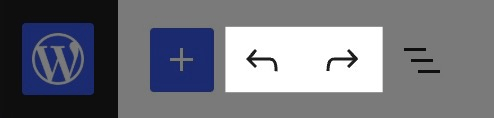
Undo:Ctrl + Z (Windows) / Cmd + Z (Mac)
Redo:Ctrl + Shift + Z / Cmd + Shift + Z
This only works before you refresh or close the editor.
If you’ve already saved or exited the page, this method will no longer help.
Method 3: Revert Theme Template Changes in the Site Editor
If you’re using a block-based theme, WordPress offers a full Site Editor for:
Headers
Footers
Layout templates
Global styles
Undoing Template Changes
Go to Appearance → Editor
Open Templates or Template Parts
Select the edited template
Click Revisions
Khôi phục phiên bản trước đó
This is a key method for undoing global layout mistakes, which are common when learning Full Site Editing.
Method 4: Reset Styles in Global Styles Panel
Many users accidentally break their site by changing fonts, colors, or spacing globally.
How to Undo Global Style Changes
Go to Appearance → Editor
Open Styles
Click the three-dot menu
Choose Reset to defaults
This instantly restores your theme’s original styling.
If your site suddenly looks “off,” this is often the fix.
Method 5: Restore Theme Files (Advanced Users)
If you edited theme files directly using:
Appearance → Theme File Editor
Custom CSS
functions.php
Undoing becomes more technical.
If You Still Have the Original Code
Manually revert the file to its previous version
Save changes carefully
If You Don’t Remember What Changed
This is where many users get stuck.
At this point, the best solution is restoring a backup.
Method 6: Restore a Backup (Safest Universal Solution)
Backups are the ultimate safety net.
If your host or plugin provides backups, you can:
Restore the entire site
Or selectively restore files and database
Common backup sources:
Hosting provider backups
WordPress backup plugins
Server snapshots
If you’re asking “how to undo theme editor change wordpress after everything broke”, backups are often the only reliable answer.
Method 7: Reinstall the Theme (When Files Are Corrupted)
If your theme files are heavily modified:
Download a fresh copy of the theme
Delete the current theme (without deleting content)
Reinstall the theme
Reapply safe customizations
This works best if:
You didn’t heavily customize the theme files
Or customizations were minimal
Why Undoing Theme Changes Often Goes Wrong
Many WordPress issues happen because users:
Edit live sites without staging
Modify theme files directly
Don’t understand global vs page-level changes
Don’t use backups
This is especially common for business websites, cross-border eCommerce sites, and brand sites, where one small layout change can impact conversions.
Best Practices to Avoid Needing to Undo Changes
If you manage a WordPress site regularly, follow these rules:
Use staging environments
Rely on child themes
Avoid editing core theme files
Use revision-friendly editors
Always keep backups
Prevention is easier than recovery.
When You Should Stop Undoing and Ask for Help
If:
The site layout is completely broken
The header/footer disappeared
CSS conflicts appear everywhere
Theme updates overwrite changes
It’s time to stop experimenting and get professional support.
Final Thoughts: Undo Is Easy — Strategy Is Hard
Learning how to undo theme editor change wordpress is essential for anyone running a WordPress site.
But undoing mistakes is only a temporary solution.
Điều thực sự quan trọng là:
A clean theme structure
Scalable design
Safe customization
Bố cục tập trung vào chuyển đổi
AIRSANG có thể giúp đỡ như thế nào?
Tại AIRSANG, we specialize in cross-border WordPress and eCommerce website design, helping brands build stable, scalable, and conversion-driven websites from the ground up.
Instead of constantly undoing broken edits, we help you:
Design WordPress themes the right way
Customize safely without breaking updates
Optimize layouts for global audiences
Build websites that support long-term growth
If you’re tired of fixing theme editor mistakes and want a site that just works — AIRSANG Tôi ở đây để giúp đỡ.
AIRSANG Cung cấp các giải pháp thiết kế website, nhận diện thương hiệu và thương mại điện tử tiết kiệm chi phí. Từ Shopify và WordPress đến hình ảnh sản phẩm Amazon, Chúng tôi giúp các thương hiệu toàn cầu xây dựng, nâng tầm và phát triển hoạt động kinh doanh trực tuyến của họ.
Hiểu rõ tác động thực sự đến hiệu suất Việc có 50 plugin trên một trang web thương mại điện tử WordPress không tự động là vấn đề. Trên thực tế, số lượng plugin đơn thuần hiếm khi quyết định hiệu suất....
Giới thiệu: Thiết kế hình ảnh chính cho son môi trên Amazon Khi thiết kế hình ảnh chính cho son môi trên Amazon, trách nhiệm của chúng ta không chỉ dừng lại ở...
Hãy bắt đầu với một sự thật khó chịu: Địa chỉ email quản trị WordPress của bạn có thể công khai hơn bạn nghĩ. Và hacker? Họ rất thích điều đó. Đối với họ, địa chỉ email của bạn...
Giới thiệu Việc thiết kế hình ảnh chính cho sản phẩm kem nền dạng lỏng trên Amazon không chỉ đơn thuần là làm cho sản phẩm trông đẹp mắt. Trên Amazon, hình ảnh chính và...
Giới thiệu Việc thiết kế ảnh bìa chính cho Amazon không chỉ đơn thuần là làm cho sản phẩm trông hấp dẫn. Đó là về sự rõ ràng, lòng tin và sự hiểu biết tức thì—đặc biệt là đối với...
Trước tiên, hãy làm rõ một điều. Các cuộc tấn công phát lại không trông đáng sợ. Chúng không phá vỡ mật khẩu. Chúng không chèn mã độc với văn bản hacker màu xanh lá cây bay tứ tung. Chúng rất lén lút….
Thẳng thắn mà nói, đôi khi bạn không muốn tạo một trang mới. Bạn chỉ muốn trang đó... nhưng hơi khác một chút. Cùng bố cục. Cùng các khối. Cùng cài đặt. Bởi vì...
Giới thiệu Việc lựa chọn một giao diện WordPress phù hợp cho thú cưng không chỉ là quyết định về thiết kế mà còn ảnh hưởng trực tiếp đến khả năng sử dụng, khả năng mở rộng và sự phát triển lâu dài của doanh nghiệp. Chăm sóc thú cưng và...
Giới thiệu Việc lựa chọn chủ đề phù hợp cho một cửa hàng độc lập bán đồ bơi hoặc đồ lót không chỉ là quyết định về mặt hình ảnh — nó ảnh hưởng trực tiếp đến tỷ lệ chuyển đổi, khả năng mở rộng và sự thành công lâu dài...
Hãy cùng nói về phần bình luận trên WordPress. Về lý thuyết, bình luận rất tuyệt vời. Chúng khuyến khích thảo luận. Chúng xây dựng cộng đồng. Chúng làm cho trang web của bạn trở nên "sống động". Nhưng trên thực tế? Chúng thường là một thỏi nam châm...
Trang web WordPress của bạn vẫn hoạt động bình thường cách đây một phút. Bạn làm mới trang. Và đột nhiên—bùm 💥—lỗi máy chủ nội bộ 500. Không lời giải thích. Không lời xin lỗi. Chỉ là một thông báo lạnh lùng, khó hiểu, về cơ bản là...
Việc vận hành một cửa hàng Shopify nên mang lại cảm giác thú vị, chứ không phải khó hiểu. Khi có thắc mắc hoặc vấn đề phát sinh hoặc làm chậm tiến độ công việc, Shopify cung cấp nhiều kênh hỗ trợ khác nhau tùy thuộc vào vấn đề bạn đang gặp phải...
Việc vô hiệu hóa một cửa hàng Shopify không phức tạp, nhưng nó lại dẫn đến những hậu quả mà nhiều người bán thường bỏ qua. Hướng dẫn này sẽ phân tích quy trình một cách đơn giản và dễ hiểu...
Giới thiệu Việc lựa chọn chủ đề phù hợp cho một cửa hàng độc lập chuyên về giày dép không chỉ là quyết định về mặt hình ảnh mà còn ảnh hưởng trực tiếp đến khả năng mở rộng, hoạt động hàng ngày và hiệu quả chuyển đổi dài hạn....
Lời giới thiệu: Phiên bản kỹ thuật số của việc thức dậy và phát hiện cửa sổ bị vỡ Hãy tưởng tượng bạn thức dậy, pha một tách cà phê buổi sáng, mở máy tính xách tay… và phát hiện ra trang web của mình….
Việc mở một cửa hàng Shopify nghe có vẻ hào nhoáng. Bạn hình dung mình đang nhâm nhi cà phê vào buổi trưa, kiểm tra thông báo bán hàng và thản nhiên khoe với bạn bè, "Ừ, cửa hàng của mình bán khá chạy...".
Nếu bạn đang tìm hiểu về các nền tảng thương mại điện tử, rất có thể bạn đã gõ một câu hỏi rất cụ thể vào Google: Shopify có đáng tin cậy không? Câu hỏi đó hoàn toàn hợp lý. Việc ra mắt một...