











Giỏ hàng hiện không có sản phẩm nào.

WordPress powers millions of websites worldwide, from personal blogs to large e-commerce platforms. While it is one of the most flexible and user-friendly website systems available, users occasionally encounter frustrating technical messages.
One of the most common errors is:
“Đã xảy ra lỗi nghiêm trọng trên trang web này.”
If you have ever opened your WordPress site only to see this message, you may have wondered what went wrong and how to fix it. The good news is that this error is usually fixable, and understanding the causes can help prevent it from happening again.
In this guide, we’ll explain what “there has been a critical error on this website. wordpress” means, why it occurs, and the most effective ways to resolve it—even if you are not a developer.
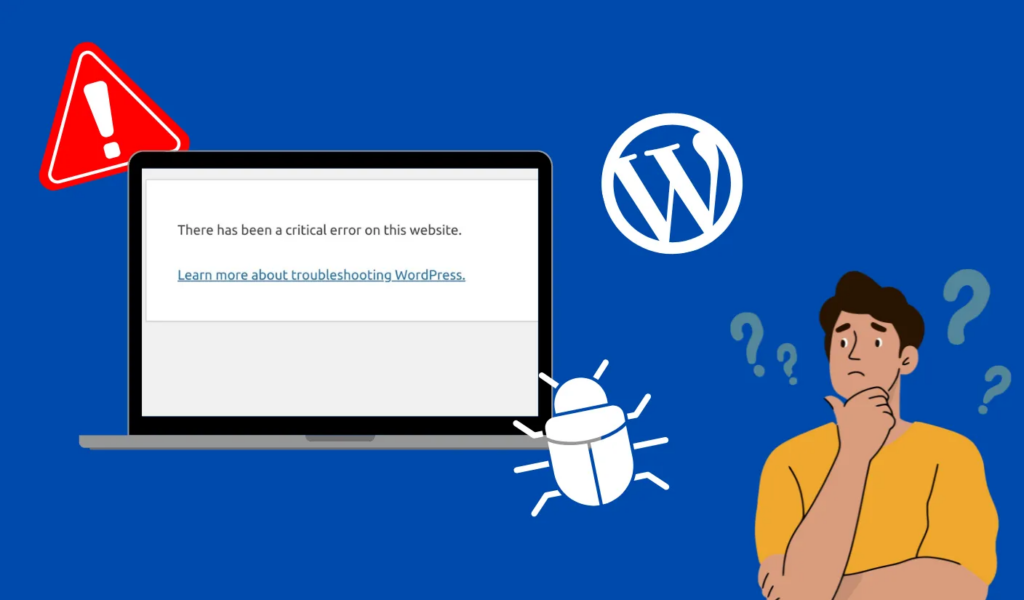
The message “there has been a critical error on this website. wordpress” appears when WordPress encounters a fatal PHP error that prevents the site from loading correctly.
Instead of displaying a blank white screen (which used to happen in older WordPress versions), WordPress now shows this message to indicate something has gone wrong in the system.
This error typically occurs when:
When WordPress detects a fatal issue, it stops execution to prevent further damage to the website.
Understanding the root cause makes it easier to fix the problem quickly. Below are the most common reasons this error appears.
Plugins extend WordPress functionality, but poorly coded or incompatible plugins can cause fatal errors.
This often happens when:
For example, installing a new plugin or updating one right before the error appears is a strong indication that the plugin might be the problem.
Your WordPress theme controls how your website looks and functions.
If a theme contains broken code or conflicts with WordPress core updates, it may trigger the critical error on this website WordPress message.
This often occurs when:
Sometimes WordPress files become corrupted during an update or due to server issues.
This can cause the system to fail during execution, leading to the critical error message.
WordPress runs on PHP, and each website has a memory allocation limit.
If a script requires more memory than the server allows, WordPress may stop running and display the critical error message.
This can occur when:
Updating WordPress, plugins, or themes is essential for security and performance. However, if an update fails midway due to a server interruption or compatibility issue, it can break the site.
This may cause WordPress to show the critical error message instead of loading the website.
Fortunately, several troubleshooting steps can help resolve the issue.
Below are the most practical solutions.
Modern WordPress versions send an automatic email to the site administrator when a critical error occurs.
This email usually contains:
Using Recovery Mode, you can log into WordPress even when the site is broken and disable the problematic plugin or theme.
If you suspect a plugin conflict, disabling plugins is often the fastest way to identify the issue.
You can do this through FTP or your hosting file manager.
Các bước:
plugins-disabled
This will deactivate all plugins at once.
If the website starts working again, you can rename the folder back and activate plugins one by one to find the faulty one.
If the issue is caused by your theme, switching to a default WordPress theme can help.
Các bước:
If the website loads normally after this change, the theme likely caused the problem.
Debug mode allows WordPress to display detailed error messages that reveal the source of the issue.
To enable it, edit the wp-config.php file and add the following lines:
define('WP_DEBUG', true);
define('WP_DEBUG_LOG', true);
define('WP_DEBUG_DISPLAY', true);
After enabling debug mode, reload your website.
WordPress may show the exact file or plugin responsible for the error.
Once troubleshooting is complete, it is recommended to disable debug mode again.
If the problem is related to insufficient memory, increasing the PHP memory limit may resolve it.
Edit wp-config.php and add:
define('WP_MEMORY_LIMIT', '256M');This increases the amount of memory available to WordPress.
If core files are damaged, reinstalling WordPress can restore missing or corrupted files.
Các bước:
Make sure not to overwrite the wp-content folder, which contains your themes, plugins, and uploads.
Sometimes the error is caused by server-level issues, such as:
In these cases, contacting your hosting provider may be necessary. They can review server logs and identify the exact cause.
While errors cannot always be avoided, following best practices greatly reduces the risk.
Regularly updating:
helps maintain compatibility and security.
Install plugins and themes only from reputable developers or official marketplaces.
Poorly coded extensions are one of the leading causes of critical errors.
Backups ensure that your website can be restored quickly if something breaks.
Many hosting providers offer automatic backups, or you can use backup plugins.
Before making major updates or installing new plugins, test them on a staging environment.
This prevents issues from affecting your live website.
For businesses running WordPress stores or service websites, downtime can mean:
This is especially important for e-commerce and international websites, where stability and performance directly affect conversions.
A well-designed and properly maintained website significantly reduces the risk of technical failures.
The message “there has been a critical error on this website. wordpress” can seem alarming, but it usually indicates a manageable issue such as plugin conflicts, theme problems, or server configuration limits.
By identifying the root cause and following structured troubleshooting steps—like disabling plugins, switching themes, enabling debug mode, or increasing memory—you can restore your website quickly.
Maintaining a stable WordPress website requires more than just fixing errors. It also involves thoughtful design, performance optimization, and a clear structure that ensures your site runs smoothly as your business grows.
Tại AIRSANG, we specialize in helping brands build professional websites for global markets. Our team focuses on conversion-driven website design, Shopify Và WordPress store experiences, and cross-border e-commerce solutions that help businesses present their products clearly and effectively.
If you are building or improving your website and want a design that is both visually compelling and technically reliable, AIRSANG is here to help. Our experience in international website design ensures your brand stands out while maintaining a stable, high-performance online presence.


















