











Giỏ hàng hiện không có sản phẩm nào.

If you’re planning to build a website, blog, or online store, learning how to install WordPress is one of the most important first steps. WordPress powers a huge portion of the internet thanks to its flexibility, scalability, and ease of use. Whether you’re a beginner or someone looking to improve your website-building workflow, understanding the installation process will give you full control over your online presence.
In this guide, we’ll break down everything you need to know in a simple, easy-to-follow way—from preparation to installation methods and post-installation setup. By the end, you’ll clearly understand how to get your WordPress site up and running.
Before diving into how to install WordPress, it’s helpful to understand why it’s so widely used.
WordPress is an open-source content management system (CMS) that allows you to build and manage websites without needing advanced coding skills. It’s highly customizable, with thousands of themes and plugins that enable you to create anything from blogs to eCommerce stores.
Key reasons people choose WordPress include:
To successfully install WordPress, you’ll need a few essentials in place:
Your domain is your website’s address (e.g., yoursite.com). Choose something memorable and relevant to your brand.
Hosting is where your website’s files are stored. A reliable hosting provider ensures your site loads quickly and stays online.
WordPress uses a database (usually MySQL) to store your content, settings, and user data.
Most modern hosting providers include domain registration, hosting, and database setup in one package, making the process easier.
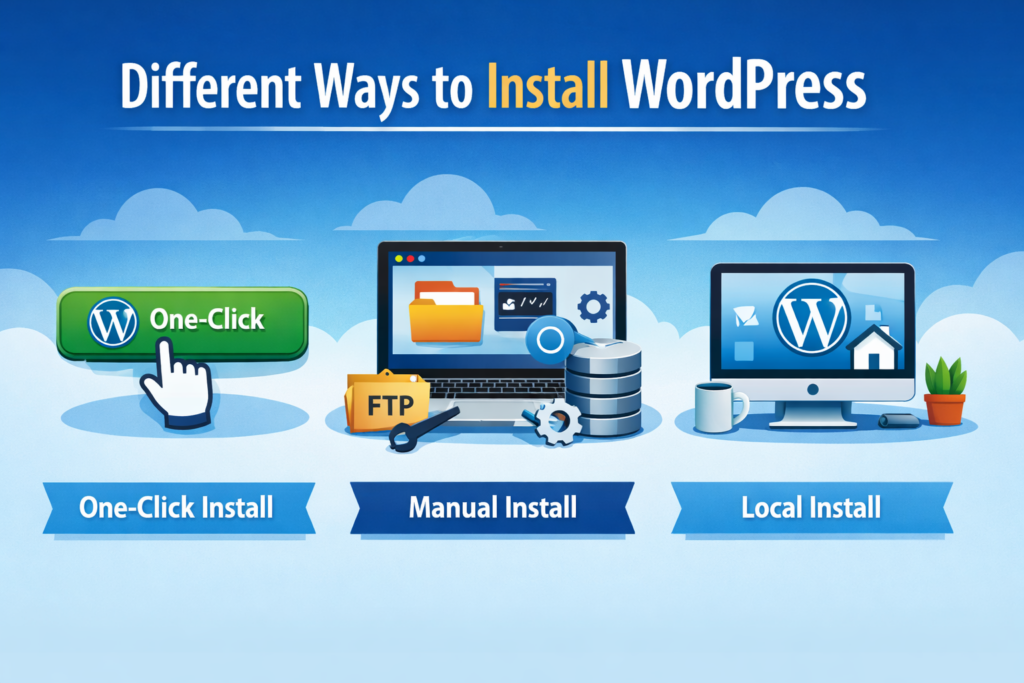
There are several methods available when learning how to install WordPress, depending on your technical level and hosting provider.
Most hosting providers offer a one-click WordPress installation feature. This is the easiest and fastest way to get started.
Cách thức hoạt động:
Within minutes, your WordPress site will be live.
Phù hợp nhất cho: Beginners who want a quick setup without technical steps.
If you want more control or your hosting provider doesn’t offer one-click installs, you can manually install WordPress.
Steps include:
wp-config.php tài liệuThis method requires more technical knowledge but gives you a deeper understanding of how WordPress works.
If you want to experiment without publishing your site online, you can install WordPress locally on your computer.
Tools like local development environments allow you to simulate a server setup.
Phù hợp nhất cho:
Let’s go deeper into the manual method, as it helps you fully understand the process.
Go to the official WordPress website and download the latest version.
Use FTP software or your hosting file manager to upload WordPress files to your root directory (usually public_html).
Access your hosting control panel and create a new MySQL database. Save the database name, username, and password.
Rename the sample config file and input your database credentials.
Visit your domain in a browser. WordPress will guide you through the final setup:
Once completed, your website is ready.
The easiest way to install WordPress is by using a one-click installation feature provided by most hosting providers. It allows beginners to set up a website in just a few minutes without needing technical knowledge.
Yes, you can install WordPress locally on your computer using tools like local development environments. However, to make your website accessible online, you will still need hosting and a domain.
With a one-click installation, WordPress can be set up in less than 5 minutes. Manual installation may take 10–20 minutes depending on your experience.
No, you don’t need coding skills to install WordPress. Most installation methods are beginner-friendly, especially the one-click option provided by hosting platforms.
When learning how to install WordPress, beginners often run into these issues:
Avoiding these mistakes will help keep your website secure and fast.
Installing WordPress is just the beginning. To build a successful site, you should take a few important next steps.
Your theme controls your website’s design and layout. Pick one that matches your brand and is mobile-friendly.
Plugins extend functionality. Some must-haves include:
Create core pages like:
Improve loading speed and search visibility by optimizing images, enabling caching, and using SEO best practices.
If your goal is to build an online store, WordPress can be paired with plugins like WooCommerce.
This allows you to:
Understanding how to install WordPress properly ensures a strong foundation for your online business.
Each method has its pros and cons:
| Method | Difficulty | Tốt nhất cho |
|---|---|---|
| One-click install | Easy | Beginners |
| Manual install | Trung bình | Advanced users |
| Local install | Trung bình | Testing & development |
If you’re just starting, the one-click method is usually the best choice.
Learning how to install WordPress is a foundational skill that opens the door to building powerful, flexible websites. Whether you choose a simple one-click setup or a manual installation, the key is understanding the process and making informed decisions.
As your website grows, WordPress gives you the tools to scale, customize, and optimize your online presence.
At the end of the day, installing WordPress is only the first step. Designing a high-converting, visually appealing, and fully optimized website requires experience in UX design, branding, and performance optimization.
That’s where AIRSANG bước vào.
Chúng tôi chuyên về:
If you’re looking to build or upgrade your website, our team can help you turn your ideas into a high-performing digital experience.


















