












การแนะนำ
If you’ve ever built or managed a วordpress website, you’ve probably found yourself needing to reuse a page layout. Whether it’s a landing page, product page, or service template, recreating everything from scratch can be time-consuming and inefficient. That’s where understanding how to duplicate a page in WordPress becomes incredibly valuable.
Duplicating a page allows you to replicate layouts, design elements, and content structures instantly, saving time while maintaining consistency across your website. This is especially useful for businesses, bloggers, and e-commerce site owners who frequently create similar pages.
In this guide, you’ll learn everything you need to know about duplicating pages in WordPress—from beginner-friendly plugin methods to more advanced manual techniques. By the end, you’ll have a clear understanding of the most efficient approaches and when to use each one.
What Does It Mean to Duplicate a Page in WordPress?
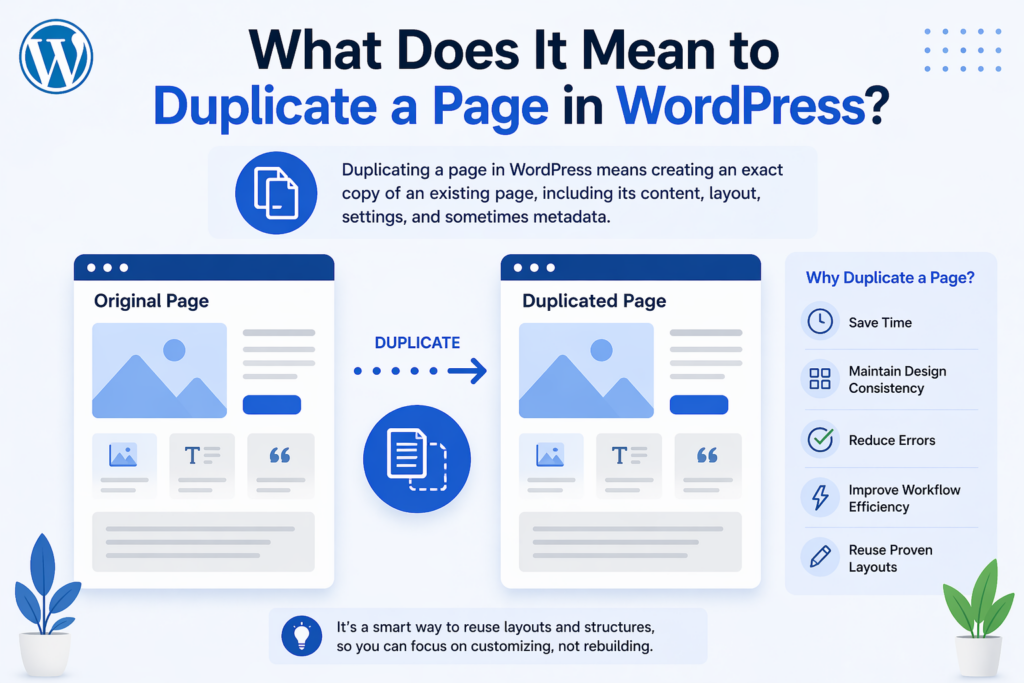
Duplicating a page in WordPress means creating an exact copy of an existing page, including its content, layout, settings, and sometimes metadata. Instead of building a page from scratch, you clone an existing one and modify it as needed.
This process is widely used for:
- Creating multiple landing pages with similar structures
- Reusing design templates for services or products
- Maintaining visual consistency across pages
- Speeding up content production workflows
Understanding how to duplicate a page in WordPress can significantly improve productivity, especially when managing large websites.
Why You Should Duplicate Pages Instead of Rebuilding Them
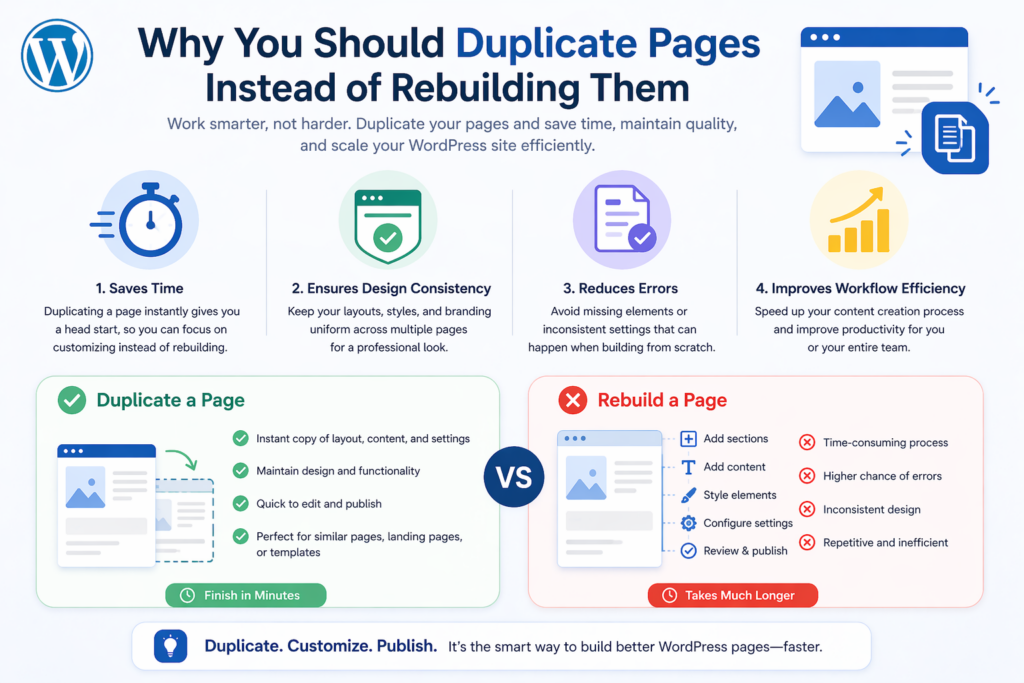
Before diving into the methods, it’s important to understand the advantages of duplicating pages.
1. Saves Time
Rebuilding a page from scratch requires adding sections, styling elements, and formatting content again. Duplication eliminates this repetitive work.
2. Ensures Design Consistency
When you duplicate a page, you maintain consistent layouts, typography, and spacing—critical for brand identity and user experience.
3. Reduces Errors
Manually recreating pages increases the risk of inconsistencies or mistakes. Duplicating ensures everything stays aligned with the original design.
4. Improves Workflow Efficiency
For agencies, marketers, or content teams, duplicating pages speeds up production and allows faster iteration.
Method 1: Duplicate a Page Using a WordPress Plugin
The easiest and most popular way to duplicate a page in WordPress is by using a plugin. This method requires no coding and works for beginners.
Step 1: Install a Duplication Plugin
Go to your WordPress dashboard:
- Navigate to Plugins > Add New
- Search for plugins like:
- โพสต์ซ้ำ
- Yoast โพสต์ซ้ำ
- ทำซ้ำหน้า
- คลิก Install Now, then Activate
Step 2: Duplicate the Page
After activation:
- Go to Pages > All Pages
- Hover over the page you want to duplicate
- Click Clone or Duplicate
A copy will instantly appear in your page list.
Step 3: Edit the Duplicated Page
- Open the cloned page
- Update content, images, or SEO settings
- Change the title and URL slug
- Publish when ready
Advantages of Using Plugins
- รวดเร็วและเหมาะสำหรับมือใหม่
- ไม่จำเป็นต้องมีความรู้ทางเทคนิค
- Preserves layouts and settings
ข้อจำกัด
- Adds extra plugins to your site
- May not copy all custom fields depending on configuration
Method 2: Duplicate a Page Manually (Without Plugins)
If you prefer not to install plugins, you can duplicate a page manually. This method works well for users who want more control.
Step 1: Copy Page Content
- Open the page you want to duplicate
- Switch to the editor (Block Editor or Classic Editor)
- Copy all content
Step 2: Create a New Page
- ไปที่ Pages > Add New
- Paste the copied content into the editor
Step 3: Adjust Settings
- Update page title
- Modify permalink (URL)
- Add featured image if needed
- Configure SEO settings
When to Use This Method
- You want to avoid plugins
- You only need to duplicate content (not full settings)
- You prefer manual control
ข้อจำกัด
- Time-consuming
- Does not copy advanced settings or metadata automatically
Method 3: Duplicate a Page Using the Block Editor (Gutenberg)
The WordPress Block Editor offers built-in ways to reuse content.
Option 1: Copy All Blocks
- Open the page
- Click the three-dot menu
- เลือก Copy all blocks
- วางลงในหน้าใหม่
Option 2: Use Reusable Blocks
Reusable blocks allow you to save sections and reuse them across pages.
ขั้นตอน:
- Select a block or group
- คลิก Add to Reusable Blocks
- Insert it into another page
สิ่งนี้มีประโยชน์สำหรับ:
- ส่วนคำกระตุ้นการตัดสินใจ
- Testimonials
- Repeating design components
Method 4: Duplicate Pages Using Page Builders
If you use a page builder like Elementor, WPBakery, or Divi, duplicating pages becomes even easier.
Elementor Example
- Open the page with Elementor
- Click the arrow next to the update button
- Save as template
- Create a new page
- Insert the saved template
Benefits of Page Builders
- Retains full design structure
- Easy drag-and-drop editing
- Perfect for complex layouts
Important Things to Check After Duplicating a Page
Duplicating a page is only part of the process. To avoid SEO and usability issues, always review the following:
1. Update the Page Title and URL
Ensure each page has a unique title and slug to avoid duplicate content issues.
2. Edit Metadata
Update SEO titles and descriptions to match the new content.
3. Replace Internal Links
Check links that may still point to the original page.
4. Update Images and Content
Make sure all visuals and text reflect the new purpose of the page.
5. Check Mobile Responsiveness
Duplicated pages may need adjustments for different devices.
Common Use Cases for Page Duplication
Understanding when to duplicate pages helps maximize its benefits.
1. Landing Pages
Create multiple variations for A/B testing.
2. Product Pages
Reuse layouts for similar products.
3. Service Pages
Maintain consistent formatting across services.
4. Blog Templates
Standardize blog structures for readability.
Best Practices for Duplicating Pages in WordPress
To make the most of page duplication, follow these best practices:
Keep Your Site Organized
Use clear naming conventions to avoid confusion between original and duplicated pages.
Avoid Duplicate Content Issues
Search engines may penalize identical content. Always customize duplicated pages.
Use Templates When Possible
Instead of duplicating entire pages repeatedly, consider building reusable templates.
Limit Plugin Usage
Only install necessary plugins to keep your site fast and secure.
Troubleshooting Common Issues
Even though duplicating a page is simple, you may encounter some issues.
Page Not Duplicating Properly
- Check plugin compatibility
- Clear cache
- Update WordPress
Missing Styles or Layout Issues
- Ensure theme and builder settings are applied
- Reapply styles if needed
Duplicate Content Problems
- Always rewrite content
- Use canonical tags if necessary
Advanced Tip: Using Custom Post Types
If your site uses custom post types (CPT), duplication works similarly but may require plugin support. Some duplication plugins allow copying CPTs along with custom fields.
This is especially useful for:
- Portfolio items
- Product listings
- กรณีศึกษา
บทสรุป
Learning how to duplicate a page in วordpress is a simple yet powerful skill that can significantly improve your workflow. Whether you use plugins, manual methods, the block editor, or page builders, each approach offers unique advantages depending on your needs.
For beginners, plugins provide the fastest and easiest solution. For advanced users, manual duplication and templates offer greater control and flexibility. Regardless of the method you choose, always ensure that duplicated pages are properly customized to avoid SEO issues and maintain a high-quality user experience.
By mastering page duplication, you can streamline content creation, maintain design consistency, and build websites more efficiently without unnecessary repetition.
คำถามที่พบบ่อย
You can duplicate a page manually by copying all the content from the original page and pasting it into a new page. However, this method does not copy design settings or metadata, so additional adjustments may be needed.
The easiest way is to use a plugin like “Duplicate Page” or “Yoast Duplicate Post.” These tools allow you to clone a page with one click, including its layout and settings.
Duplicating a page can affect SEO if the content remains identical. To avoid issues, you should update the title, meta description, and content to ensure each page is unique.
Yes, Elementor allows you to duplicate pages by saving them as templates or using the built-in duplicate feature. This keeps your design and layout intact.
Yes, when using plugins or page builders, duplicated pages usually retain the same design, layout, and formatting as the original page.
Duplicating a page saves time, maintains design consistency, reduces errors, and improves workflow efficiency, especially when creating similar pages repeatedly.


ออกแบบและสร้างเว็บไซต์ WordPress หรือเว็บไซต์องค์กรพร้อมระบบอีคอมเมิร์ซครบวงจรสำหรับคุณ.
ช่วงราคา: $200.00 ถึง $2,500.00custom-requirements-or-special-quotations
ราคาเดิมคือ: $2.00.$1.00ราคาปัจจุบันคือ: $1.00. การใช้ปลั๊กอิน 50 ตัวมากเกินไปสำหรับร้านค้าออนไลน์ที่ใช้ WordPress หรือไม่?
การเข้าใจผลกระทบที่แท้จริงต่อประสิทธิภาพ การมีปลั๊กอิน 50 ตัวบนเว็บไซต์อีคอมเมิร์ซ WordPress ไม่ใช่ปัญหาโดยอัตโนมัติ จริงๆ แล้ว จำนวนเพียงอย่างเดียวแทบจะไม่สามารถกำหนดประสิทธิภาพได้....

ภาพหลักสำหรับการออกแบบอุปกรณ์กายภาพบำบัดที่บ้านของ Amazon (อธิบายรายละเอียด)
บทนำ: การสร้างภาพลักษณ์ที่น่าเชื่อถือสำหรับอุปกรณ์บำบัดที่บ้านบน Amazon เมื่อออกแบบภาพหลักสำหรับอุปกรณ์บำบัดที่บ้านบน Amazon สิ่งสำคัญอันดับแรกของเราคือ...

ภาพหลักสำหรับการแปลงลิปสติกเป็นสินค้าสำหรับ Amazon
บทนำ: การออกแบบภาพหลักลิปสติกที่ขายได้บน Amazon เมื่อเราออกแบบภาพหลักสำหรับลิปสติกบน Amazon ความรับผิดชอบของเราไม่ได้จำกัดอยู่แค่...

แฮกเกอร์ขโมยอีเมลผู้ดูแลระบบ WordPress ได้อย่างไร (และวิธีป้องกัน)
มาเริ่มกันด้วยความจริงที่ไม่น่าสบายใจ: อีเมลแอดมิน WordPress ของคุณอาจเปิดเผยต่อสาธารณะมากกว่าที่คุณคิด และแฮกเกอร์? พวกเขาชอบมาก สำหรับพวกเขา...

อะไรทำให้รองพื้นชนิดเหลวของ Amazon (ภาพหลัก) ขายดี?
บทนำ การออกแบบภาพหลักสำหรับรองพื้นชนิดเหลวบน Amazon ไม่ใช่แค่การทำให้ผลิตภัณฑ์ดูสวยงามเท่านั้น บน Amazon ภาพหลักและ...

การออกแบบภาพหลัก Amazon ที่มีประสิทธิภาพสำหรับตลับกรอง
บทนำ การออกแบบภาพหลักสำหรับ Amazon ไม่ใช่แค่การทำให้สินค้าดูน่าดึงดูดเท่านั้น แต่ยังเกี่ยวกับความชัดเจน ความน่าเชื่อถือ และความเข้าใจได้ในทันที โดยเฉพาะอย่างยิ่งสำหรับ...

การโจมตีแบบ Replay Attack บน WordPress: ภัยคุกคามจริงหรือแค่เรื่องที่ถูกพูดเกินจริง?
ก่อนอื่นขอชี้แจงให้ชัดเจนก่อน การโจมตีแบบ Replay Attack นั้นดูไม่น่ากลัว มันไม่ได้ทำลายรหัสผ่าน มันไม่ได้แทรกโค้ดที่เป็นอันตรายพร้อมข้อความแฮ็กเกอร์สีเขียวกระจัดกระจายไปทั่ว มันแนบเนียนกว่า...

วิธีคัดลอกหน้าเว็บ WordPress โดยไม่ทำให้ระบบเสียหาย
ยอมรับกันเถอะ บางครั้งคุณอาจไม่อยากสร้างหน้าเว็บใหม่ คุณแค่อยากได้หน้าเว็บเดิม...แต่แตกต่างไปเล็กน้อย รูปแบบเหมือนเดิม บล็อกเหมือนเดิม การตั้งค่าเหมือนเดิม เพราะ...

เปรียบเทียบธีม WordPress สำหรับสัตว์เลี้ยง 5 แบบ
บทนำ การเลือกธีม WordPress ที่เหมาะสมสำหรับธุรกิจเกี่ยวกับสัตว์เลี้ยงนั้นไม่ใช่แค่เรื่องของการออกแบบเท่านั้น แต่ยังส่งผลโดยตรงต่อการใช้งาน ความสามารถในการขยายขนาด และการเติบโตของธุรกิจในระยะยาว การดูแลสัตว์เลี้ยงและ...

เปรียบเทียบธีมอีคอมเมิร์ซชุดว่ายน้ำ 5 แบบ
บทนำ การเลือกธีมที่เหมาะสมสำหรับร้านค้าอิสระที่จำหน่ายชุดว่ายน้ำหรือชุดชั้นในนั้นไม่ใช่แค่การตัดสินใจด้านภาพลักษณ์เท่านั้น แต่ยังส่งผลโดยตรงต่ออัตราการเปลี่ยนลูกค้าให้เป็นผู้ซื้อ ความสามารถในการขยายธุรกิจ และความยั่งยืนในระยะยาว...

วิธีปิดการแสดงความคิดเห็นใน WordPress (โดยไม่ต้องเสียสติ)
มาพูดถึงระบบแสดงความคิดเห็นของ WordPress กันดีกว่า ในทางทฤษฎีแล้ว ความคิดเห็นนั้นยอดเยี่ยมมาก มันช่วยกระตุ้นการสนทนา สร้างชุมชน และทำให้เว็บไซต์ของคุณดูมีชีวิตชีวา แต่ในความเป็นจริงแล้ว มันมักจะเป็นเหมือนแม่เหล็กดึงดูด...

ข้อผิดพลาด WordPress 500: เมื่อเว็บไซต์ของคุณเกิดอาการผิดปกติ
เว็บไซต์ WordPress ของคุณยังใช้งานได้ปกติดีเมื่อสักครู่ คุณรีเฟรชหน้าเว็บ แล้วจู่ๆ ก็เกิดข้อผิดพลาด 500 Internal Server Error ขึ้นมา ไม่มีคำอธิบาย ไม่มีคำขอโทษ มีเพียงข้อความที่เย็นชาและสับสนซึ่งโดยพื้นฐานแล้ว...

การสร้างเว็บไซต์ WordPress ที่ปรับขนาดได้สำหรับแบรนด์ที่ขับเคลื่อนด้วยวิทยาศาสตร์: โครงการ AminoUSA
บทนำ ในยุคดิจิทัลปัจจุบัน เว็บไซต์เป็นมากกว่าแค่สถานที่สำหรับแสดงรายการสินค้า สำหรับแบรนด์ที่ขับเคลื่อนด้วยวิทยาศาสตร์ซึ่งดำเนินงานในอุตสาหกรรมที่มีการควบคุมหรือเน้นการวิจัย...

สร้างร้านค้า Shopify ที่ปรับขนาดได้สำหรับแบรนด์ใบมีดระดับโลก: โครงการ CoolKatana
บทนำ ในธุรกิจอีคอมเมิร์ซข้ามพรมแดน เว็บไซต์ Shopify เป็นมากกว่าแค่หน้าร้าน สำหรับแบรนด์ที่ดำเนินธุรกิจในกลุ่มเฉพาะหรือกลุ่มที่ขับเคลื่อนด้วยวัฒนธรรม เว็บไซต์ต้องทำมากกว่านั้น...

การออกแบบร้านค้า Shopify ที่มีอัตราการแปลงสูงสำหรับขายการ์ดโปเกมอน
บทนำ ในโลกของอีคอมเมิร์ซสินค้าสะสม โดยเฉพาะอย่างยิ่งในตลาดเกมการ์ดโปเกมอน (TCG) เว็บไซต์จะต้องทำมากกว่าแค่แสดงรายการสินค้า...

ดีไซน์ Shopify ที่เพิ่มยอดขายสำหรับแบรนด์อิฐสั่งทำพิเศษ
บทนำ ในสภาพแวดล้อมการแข่งขันอีคอมเมิร์ซในปัจจุบัน โดยเฉพาะอย่างยิ่งในตลาดของขวัญส่วนบุคคลและของสะสม เว็บไซต์ Shopify ต้องทำมากกว่าแค่แสดงสินค้า...

วิธีติดต่อฝ่ายสนับสนุนของ Shopify: คู่มือที่ง่ายและไม่ยุ่งยาก
การบริหารร้านค้า Shopify ควรเป็นเรื่องที่น่าตื่นเต้น ไม่ใช่เรื่องที่ทำให้สับสน เมื่อมีคำถามหรือปัญหาเกิดขึ้น Shopify มีช่องทางการสนับสนุนหลายช่องทาง ขึ้นอยู่กับสถานการณ์...

วิธีปิดใช้งานร้านค้า Shopify: คู่มือที่ชัดเจนและใช้งานได้จริง
การปิดใช้งานร้านค้า Shopify นั้นไม่ซับซ้อน แต่ก็มีผลกระทบหลายอย่างที่ผู้ขายหลายรายมองข้ามไป คู่มือนี้จะอธิบายขั้นตอนอย่างละเอียดและเข้าใจง่าย...