Введение
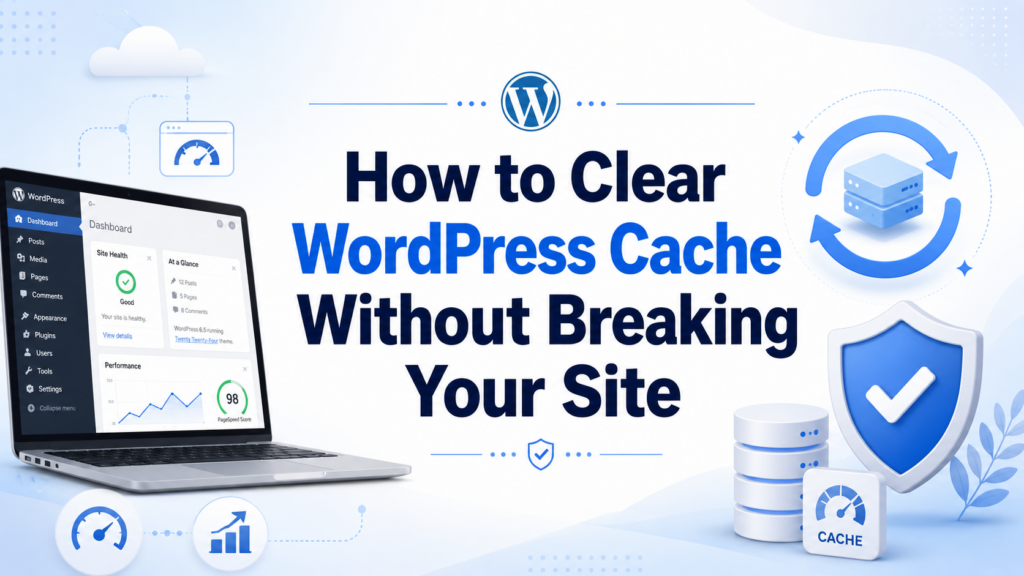
Learning how to clear WordPress cache is one of the simplest ways to keep a website fast, accurate, and easy to manage. Cache helps your site load faster by storing temporary copies of pages, images, scripts, and other website files. Instead of forcing WordPress to rebuild every page from scratch for every visitor, caching lets your site deliver saved versions more quickly. Bluehost explains that WordPress caching reduces repeated database requests and helps pages load faster for visitors.
However, cache can also create confusion. You may update a homepage banner, change a product image, edit a blog post, or install a new plugin, but the front end still shows the old version. In many cases, nothing is “broken.” Your site, browser, plugin, server, or CDN may simply be showing a saved copy.
This guide explains what WordPress cache is, why it matters, when you should clear it, and the safest ways to do it.
What Is WordPress Cache?
WordPress is a dynamic content management system. When someone visits a page, WordPress often needs to collect information from the database, load theme files, run plugin functions, process PHP, and then generate the final HTML page. This process happens quickly, but it still requires server resources.
Cache works like a shortcut. After a page loads once, a caching system can save a temporary copy of that page. The next visitor receives that saved version instead of making WordPress repeat every step again. Bluehost describes cached pages as ready-made copies that reduce server work and improve page speed.
Think of it like a restaurant menu. Without cache, the kitchen has to rewrite the menu from scratch every time a customer asks for it. With cache, the restaurant keeps a printed copy ready. Customers get the information faster, and the staff saves time.
Why WordPress Cache Matters
Website speed affects user experience. Visitors expect pages to load quickly, especially on mobile devices. If a website feels slow, people may leave before reading the content, browsing products, or completing a form.
Cache helps solve this problem by reducing the amount of work your server performs for each visit. A good caching setup can improve page loading, reduce server pressure, and make the site feel smoother. Bluehost also notes that caching is one of the best ways to improve website speed.
Caching is especially useful for websites with:
Online stores
Blogs with many posts
Portfolio websites
Business websites with image-heavy pages
Landing pages with traffic from ads
Membership or educational websites
WordPress sites using many plugins
The more content and traffic your site has, the more useful caching becomes.
What Does “Clear WordPress Cache” Mean?
To clear WordPress cache means to delete temporary saved files so your site can generate fresh versions. It does not delete your actual website content. Your pages, posts, products, images, settings, theme, and plugins remain in place.
You are only removing stored copies.
After you clear cache, WordPress, your browser, your server, or your CDN can rebuild a new cache based on the latest version of your site. Bluehost explains that clearing cache removes temporary files and allows browsers to load the most recent page version.
This is why clearing cache is often the first troubleshooting step when website changes do not appear.
Common Types of WordPress Cache
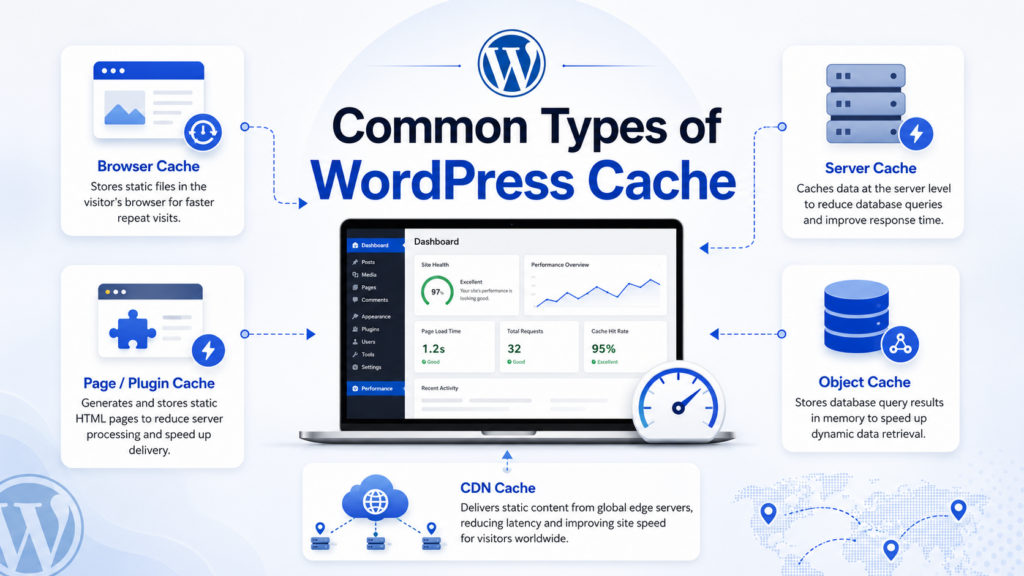
WordPress websites can use several layers of cache. Understanding these layers helps you know where to clear cache when something looks outdated.
Browser Cache
Browser cache lives on the visitor’s device. Chrome, Safari, Firefox, and Edge can store images, CSS files, JavaScript files, and page data. This helps repeat visits load faster.
However, browser cache can also show an old version of a page. For example, you may update a logo, but your browser still displays the old file because it saved that image earlier.
Plugin Cache
Many WordPress websites use caching plugins. These plugins create static versions of pages and may also optimize files, compress code, or manage browser caching rules.
Common caching plugins include W3 Total Cache, WP Super Cache, WP Rocket, LiteSpeed Cache, and WP Fastest Cache. Bluehost’s article also compares several popular WordPress caching plugins, including W3 Total Cache, WP Super Cache, WP Rocket, and WP Fastest Cache.
Server Cache
Server cache is handled by your hosting provider. Some hosts include built-in caching systems that work outside WordPress. These tools may cache pages, database results, or server-level files.
Because server cache sits above WordPress, clearing only your plugin cache may not always be enough.
CDN Cache
A CDN, or content delivery network, stores copies of your website files on servers around the world. This helps visitors load files from a location closer to them.
Cloudflare, BunnyCDN, Fastly, and similar services may cache images, CSS, JavaScript, and sometimes full pages. If you use a CDN, you may need to clear CDN cache too.
Object Cache
Object cache stores database query results. It helps WordPress reuse repeated database information instead of requesting it again. Some hosting environments use Redis or Memcached for object caching.
Object cache is helpful for dynamic websites, but it may need clearing when database-driven content looks incorrect.
When Should You Clear WordPress Cache?
You do not need to clear cache every minute. Cache exists to improve performance, so clearing it too often may reduce some of its benefits. The better approach is to clear cache when changes need to become visible.
After Editing Page Content
Clear cache after updating important page sections, such as homepage banners, service pages, product descriptions, blog layouts, pricing tables, or contact information.
If the editor shows your changes but the live page does not, cache is a likely reason.
After Changing Website Design
Design changes often involve CSS files, layout settings, images, fonts, and scripts. If you change colors, spacing, typography, headers, footers, or mobile layouts, clear cache before checking the final front-end result.
This is especially important when using page builders such as Elementor, Divi, Bricks, or WPBakery.
After Updating Themes or Plugins
Theme and plugin updates can change scripts, styles, templates, or functions. Bluehost recommends clearing WordPress cache after theme or plugin updates so the new changes can take effect properly.
This step can prevent layout problems, missing styles, broken buttons, and outdated files.
After Migrating a Website
If you move your site to a new host, change domains, switch servers, or restore from backup, clear all cache layers. Old cached files can point to outdated paths, old domains, previous database content, or incorrect assets.
After Optimizing Images
Image optimization plugins may replace large images with compressed versions or generate WebP files. If the cache still stores old image files, visitors may not see the optimized versions. Bluehost also mentions clearing cache after installing an image compression plugin so the site displays updated images.
After Fixing an Error
If you fix a broken layout, missing button, checkout issue, menu problem, or form display error, clear cache before testing again. Otherwise, you may think the issue still exists even though WordPress has already been fixed.
How to Clear WordPress Cache
There is no single cache button that clears every possible layer in every setup. The correct method depends on your website tools. In most cases, you should clear cache in this order: browser cache, WordPress plugin cache, server cache, and CDN cache.
Method 1: Clear Your Browser Cache
Start with your own browser. This is the easiest step.
In Google Chrome, open the three-dot menu, go to Settings, then Privacy and security, and choose the option to clear browsing data. Bluehost also explains that Chrome users can clear browser cache through the browser menu under privacy and security settings.
You can also test quickly by opening the page in an incognito window or another browser. If the updated page appears there, your browser cache was probably the issue.
For design work, you can also use a hard refresh:
Windows: Ctrl + F5
Mac: Command + Shift + R
A hard refresh forces the browser to reload page files instead of relying on saved local copies.
Method 2: Clear Cache from a WordPress Plugin
If your site uses a caching plugin, log in to your WordPress dashboard and look for that plugin’s cache settings.
Most caching plugins place a shortcut in the WordPress admin bar. It may say:
Clear Cache
Purge Cache
Delete Cache
Purge All
Flush Cache
Clear All Cache
Clicking that button usually removes the plugin’s saved page files. Some plugins also let you clear cache for one page only, which is useful when you update a single blog post or product page.
For example, if you use WP Rocket, you can usually clear cache from the admin toolbar or plugin dashboard. If you use W3 Total Cache, you may see options to empty all caches. If you use LiteSpeed Cache, you may find purge options in the LiteSpeed menu.
After clearing plugin cache, open the page in a private browser window and test again.
Method 3: Clear Server Cache from Hosting
Many hosting providers include built-in caching. This cache may not be controlled by your WordPress plugin.
Your hosting dashboard may include options such as:
Clear server cache
Purge all cache
Flush cache
Clear performance cache
Clear dynamic cache
Some hosts also add a cache button directly inside the WordPress admin dashboard. Bluehost notes that its users can clear server cache from WordPress by selecting caching and using “Purge All.”
If your changes still do not show after clearing browser and plugin cache, check your hosting panel.
Method 4: Clear CDN Cache
If your website uses a CDN, you may need to clear cache there too. CDN cache can continue serving old images, CSS, JavaScript, or HTML even after WordPress cache has been cleared.
In many CDN dashboards, you can choose between clearing one URL or purging everything.
A single URL purge is better when you only changed one page or image. A full purge is useful after major design updates, domain changes, theme changes, or site migrations.
After clearing CDN cache, wait briefly and test the page again from a private browser window.
Method 5: Clear Page Builder Cache
Some page builders and optimization tools generate their own CSS files. Elementor, for example, has tools for regenerating CSS and syncing library data.
If your layout looks correct in the editor but broken on the front end, clear your caching plugin first, then regenerate page builder CSS if your builder provides that option.
This is helpful after changing fonts, responsive layouts, section spacing, colors, or custom CSS.
Method 6: Clear Object Cache
If your site uses Redis, Memcached, or another object cache system, you may need to flush object cache. This is more common on WooCommerce sites, membership websites, large blogs, and high-traffic WordPress installations.
You may find this option in your hosting panel, caching plugin, or object cache plugin.
Use this carefully. It is safe in normal cases, but object cache will rebuild after being cleared, and your site may briefly use more server resources while it refreshes.
Best Practices Before Clearing Cache
Clearing cache is usually safe, but a few habits make the process smoother.
First, clear cache after important updates, not after every small edit. Constantly clearing cache can reduce the performance benefits of caching.
Second, clear cache in layers. Start with browser cache, then plugin cache, then server cache, then CDN cache. This makes troubleshooting easier.
Third, test your site in a private window after clearing cache. This helps confirm whether visitors can see the updated version.
Fourth, check mobile and desktop views. Sometimes cache issues appear on one device type but not another, especially when optimization plugins create separate mobile cache files.
Fifth, avoid changing too many performance settings at the same time. If a layout breaks, you need to know which setting caused the problem.
Does Clearing Cache Hurt SEO?
Clearing cache itself does not hurt SEO. In fact, it can support SEO by making sure visitors and search engines see the latest version of your content.
Caching can improve performance, and performance can influence user experience. A faster website may encourage visitors to stay longer, browse more pages, and complete more actions.
The key is balance. Use caching to keep your website fast, but clear it when important updates need to appear.
Common WordPress Cache Problems
My Changes Still Do Not Show
Clear browser cache, plugin cache, server cache, and CDN cache. Also check whether your page builder has a CSS regeneration option.
My Website Looks Broken After Clearing Cache
This may happen if an optimization plugin minifies or combines CSS and JavaScript incorrectly. Temporarily disable file optimization settings and test again.
My Mobile Version Looks Different
Some caching plugins create separate mobile cache. Clear both desktop and mobile cache if the plugin offers that option.
My Product Page Shows Old Images
Clear plugin cache, CDN cache, and browser cache. If you recently optimized images, also check whether the image optimization plugin replaced the correct files.
My Admin Area Looks Fine, But Front End Is Old
This usually means the editor is showing live data, while visitors are seeing cached files. Clear the front-end cache layers.
How Often Should You Clear WordPress Cache?
There is no universal schedule. For most websites, clear cache when you publish major updates, change design elements, update plugins, migrate hosting, optimize images, or notice old content appearing.
For active WooCommerce stores or frequently updated websites, you may need a smarter cache setup that automatically clears related pages when products, carts, or checkout elements change.
For smaller business websites, manual cache clearing after edits is often enough.
Заключение
Understanding how to clear WordPress cache helps you manage your website with more confidence. Cache makes WordPress faster by storing temporary copies of pages and files, but those saved copies can sometimes show outdated content.
To keep your site accurate, clear cache after major content edits, design changes, plugin updates, theme updates, migrations, and image optimization. Start with your browser cache, then clear your WordPress caching plugin, hosting cache, CDN cache, and any page builder or object cache if needed.
A good caching setup gives you the best of both worlds: faster loading for visitors and fresh content whenever your website changes.
Часто задаваемые вопросы
1. What does it mean to clear WordPress cache?
Clearing WordPress cache means deleting temporary saved copies of your website files, pages, images, scripts, or database results. It does not delete your actual website content. After clearing cache, WordPress creates a fresh version of your site for visitors.
2. When should I clear WordPress cache?
You should clear WordPress cache after editing page content, changing your website design, updating plugins or themes, optimizing images, migrating your site, or fixing display errors. This helps make sure visitors see the newest version of your website.
3. Does clearing WordPress cache hurt SEO?
No, clearing cache does not hurt SEO. In many cases, it helps your site show updated content faster. A clean and properly refreshed cache can also support better page speed, user experience, and search visibility.
4. Why are my WordPress changes not showing?
Your changes may not appear because your browser, caching plugin, server, CDN, or page builder is still showing an old saved version. Try clearing browser cache, WordPress plugin cache, hosting cache, and CDN cache.
5. How often should I clear WordPress cache?
You do not need to clear cache constantly. Clear it when you make important updates or notice outdated content on the front end. Clearing cache too often may reduce the performance benefits of caching.
6. What is the safest way to clear WordPress cache?
The safest method is to clear cache layer by layer. Start with browser cache, then clear your WordPress caching plugin, hosting cache, CDN cache, and page builder cache if needed. After that, test your site in a private browser window.