












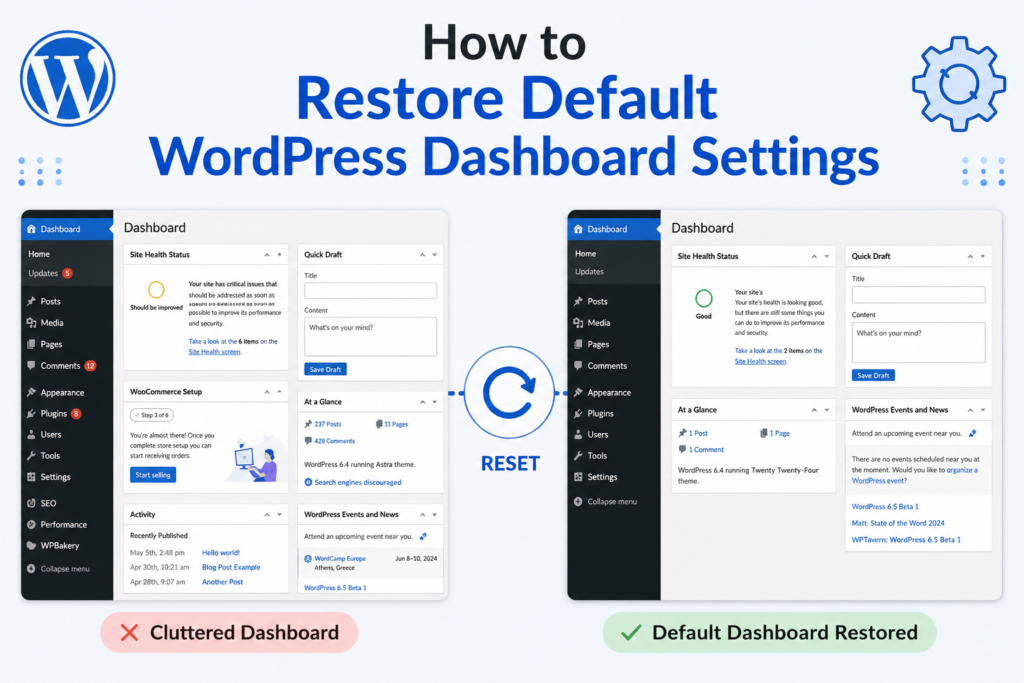
If your WordPress dashboard feels cluttered, broken, confusing, or overloaded with plugins and custom settings, you are not alone. Many website owners eventually reach a point where they want to bring WordPress back to its original state and start fresh.
Whether you are testing themes, learning WordPress, cleaning up an old website, or fixing dashboard issues after installing too many plugins, understanding how to restore default WordPress dashboard settings can save hours of frustration.
The good news is that restoring the default WordPress dashboard is much easier than most people think. You do not always need to reinstall WordPress from scratch, and in many cases, you can clean up the dashboard without losing important website content.
In this guide, you will learn what restoring the default WordPress dashboard actually means, when you should do it, different methods to reset WordPress safely, and how to avoid common mistakes that can permanently erase your site.
What Does “Restore Default WordPress Dashboard” Mean?
When people search for “how to restore default WordPress dashboard,” they usually want one of these things:
- Remove unnecessary plugins and widgets
- Restore the original WordPress admin layout
- Undo dashboard customization changes
- Reset themes and settings
- Start over with a clean WordPress installation
- Fix a broken or messy backend
- Return WordPress to factory settings
Restoring the default dashboard can involve small cleanups or a full website reset depending on your situation.
A complete WordPress reset usually removes:
- Записи и страницы
- Медиафайлы
- Комментарии
- Installed plugins
- Custom themes
- User settings
- Пользовательский CSS
- Database tables
After the process, WordPress looks similar to a brand-new installation with the default dashboard and default settings.
Why People Restore the Default WordPress Dashboard
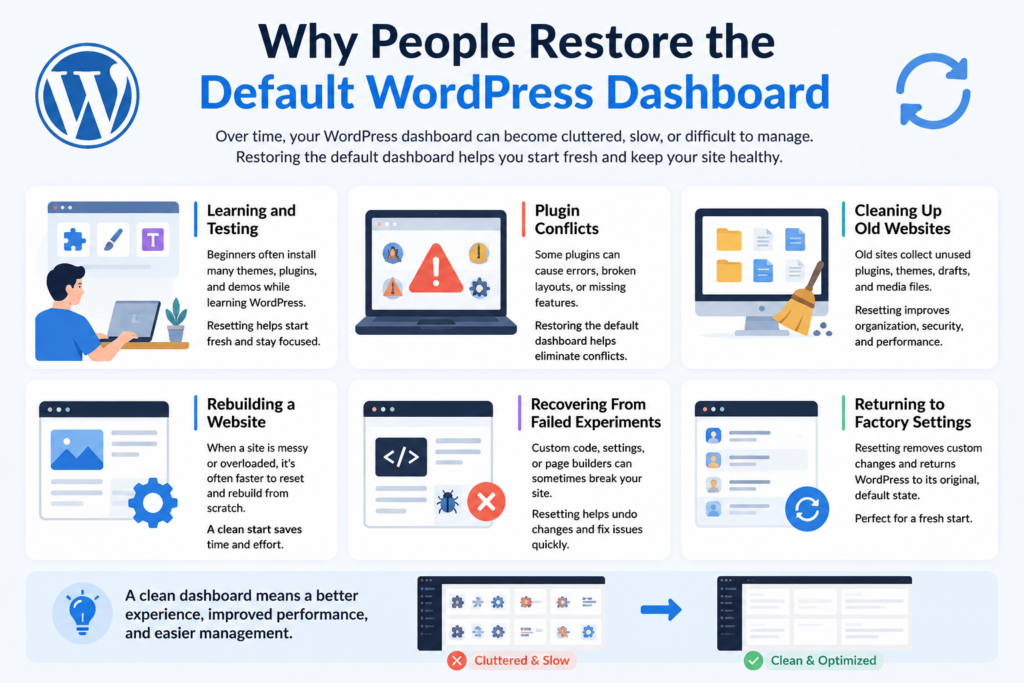
There are many reasons website owners choose to reset or restore WordPress.
Learning and Testing
Beginners often install multiple themes, plugins, and demo templates while learning WordPress. Over time, the dashboard becomes cluttered and confusing.
Instead of manually removing everything, resetting WordPress allows you to start fresh.
Plugin Conflicts
Some plugins can break the WordPress admin area or create strange dashboard behavior.
You may notice:
- Missing menu items
- Broken layouts
- White screens
- Slow dashboard loading
- Constant errors
Restoring the dashboard helps eliminate problematic settings and conflicts.
Cleaning Up Old Websites
Older WordPress websites often contain years of unused plugins, drafts, media files, and outdated themes.
Resetting or cleaning the dashboard improves organization and performance.
Rebuilding a Website
Sometimes it is faster to reset WordPress and rebuild than to repair a heavily modified site.
This is especially common for developers, designers, and staging environments.
Recovering From Failed Experiments
Many people test custom code snippets, page builders, or theme modifications that accidentally damage the backend.
Returning to the default WordPress dashboard helps undo the chaos.
Before Resetting WordPress: Important Safety Steps
Before making major changes, always prepare properly.
Back Up Your Website
This is the most important step.
A backup protects you if something goes wrong during the reset process.
Your backup should include:
- WordPress database
- Темы
- Плагины
- Uploads
- Configuration files
Without a backup, deleted content may be impossible to recover.
Export Important Content
If you want to keep posts, pages, or media files, export them first.
Go to:
Tools → Export
This allows you to save content before resetting WordPress.
Save Custom Code
Many users forget they added:
- Пользовательский CSS
- Tracking scripts
- Functions.php edits
- Header scripts
- API integrations
Copy important code into a separate document before resetting.
Check Hosting Backups
Many hosting providers automatically create backups.
Verify whether your host offers restore points before making changes.
Method 1: Restore Default WordPress Dashboard Using a Plugin
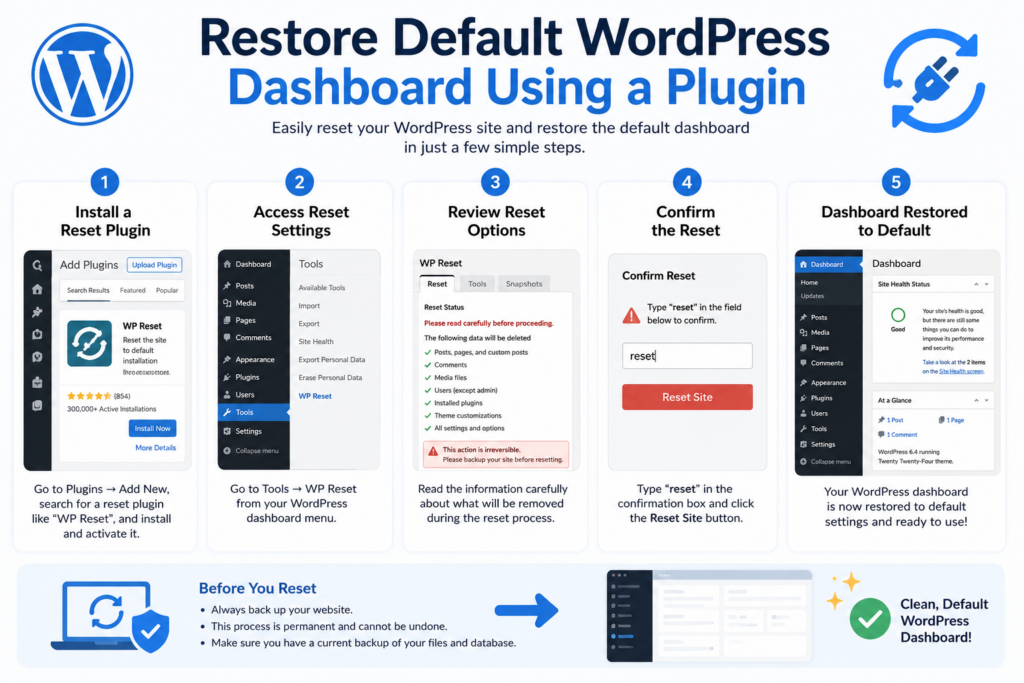
The easiest way to restore WordPress dashboard settings is by using a reset plugin.
This method is beginner-friendly and does not require coding knowledge.
Step 1: Install a WordPress Reset Plugin
Popular reset plugins include:
- WP Reset
- Advanced WordPress Reset
- Database Reset
Install the plugin from:
Plugins → Add New
Search for a reset plugin and activate it.
Step 2: Access Reset Settings
Most reset plugins place settings under:
Tools → Reset
Inside the panel, you will usually see warnings explaining what will be deleted.
Read everything carefully before continuing.
Step 3: Confirm the Reset
Most plugins require you to type a confirmation word such as:
reset
This prevents accidental resets.
Once confirmed, WordPress will:
- Remove content
- Reset settings
- Delete customizations
- Restore the default dashboard
The process usually takes less than a minute.
What Happens After the Reset?
After the reset:
- WordPress returns to factory-style settings
- Default themes may remain installed
- The admin account usually stays active
- Plugins are deactivated
- Dashboard widgets reset to default
Your WordPress backend will look much cleaner and easier to manage.
Method 2: Restore Default WordPress Dashboard Without a Plugin
Some users prefer not to install additional plugins.
You can manually reset WordPress through your hosting control panel.
This method requires more caution.
Step 1: Access Your Hosting Dashboard
Log into your hosting account.
Common control panels include:
- cPanel
- Плеск
- DirectAdmin
Find the database management section.
Step 2: Open phpMyAdmin
Inside your hosting panel, open:
phpMyAdmin
This tool manages your WordPress database.
Step 3: Delete Existing Database Tables
Select your WordPress database.
Choose all tables and delete them.
This removes:
- Сообщения
- Страницы
- Настройки
- Комментарии
- Users
- Plugin data
Be extremely careful during this step.
Deleting the wrong database can affect other websites.
Step 4: Reinstall WordPress
After deleting the database, visit:
yourdomain.com/wp-admin/install.php
WordPress will begin a fresh installation process.
Once completed, the dashboard returns to default settings.
Method 3: Restore Only the WordPress Dashboard Layout
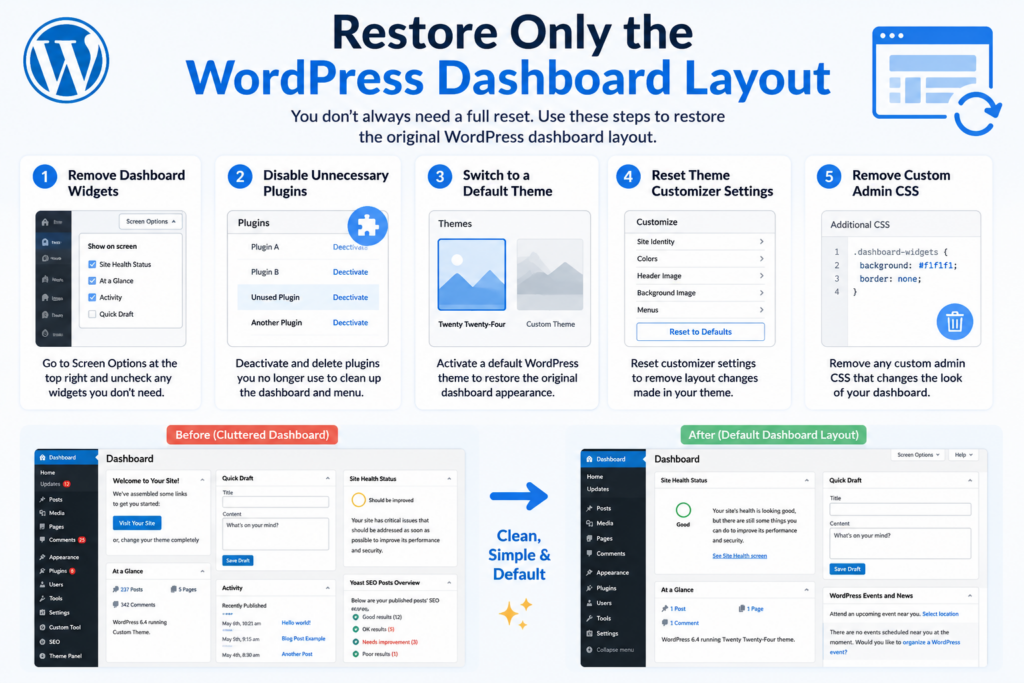
Sometimes you do not need a full reset.
You may only want the original dashboard appearance back.
In this case, you can restore dashboard settings without deleting content.
Remove Dashboard Widgets
Many plugins add unnecessary dashboard panels.
To clean them up:
- Go to the WordPress dashboard
- Click “Screen Options” at the top right
- Disable unwanted widgets
This instantly simplifies the dashboard.
Disable Unnecessary Plugins
Plugins are one of the biggest causes of dashboard clutter.
Go to:
Plugins → Installed Plugins
Deactivate plugins you no longer use.
Delete unnecessary ones completely.
Switch Back to a Default Theme
Custom themes sometimes modify the backend appearance.
Restore a default WordPress theme such as:
- Twenty Twenty-Four
- Twenty Twenty-Three
- Twenty Twenty-Two
Go to:
Appearance → Themes
Activate a default theme to restore a cleaner admin experience.
Reset Theme Customizer Settings
Some themes store large amounts of customization data.
Resetting theme settings can help restore the original layout.
Many themes include built-in reset options.
Others require dedicated reset plugins.
How to Clean the WordPress Dashboard Without Resetting Everything
A full reset is not always necessary.
Sometimes a simple cleanup improves WordPress dramatically.
Delete Unused Themes
Unused themes occupy storage space and may create security risks.
Keep only:
- Ваша активная тема
- One default backup theme
Delete the rest.
Remove Unused Plugins
Old plugins slow down WordPress and clutter the dashboard.
Delete plugins you no longer need.
Inactive plugins can still create vulnerabilities.
Clean the Media Library
Over time, websites collect thousands of unused images.
Remove unnecessary files from:
Media → Library
This improves organization and storage usage.
Optimize the Database
WordPress databases accumulate unnecessary data such as:
- Post revisions
- Spam comments
- Expired transients
- Plugin leftovers
Database optimization plugins can safely remove junk files.
Remove Admin Menu Clutter
Some plugins overload the sidebar menu.
Deleting unused plugins instantly creates a cleaner dashboard experience.
Common Problems After Resetting WordPress
Sometimes users encounter issues after restoring the default dashboard.
Here are the most common ones.
Missing Images
If media uploads were deleted during the reset, images may disappear from posts.
Restore uploads from backup if necessary.
Login Problems
Some resets remove user settings.
If you cannot log in:
- Reset your password
- Check wp-config.php
- Verify database credentials
Plugin Errors
After reinstalling plugins, conflicts may reappear.
Install plugins one at a time to identify problematic ones.
White Screen of Death
This usually happens because of:
- PHP memory limits
- Broken plugins
- Corrupted themes
Disable plugins manually through FTP if necessary.
Should You Reset or Reinstall WordPress?
Many users wonder whether resetting or reinstalling WordPress is better.
The answer depends on your goal.
Reset WordPress If:
- You want a faster cleanup
- You are testing themes or plugins
- You want to restore dashboard defaults quickly
- Your site is still structurally healthy
Reinstall WordPress If:
- Your website was hacked
- Files are corrupted
- Malware exists
- Core files are damaged
- You want a completely fresh installation
A reinstall is more thorough but takes longer.
Best Practices Before Customizing WordPress Again
After restoring the default WordPress dashboard, it is smart to avoid repeating old mistakes.
Install Only Necessary Plugins
Too many plugins create clutter and performance issues.
Use only trusted plugins with regular updates.
Keep WordPress Updated
Always update:
- WordPress core
- Темы
- Плагины
This improves security and stability.
Use Staging Websites for Testing
Instead of experimenting on your live website, use staging environments.
This prevents dashboard problems from affecting visitors.
Organize the Dashboard
Keep the backend simple.
Remove:
- Unused widgets
- Старые плагины
- Duplicate themes
- Unnecessary admin tools
A clean dashboard is easier to maintain.
Schedule Regular Backups
Automated backups make restoring WordPress much safer.
If something breaks, you can recover quickly.
Заключительные мысли
Learning how to restore default WordPress dashboard settings is an important skill for any website owner.
Over time, WordPress dashboards can become overloaded with plugins, customizations, widgets, and outdated settings that make the backend difficult to manage. Whether you are troubleshooting problems, rebuilding a website, or simply starting fresh, restoring the default dashboard can dramatically improve organization and performance.
For most users, using a reset plugin is the easiest and safest solution. More advanced users may prefer manual database resets or full reinstallations. In less severe cases, simply cleaning plugins, themes, and dashboard widgets may be enough to restore a clean WordPress experience.
Before making any major changes, always create a full backup and carefully review what will be deleted. A little preparation can prevent permanent data loss and save countless hours of recovery work later.
Часто задаваемые вопросы
1. What does restoring the default WordPress dashboard do?
Restoring the default WordPress dashboard removes unnecessary customizations, resets dashboard widgets and settings, and helps return the admin area to a cleaner, more organized state. Depending on the method used, it may also deactivate plugins and reset themes.
2. Will restoring the WordPress dashboard delete my website content?
Not always. Some methods only reset the dashboard layout and appearance, while full WordPress reset tools may delete posts, pages, media files, plugins, and database settings. Always create a backup before making changes.
3. Can I restore the default WordPress dashboard without reinstalling WordPress?
Yes. You can restore the dashboard layout by removing widgets, disabling unnecessary plugins, switching to a default theme, or using a WordPress reset plugin without completely reinstalling WordPress.
4. What is the easiest way to reset the WordPress dashboard?
The easiest method is using a plugin like WP Reset or Advanced WordPress Reset. These tools simplify the process and allow beginners to restore WordPress settings with only a few clicks.
5. Why does my WordPress dashboard look cluttered or broken?
A cluttered dashboard is usually caused by too many plugins, theme customizations, admin widgets, outdated settings, or plugin conflicts. Over time, these additions can slow down WordPress and make the backend harder to manage.
6. Should I back up my website before restoring WordPress settings?
Yes. Creating a full backup is strongly recommended before resetting or restoring WordPress. A backup allows you to recover your content, media files, themes, and database if something goes wrong during the reset process.


Спроектируем и создадим для вас WordPress-сайт или корпоративный сайт с полной системой электронной коммерции.
Ценовой диапазон: от $200.00 до $2,500.00custom-requirements-or-special-quotations
Первоначальная цена составляла: $2.00.$1.00Текущая цена: $1.00. Не слишком ли много 50 плагинов для интернет-магазина на WordPress?
Понимание реального влияния на производительность Наличие 50 плагинов на сайте электронной коммерции WordPress не является автоматической проблемой. На самом деле, само по себе их количество редко определяет производительность.....

Дизайн главного изображения для домашнего физиотерапевтического устройства Amazon: пояснения.
Введение: Создание достоверного изображения для домашних терапевтических приборов на Amazon При разработке главного изображения для домашнего терапевтического прибора на Amazon мы в первую очередь...

Дизайн основного изображения для конвертации помады на Amazon.
Введение: Разработка главного образа помады, которая продается на Amazon Когда мы разрабатываем главный образ для помады Amazon, наша ответственность выходит далеко за рамки...

Как хакеры крадут электронные письма администраторов WordPress (и как им это предотвратить)
Начнем с неприятной истины: ваша электронная почта администратора WordPress, вероятно, гораздо более публична, чем вы думаете. А хакеры? Им это нравится. Для них ваш...

Что делает основное изображение жидкой тональной основы Amazon конвертируемым?
Введение. Разработка дизайна основного изображения для жидкой тональной основы на Amazon — это не просто создание красивого внешнего вида продукта. На Amazon основное изображение и...

Разработка эффективного основного изображения Amazon для фильтрующих картриджей
Введение. Разработка основного изображения для Amazon — это не просто создание привлекательного внешнего вида товара. Речь идёт о ясности, доверии и мгновенном понимании, особенно для...

Повторные атаки на WordPress: реальная угроза или преувеличенный миф?
Давайте сначала кое-что проясним. Атаки повторного воспроизведения не выглядят страшно. Они не взламывают пароли. Они не внедряют вредоносный код с зелёным хакерским текстом, разлетающимся повсюду. Они действуют коварно...

Как скопировать страницы WordPress, ничего не сломав
Давайте посмотрим правде в глаза. Иногда вам не хочется создавать новую страницу. Вам нужна та же самая страница… но немного другая. Тот же макет. Те же блоки. Те же настройки. Потому что….

Сравнение пяти тем WordPress для сайтов о домашних животных
Введение. Выбор подходящей темы WordPress для сайтов, посвященных домашним животным, — это не просто решение, связанное с дизайном; оно напрямую влияет на удобство использования, масштабируемость и долгосрочный рост бизнеса. Уход за домашними животными и...

Сравнение пяти тем оформления для интернет-магазинов купальников
Введение. Выбор правильной тематики для независимого магазина купальников или нижнего белья — это не просто визуальное решение, оно напрямую влияет на коэффициент конверсии, масштабируемость и долгосрочную перспективу...

Как отключить комментарии в WordPress (не сойдя с ума)
Давайте поговорим о комментариях в WordPress. В теории комментарии — это здорово. Они стимулируют дискуссии. Они создают сообщество. Они делают ваш сайт “живым”. А на практике? Зачастую они притягивают...

Ошибка WordPress 500: когда ваш сайт начинает паниковать
Ваш сайт WordPress ещё минуту назад работал нормально. Вы обновили страницу. И вдруг — бац 💥 — ошибка 500 Internal Server Error. Никаких объяснений. Никаких извинений. Просто холодное, непонятное сообщение, которое, по сути...

Создание масштабируемого веб-сайта на WordPress для научно-ориентированного бренда: проект AminoUSA
Введение. В современном цифровом пространстве веб-сайт — это больше, чем просто место для размещения информации о товарах. Для научно-ориентированных брендов, работающих в регулируемых или научно-исследовательских отраслях, это….

Создание масштабируемого магазина Shopify для глобального бренда ножей: проект CoolKatana
Введение. В трансграничной электронной коммерции веб-сайт Shopify — это больше, чем просто витрина магазина. Для брендов, работающих в нишевых, ориентированных на культуру категориях, веб-сайт должен делать гораздо больше, чем...

Разработка высокоэффективного магазина Shopify для карточек Pokémon.
Введение. В мире электронной коммерции коллекционных товаров, особенно на рынке коллекционных карточных игр Pokémon, веб-сайт должен делать больше, чем просто перечислять товары...

Высокоэффективный дизайн Shopify для индивидуального бренда стационарной торговой точки.
Введение. В условиях современной конкурентной среды электронной коммерции, особенно в сегменте персонализированных подарков и коллекционных товаров, веб-сайт на платформе Shopify должен делать гораздо больше, чем просто отображать товары. Он...

Как связаться со службой поддержки Shopify: простое и понятное руководство
Управление магазином Shopify должно приносить удовольствие, а не путаницу. Когда возникают вопросы или проблемы замедляют вашу работу, Shopify предлагает несколько вариантов поддержки в зависимости от ситуации...

Как деактивировать магазин Shopify: понятное и практичное руководство
Деактивация магазина Shopify — несложная процедура, но она влечет за собой последствия, которые многие продавцы упускают из виду. В этом руководстве процесс описан простым и понятным языком...