












Введение
If you’ve ever built or managed a WordPress website, you’ve probably found yourself needing to reuse a page layout. Whether it’s a landing page, product page, or service template, recreating everything from scratch can be time-consuming and inefficient. That’s where understanding how to duplicate a page in WordPress becomes incredibly valuable.
Duplicating a page allows you to replicate layouts, design elements, and content structures instantly, saving time while maintaining consistency across your website. This is especially useful for businesses, bloggers, and e-commerce site owners who frequently create similar pages.
In this guide, you’ll learn everything you need to know about duplicating pages in WordPress—from beginner-friendly plugin methods to more advanced manual techniques. By the end, you’ll have a clear understanding of the most efficient approaches and when to use each one.
What Does It Mean to Duplicate a Page in WordPress?
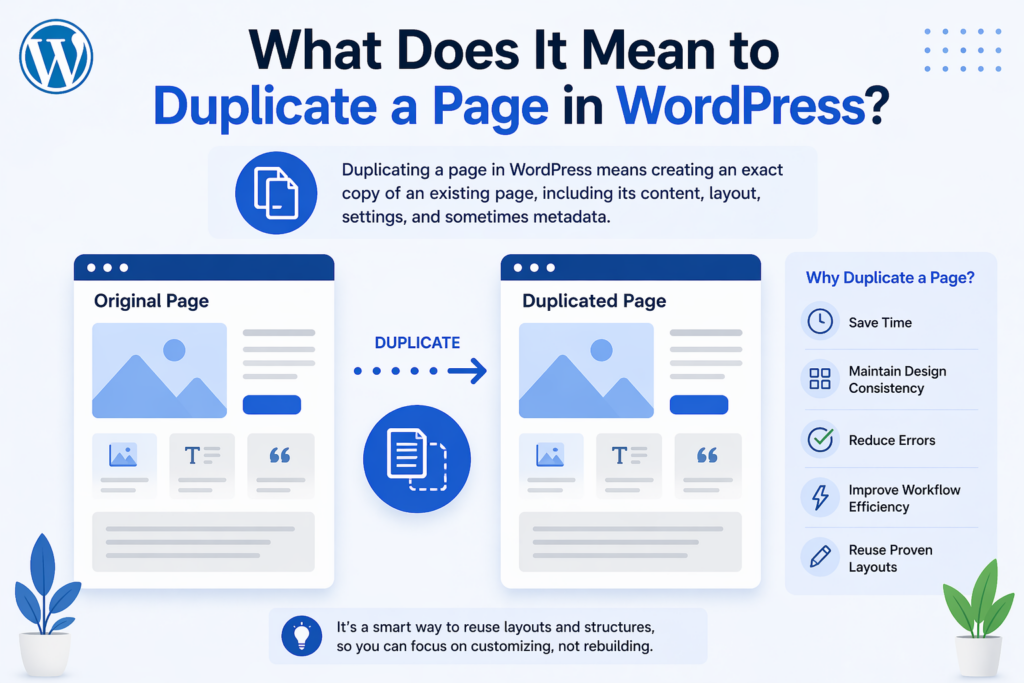
Duplicating a page in WordPress means creating an exact copy of an existing page, including its content, layout, settings, and sometimes metadata. Instead of building a page from scratch, you clone an existing one and modify it as needed.
This process is widely used for:
- Creating multiple landing pages with similar structures
- Reusing design templates for services or products
- Maintaining visual consistency across pages
- Speeding up content production workflows
Understanding how to duplicate a page in WordPress can significantly improve productivity, especially when managing large websites.
Why You Should Duplicate Pages Instead of Rebuilding Them
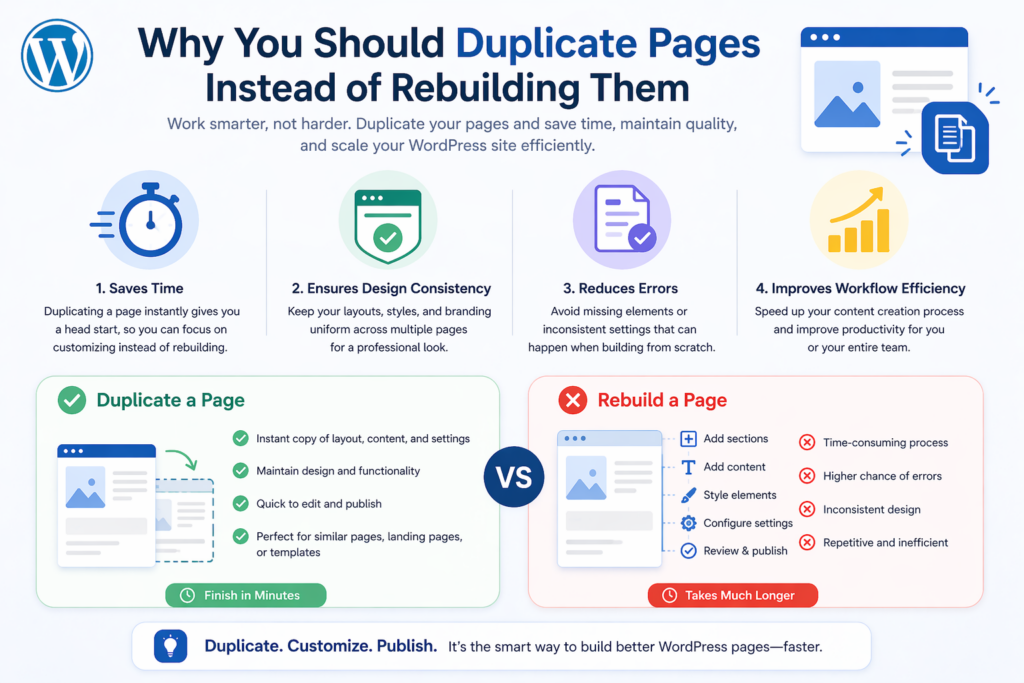
Before diving into the methods, it’s important to understand the advantages of duplicating pages.
1. Saves Time
Rebuilding a page from scratch requires adding sections, styling elements, and formatting content again. Duplication eliminates this repetitive work.
2. Ensures Design Consistency
When you duplicate a page, you maintain consistent layouts, typography, and spacing—critical for brand identity and user experience.
3. Reduces Errors
Manually recreating pages increases the risk of inconsistencies or mistakes. Duplicating ensures everything stays aligned with the original design.
4. Improves Workflow Efficiency
For agencies, marketers, or content teams, duplicating pages speeds up production and allows faster iteration.
Method 1: Duplicate a Page Using a WordPress Plugin
The easiest and most popular way to duplicate a page in WordPress is by using a plugin. This method requires no coding and works for beginners.
Step 1: Install a Duplication Plugin
Go to your WordPress dashboard:
- Navigate to Plugins > Add New
- Search for plugins like:
- Duplicate Post
- Yoast Duplicate Post
- Duplicate Page
- Нажмите Install Now, then Activate
Step 2: Duplicate the Page
After activation:
- Go to Pages > All Pages
- Hover over the page you want to duplicate
- Click Clone or Duplicate
A copy will instantly appear in your page list.
Step 3: Edit the Duplicated Page
- Open the cloned page
- Update content, images, or SEO settings
- Change the title and URL slug
- Publish when ready
Advantages of Using Plugins
- Fast and beginner-friendly
- No technical knowledge required
- Preserves layouts and settings
Ограничения
- Adds extra plugins to your site
- May not copy all custom fields depending on configuration
Method 2: Duplicate a Page Manually (Without Plugins)
If you prefer not to install plugins, you can duplicate a page manually. This method works well for users who want more control.
Step 1: Copy Page Content
- Open the page you want to duplicate
- Switch to the editor (Block Editor or Classic Editor)
- Copy all content
Step 2: Create a New Page
- Перейти к Pages > Add New
- Paste the copied content into the editor
Step 3: Adjust Settings
- Update page title
- Modify permalink (URL)
- Add featured image if needed
- Configure SEO settings
When to Use This Method
- You want to avoid plugins
- You only need to duplicate content (not full settings)
- You prefer manual control
Ограничения
- Time-consuming
- Does not copy advanced settings or metadata automatically
Method 3: Duplicate a Page Using the Block Editor (Gutenberg)
The WordPress Block Editor offers built-in ways to reuse content.
Option 1: Copy All Blocks
- Open the page
- Нажмите на меню с тремя точками.
- Выбирать Copy all blocks
- Вставить на новую страницу
Option 2: Use Reusable Blocks
Reusable blocks allow you to save sections and reuse them across pages.
Шаги:
- Select a block or group
- Нажмите Add to Reusable Blocks
- Insert it into another page
Это полезно для:
- Разделы с призывами к действию
- Testimonials
- Repeating design components
Method 4: Duplicate Pages Using Page Builders
If you use a page builder like Elementor, WPBakery, or Divi, duplicating pages becomes even easier.
Elementor Example
- Open the page with Elementor
- Click the arrow next to the update button
- Save as template
- Create a new page
- Insert the saved template
Benefits of Page Builders
- Retains full design structure
- Easy drag-and-drop editing
- Perfect for complex layouts
Important Things to Check After Duplicating a Page
Duplicating a page is only part of the process. To avoid SEO and usability issues, always review the following:
1. Update the Page Title and URL
Ensure each page has a unique title and slug to avoid duplicate content issues.
2. Edit Metadata
Update SEO titles and descriptions to match the new content.
3. Replace Internal Links
Check links that may still point to the original page.
4. Update Images and Content
Make sure all visuals and text reflect the new purpose of the page.
5. Check Mobile Responsiveness
Duplicated pages may need adjustments for different devices.
Common Use Cases for Page Duplication
Understanding when to duplicate pages helps maximize its benefits.
1. Landing Pages
Create multiple variations for A/B testing.
2. Product Pages
Reuse layouts for similar products.
3. Service Pages
Maintain consistent formatting across services.
4. Blog Templates
Standardize blog structures for readability.
Best Practices for Duplicating Pages in WordPress
To make the most of page duplication, follow these best practices:
Keep Your Site Organized
Use clear naming conventions to avoid confusion between original and duplicated pages.
Avoid Duplicate Content Issues
Search engines may penalize identical content. Always customize duplicated pages.
Use Templates When Possible
Instead of duplicating entire pages repeatedly, consider building reusable templates.
Limit Plugin Usage
Only install necessary plugins to keep your site fast and secure.
Troubleshooting Common Issues
Even though duplicating a page is simple, you may encounter some issues.
Page Not Duplicating Properly
- Check plugin compatibility
- Clear cache
- Update WordPress
Missing Styles or Layout Issues
- Ensure theme and builder settings are applied
- Reapply styles if needed
Duplicate Content Problems
- Always rewrite content
- Use canonical tags if necessary
Advanced Tip: Using Custom Post Types
If your site uses custom post types (CPT), duplication works similarly but may require plugin support. Some duplication plugins allow copying CPTs along with custom fields.
This is especially useful for:
- Portfolio items
- Product listings
- Примеры из практики
Заключение
Learning how to duplicate a page in WordPress is a simple yet powerful skill that can significantly improve your workflow. Whether you use plugins, manual methods, the block editor, or page builders, each approach offers unique advantages depending on your needs.
For beginners, plugins provide the fastest and easiest solution. For advanced users, manual duplication and templates offer greater control and flexibility. Regardless of the method you choose, always ensure that duplicated pages are properly customized to avoid SEO issues and maintain a high-quality user experience.
By mastering page duplication, you can streamline content creation, maintain design consistency, and build websites more efficiently without unnecessary repetition.
Часто задаваемые вопросы
You can duplicate a page manually by copying all the content from the original page and pasting it into a new page. However, this method does not copy design settings or metadata, so additional adjustments may be needed.
The easiest way is to use a plugin like “Duplicate Page” or “Yoast Duplicate Post.” These tools allow you to clone a page with one click, including its layout and settings.
Duplicating a page can affect SEO if the content remains identical. To avoid issues, you should update the title, meta description, and content to ensure each page is unique.
Yes, Elementor allows you to duplicate pages by saving them as templates or using the built-in duplicate feature. This keeps your design and layout intact.
Yes, when using plugins or page builders, duplicated pages usually retain the same design, layout, and formatting as the original page.
Duplicating a page saves time, maintains design consistency, reduces errors, and improves workflow efficiency, especially when creating similar pages repeatedly.


Спроектируем и создадим для вас WordPress-сайт или корпоративный сайт с полной системой электронной коммерции.
Ценовой диапазон: от $200.00 до $2,500.00custom-requirements-or-special-quotations
Первоначальная цена составляла: $2.00.$1.00Текущая цена: $1.00. Не слишком ли много 50 плагинов для интернет-магазина на WordPress?
Понимание реального влияния на производительность Наличие 50 плагинов на сайте электронной коммерции WordPress не является автоматической проблемой. На самом деле, само по себе их количество редко определяет производительность.....

Дизайн главного изображения для домашнего физиотерапевтического устройства Amazon: пояснения.
Введение: Создание достоверного изображения для домашних терапевтических приборов на Amazon При разработке главного изображения для домашнего терапевтического прибора на Amazon мы в первую очередь...

Дизайн основного изображения для конвертации помады на Amazon.
Введение: Разработка главного образа помады, которая продается на Amazon Когда мы разрабатываем главный образ для помады Amazon, наша ответственность выходит далеко за рамки...

Как хакеры крадут электронные письма администраторов WordPress (и как им это предотвратить)
Начнем с неприятной истины: ваша электронная почта администратора WordPress, вероятно, гораздо более публична, чем вы думаете. А хакеры? Им это нравится. Для них ваш...

Что делает основное изображение жидкой тональной основы Amazon конвертируемым?
Введение. Разработка дизайна основного изображения для жидкой тональной основы на Amazon — это не просто создание красивого внешнего вида продукта. На Amazon основное изображение и...

Разработка эффективного основного изображения Amazon для фильтрующих картриджей
Введение. Разработка основного изображения для Amazon — это не просто создание привлекательного внешнего вида товара. Речь идёт о ясности, доверии и мгновенном понимании, особенно для...

Повторные атаки на WordPress: реальная угроза или преувеличенный миф?
Давайте сначала кое-что проясним. Атаки повторного воспроизведения не выглядят страшно. Они не взламывают пароли. Они не внедряют вредоносный код с зелёным хакерским текстом, разлетающимся повсюду. Они действуют коварно...

Как скопировать страницы WordPress, ничего не сломав
Давайте посмотрим правде в глаза. Иногда вам не хочется создавать новую страницу. Вам нужна та же самая страница… но немного другая. Тот же макет. Те же блоки. Те же настройки. Потому что….

Сравнение пяти тем WordPress для сайтов о домашних животных
Введение. Выбор подходящей темы WordPress для сайтов, посвященных домашним животным, — это не просто решение, связанное с дизайном; оно напрямую влияет на удобство использования, масштабируемость и долгосрочный рост бизнеса. Уход за домашними животными и...

Сравнение пяти тем оформления для интернет-магазинов купальников
Введение. Выбор правильной тематики для независимого магазина купальников или нижнего белья — это не просто визуальное решение, оно напрямую влияет на коэффициент конверсии, масштабируемость и долгосрочную перспективу...

Как отключить комментарии в WordPress (не сойдя с ума)
Давайте поговорим о комментариях в WordPress. В теории комментарии — это здорово. Они стимулируют дискуссии. Они создают сообщество. Они делают ваш сайт “живым”. А на практике? Зачастую они притягивают...

Ошибка WordPress 500: когда ваш сайт начинает паниковать
Ваш сайт WordPress ещё минуту назад работал нормально. Вы обновили страницу. И вдруг — бац 💥 — ошибка 500 Internal Server Error. Никаких объяснений. Никаких извинений. Просто холодное, непонятное сообщение, которое, по сути...

Создание масштабируемого веб-сайта на WordPress для научно-ориентированного бренда: проект AminoUSA
Введение. В современном цифровом пространстве веб-сайт — это больше, чем просто место для размещения информации о товарах. Для научно-ориентированных брендов, работающих в регулируемых или научно-исследовательских отраслях, это….

Создание масштабируемого магазина Shopify для глобального бренда ножей: проект CoolKatana
Введение. В трансграничной электронной коммерции веб-сайт Shopify — это больше, чем просто витрина магазина. Для брендов, работающих в нишевых, ориентированных на культуру категориях, веб-сайт должен делать гораздо больше, чем...

Разработка высокоэффективного магазина Shopify для карточек Pokémon.
Введение. В мире электронной коммерции коллекционных товаров, особенно на рынке коллекционных карточных игр Pokémon, веб-сайт должен делать больше, чем просто перечислять товары...

Высокоэффективный дизайн Shopify для индивидуального бренда стационарной торговой точки.
Введение. В условиях современной конкурентной среды электронной коммерции, особенно в сегменте персонализированных подарков и коллекционных товаров, веб-сайт на платформе Shopify должен делать гораздо больше, чем просто отображать товары. Он...

Как связаться со службой поддержки Shopify: простое и понятное руководство
Управление магазином Shopify должно приносить удовольствие, а не путаницу. Когда возникают вопросы или проблемы замедляют вашу работу, Shopify предлагает несколько вариантов поддержки в зависимости от ситуации...

Как деактивировать магазин Shopify: понятное и практичное руководство
Деактивация магазина Shopify — несложная процедура, но она влечет за собой последствия, которые многие продавцы упускают из виду. В этом руководстве процесс описан простым и понятным языком...