












If you’ve ever opened your 워드프레스 website and been greeted by a message saying “There has been a critical error on this website”, you’re not alone.
The WordPress critical error is one of the most confusing and stressful problems site owners face—especially for non-technical users, business owners, or cross-border sellers who rely on their website for traffic and revenue.
This article explains the WordPress critical error in plain English.
We’ll cover what it is, why it happens, how to fix it safely, and—most importantly—how to prevent it from happening again.
No unnecessary jargon. Just clear explanations and practical guidance.
워드프레스에서 심각한 오류란 무엇인가요?
A WordPress critical error occurs when WordPress encounters a fatal PHP error that prevents the website from loading properly.
Instead of displaying broken layouts or partial content, WordPress stops execution entirely to avoid further damage. That’s why visitors may see:
- A white screen
- A generic “critical error” message
- Or no visible content at all
Since WordPress 5.2, the platform includes a built-in fatal error protection system, which replaces the old “white screen of death” with a clearer message and sometimes an admin recovery email.
워드프레스에서 "심각한 오류" 메시지가 표시되는 이유는 무엇인가요?
At its core, WordPress is powered by PHP.
When PHP code fails in a way that WordPress cannot safely recover from, a critical error is triggered.
These errors typically come from customizations, plugins, or themes, not WordPress core itself.
워드프레스에서 발생하는 가장 흔한 심각한 오류의 원인
Let’s break down the most frequent reasons this issue appears.
1. Plugin Conflicts or Bugs
Plugins are the #1 cause of WordPress critical errors.
This often happens when:
- A plugin update introduces incompatible code
- 두 개의 플러그인이 서로 충돌합니다.
- A plugin is not compatible with your PHP version
- A plugin uses deprecated WordPress functions
Page builders, performance plugins, security plugins, and e-commerce extensions are especially common triggers.
2. Theme Issues and Theme Updates
Themes can also cause fatal errors, especially when:
- A theme update removes or changes required functions
- Custom code is added incorrectly to
functions.php - A child theme is missing dependencies
If your site crashes right after changing or updating a theme, this is a strong signal.
3. PHP 버전 불일치
Your hosting server runs a specific PHP version.
If:
- PHP is updated automatically by the host
- Your plugins or theme don’t support the new version
WordPress may fail instantly.
Many older plugins still rely on outdated PHP syntax, which modern PHP versions reject.
4. 메모리 한계 소진
WordPress requires memory to run scripts.
A critical error may occur if:
- Too many plugins load at once
- A heavy page builder runs complex layouts
- WooCommerce processes large queries
When PHP memory is exhausted, execution stops.
5. Corrupted Core Files or Incomplete Updates
Interrupted updates can leave WordPress in an unstable state.
This can happen due to:
- Server timeouts
- Connection drops
- Insufficient file permissions
As a result, essential core files may be missing or corrupted.
6. Incorrect Custom Code
Adding code manually—whether in a theme file, custom plugin, or snippet manager—can easily cause fatal errors if syntax is incorrect.
Even a missing semicolon can break the entire site.
How WordPress Helps You Recover from Critical Errors
Modern WordPress includes a recovery mode.
When a critical error occurs:
- WordPress sends an email to the site admin
- The email includes a secure recovery link
- This link allows you to log in and disable the problematic plugin or theme
This feature has made troubleshooting significantly easier compared to older versions.
단계별 가이드: 워드프레스 심각한 오류 해결 방법
Here’s a safe, structured approach.
1단계: 복구 이메일을 확인하세요
Always start by checking your admin email inbox.
If WordPress detected the issue, it will tell you:
- Which plugin or theme caused the error
- How to access recovery mode
This is often the fastest fix.
Step 2: Disable All Plugins (If Needed)
If you can’t access wp-admin:
- Log in to your hosting file manager or FTP
- Navigate to
/wp-content/ - 이름을 바꾸세요
플러그인folder (e.g.,플러그인_구형)
이렇게 하면 모든 플러그인이 한 번에 비활성화됩니다.
If the site loads, the issue is plugin-related.
Step 3: Reactivate Plugins One by One
폴더 이름을 원래대로 변경하세요 플러그인, then:
- Activate plugins individually
- Refresh the site after each activation
When the error returns, you’ve found the culprit.
4단계: 기본 테마로 전환
If plugins aren’t the issue:
- 활성화된 테마 폴더의 이름을 변경하세요
- WordPress는 자동으로 기본 테마로 되돌아갑니다.
If the site works again, the theme is responsible.
Step 5: Check PHP Version Compatibility
Inside your hosting panel:
- Try switching to a different PHP version
- Test commonly supported versions like PHP 8.0 or 7.4
Many WordPress environments stabilize immediately after this change.
Step 6: Increase PHP Memory Limit
Low memory is a silent killer.
편집을 통해 메모리 용량을 늘릴 수 있습니다. wp-config.php:
define('WP_MEMORY_LIMIT', '256M');
This helps with complex sites and page builders.
Step 7: Enable Debug Mode for Deeper Insight
For persistent issues, enable debugging:
define(‘WP_DEBUG’, true);
define(‘WP_DEBUG_LOG’, true);
define(‘WP_DEBUG_DISPLAY’, false);
Then review the error logs to identify exact causes.
How to Prevent WordPress Critical Errors Long-Term
Fixing the issue is one thing. Preventing it is what really matters.
1. Use Quality Plugins Only
피하다:
- 버려진 플러그인
- Poorly reviewed tools
- Plugins updated years ago
Stick to actively maintained, well-supported plugins.
2. Always Test Updates
Never update directly on a live business website.
사용:
- Staging environments
- Backup snapshots
This is especially important for cross-border e-commerce sites.
3. Keep PHP, WordPress, and Plugins Aligned
Compatibility matters more than “latest version”.
A stable setup beats a bleeding-edge one.
4. Avoid Random Code Snippets
Copy-pasting code from forums without understanding it is risky.
One bad snippet can cause a full site outage.
5. Choose Professional Hosting
Cheap hosting often lacks:
- Proper PHP controls
- Error logging
- Rollback tools
Reliable infrastructure dramatically reduces fatal errors.
Why WordPress Critical Errors Are Especially Dangerous for Cross-Border Businesses
For international sellers, a broken website doesn’t just mean downtime.
It can mean:
- Lost ad traffic
- Broken payment flows
- SEO ranking drops
- Damaged brand trust
That’s why technical stability and structured design are not optional—they’re business foundations.
Final Thoughts: Don’t Just Fix Errors—Build Stable Systems
A WordPress critical error is rarely “random”.
It’s usually a sign of:
- Poor plugin architecture
- Unplanned updates
- Lack of technical oversight
With the right structure, most critical errors are completely avoidable.
AIRSANG 소개
에서 AIRSANG, we specialize in cross-border websites built for stability, scalability, and long-term growth.
From 워드프레스 site architecture and performance optimization
to e-commerce design and international business workflows,
we help brands avoid problems like WordPress critical errors before they happen.
If your website is critical to your business—and especially if you operate globally—
AIRSANG is here to help you build it right from the start.


완전한 전자상거래 시스템을 갖춘 워드프레스 웹사이트 또는 기업 사이트를 디자인하고 구축하세요.
가격 범위: $200.00~$2,500.00사용자 지정 요구 사항 또는 특별 견적
원래 가격: $2.00.$1.00현재 가격: $1.00. 워드프레스 전자상거래 쇼핑몰에 플러그인 50개는 너무 많은 걸까요?
실제 성능에 미치는 영향 이해하기 워드프레스 전자상거래 사이트에 50개의 플러그인이 있다고 해서 자동으로 문제가 되는 것은 아닙니다. 사실 그 숫자만으로 성능이 결정되는 경우는 거의 없습니다....

아마존 립스틱 전환을 위한 메인 이미지 디자인
소개: 소개: 아마존에서 판매되는 립스틱 메인 이미지 디자인하기 아마존 립스틱의 메인 이미지를 디자인할 때 우리의 책임은 그 이상입니다.

해커들이 워드프레스 관리자 이메일을 훔치는 방법(그리고 이를 막는 방법)
불편한 진실부터 말씀드리자면, 워드프레스 관리자 이메일은 생각보다 훨씬 더 많이 공개되어 있습니다. 그들은 그것을 좋아합니다. 해커에게 여러분의...

아마존 리퀴드 파운데이션 메인 이미지 변환의 특징은 무엇일까요?
서론 아마존 리퀴드 파운데이션의 메인 이미지 디자인은 단순히 제품을 아름답게 보이게 하는 것만이 아닙니다. 아마존에서 메인 이미지와...

필터 카트리지 제품을 위한 효과적인 아마존 메인 이미지 디자인하기
서론 아마존 메인 이미지 디자인은 단순히 제품을 매력적으로 보이게 하는 것만이 아닙니다. 명확성, 신뢰, 그리고 즉각적인 이해를 제공하는 것이 중요합니다. 특히...

워드프레스에 대한 리플레이 공격: 실제 위협인가, 과장된 신화인가?
먼저 한 가지를 분명히 해두죠. 리플레이 공격은 겉보기에 무섭지 않습니다. 비밀번호를 날려버리지도 않고, 초록색 해커 텍스트가 사방에 흩날리는 악성 코드를 주입하지도 않습니다. 그저 교묘하게 이루어질 뿐입니다.

WordPress 페이지를 손상 없이 복제하는 방법
솔직히 말해봅시다. 때로는 새 페이지를 만들고 싶지 않을 때가 있죠. 그냥 기존 페이지를 약간만 다르게 하고 싶을 때가 있어요. 레이아웃도, 블록도, 설정도 그대로요. 왜냐하면...

반려동물 관련 워드프레스 테마 5가지 비교
서론 반려동물 관련 워드프레스 테마를 선택하는 것은 단순한 디자인 결정 이상의 의미를 지닙니다. 사용성, 확장성, 그리고 장기적인 비즈니스 성장에 직접적인 영향을 미치기 때문입니다. 반려동물 관리 및 관련...

수영복 온라인 쇼핑몰 테마 5가지 비교
서론 수영복이나 란제리 독립 매장에 적합한 테마를 선택하는 것은 단순히 시각적인 결정에 그치는 것이 아니라, 전환율, 확장성, 그리고 장기적인 성공에 직접적인 영향을 미칩니다.

워드프레스에서 댓글 기능을 끄는 방법 (정신줄 놓지 않고)
워드프레스 댓글에 대해 이야기해 봅시다. 이론적으로 댓글은 훌륭합니다. 토론을 장려하고, 커뮤니티를 형성하며, 웹사이트에 생동감을 불어넣습니다. 하지만 현실은 어떨까요? 댓글은 종종 문제를 야기하기도 합니다...

워드프레스 500 오류: 웹사이트가 갑자기 오류를 일으킬 때
방금 전까지만 해도 워드프레스 사이트는 아무 문제 없었는데, 페이지를 새로고침하자마자 갑자기 💥 500 내부 서버 오류가 발생했습니다. 아무런 설명도, 사과도 없이 그저 차갑고 혼란스러운 메시지만 남았습니다.

Shopify 고객 지원팀에 문의하는 방법: 간단하고 스트레스 없는 가이드
쇼피파이 스토어 운영은 흥미진진해야지 혼란스러워서는 안 됩니다. 궁금한 점이 생기거나 문제가 발생하여 진행이 늦어질 때, 쇼피파이는 상황에 따라 다양한 지원 경로를 제공합니다.

쇼피파이 스토어 비활성화 방법: 명확하고 실용적인 가이드
쇼피파이 스토어를 비활성화하는 것은 복잡하지 않지만, 많은 판매자가 간과하는 몇 가지 결과가 따릅니다. 이 가이드에서는 비활성화 과정을 간단하고 유익하게 설명합니다.
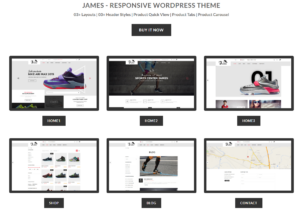
신발 매장 테마 5가지 비교
서론: 신발 전문 독립 매장에 적합한 테마를 선택하는 것은 단순히 시각적인 결정에 그치는 것이 아니라, 매장 확장성, 일상적인 운영, 그리고 장기적인 전환율에 직접적인 영향을 미칩니다.

쇼피파이 vs. 에tsy: 궁극의 온라인 판매 대결
서론: 두 플랫폼이 술집에 들어갔다… 쇼피파이와 에츠이를 사람에 비유하자면, 에츠이는 이미 어느 행사장에 부스를 차려놓은 매력적인 친구와 같을 것이다….
Shopify 또는 WordPress 사이트가 해킹당했나요? 해결 방법은 다음과 같습니다.
서론: 깨진 창문을 마주한 것과 같은 디지털 세상 상상해 보세요. 아침에 일어나 커피를 마시고 노트북을 켰는데… 웹사이트가 깨져 있는 모습을 발견하는 겁니다….
정신줄 놓지 않고 쇼피파이 스토어 시작하는 방법
쇼피파이 스토어를 시작하는 건 꽤 멋진 일처럼 들립니다. 점심에 커피를 마시며 판매 알림을 확인하고, 친구들에게 "내 스토어가 꽤 잘 됐어..."라고 태연하게 말하는 모습을 상상하게 되죠.

쇼피파이는 믿을 만한 플랫폼일까요? 온라인 판매 초보자를 위한 명확한 가이드
전자상거래 플랫폼을 알아보고 있다면, 구글에 아주 구체적인 질문 하나를 입력해 봤을 가능성이 높습니다. 바로 "쇼피파이는 믿을 만한 플랫폼일까?"라는 질문이죠. 이 질문은 지극히 당연합니다. 온라인 쇼핑몰을 시작하려면...