












소개
In modern digital business systems, companies rarely rely on a single platform to manage customers and content. Instead, they combine powerful CRM tools with flexible website platforms. One of the most common combinations is integrating Salesforce with WordPress.
A frequent question businesses ask is how to display from Salesforce to 워드프레스 in a way that is dynamic, secure, and easy to maintain. This means not just connecting the two systems, but actually showing real Salesforce data—such as leads, contacts, opportunities, or custom objects—directly on a WordPress website.
This guide breaks down the entire process in a simple, educational way. You will learn what this integration means, why it matters, and how to implement it using different methods ranging from plugins to APIs.
Understanding Salesforce and WordPress Integration
Before learning how to display from Salesforce to WordPress, it is important to understand how these two systems function.
Salesforce is a cloud-based customer relationship management system. It stores customer data, tracks sales pipelines, manages marketing automation, and provides analytics.
WordPress is a content management system used to build websites, blogs, and eCommerce platforms. It is highly flexible and supports plugins, themes, and custom development.
When integrated, Salesforce becomes the “data brain,” while WordPress becomes the “front-end display layer.” This allows businesses to show real-time CRM data directly on their website.
Why Display Salesforce Data on WordPress?
Displaying Salesforce data on WordPress is not just a technical feature—it is a business strategy. Here are the main reasons companies implement it:
1. Real-Time Customer Data Visibility
Businesses can show updated customer information, product interest data, or service status directly on their website without manual updates.
2. Improved Lead Generation
When Salesforce data is displayed on landing pages, users can see dynamic offers or personalized content based on CRM segments.
3. Better User Experience
Instead of static pages, visitors interact with live data, which increases engagement and trust.
4. Centralized Data Management
Sales teams continue working in Salesforce while marketing teams use WordPress for presentation—no duplicate data entry required.
5. Automation Efficiency
Once configured, updates in Salesforce automatically reflect on WordPress pages, reducing operational workload.
Common Use Cases for Displaying Salesforce Data
Understanding how to display from Salesforce to WordPress becomes easier when you look at real-world examples:
- Displaying customer dashboards on membership websites
- Showing lead status updates for sales portals
- Embedding product availability or inventory data
- Creating personalized user dashboards
- Displaying event registrations or booking data
- Showing testimonials stored in CRM records
These use cases demonstrate how flexible the integration can be.
Methods to Display Salesforce Data in WordPress
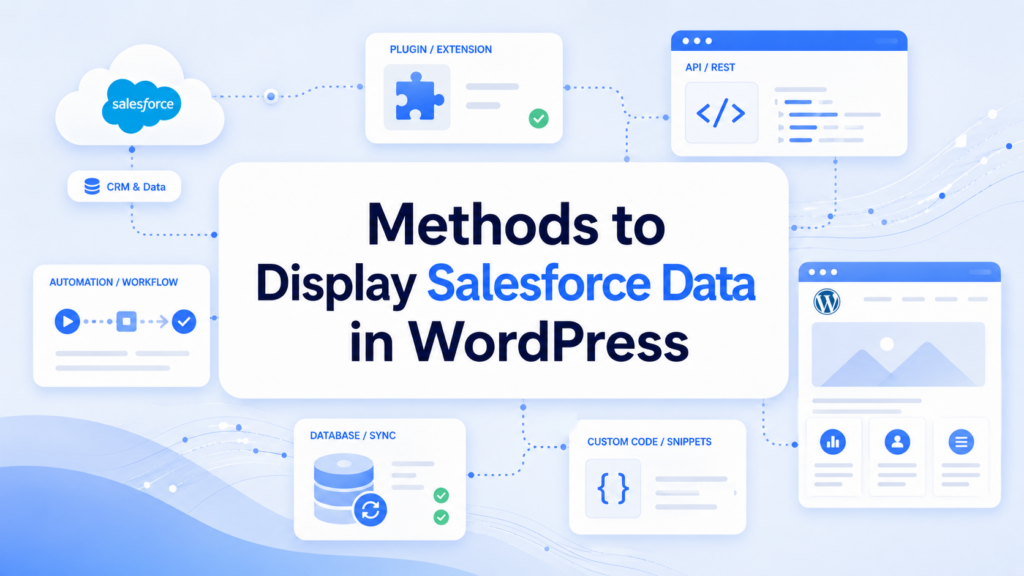
There are several approaches to achieve integration between Salesforce and WordPress. The best method depends on your technical skill level and business requirements.
Method 1: Using WordPress Salesforce Plugins
One of the easiest ways is using pre-built plugins.
Popular plugins allow you to:
- Connect Salesforce via API credentials
- Sync leads and contacts automatically
- Display CRM data using shortcodes
- Embed forms connected to Salesforce
Advantages:
- Easy setup
- 코딩이 필요하지 않습니다.
- Faster deployment
제한 사항:
- 제한된 맞춤 설정
- May require premium plans for advanced features
This method is ideal for beginners or small businesses.
Method 2: Using Salesforce REST API
For full control over how to display from Salesforce to WordPress, developers often use the Salesforce REST API.
This method allows WordPress to directly request data from Salesforce and display it dynamically.
작동 방식:
- Authenticate with Salesforce using OAuth
- Send API requests from WordPress
- Retrieve data in JSON format
- Render data on WordPress pages using PHP or JavaScript
Example data types you can display:
- Accounts
- Leads
- Opportunities
- Custom objects
Advantages:
- 매우 유연함
- Real-time data access
- Full customization
제한 사항:
- Requires development skills
- Needs secure authentication handling
This is the most powerful method for enterprise-level integration.
Method 3: Using Middleware Tools (No-Code Integration)
Another popular option is using automation platforms such as Zapier, Make, or similar tools.
These platforms act as a bridge between Salesforce and WordPress.
작동 방식:
- Salesforce triggers an event (new lead, updated record, etc.)
- Middleware sends data to WordPress
- WordPress displays updated content via API or database update
Advantages:
- 코딩이 필요하지 않습니다.
- Easy workflow automation
- 빠른 설정
제한 사항:
- Monthly cost
- Limited customization for complex data structures
This method is best for marketing teams or small businesses needing automation without development.
Method 4: Embedding Salesforce Components
Salesforce also allows embedded components like dashboards or forms.
다음과 같은 일을 할 수 있습니다:
- Embed lead capture forms into WordPress pages
- Display reports using iframe or Lightning components
- Show customer portals hosted by Salesforce inside WordPress
Advantages:
- Fast implementation
- Official Salesforce support
- Secure display layer
제한 사항:
- Less control over styling
- Dependent on Salesforce UI structure
Step-by-Step Guide: How to Display Salesforce Data in WordPress
Now let’s break down a practical workflow for how to display from Salesforce to WordPress using a standard API approach.
Step 1: Prepare Salesforce API Access
Inside Salesforce:
- Create a connected app
- Enable OAuth authentication
- Get Client ID and Client Secret
- Set callback URL for WordPress
This allows WordPress to securely access CRM data.
Step 2: Configure WordPress Environment
Inside WordPress:
- Install a custom plugin or use functions.php
- Enable HTTPS for secure API calls
- Set up environment variables for credentials
Security is critical at this stage.
Step 3: Connect to Salesforce API
Use WordPress HTTP functions or cURL:
- Authenticate using OAuth token
- Store token securely
- Set refresh token logic
This ensures continuous access to Salesforce data.
Step 4: Fetch Data from Salesforce
Request specific objects such as:
- /services/data/vXX.X/sobjects/Lead
- /Account
- /Opportunity
The response will be in JSON format.
Step 5: Display Data on WordPress Pages
Once data is received:
- Use PHP loops or JavaScript rendering
- Map Salesforce fields to WordPress UI elements
- Display data in tables, cards, or dashboards
This is the core of how to display from Salesforce to WordPress effectively.
Step 6: Style and Optimize Output
Make sure displayed data:
- Matches your WordPress theme
- Is responsive for mobile users
- Loads quickly with caching techniques
Best Practices for Salesforce to WordPress Integration
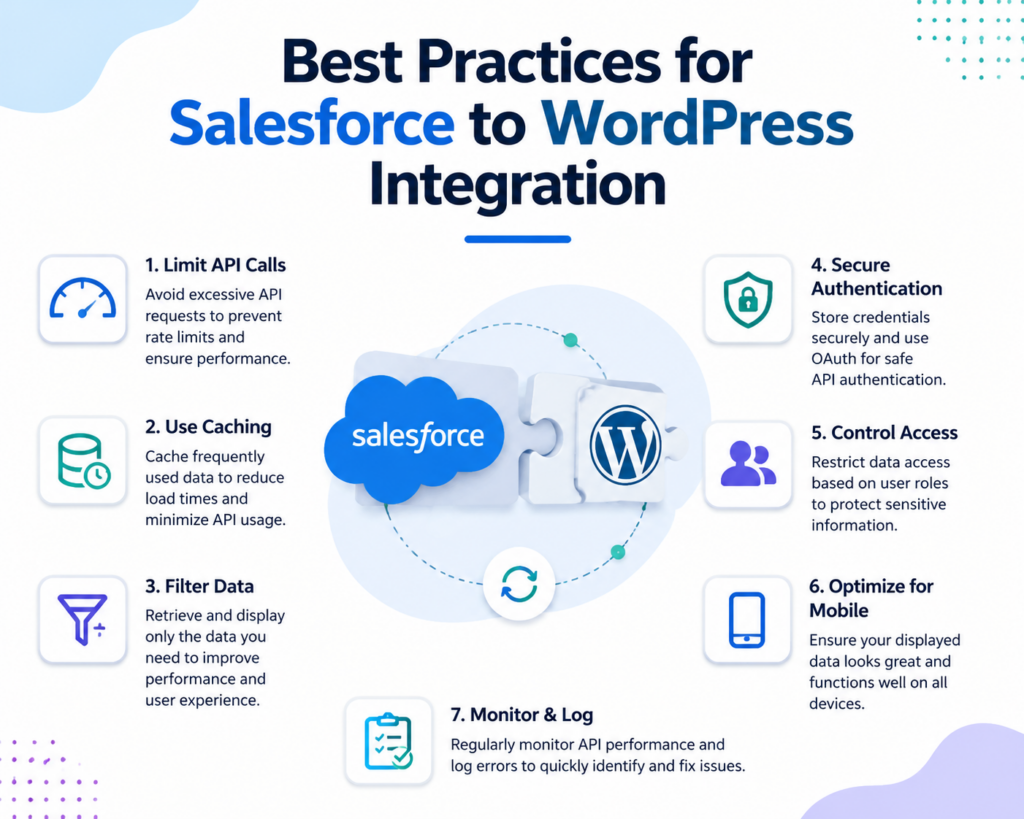
To ensure stable performance, follow these best practices:
1. Limit API Calls
Avoid excessive requests to Salesforce to prevent rate limits.
2. Use Caching
Store frequently used data temporarily in WordPress to reduce API load.
3. Secure Authentication
Never expose Salesforce credentials in frontend code.
4. Filter Data Before Display
Only display necessary CRM fields to improve performance.
5. Optimize for Mobile
Ensure CRM data tables are responsive.
Common Problems and Solutions
Problem 1: Slow Data Loading
Solution: Use caching or scheduled sync instead of real-time calls.
Problem 2: Authentication Errors
Solution: Check OAuth tokens and refresh settings.
Problem 3: Data Not Displaying
Solution: Verify API endpoint permissions in Salesforce.
Problem 4: WordPress Compatibility Issues
Solution: Ensure plugin compatibility and PHP version updates.
Security Considerations
When working with CRM data inside WordPress, security is critical:
- Always use HTTPS
- Encrypt API credentials
- Restrict user access roles
- Validate all incoming data
- Avoid exposing sensitive CRM fields publicly
This ensures customer data remains protected while still being useful on your website.
Choosing the Right Method
If your goal is simple display, plugins or embedding tools are enough. If you need advanced control over how to display from Salesforce to WordPress, API-based integration is the best option.
Here is a quick breakdown:
- Beginners → Plugins
- Marketers → Automation tools
- Developers → REST API integration
- Enterprises → Custom hybrid systems
결론
Displaying Salesforce data inside 워드프레스 bridges the gap between CRM intelligence and website presentation. By understanding different integration methods—plugins, APIs, automation tools, and embedded components—you can choose the best approach for your business needs. Whether your goal is lead generation, customer dashboards, or real-time data display, learning how to display from Salesforce to WordPress helps you build a more dynamic and data-driven website experience.
자주 묻는 질문
1. How do I display Salesforce data in WordPress?
You can display Salesforce data in WordPress using plugins, REST API integration, or automation tools like Zapier. The best method depends on whether you need simple setup or full customization.
2. Do I need coding skills to connect Salesforce with WordPress?
No. You can use no-code plugins or automation platforms. However, if you want advanced real-time data display, API integration requires basic development knowledge.
3. What types of Salesforce data can be shown in WordPress?
You can display leads, contacts, accounts, opportunities, custom objects, and even dashboard-style reports depending on your integration method.
4. Is Salesforce to WordPress integration real-time?
Yes, it can be real-time if you use API-based integration. Plugin or cached methods may have slight delays depending on sync settings.
5. Is it safe to connect Salesforce with WordPress?
Yes, as long as you use secure authentication (OAuth), HTTPS, and proper access control. Never expose API keys on the frontend.
6. What is the easiest method for beginners?
The easiest method is using a WordPress Salesforce plugin or automation tools like Zapier, which require minimal technical setup.


완전한 전자상거래 시스템을 갖춘 워드프레스 웹사이트 또는 기업 사이트를 디자인하고 구축하세요.
가격 범위: $200.00~$2,500.00custom-requirements-or-special-quotations
원래 가격: $2.00.$1.00현재 가격: $1.00. 워드프레스 전자상거래 쇼핑몰에 플러그인 50개는 너무 많은 걸까요?
실제 성능에 미치는 영향 이해하기 워드프레스 전자상거래 사이트에 50개의 플러그인이 있다고 해서 자동으로 문제가 되는 것은 아닙니다. 사실 그 숫자만으로 성능이 결정되는 경우는 거의 없습니다....

아마존 가정용 물리치료 기기 메인 이미지 디자인 설명
소개 소개: 아마존에서 홈 테라피 기기의 신뢰할 수 있는 이미지 구축 아마존에서 홈 테라피 기기의 기본 이미지를 디자인할 때 기본 ...

아마존 립스틱 전환을 위한 메인 이미지 디자인
소개: 소개: 아마존에서 판매되는 립스틱 메인 이미지 디자인하기 아마존 립스틱의 메인 이미지를 디자인할 때 우리의 책임은 그 이상입니다.

해커들이 워드프레스 관리자 이메일을 훔치는 방법(그리고 이를 막는 방법)
불편한 진실부터 말씀드리자면, 워드프레스 관리자 이메일은 생각보다 훨씬 더 많이 공개되어 있습니다. 그들은 그것을 좋아합니다. 해커에게 여러분의...

아마존 리퀴드 파운데이션 메인 이미지 변환의 특징은 무엇일까요?
서론 아마존 리퀴드 파운데이션의 메인 이미지 디자인은 단순히 제품을 아름답게 보이게 하는 것만이 아닙니다. 아마존에서 메인 이미지와...

필터 카트리지 제품을 위한 효과적인 아마존 메인 이미지 디자인하기
서론 아마존 메인 이미지 디자인은 단순히 제품을 매력적으로 보이게 하는 것만이 아닙니다. 명확성, 신뢰, 그리고 즉각적인 이해를 제공하는 것이 중요합니다. 특히...

워드프레스에 대한 리플레이 공격: 실제 위협인가, 과장된 신화인가?
먼저 한 가지를 분명히 해두죠. 리플레이 공격은 겉보기에 무섭지 않습니다. 비밀번호를 날려버리지도 않고, 초록색 해커 텍스트가 사방에 흩날리는 악성 코드를 주입하지도 않습니다. 그저 교묘하게 이루어질 뿐입니다.

WordPress 페이지를 손상 없이 복제하는 방법
솔직히 말해봅시다. 때로는 새 페이지를 만들고 싶지 않을 때가 있죠. 그냥 기존 페이지를 약간만 다르게 하고 싶을 때가 있어요. 레이아웃도, 블록도, 설정도 그대로요. 왜냐하면...

반려동물 관련 워드프레스 테마 5가지 비교
서론 반려동물 관련 워드프레스 테마를 선택하는 것은 단순한 디자인 결정 이상의 의미를 지닙니다. 사용성, 확장성, 그리고 장기적인 비즈니스 성장에 직접적인 영향을 미치기 때문입니다. 반려동물 관리 및 관련...

수영복 온라인 쇼핑몰 테마 5가지 비교
서론 수영복이나 란제리 독립 매장에 적합한 테마를 선택하는 것은 단순히 시각적인 결정에 그치는 것이 아니라, 전환율, 확장성, 그리고 장기적인 성공에 직접적인 영향을 미칩니다.

워드프레스에서 댓글 기능을 끄는 방법 (정신줄 놓지 않고)
워드프레스 댓글에 대해 이야기해 봅시다. 이론적으로 댓글은 훌륭합니다. 토론을 장려하고, 커뮤니티를 형성하며, 웹사이트에 생동감을 불어넣습니다. 하지만 현실은 어떨까요? 댓글은 종종 문제를 야기하기도 합니다...

워드프레스 500 오류: 웹사이트가 갑자기 오류를 일으킬 때
방금 전까지만 해도 워드프레스 사이트는 아무 문제 없었는데, 페이지를 새로고침하자마자 갑자기 💥 500 내부 서버 오류가 발생했습니다. 아무런 설명도, 사과도 없이 그저 차갑고 혼란스러운 메시지만 남았습니다.

과학 중심 브랜드를 위한 확장 가능한 워드프레스 웹사이트 구축: 아미노USA 프로젝트
서론 오늘날의 디지털 환경에서 웹사이트는 단순히 제품을 나열하는 공간 이상의 의미를 지닙니다. 규제 산업이나 연구 중심 산업에서 활동하는 과학 기반 브랜드에게 웹사이트는 더욱 중요한 역할을 합니다.

글로벌 블레이드 브랜드를 위한 확장 가능한 쇼피파이 스토어 구축: 쿨카타나 프로젝트
서론: 국경을 넘나드는 전자상거래에서 Shopify 웹사이트는 단순한 매장 이상의 의미를 지닙니다. 특정 문화권에서 사업을 운영하는 브랜드의 경우, 웹사이트는 단순한 판매 공간을 넘어 훨씬 더 많은 기능을 수행해야 합니다.

포켓몬 카드 판매를 위한 높은 전환율을 자랑하는 쇼피파이 스토어 디자인하기
서론 수집품 전자상거래, 특히 포켓몬 트레이딩 카드 게임(TCG) 시장에서 웹사이트는 단순히 제품 목록을 나열하는 것 이상의 역할을 해야 합니다.

맞춤형 오프라인 브랜드에 최적화된 전환율 높은 쇼피파이 디자인
서론 오늘날 경쟁이 치열한 전자상거래 환경, 특히 맞춤형 선물 및 수집품 분야에서 Shopify 웹사이트는 단순히 제품을 전시하는 것 이상의 역할을 해야 합니다. ...

Shopify 고객 지원팀에 문의하는 방법: 간단하고 스트레스 없는 가이드
쇼피파이 스토어 운영은 흥미진진해야지 혼란스러워서는 안 됩니다. 궁금한 점이 생기거나 문제가 발생하여 진행이 늦어질 때, 쇼피파이는 상황에 따라 다양한 지원 경로를 제공합니다.

쇼피파이 스토어 비활성화 방법: 명확하고 실용적인 가이드
쇼피파이 스토어를 비활성화하는 것은 복잡하지 않지만, 많은 판매자가 간과하는 몇 가지 결과가 따릅니다. 이 가이드에서는 비활성화 과정을 간단하고 유익하게 설명합니다.