









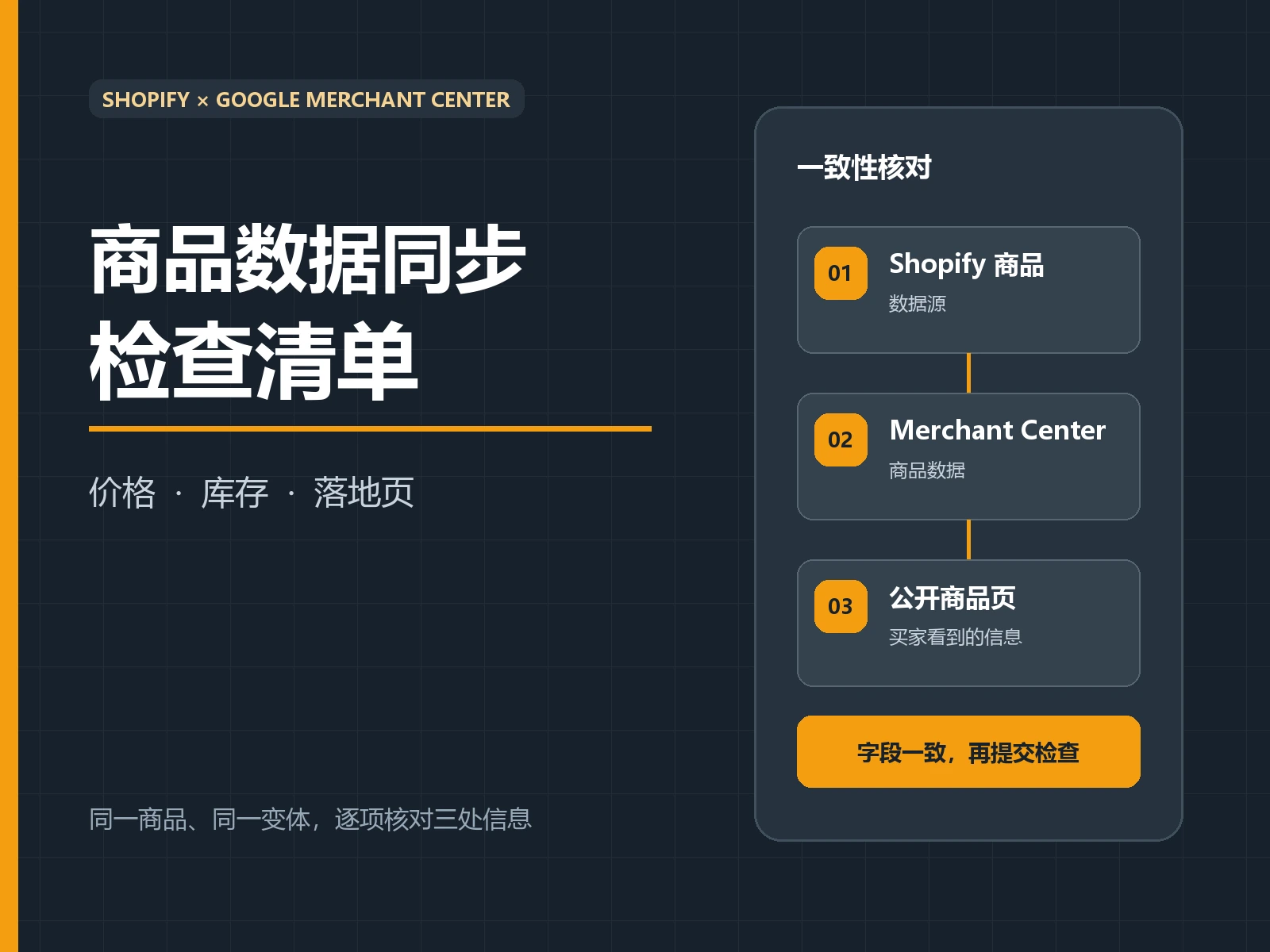
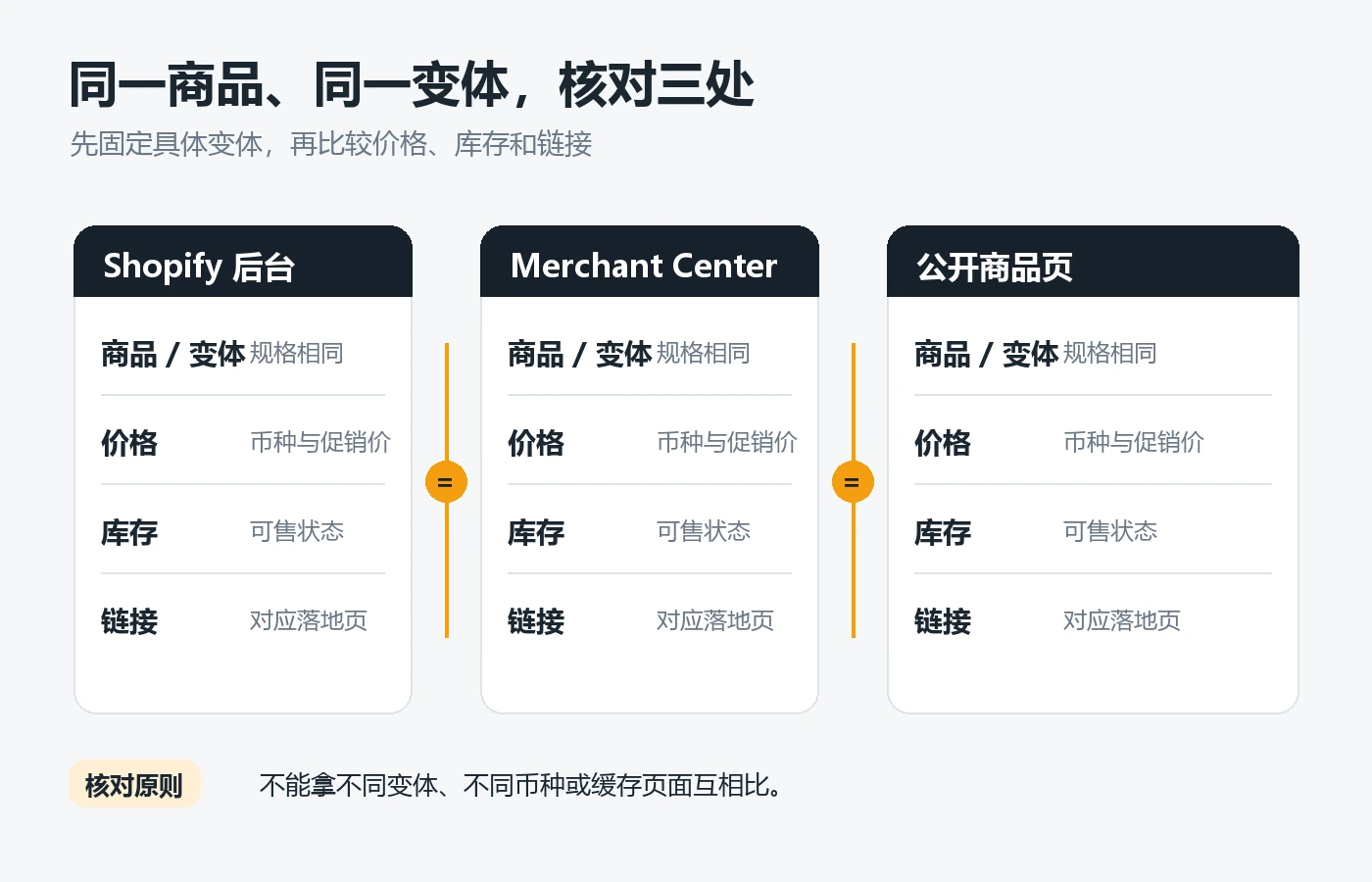
After the Shopify product is synchronized with Google Merchant Center, the price has been changed in the background, but the platform prompts that the price is inconsistent; the product page shows “in stock”, but the status in the shopping ad has not been updated. In this case, don’t submit the same product repeatedly. A more effective approach is to select a specific product and variant and check them one by one according to “Shopify backend data-Merchant Center product record-unlogged public product page”. As long as one of the three points points to a different currency, variant, price or inventory, first locate the section where the difference occurs, and then decide to change the product data, channel settings or landing page.
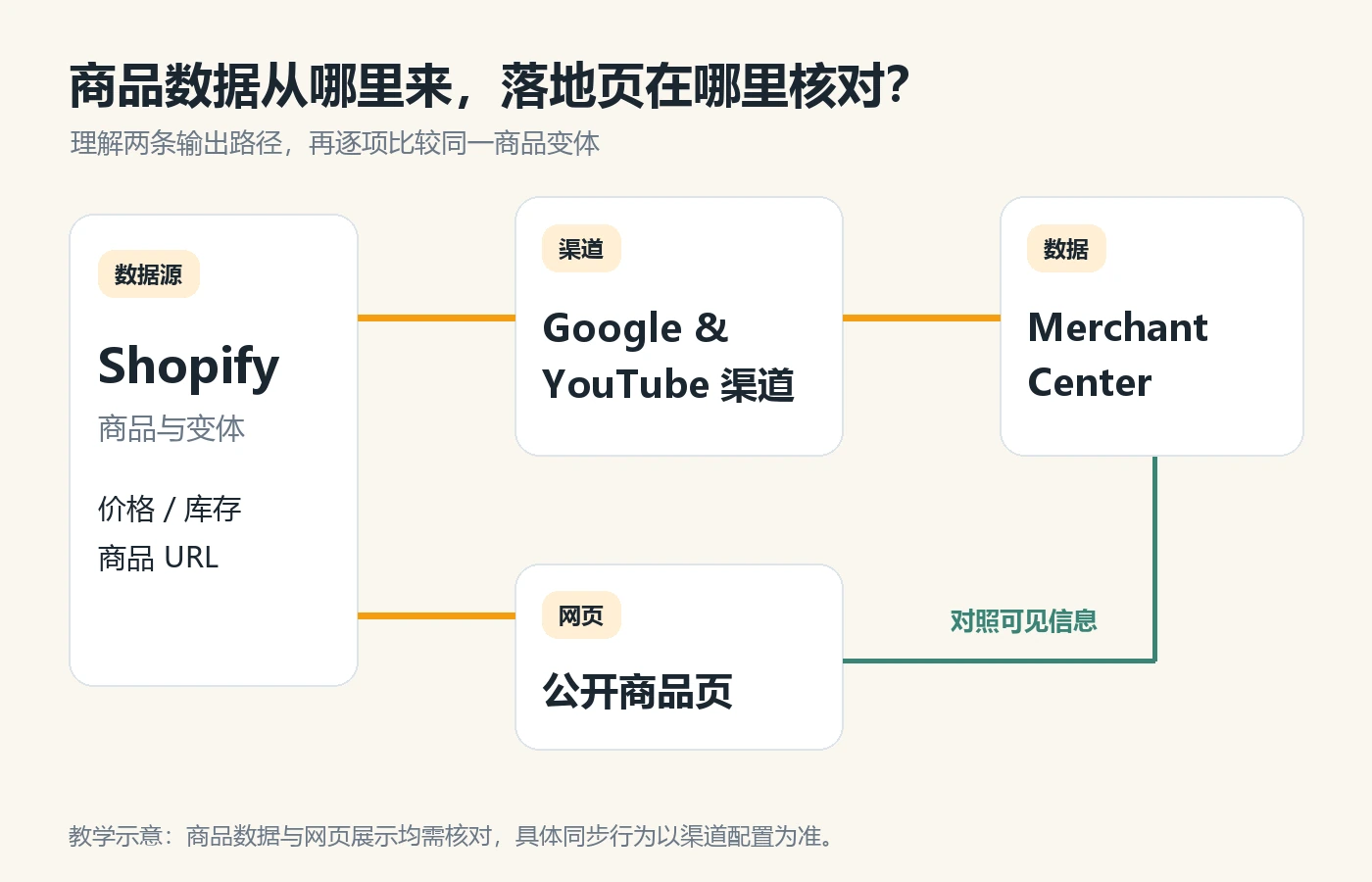
First, find out what steps the product data goes through.
Shopify channel sync does not mean all fields are automatically qualified
Shopify Google & YouTube Product Sync Instructions Point out that eligible online store products can be synced to Merchant Center via channels; merchants still need to check required product information and product status in the channel. During operation, first open the target product and record the product ID, variant name, target country and channel status. Then find the corresponding product in Merchant Center and make sure you are viewing the same model, the same variant and the same target region. Just by looking at the similar titles, it is easy to mistake different sizes or regional versions for the same record.
Fixed country, currency and access environment for one check
The same store may target multiple markets. Before checking, write down the target country, currency, product URL, variant and time, and then open the public page of the corresponding region in a non-logged-in window. This avoids mistaking a page in another currency, another size, or an old cache for the current commit record.
Create a three-point checklist using the same product
First select a product that is reporting an error, copy the product link in Merchant Center, and then return to Shopify to find the corresponding variant. The following table is a check action, not a general field value; the actual required fields should still be consulted Google Merchant Center Product Data Specifications . Don’t substitute old prices in screenshots for on-site inspections, and don’t put pages from different markets on the same line for comparison.
| Check items | Shopify backend | Merchant Center | Public product page and first search direction |
|---|---|---|---|
| Products and variations | Check product ID, color, size and SKU | Find the same product record and target region | Select the same variant first; if it is inconsistent, check the link parameters first |
| Prices and currencies | View selling prices, comparison prices, market pricing and promotion settings | View submission price and currency unit | Open the target region page; check visible prices and purchase process |
| Stock status | Check specific variant inventory and continue selling settings | Check availability and diagnostic status | Check whether the purchase button and out-of-stock copy are consistent |
| Product link | Check product release status and canonical URL | View the actual submitted link | The test is accessible without logging in, has no error jumps and points to the same model. |
| Pictures and Policies | Check the main product image, product information and related policy settings | View pictures, shipping and return diagnostics | Confirm that the picture display and purchase commitment are visible, and then check the applicable regional rules. |
The table is based on Shopify’s official product synchronization instructions and Google’s current product data specifications, and the verification date is September 28, 2026. “Check the direction first” in the table is a troubleshooting suggestion and is not equivalent to the platform’s automatic judgment result. Every time a line is solved, the modification time and recheck results are recorded; if the price, inventory, and template are changed at the same time, it will be difficult to determine which step took effect later.
Inconsistent prices: first find out which price it is
Separate regular prices, promotional prices and variant prices
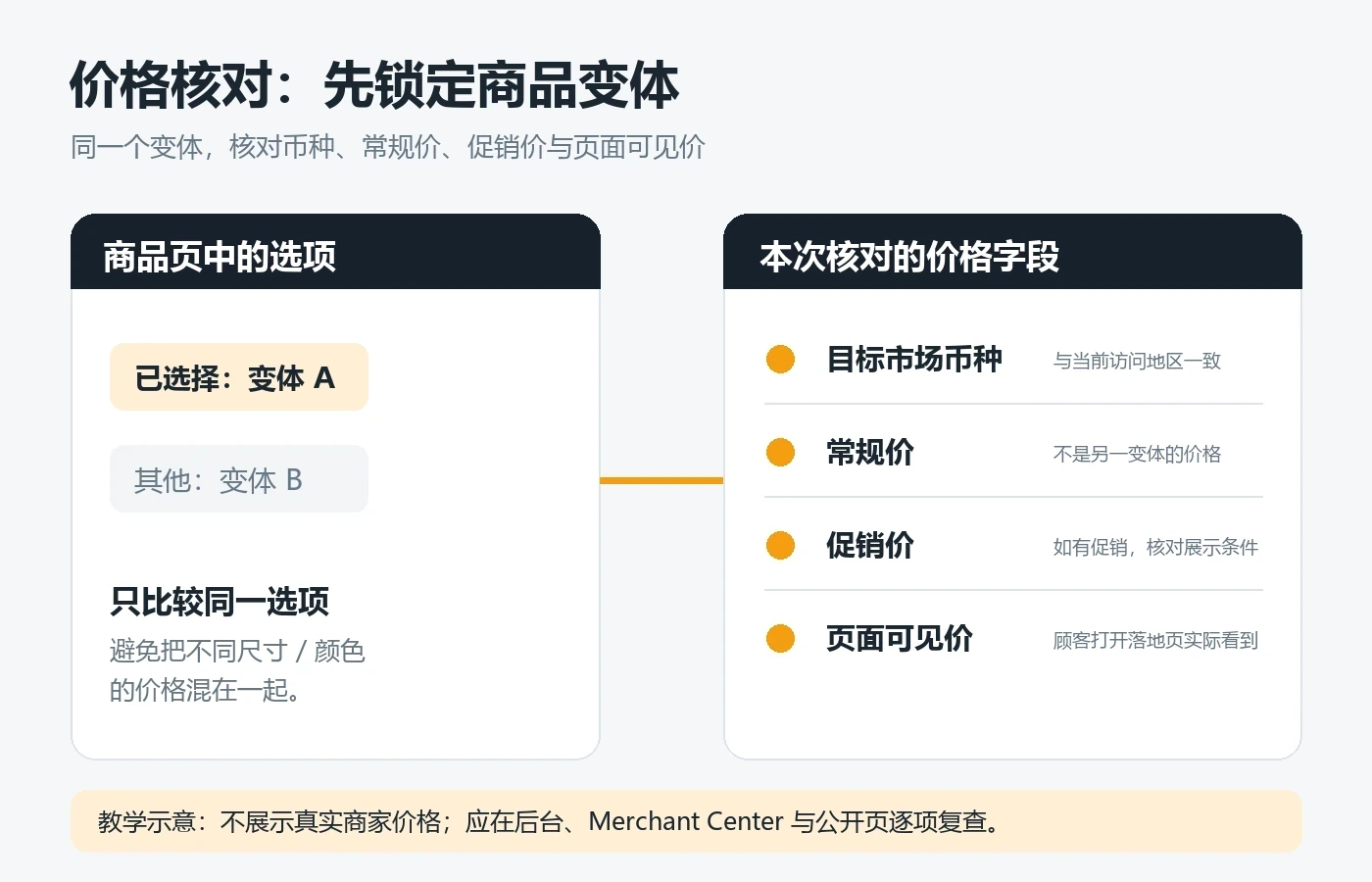
When a price error is reported, first copy the submit price and product link displayed in Merchant Center, and record the currency and corresponding variant. Go to Shopify to check the variant selling price, market-exclusive price, discount validity conditions, and event start and end time. Finally, select the same variant on the unlogged product page to see the price that users actually see and can purchase. If the page defaults to showing the first variation, but the data source submits a price for a different size, the problem may be with the variation link or the page’s default options, not just the background price.
Google’s Price mismatch troubleshooting instructions Merchants are required to pay attention to the correspondence between product data and landing page prices; page structured data may also participate in verification. So don’t just modify the feed numbers: also check that the page’s visible price, selected variations, and Product/Offer tags point to the same product status. When using automated exchange rates, regional pricing, or limited-time discounts, especially double-check with the target country and the same time window. Whether taxes and delivery fees are included in the displayed price should be judged according to the current policies of the country where the product is placed, and examples from other markets cannot be applied.
Inventory and landing page: confirm that customers can actually buy the same product
Inventory inconsistencies should be checked from the specific variant. The total products in the background show “in stock”, which does not mean that every color and size is in stock; the total inventory label on the page may also be inconsistent with the purchase button of the selected variant. Check Shopify inventory tracking, out-of-stock carryover settings, channel availability, and comparison with Merchant Center availability and inventory alerts visible on the page. If the public page still allows adding to the shopping cart, you must also confirm whether the purchase can be completed during the checkout stage. Do not directly write “available for pre-order” and “out of stock but still available for ordering” as in stock. The actual submitted value should follow Google’s definition of the corresponding status.
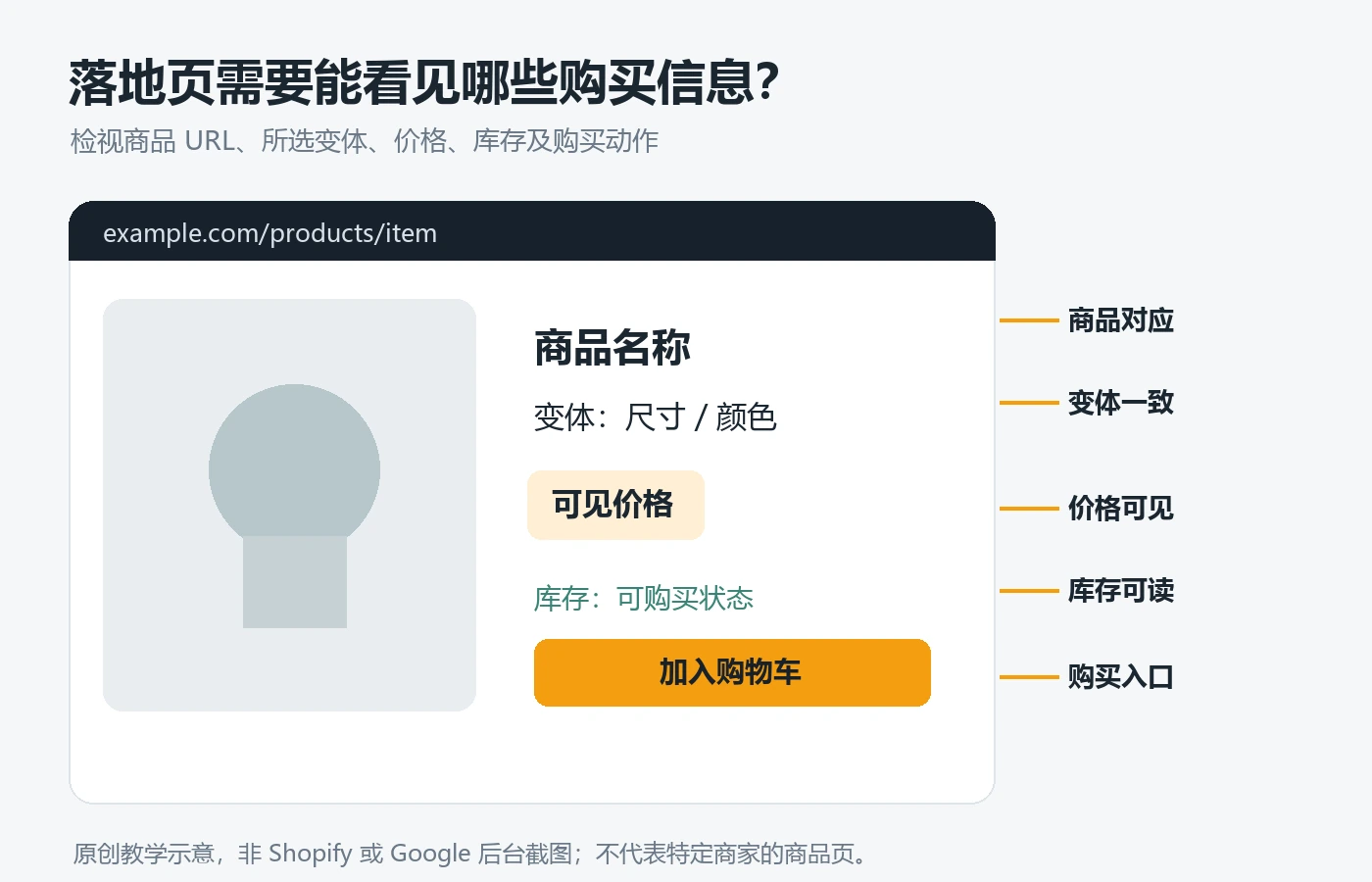
The landing page should also be able to be opened normally without logging in. The main product image, product name, price, variant selection and purchase entrance should be clearly visible to users. If the link jumps to a collection page, a page in another region, or a product that has been removed from the shelves, the user may not be able to see the same product even if the data source attributes appear to be complete. Check the redirection, language switching and region selection logic; after changing the URL, return to Merchant Center to check the final landing address. For stores with a lot of template customization, you can also check whether the structured data of the product page is consistent with the visible content. Google’s guide to structured data for merchant listings Scenarios for Product/Offer tags are explained, but adding the tag itself does not guarantee exposure or review. It is necessary to continuously check the product page information structure and search visibility, please refer to SEO optimization services scope of application.
10 Checklists to Copy Before Submitting
- Determine the unique product ID, SKU and error variant, don’t mix it with another product.
- Note the target country, currency, diagnostic text, and check time in Merchant Center.
- Confirm that Shopify products are open to Google & YouTube channels and check channel status.
- Compare the product title, main product image, product link and selected variations to see if they point to the same product.
- Compare backend regular prices, promotional prices, regional prices, and Merchant Center submitted prices.
- Use a non-logged-in window to open the target market product page and check the visible prices and purchasing process.
- Compare that variant’s inventory, out-of-stock page alerts, and Merchant Center inventory status.
- Check whether the link jumps to the wrong language, wrong region, collection page or removed page.
- Check Product/Offer tags for consistency with public content and double-check shipping return information when needed.
- Modify only the identified issues at a time, record the time, and review the diagnosis and disclosure pages again.
When should you change the product page, not just the product data?
If the Merchant Center and Shopify backend values are consistent, but the public product page displays an old price, selects another variation by default, or the mobile purchase button obscures key information, then simply changing the submission data may temporarily hide the problem. Product pages are part of the actual purchase process: prices, inventory, images, variations, and delivery promises should be understandable to customers and consistent with the data captured by the platform. First confirm whether the problem comes from cache, theme templates, third-party applications, region switching or structured data, and then determine the scope of changes.
On the other hand, if the public page is correct but the channel record lacks attributes, you should first go back to the product information and synchronization configuration. Before making a decision, write down clearly “which part is correct, which part is wrong, and which source shall prevail.” In this way, when collaborating with technical personnel, “repair data mapping” will not be mistakenly written as “redo the entire page”, and it will also facilitate review after release. If you need to systematically organize product information or modify product pages, you can view them separately. Product launch and launch et Shopify e-commerce website construction services, and evaluate the scope of implementation based on actual problems.
Conclusion
The most reliable place to start when dealing with pricing, inventory, or landing page issues with Shopify product sync Google Merchant Center is Fixed same product, same variant, same target market , and then compare the Shopify admin, Merchant Center records, and public product pages one by one. First distinguish between “not synchronized”, “synchronized but data is inconsistent” and “the page itself displays an error” before deciding to modify the channel, product attributes or page template. The diagnostic information and inspection time are retained each time, and the three data are re-checked after modification; any single repair cannot replace the final review status and public page inspection.